1. Open the Notifications Bell 0:00
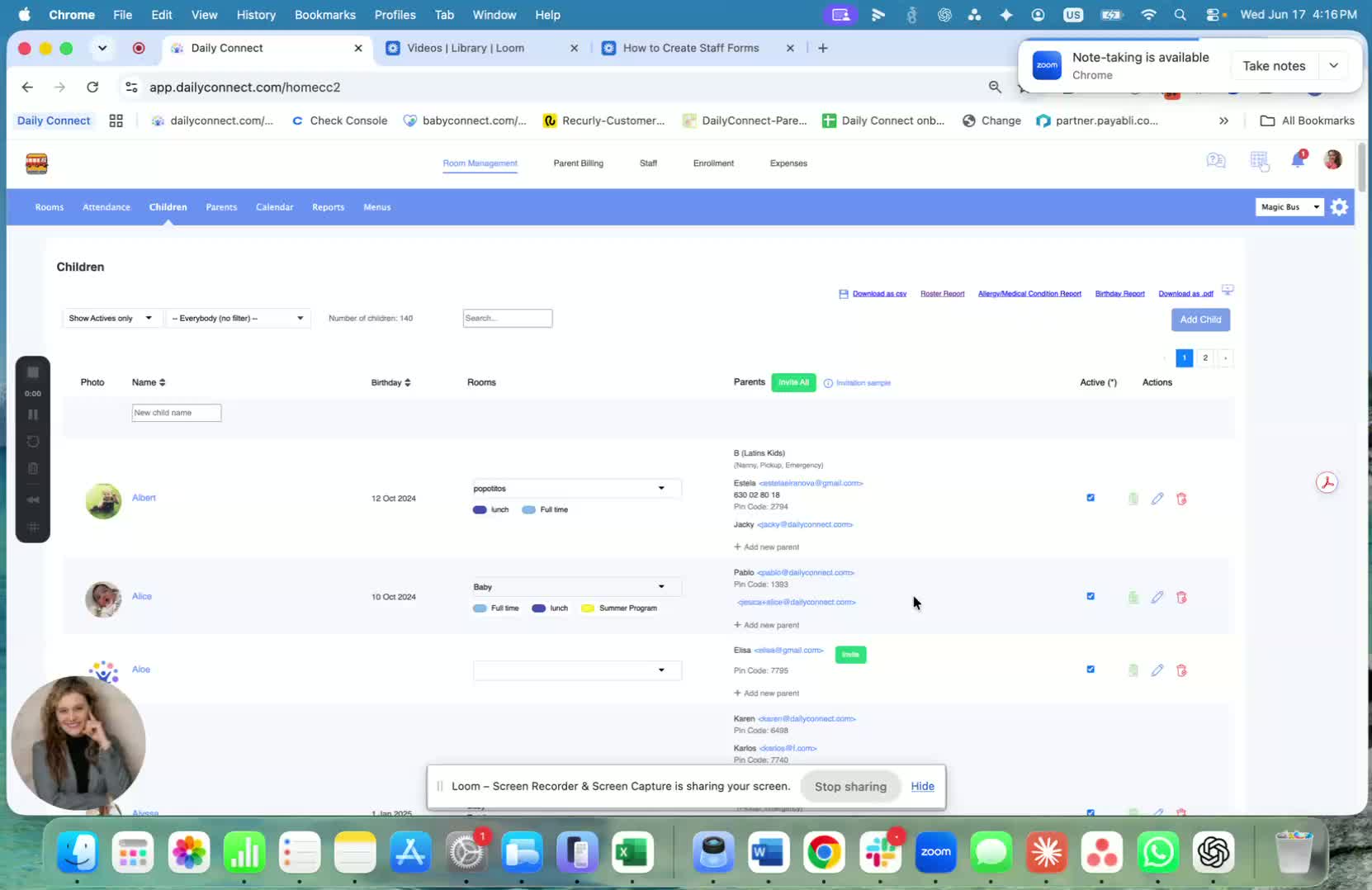
In the Administrator Console, look for the bell icon.
The bell shows when you have new notifications (for example, 1 notification).
Click the bell to view your notifications.
2. Review Your Notifications 0:16
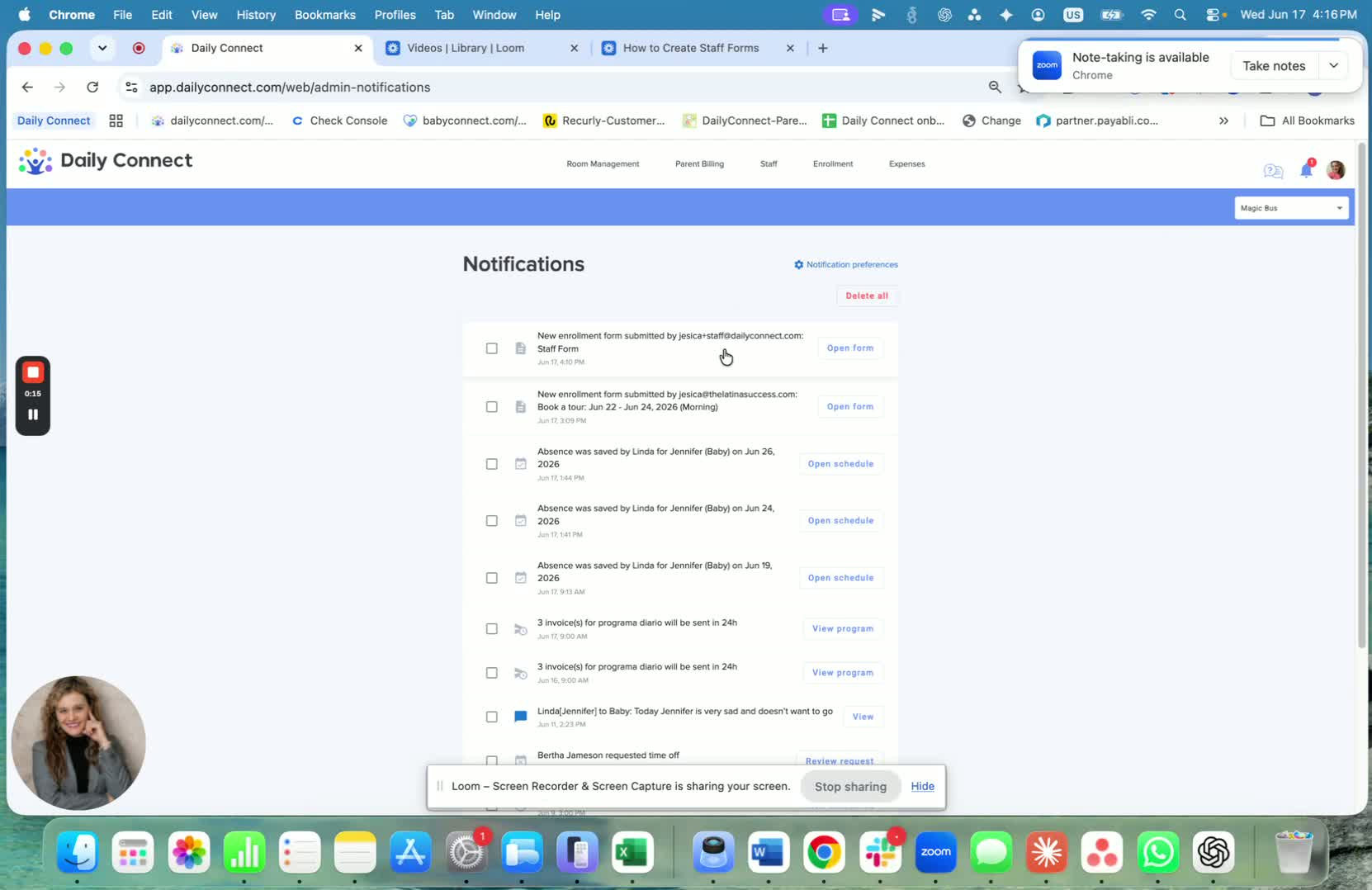
After opening the bell, you can see the all notifications you have received.
Use this area to quickly check recent alerts and updates.
3. Open Notification Preferences 0:16
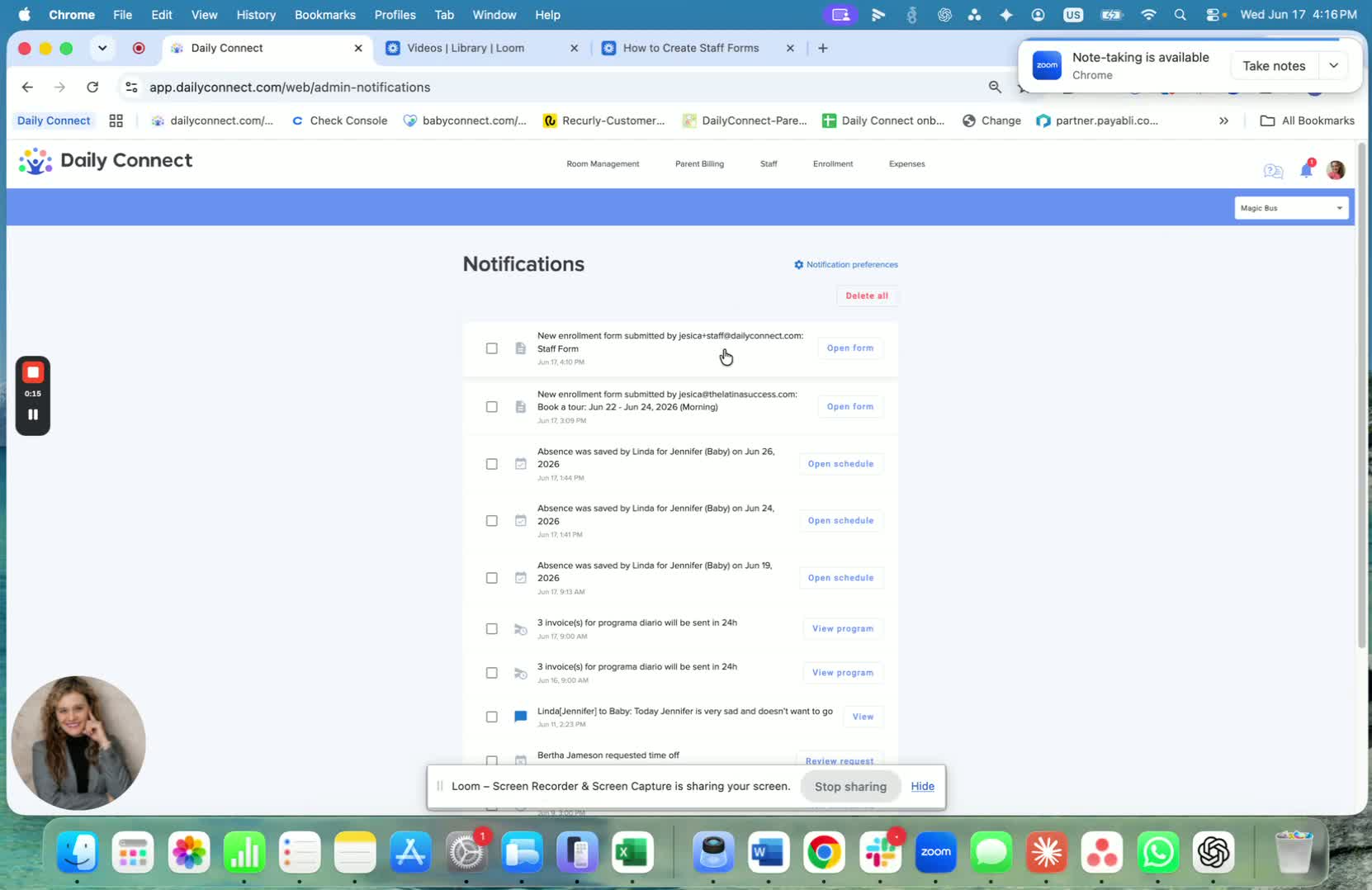
Click Notification Preference to manage what notifications you receive.
This lets you control which alerts are shown to you.
4. Choose Which Notifications You Want 0:29
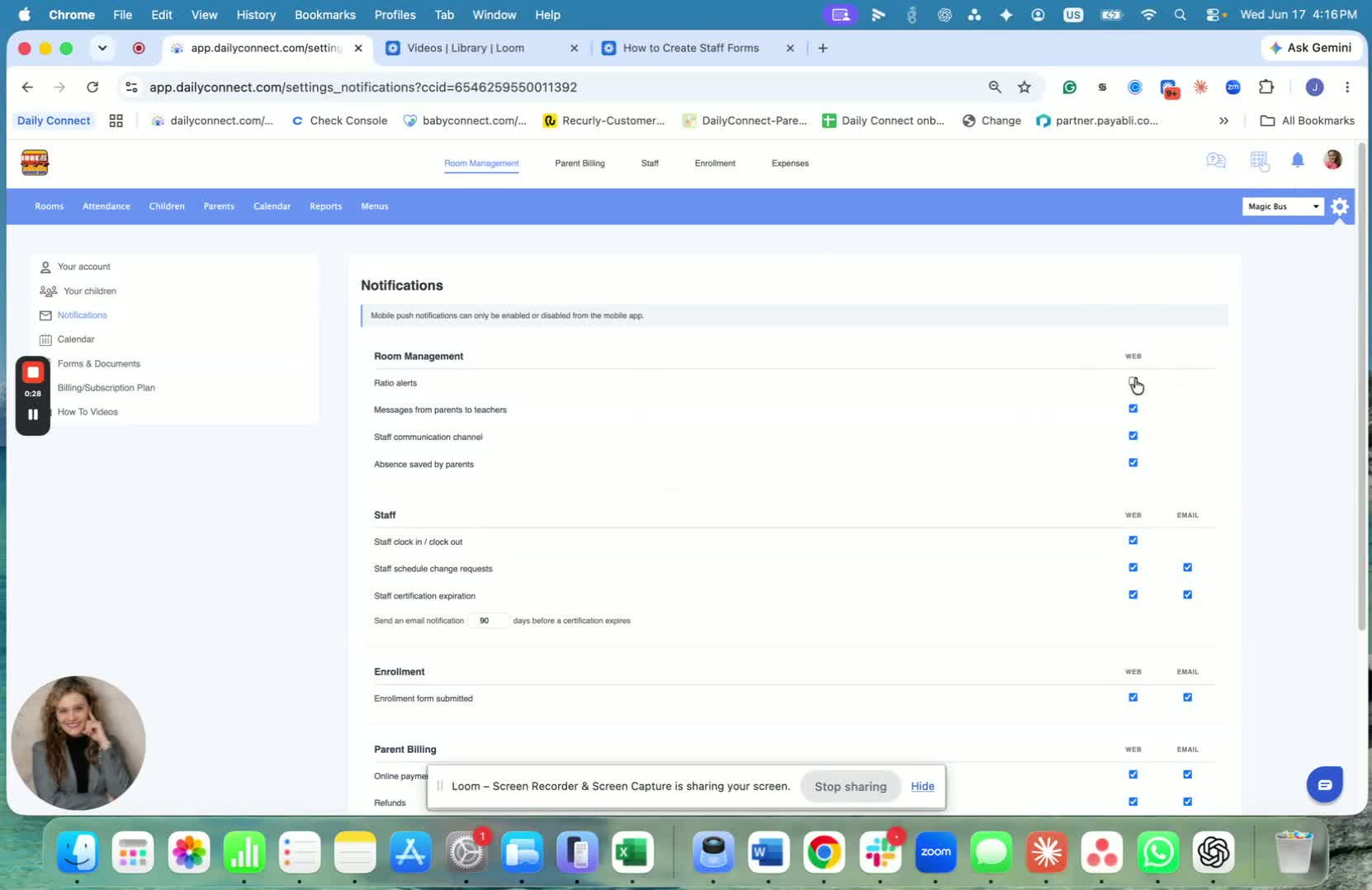
Select the notification types you want to receive.
For example, you may want to avoid staff communication channel alerts.
You can choose to receive certain notifications through the web and through email only.
5. Understand App vs. Web/Email Notifications 0:43
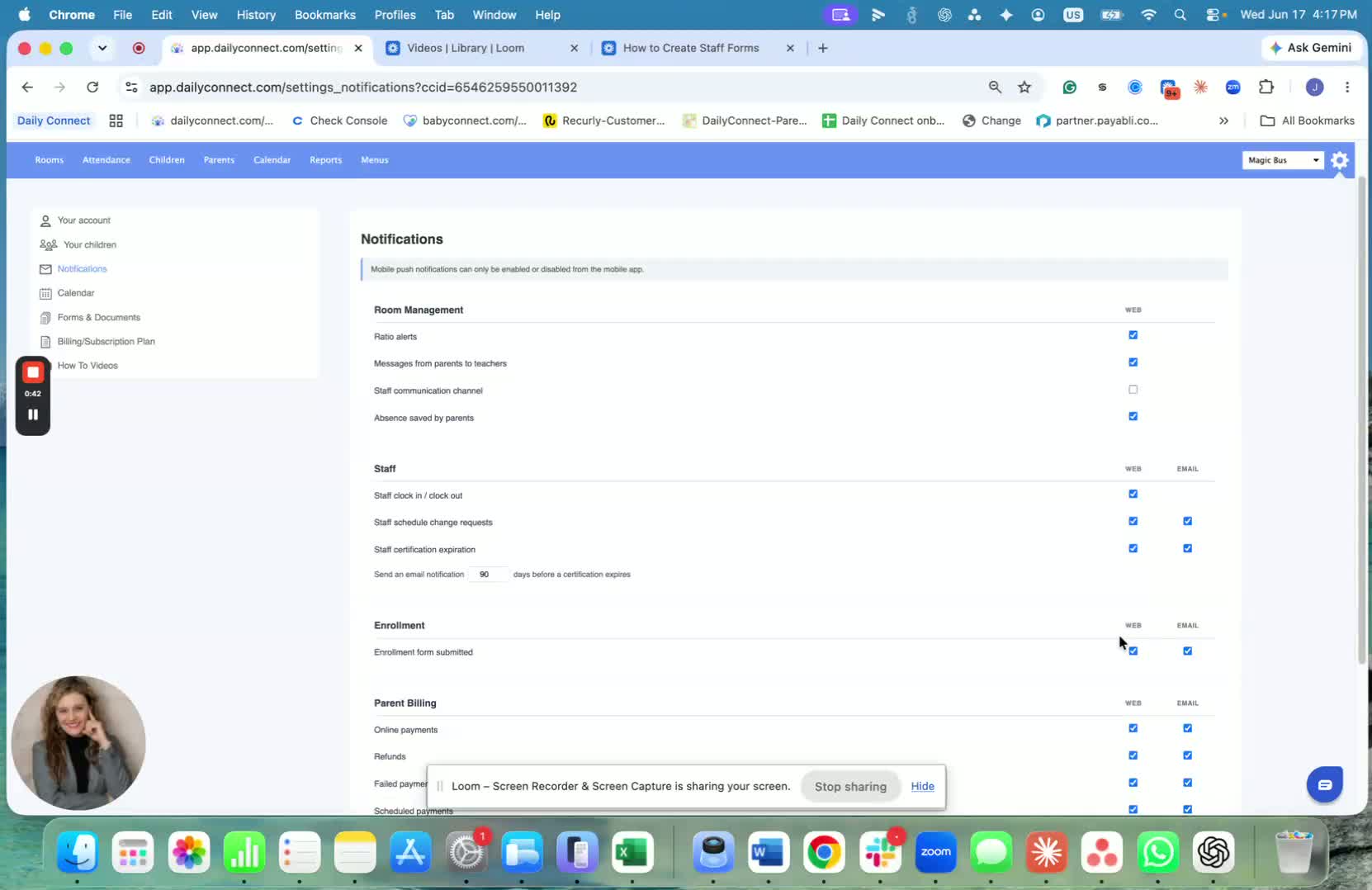
App notifications are still handled through the app on your phone.
The settings shown here are for web notifications and any additional email notifications.
Use this section to customize desktop/web and email alerts without changing phone app settings.
If you have any questions or need assistance, please contact us via email at support@dailyconnect.com.
Was this article helpful?
That’s Great!
Thank you for your feedback
Sorry! We couldn't be helpful
Thank you for your feedback
Feedback sent
We appreciate your effort and will try to fix the article