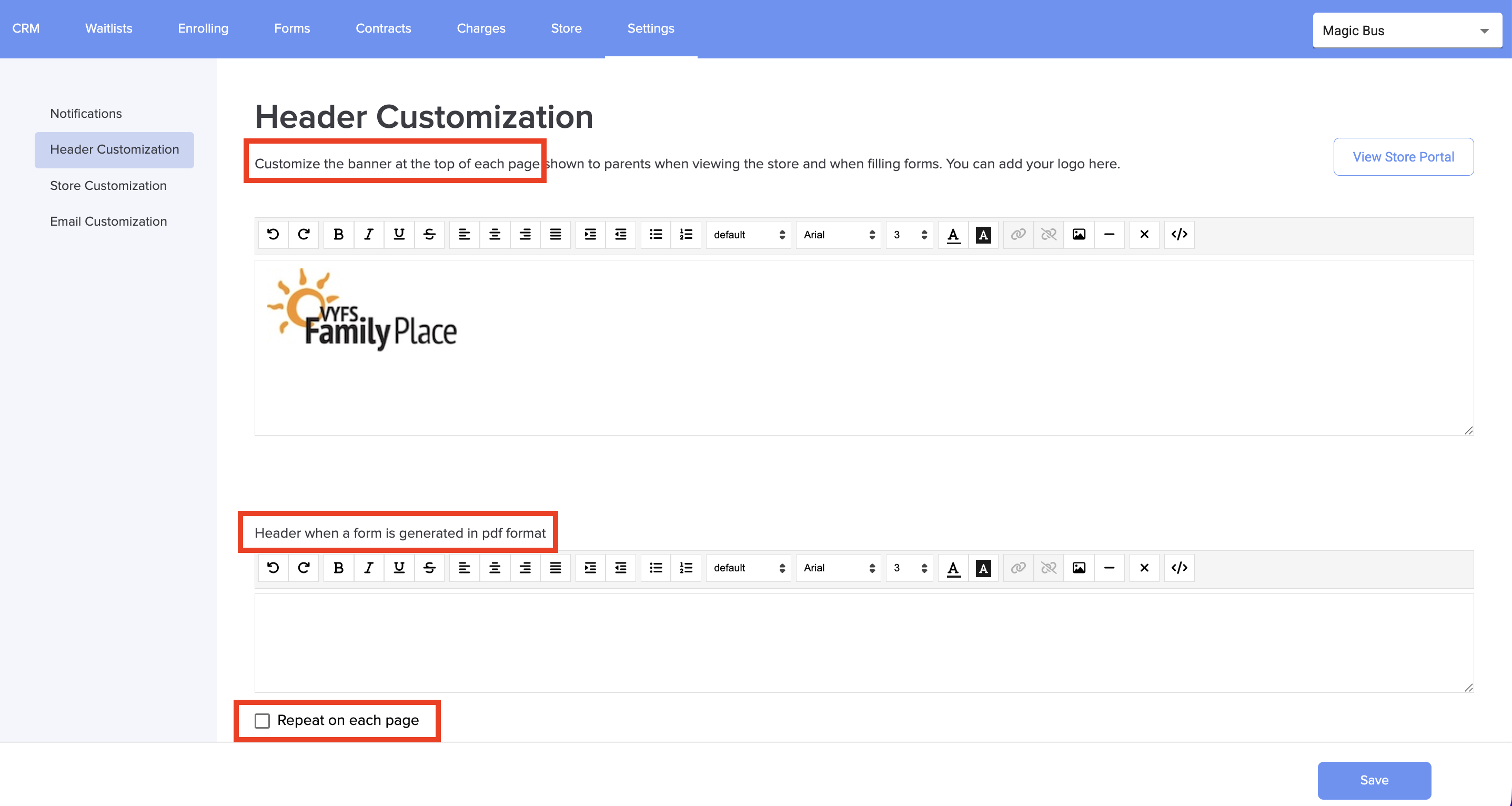
You can set different customization options for the PDF and web versions of the form, giving you full control over how each format appears. Additionally, you can choose to repeat the header on every page or display the header only on the first page.
1. Log in to your admin account on the Daily Connect website.
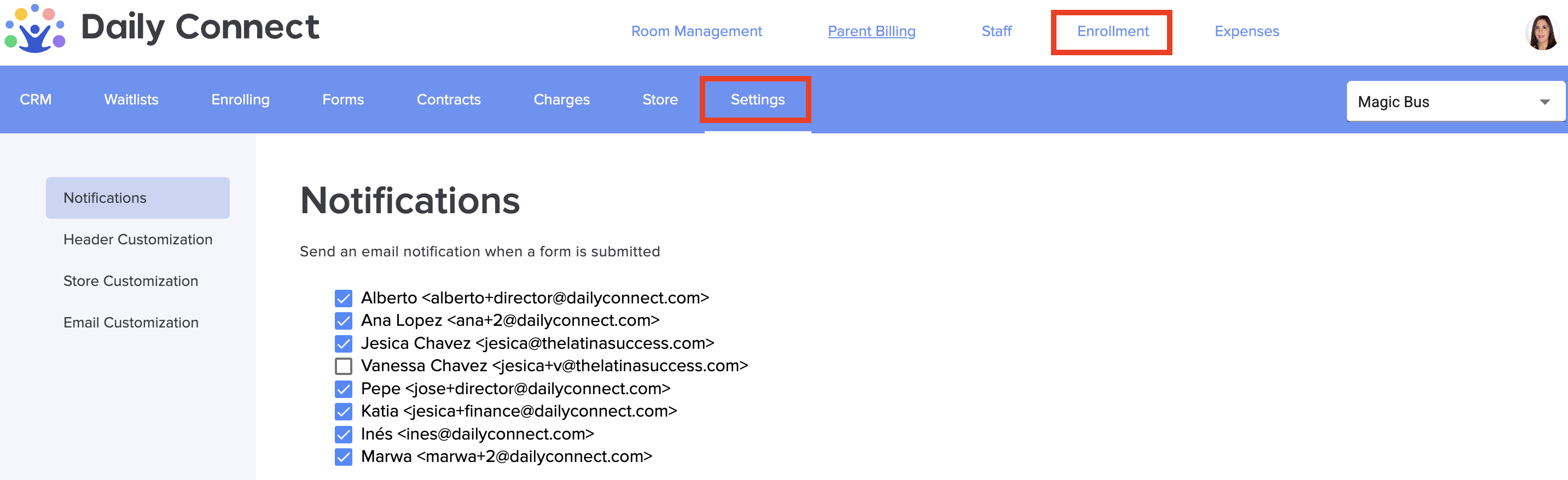
2. Go to Enrollment > Settings:
3. Go to Header customization. Here you can customize the appearance of each page where your forms will appear, and also add a logo, including if the form is a PDF. The logo can be repeated on each page if you wish. Click Save
Was this article helpful?
That’s Great!
Thank you for your feedback
Sorry! We couldn't be helpful
Thank you for your feedback
Feedback sent
We appreciate your effort and will try to fix the article