You can now split the cost of Store Products into up to three payment installments, making it easier for families to manage larger purchases over time.
The second and third scheduled payments are not applied to a parent's account balance until their due date, so families always have a clear picture of what they currently owe. On top of that, a courtesy reminder email is automatically sent two days before each charge — keeping families informed and eliminating any unexpected payment surprises.
To get started, log in from the web app, go to the enrollment tab, and then store.
1. Open the product you want to edit, or when creating a new product, this can be done from the "Pricing and Fees" Section
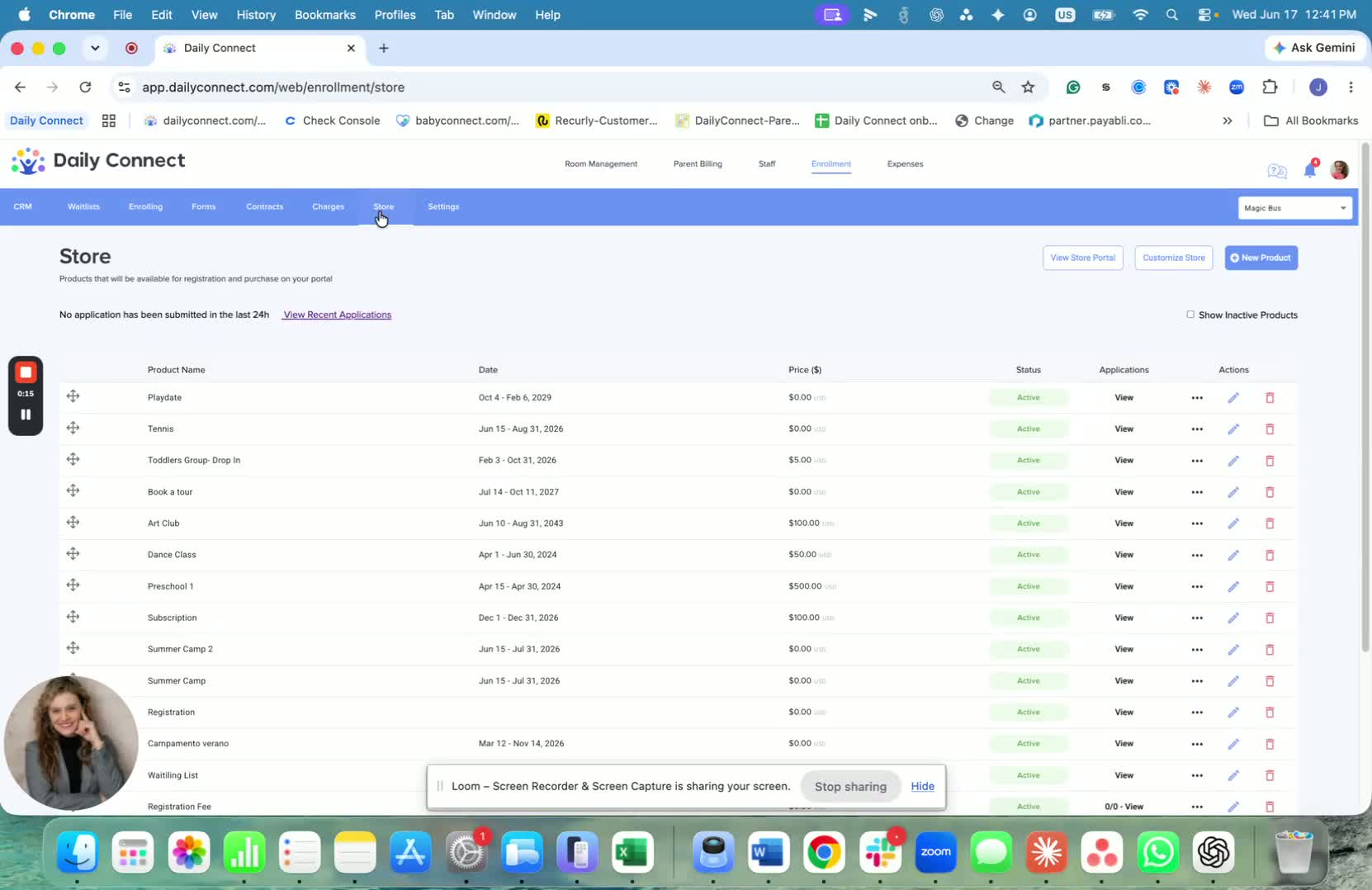
This example uses an existing product as the starting point.Go to the product already created in your store.
tor editing so you can change the pricing settings.
2. Enter the total price and choose installment payments 0:28
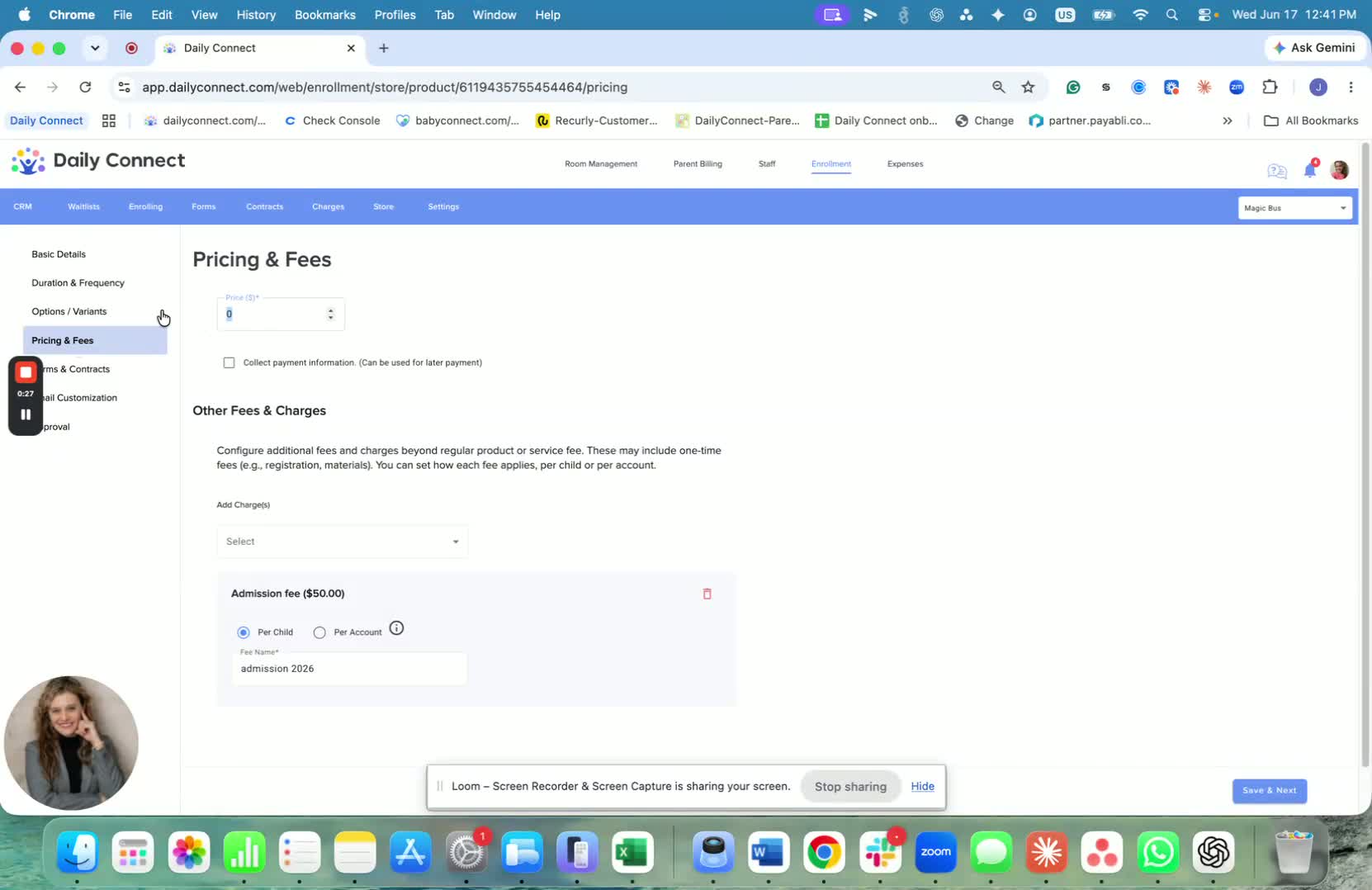
In the pricing section, enter the full price of the product.
Example shown: 400.
Then enable installment payments for the product.
3. Set the first payment amount 0:40
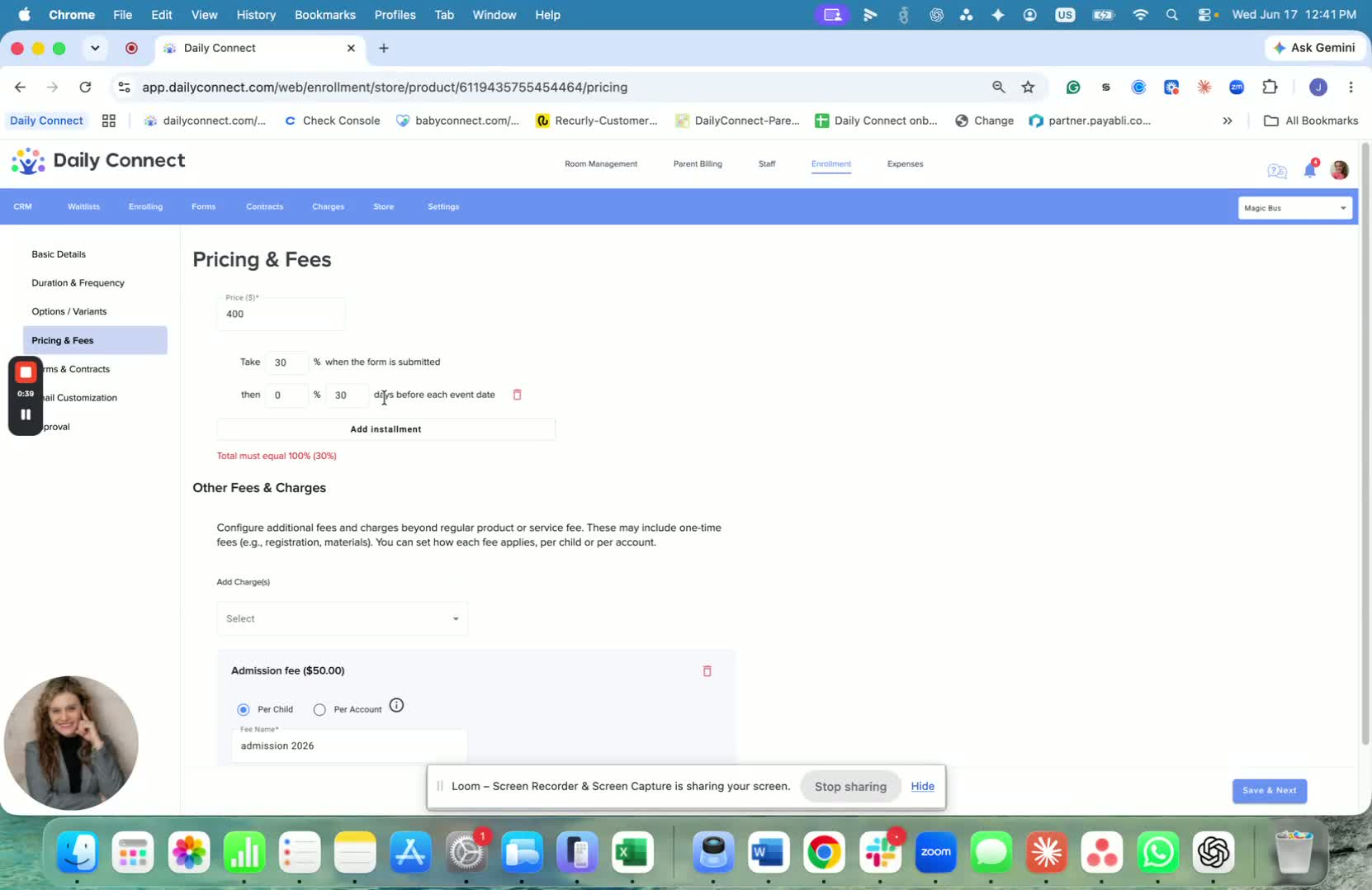
Choose how much to collect now as the first installment.
Example shown: 30% upfront.
This is the initial payment when the customer enrolls.
4. Configure the next installment(s) before the event or session 0:40
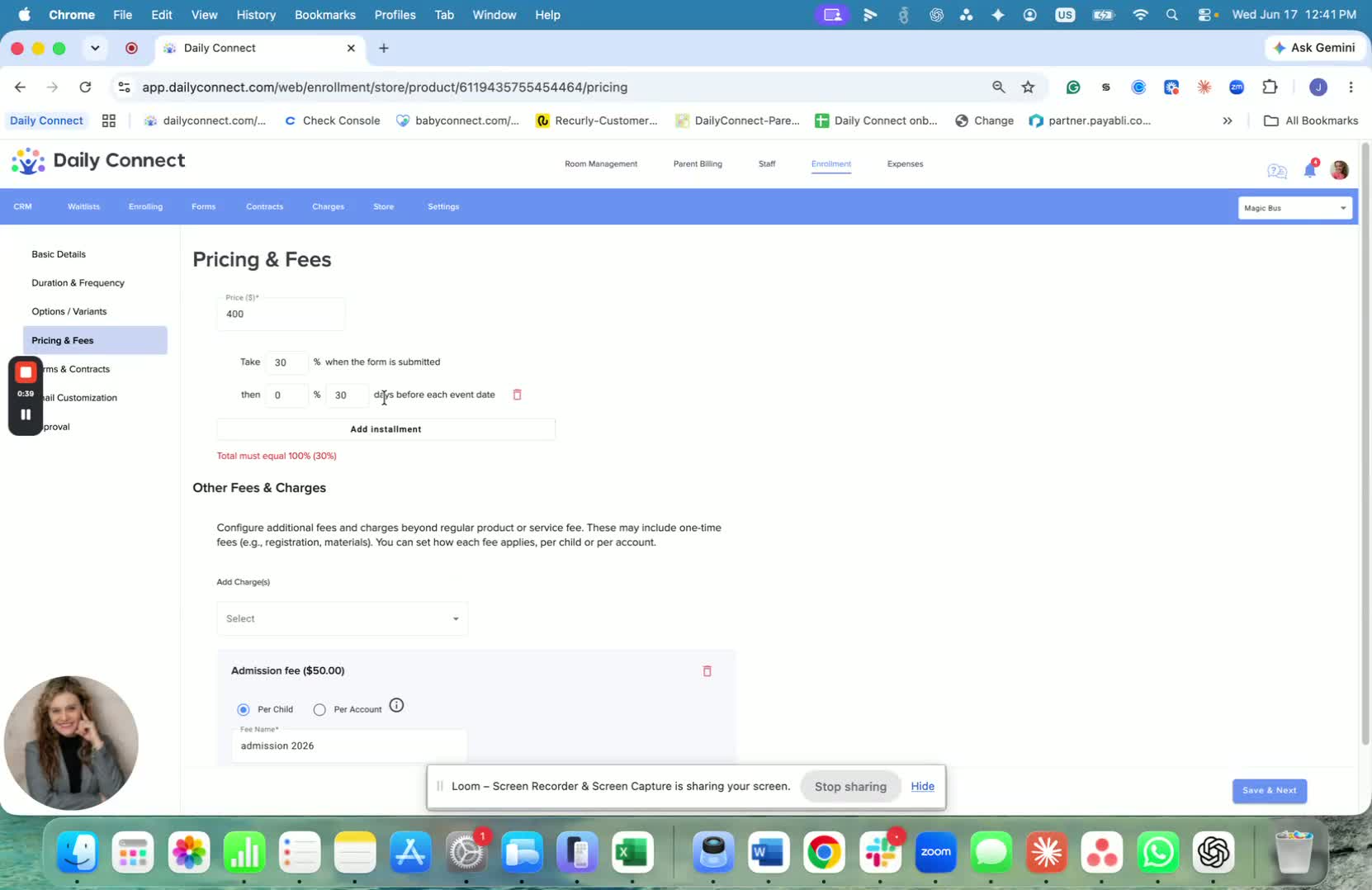
Set the next payment to be collected 10 days before the next event/session.
Example shown: 35% due before the next session.
If the program has multiple sessions, each installment can be tied to the relevant session date.
5. Apply the remaining installment to the following session 1:03
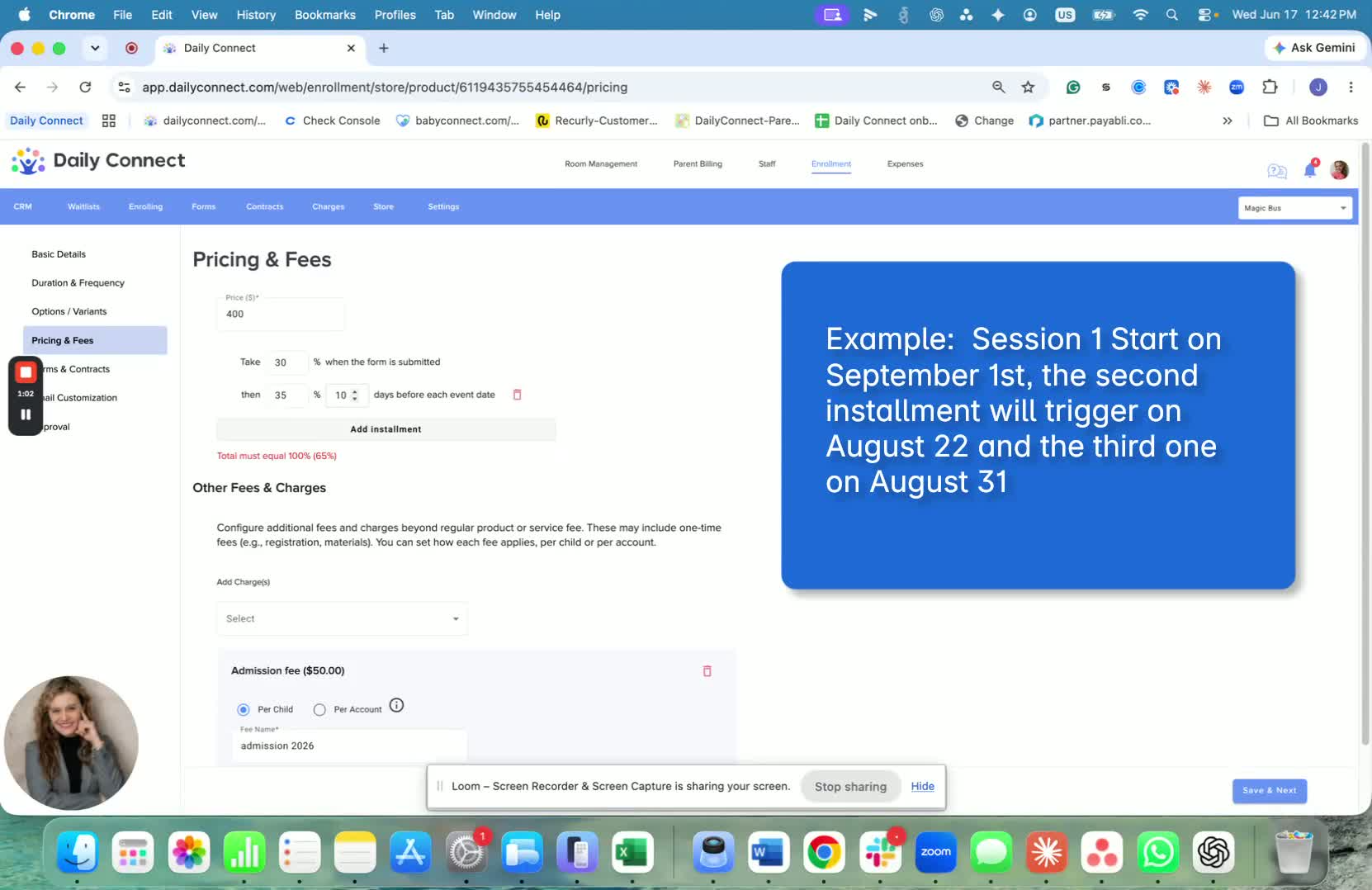
If the customer is enrolled in multiple sessions, the payment schedule can continue across sessions.
Example explained:
30% is paid in the first installment.
35% is paid 10 days before the first session.
35% is paid 1 day before the first session.
Example: If a parent enrolls in 3 sessions, the installment schedule applies individually to each session.
Say each session costs $400, and the parent enrolls in all three. With a first payment of $360, the remaining balance is split into two installments — each charged automatically based on the session start date. If the first session begins on September 1st, the charges would be:
- $140 charged 10 days before (August 22nd)
- $140 charged 1 day before (August 31st)
The same schedule then repeats for the second and third sessions based on their respective start dates.
6. Customize the timing to fit your program 1:32
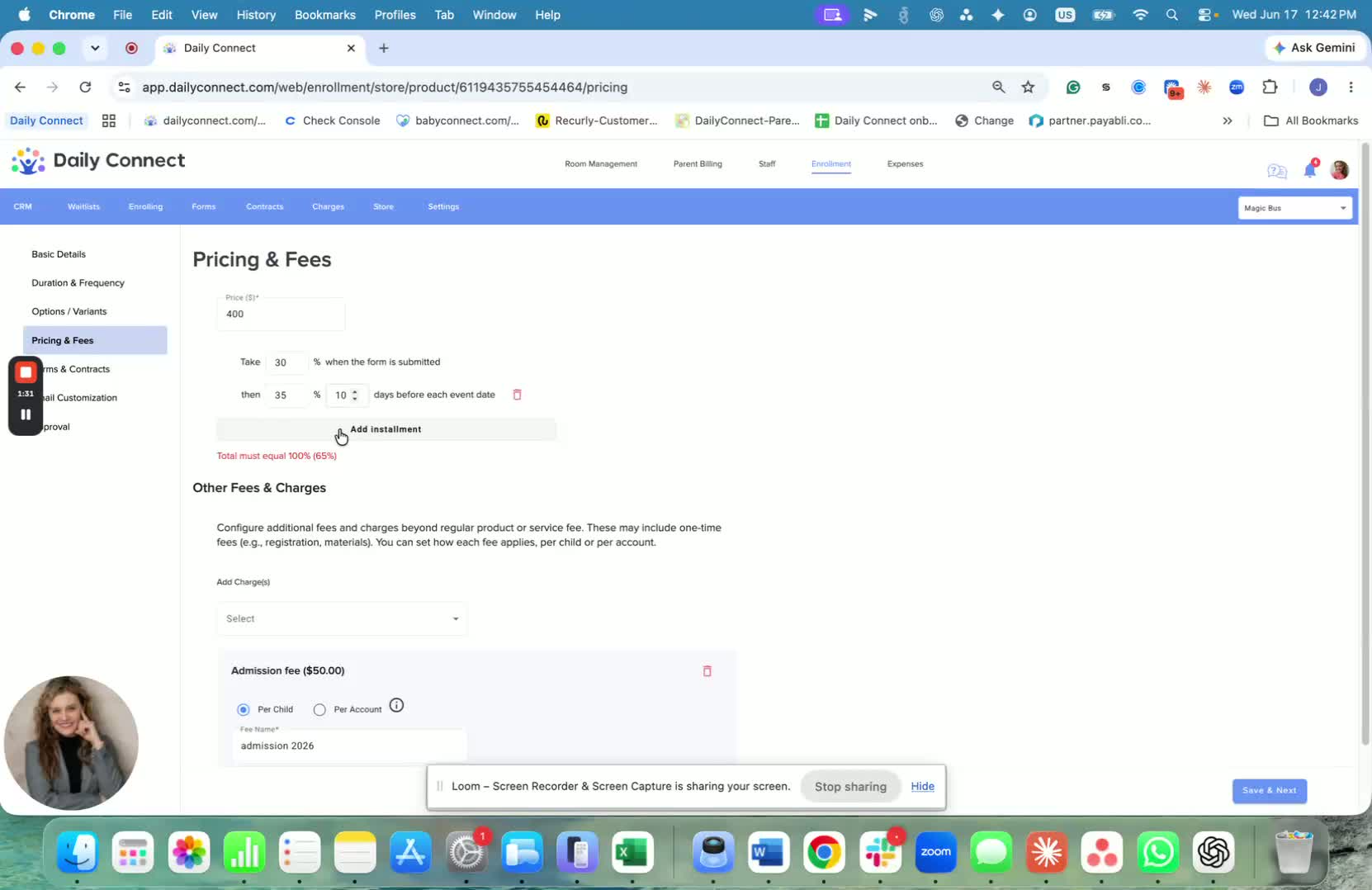
You can adjust the installment timing based on your needs.
Example shown: the last payment can be taken one day before the event instead of 10 days before.
The schedule is flexible, so you can set it up to match your program structure.
7. Keep in mind the installment limit 1:46
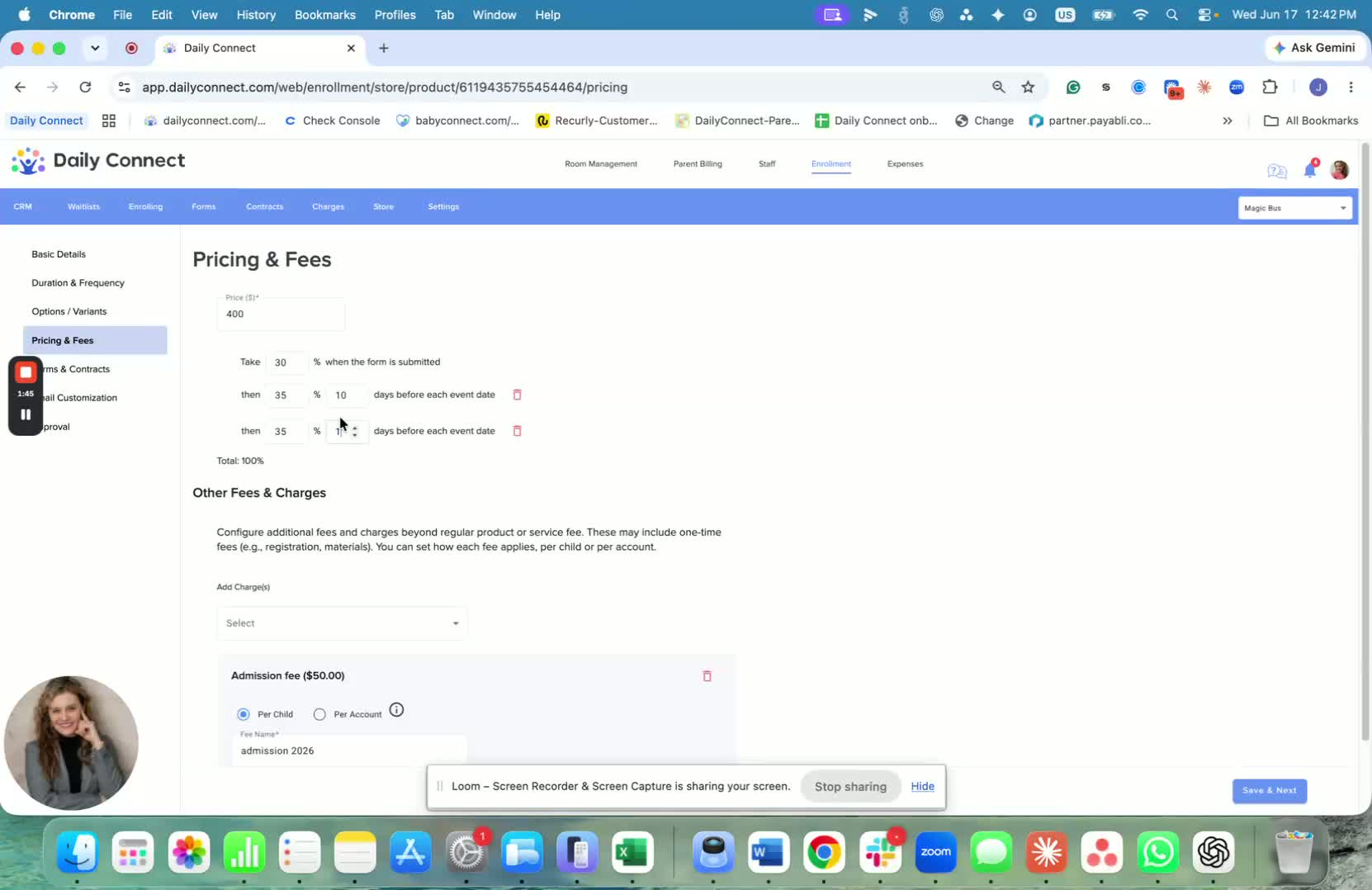
The store currently supports up to 3 installments.
If you only need 2 installments, you can configure just 2.
Finish by saving your changes and using the setup that best fits your offering.
Link to Loom
https://loom.com/share/134c909ec8be4273bdd9a6c0a26fe5d3
If you have any questions or need assistance, please contact us via email at support@dailyconnect.com.
Was this article helpful?
That’s Great!
Thank you for your feedback
Sorry! We couldn't be helpful
Thank you for your feedback
Feedback sent
We appreciate your effort and will try to fix the article