Every program has its own details to track. A summer camp may need a meeting point, a field trip list, and a lunch option. An after-school program may need a pickup location and a homework policy. With custom fields, each template gets its own set of fields, and each kind of product records exactly what it needs.
Learn how to do it :
Set up custom fields on a template
1. Log in to your admin account.
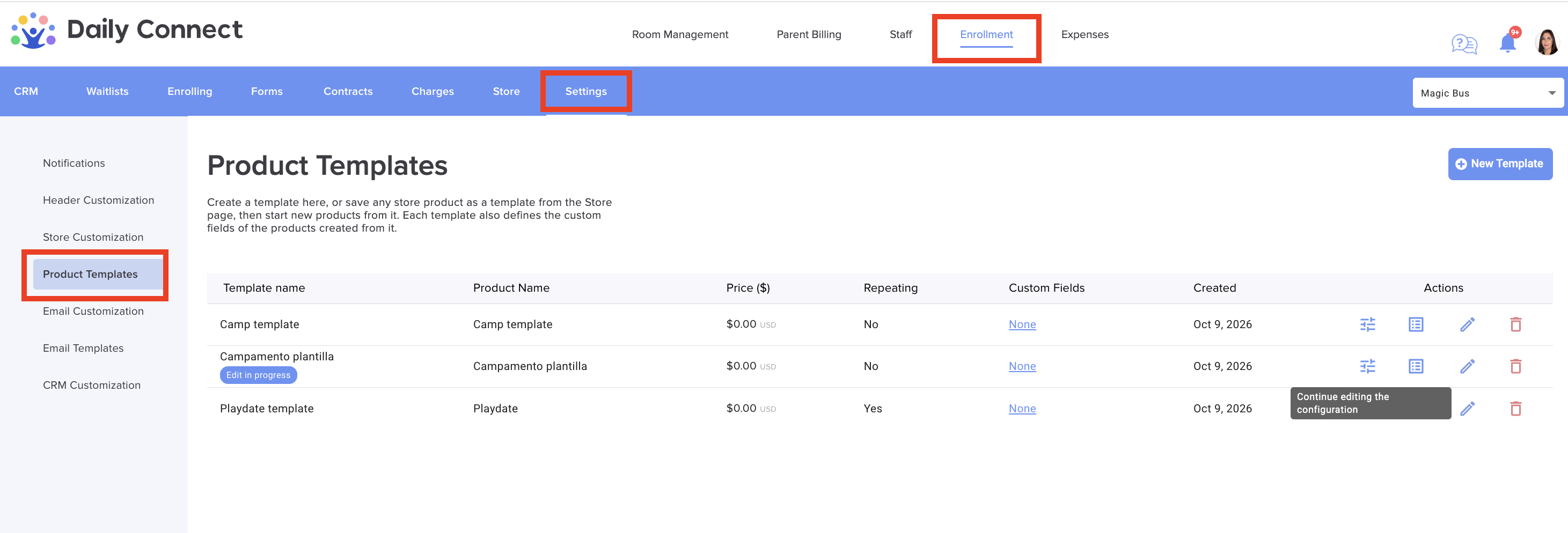
2. Go to Enrollment > Settings > Product Templates.
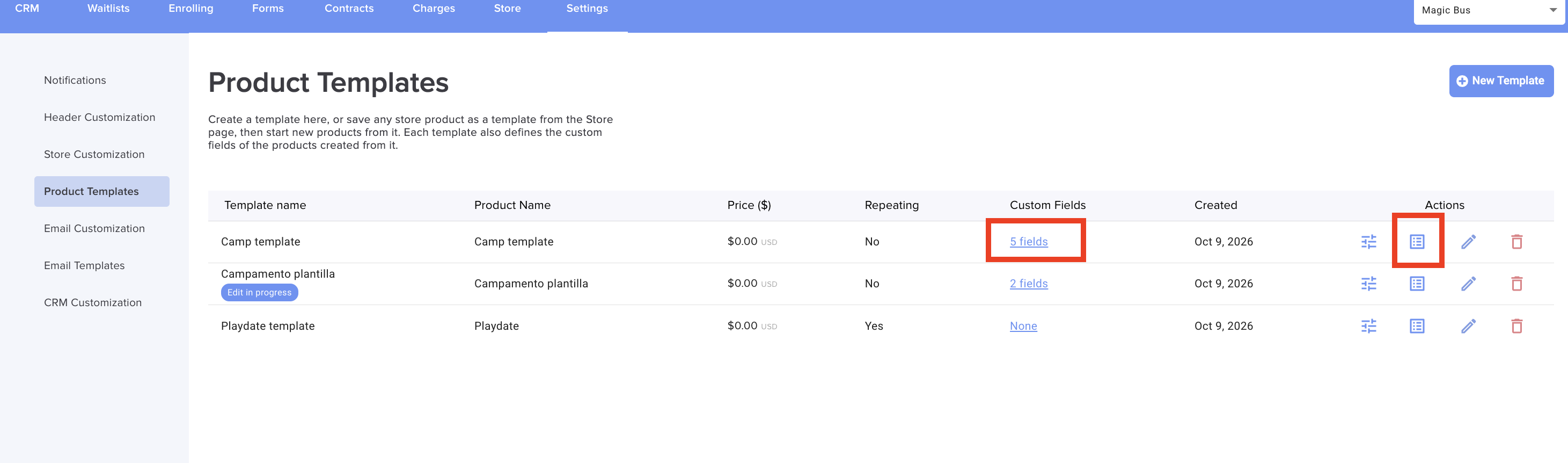
Each template shows how many custom fields it has.
3. Click Edit custom fields in a template's menu, or click its field count:
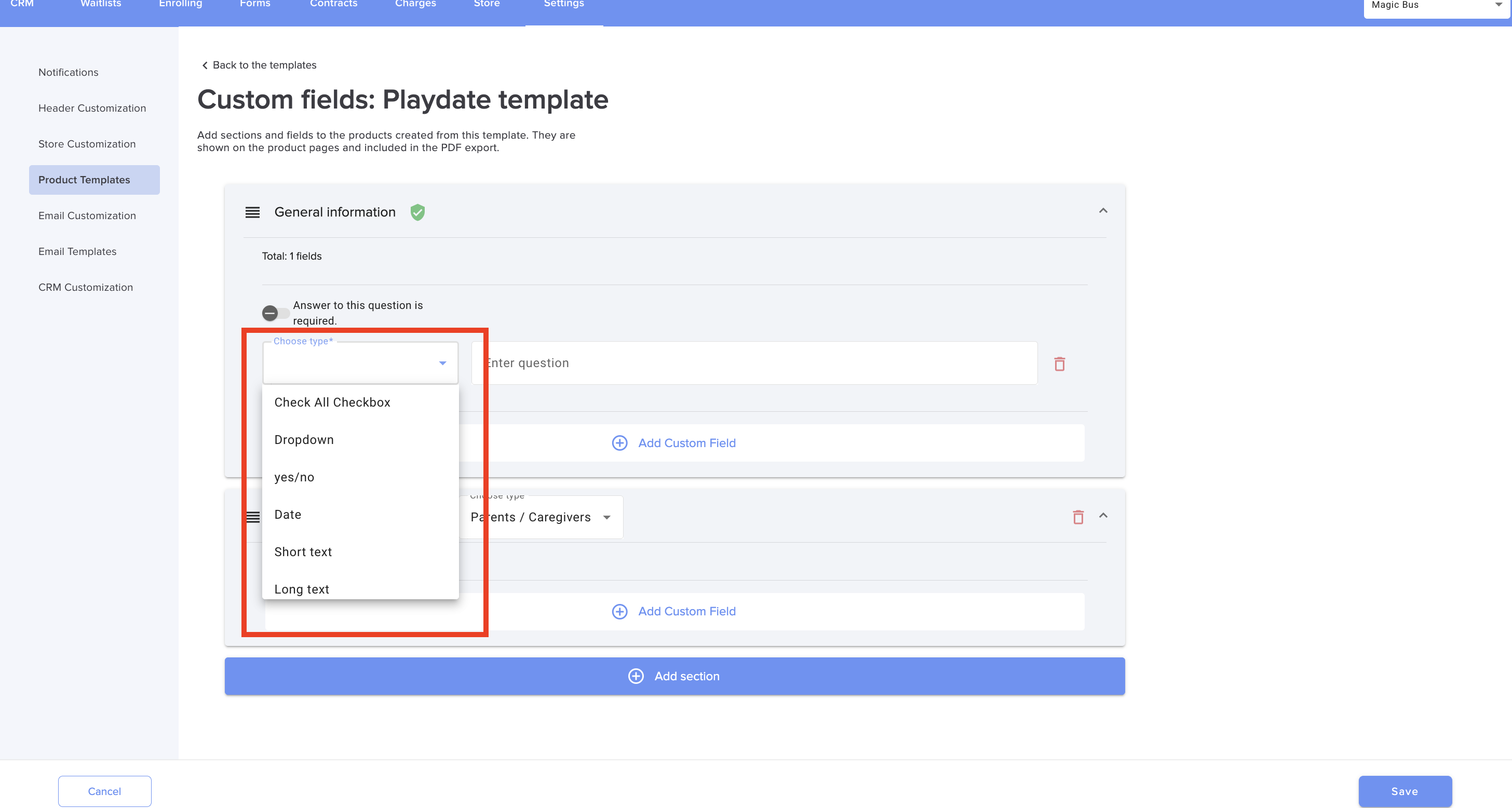
4. Add fields, and group them into sections if you like, as you already do for children and staff.Available field types include:
• text
• multiple choice
• Yes/No
• date
• phone number
• address
Fill in the fields on a product
When you create a product from a template, it gets the template's custom fields:
• General fields (not in a named section) appear on the product's Product Details page, below the built-in fields.
• Each named section gets its own page in the product's left menu. For example, a "Logistics" section becomes a Logistics page.
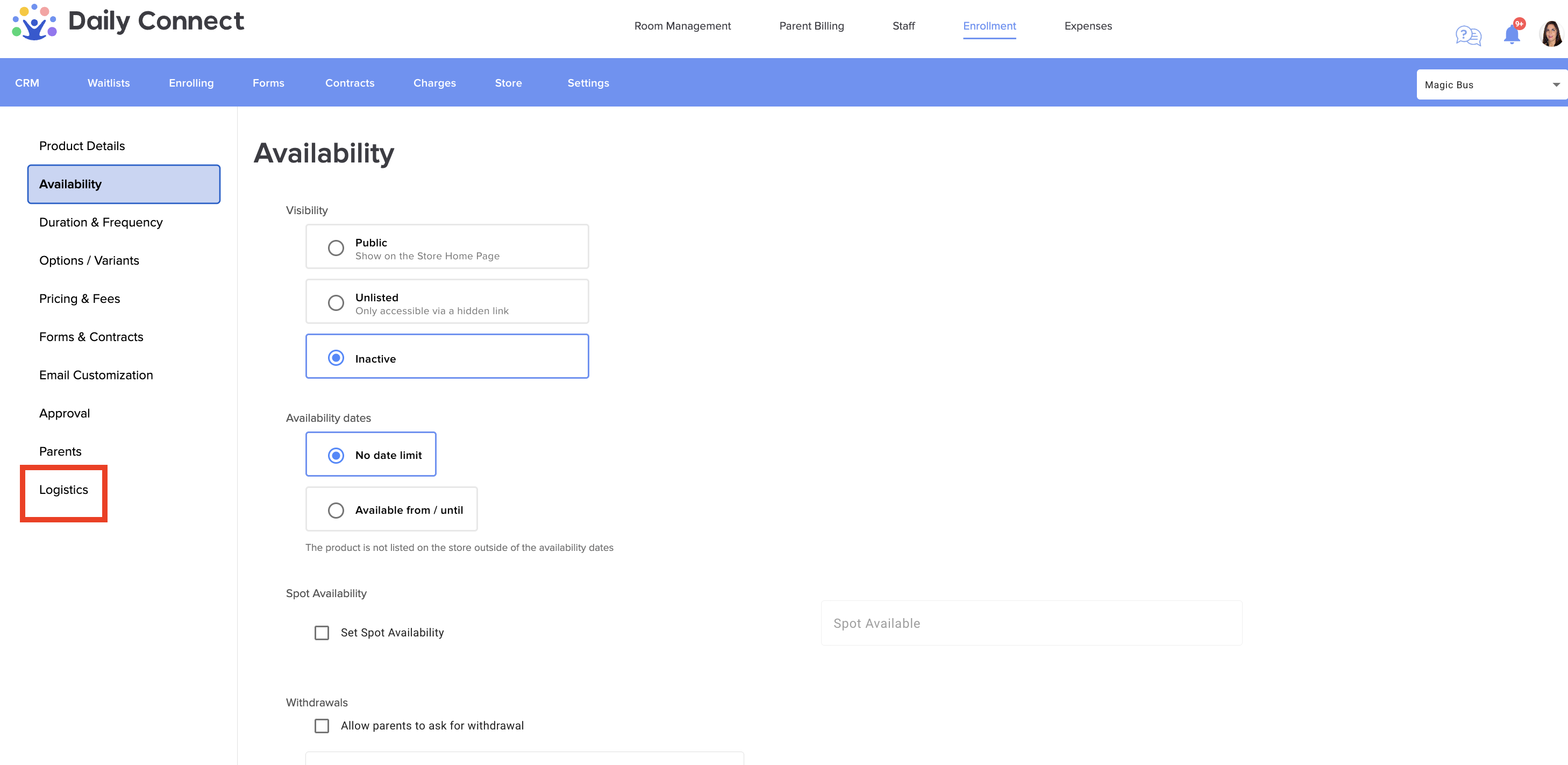
• When you create a product, the setup steps go through your custom pages after Approval, so nothing is skipped.
• A required field left empty must be filled in before you can save that page.
In the PDF export
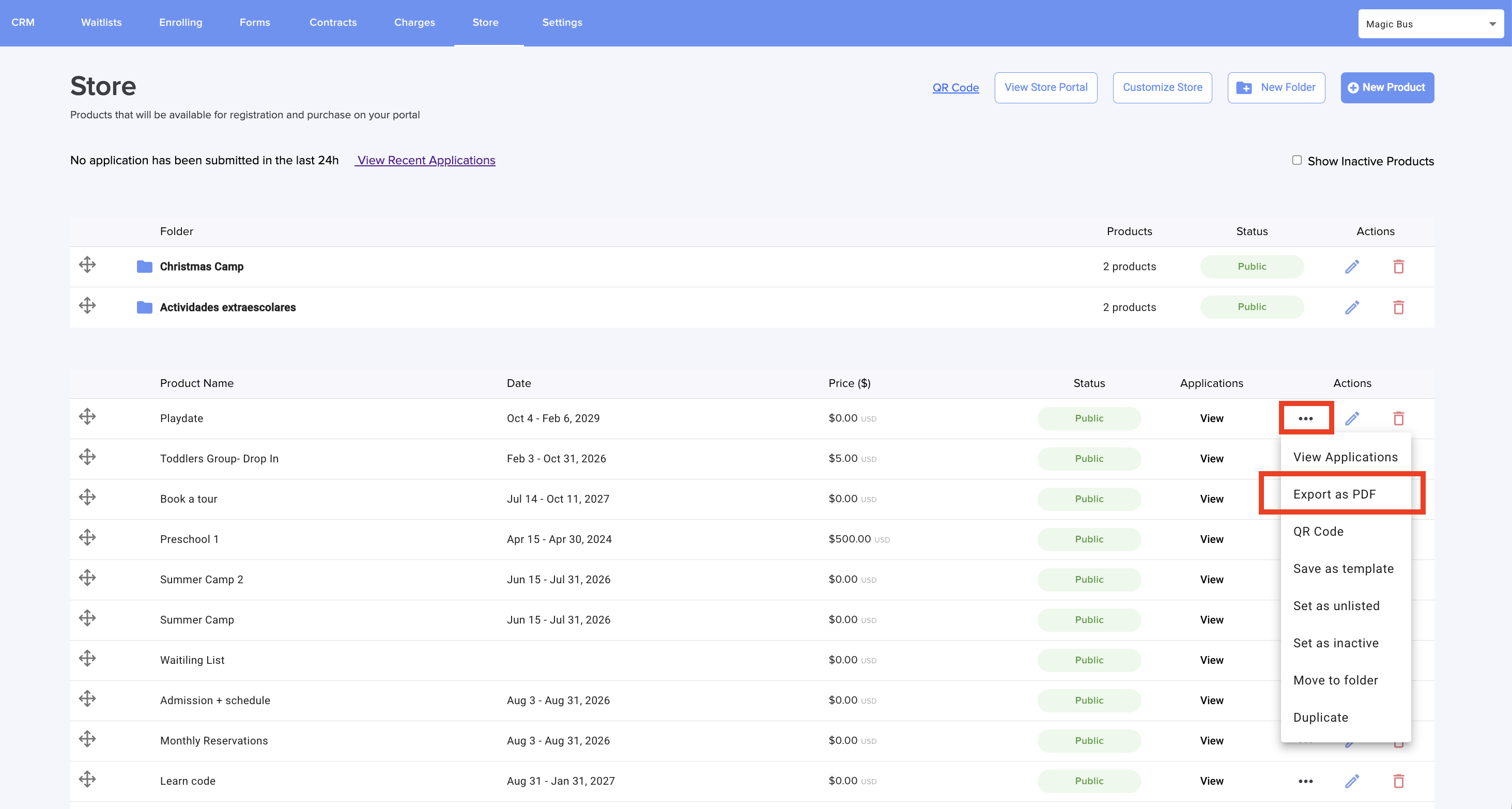
Export as PDF includes your custom fields:
• General fields appear in the Product Details part.
• Each named section appears as its own section at the end of the document, in the same order as the left menu.
• Answers are formatted for reading: choice labels, Yes/No, formatted dates, phone numbers and full addresses.
Remember that you can export your forms here:
Good to know
• Custom fields belong to the template, so different templates can have different fields.
• Each product keeps its own copy of the fields and answers. If you change a template's fields later, products you already created from it don't change.
• Products created without a template have no custom fields.
• Changing, replacing, or deleting a template never affects products you already created from it.
More questions? Contact us at support@dailyconnect.com
Was this article helpful?
That’s Great!
Thank you for your feedback
Sorry! We couldn't be helpful
Thank you for your feedback
Feedback sent
We appreciate your effort and will try to fix the article