With this report you can get availability in each room (based on room capacity and children schedule) for periods of upcoming 6 weeks/months.
1. Log in to your admin account.
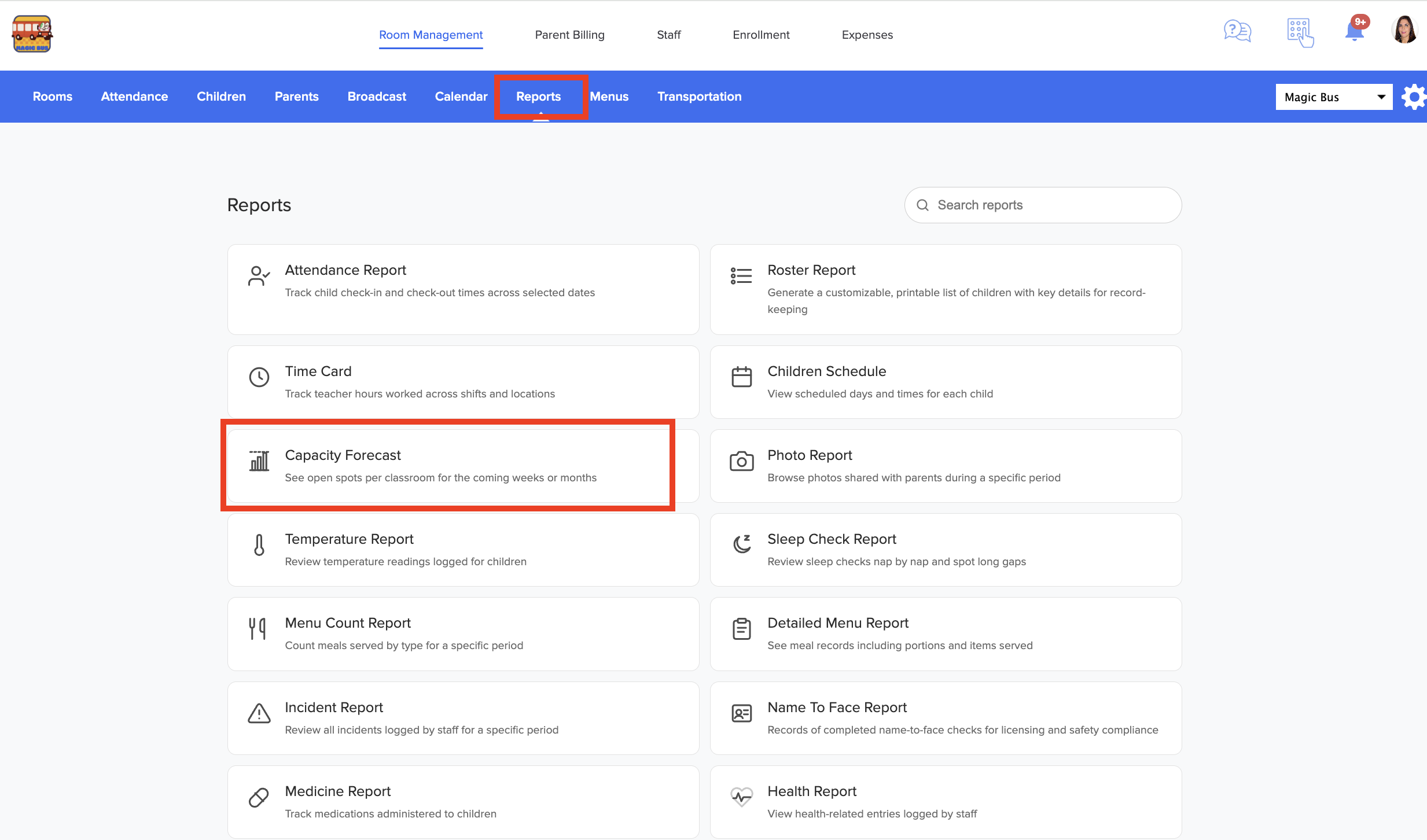
2. Go to Reports > Capacity Forecast:
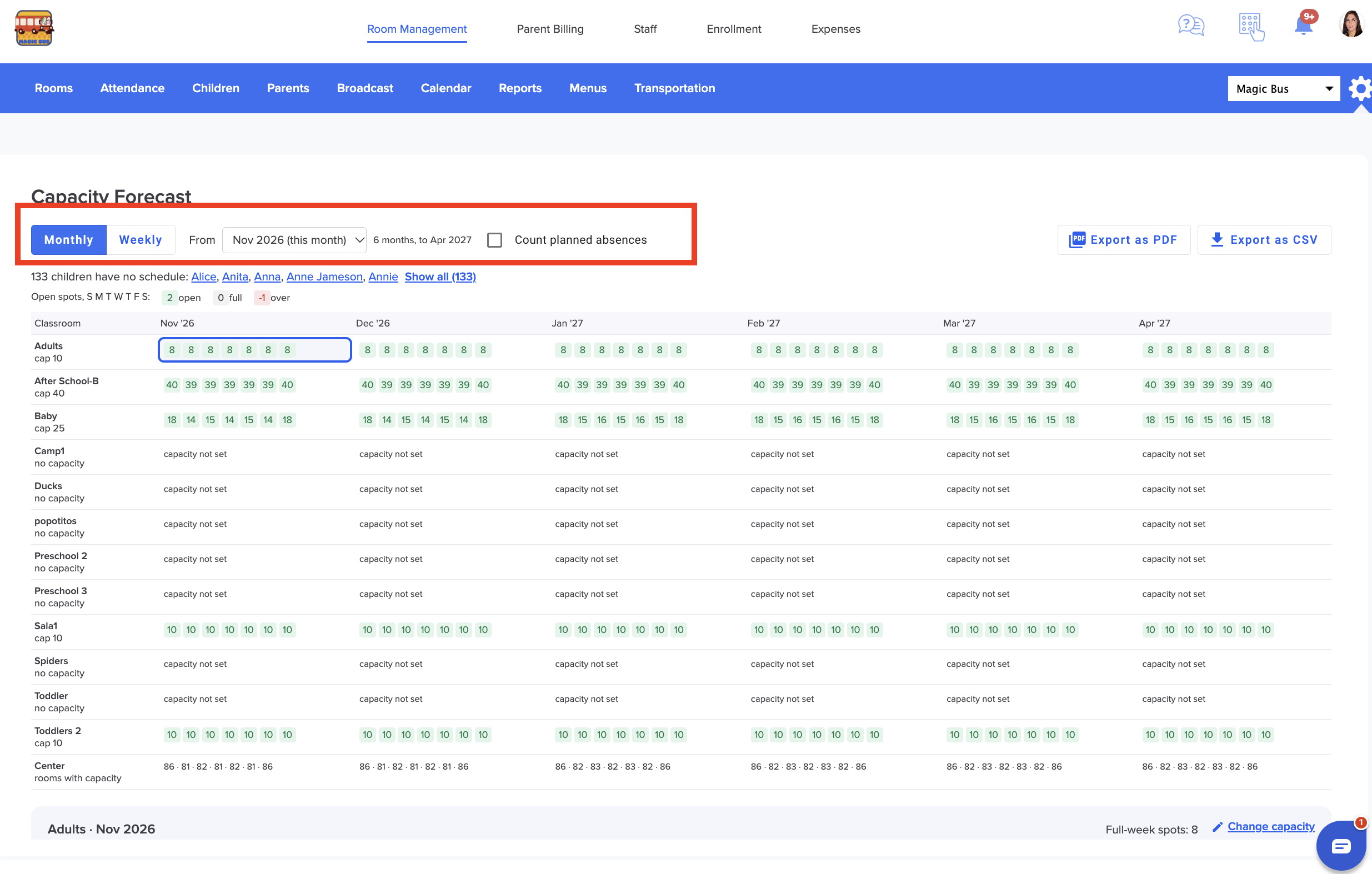
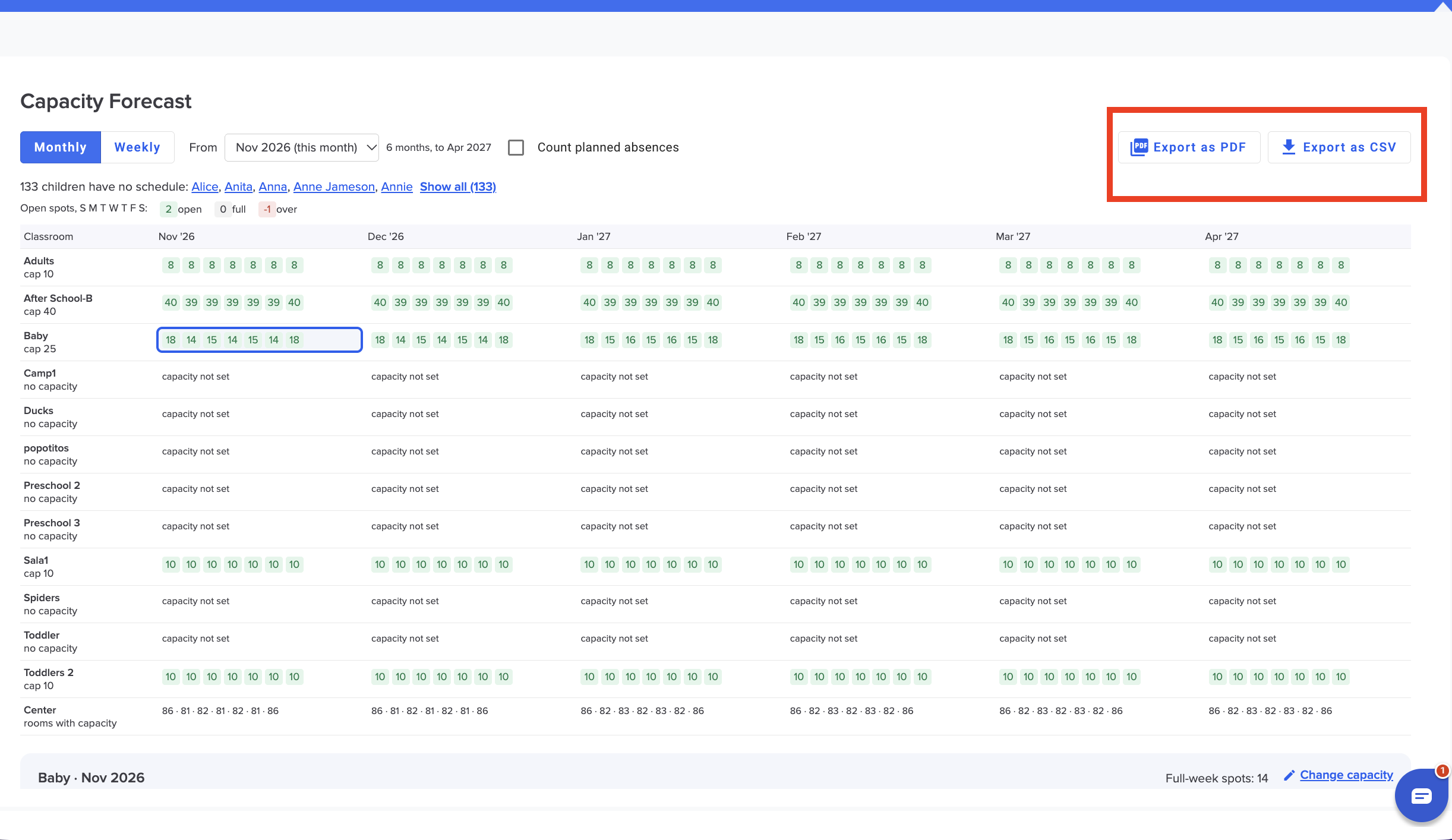
3. Choose monthly or weekly, select where you want the report from, and if needed you can also include planned absences:
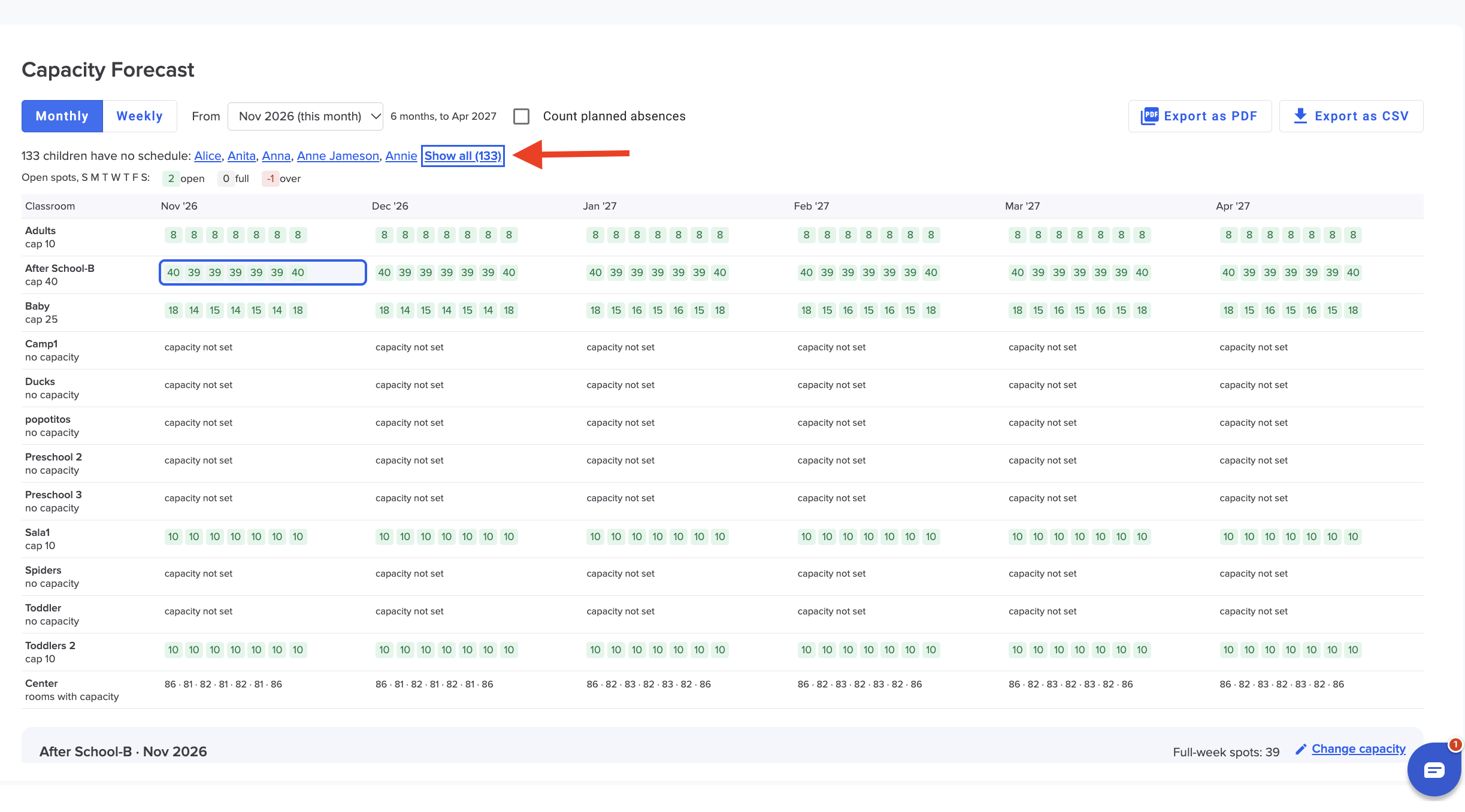
 The report shows you how many children have not schedule:
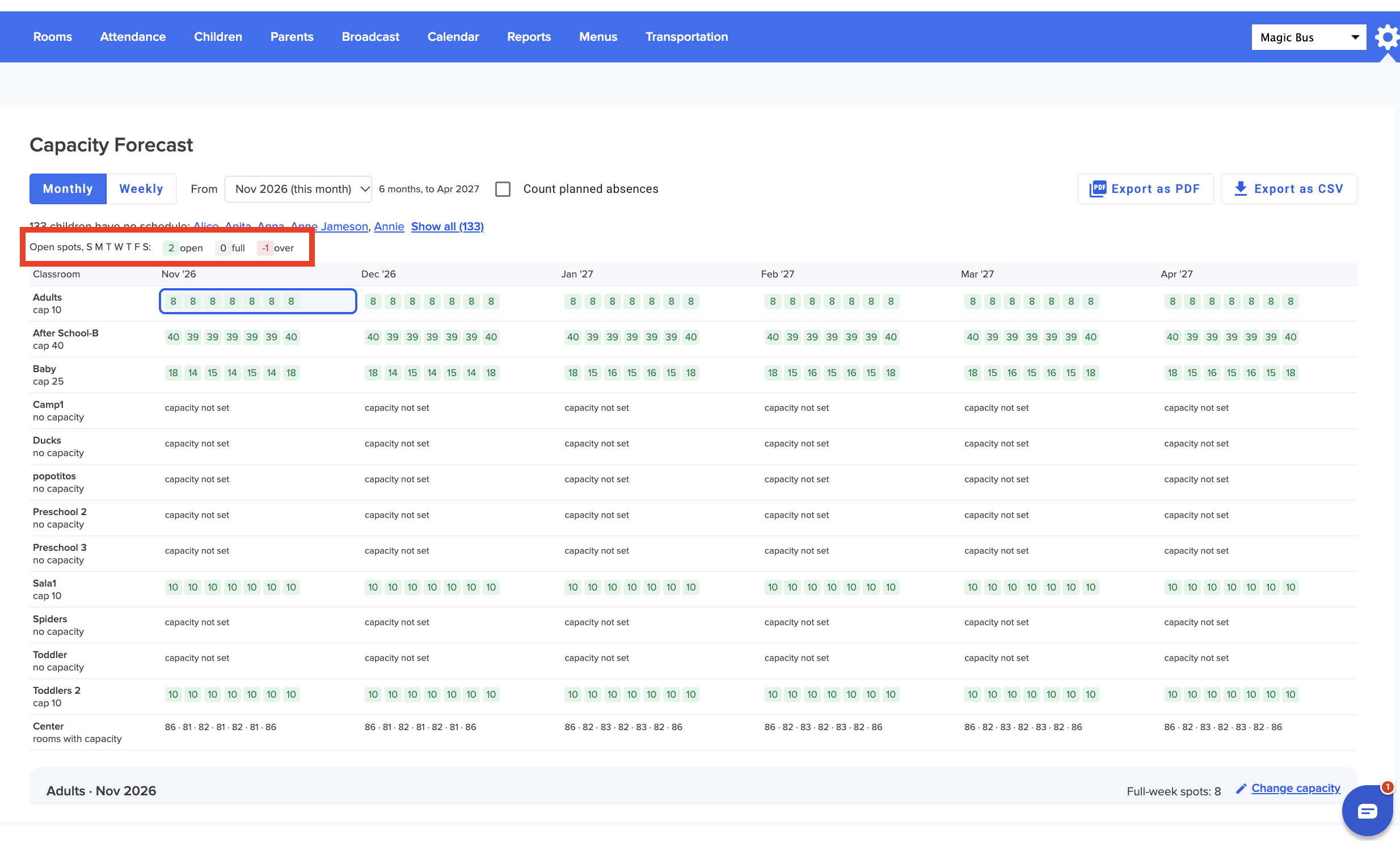
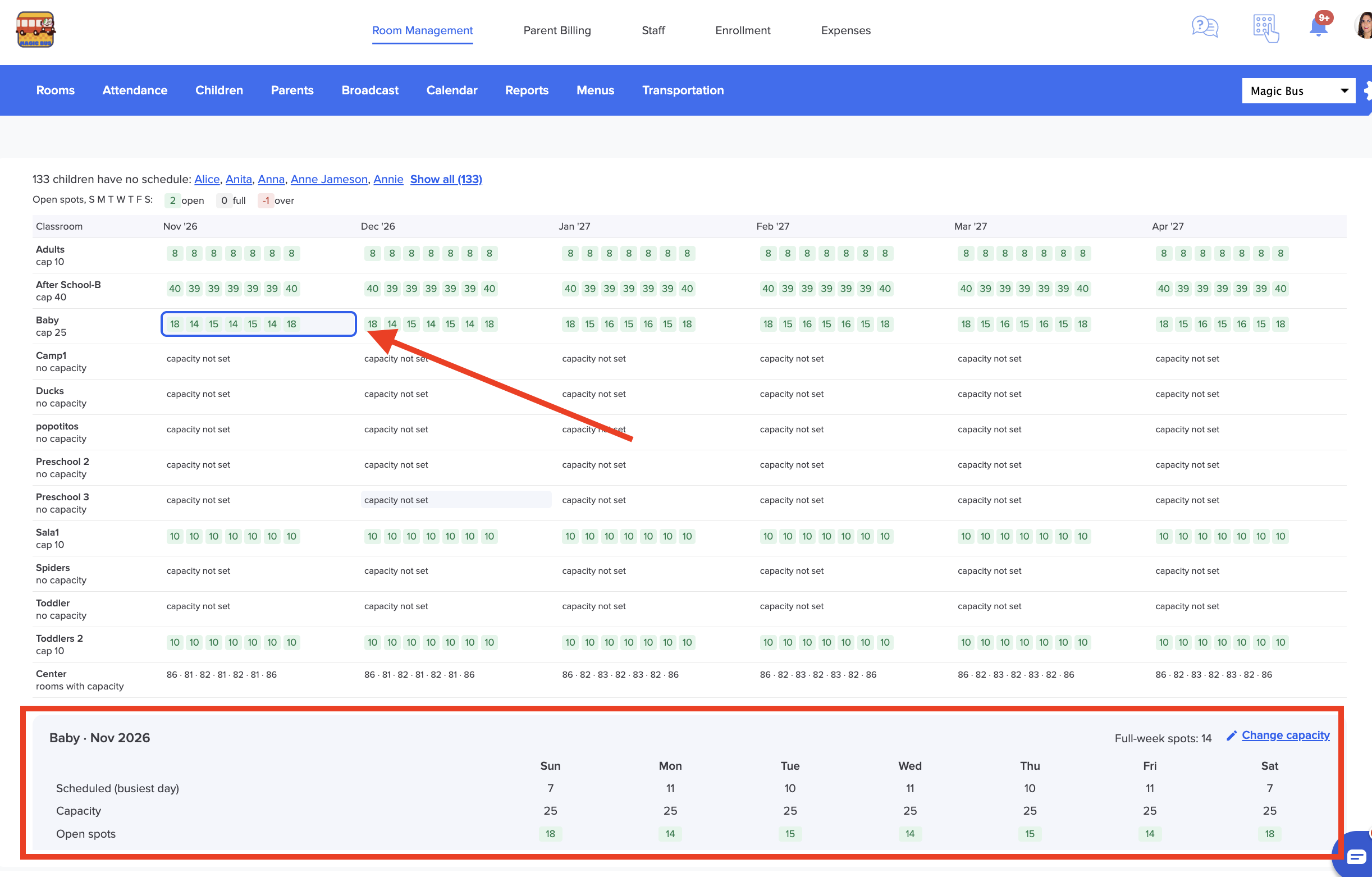
For each month, you can see the available spaces for each day, highlighted in green; fully booked groups, marked with a zero; and groups that have exceeded their capacity due to excess requests, highlighted in red with the number of additional requests shown as a negative value.
You can select any of the different groups you have, and a quick overview of relevant information will appear at the bottom of the screen.
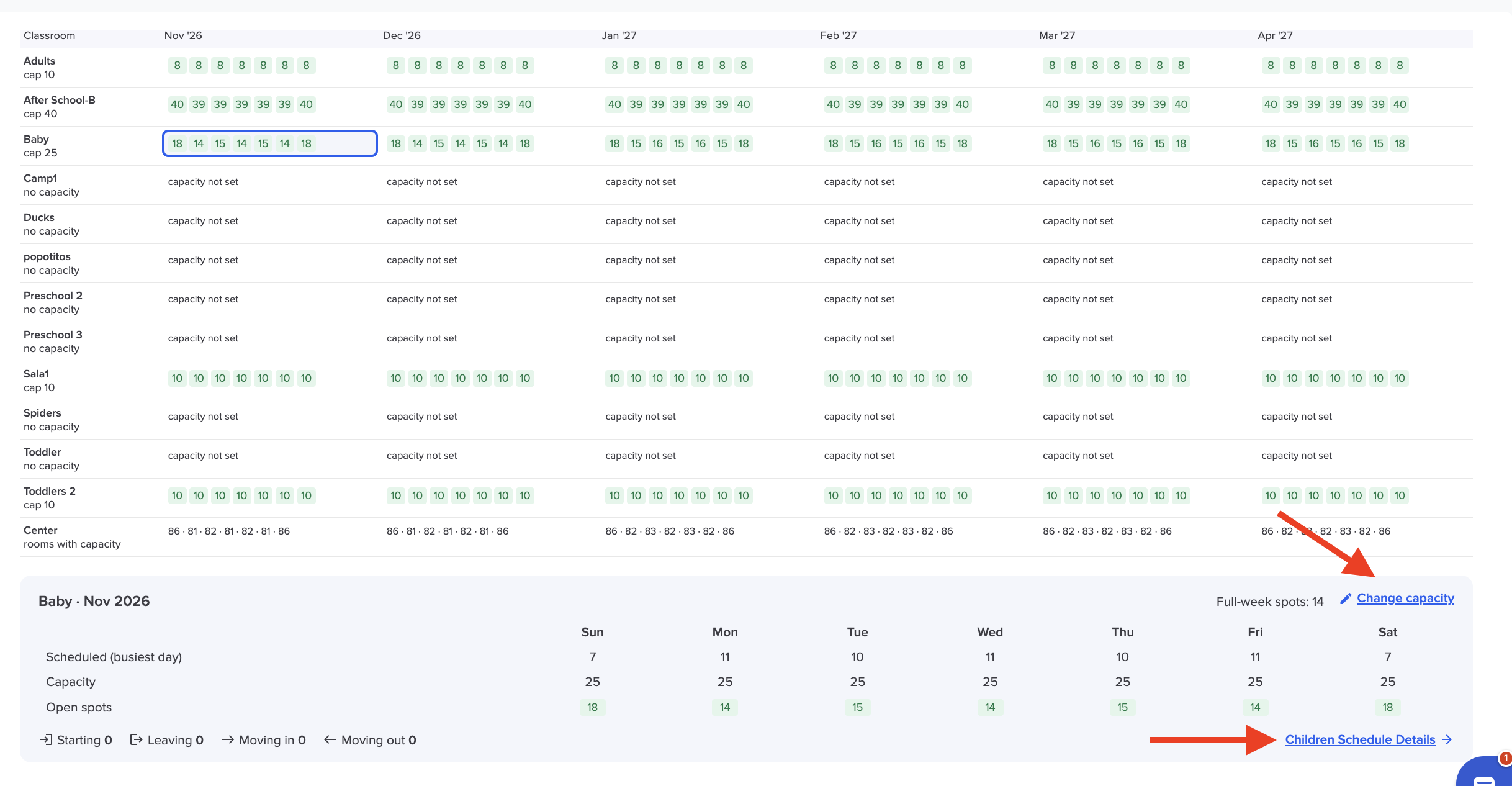
You can change this group's capacity by clicking here, and you can also access each child's schedule within the group:
You can download this report in CSV or PDF format here:
More questions? Contact us at support@dailyconnect.com
Was this article helpful?
That’s Great!
Thank you for your feedback
Sorry! We couldn't be helpful
Thank you for your feedback
Feedback sent
We appreciate your effort and will try to fix the article