Billing and Room Management reports can now arrive by email on a schedule, and partners can pull the same files through the Daily Connect API.
Scheduled reports
A scheduled report emails a billing report to the people you choose, every day, week or month, without anyone opening Daily Connect.
Create a schedule:
1. Log in to your admin account.
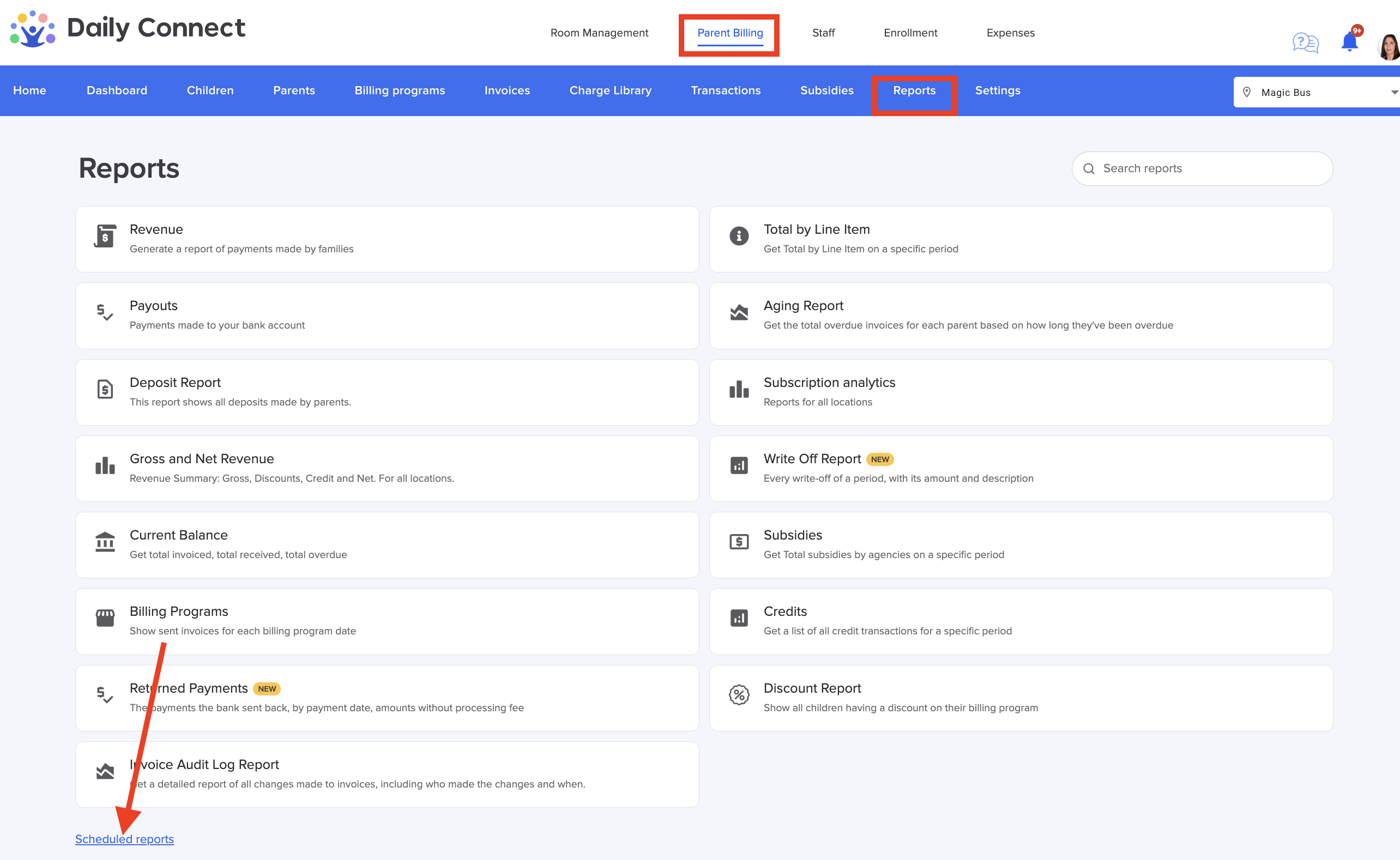
2. Go to Parent Billing > Reports and click Scheduled reports, at the bottom left of the page.
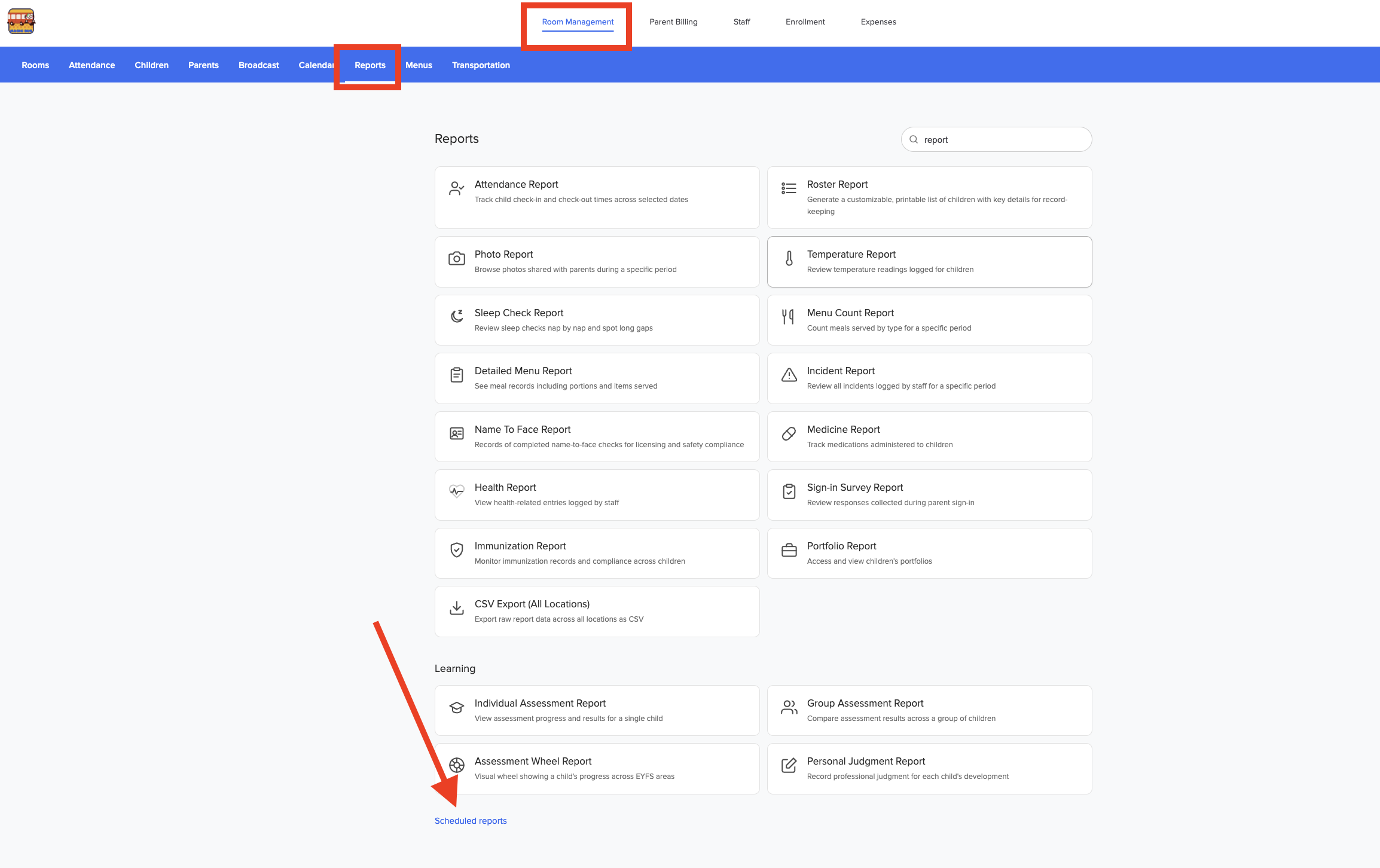
For Room Management reports, use the same link on Room Management > Reports.
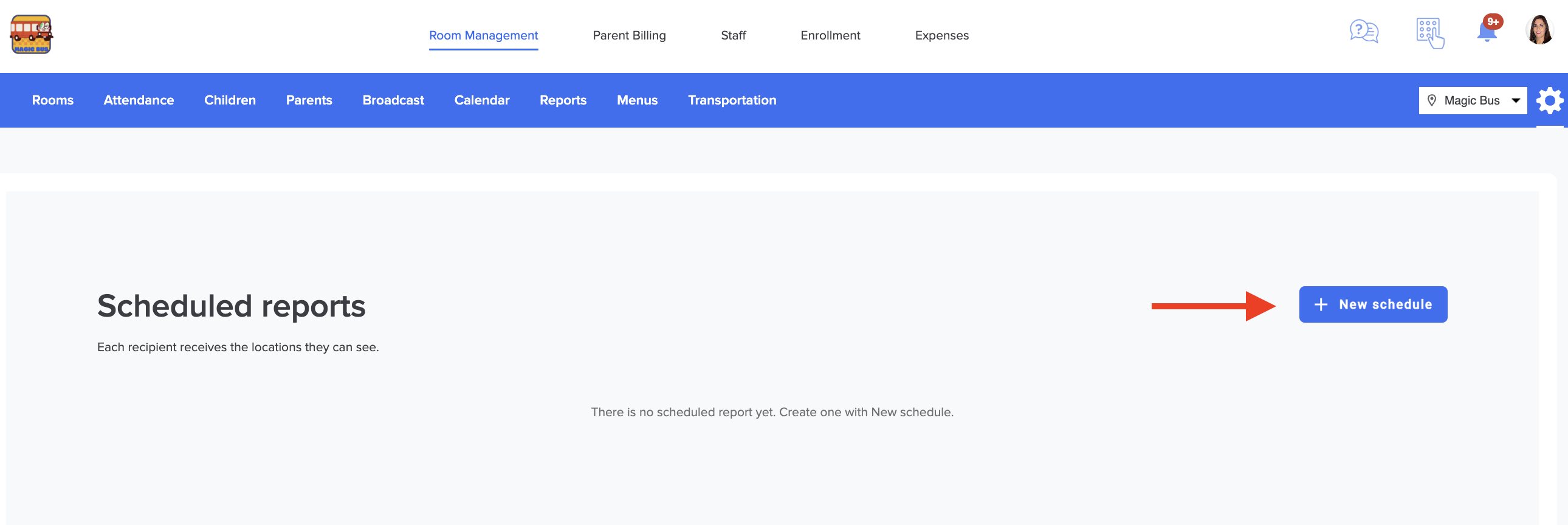
3. Click New schedule.
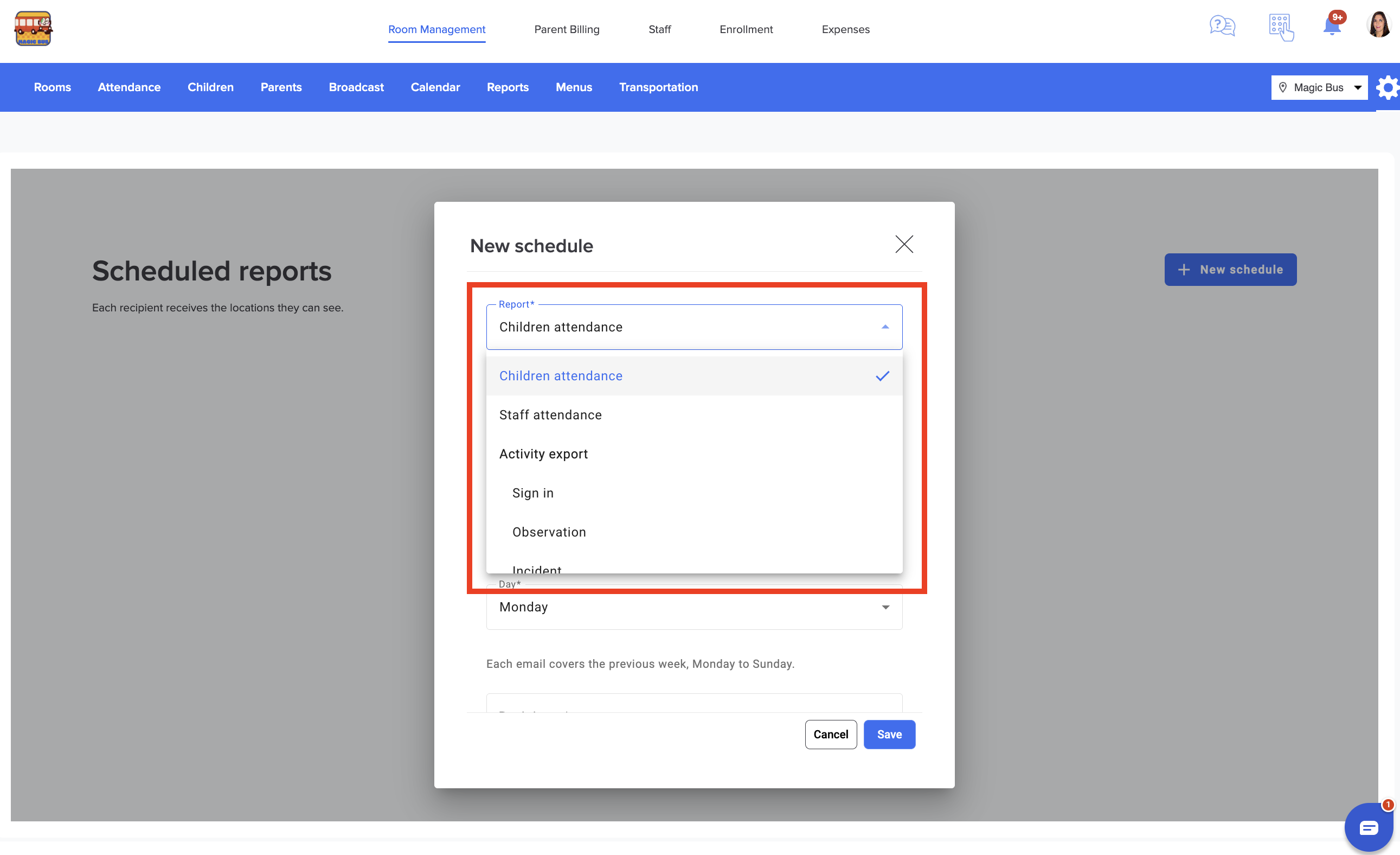
4. Pick the report: any report you have access to: the 14 billing reports (charges, aging, deposits, account balance, invoices, transactions...) from the Reports page, or the attendance and activity reports below from Room Management.
5. Pick the locations: one, several, or All locations. You only see the locations you have access to for that report.
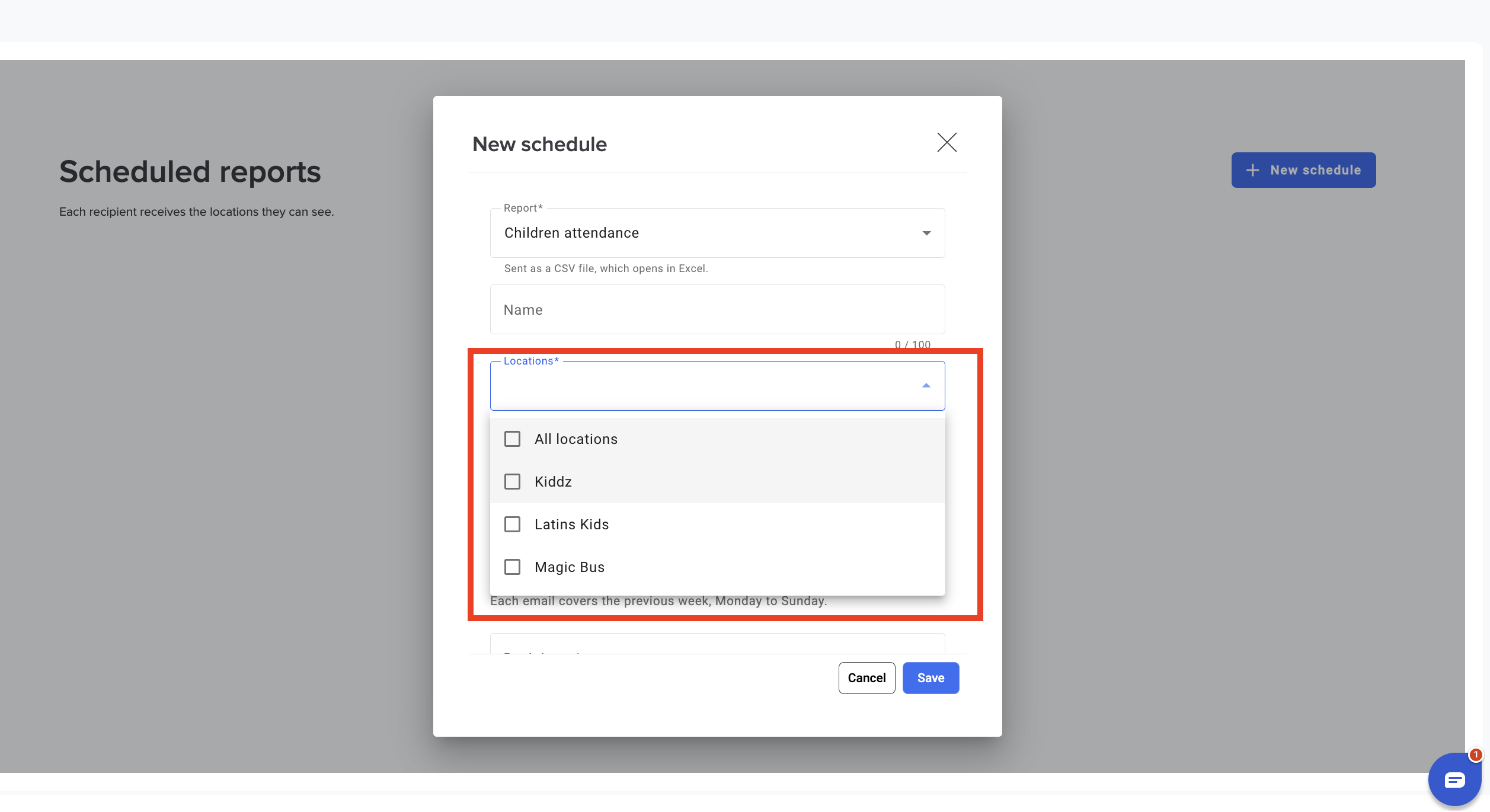
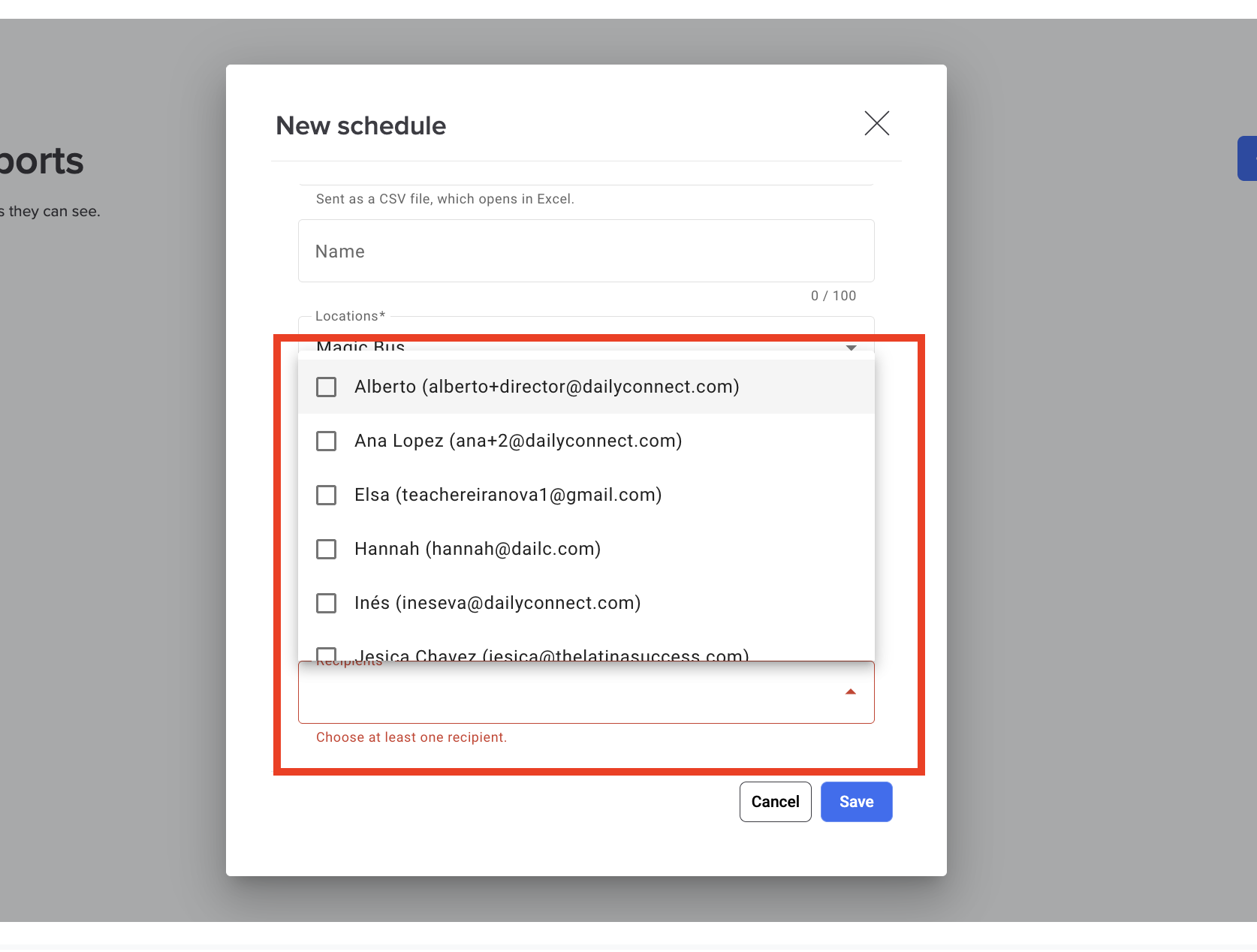
6. Pick the recipients, up to 10. Only people who can see at least one of the chosen locations are offered.
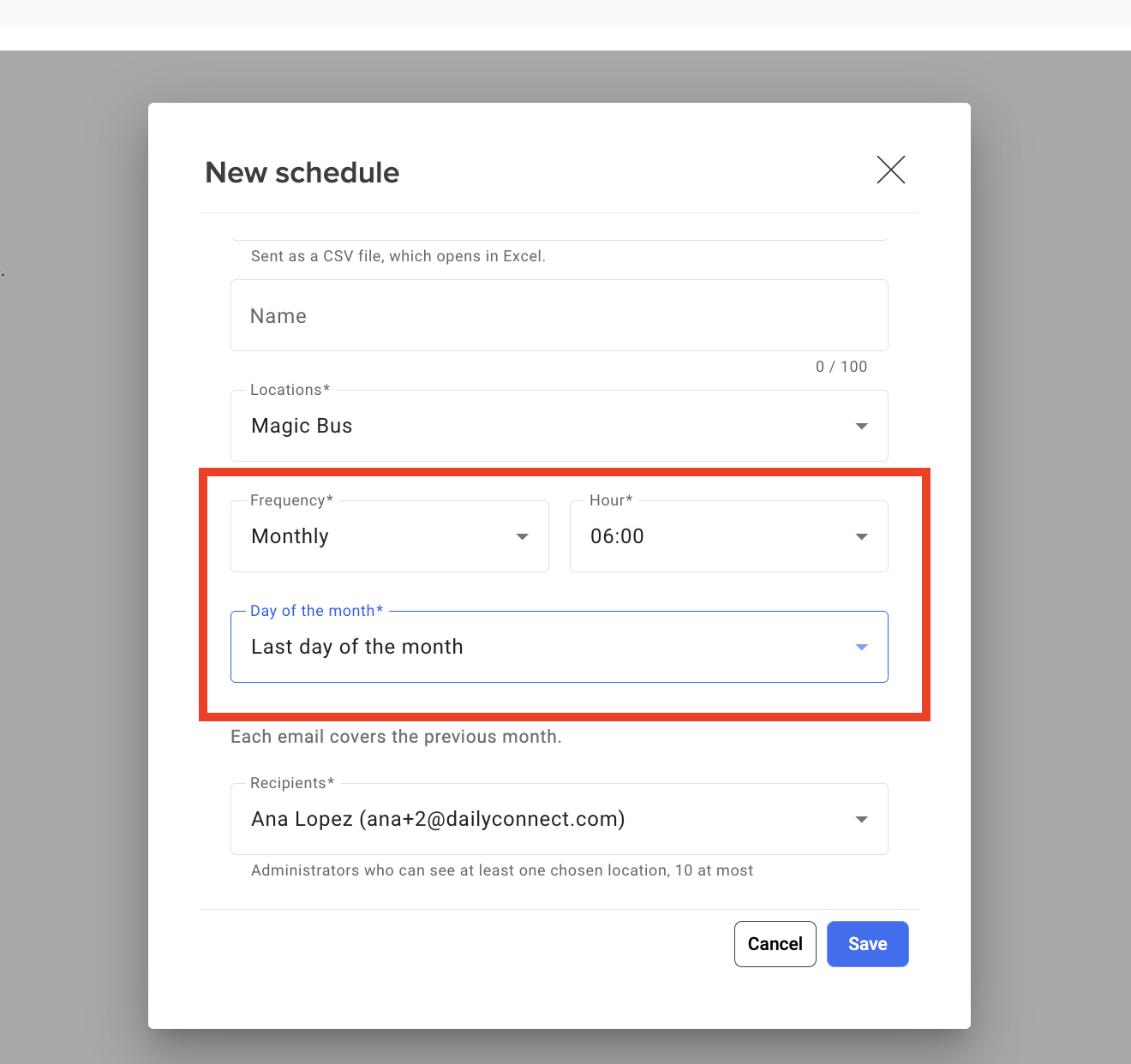
7. Pick when: daily on chosen days of the week, weekly on one day, or monthly on a day from 1 to 28 or the last day of the month, at the hour you choose.
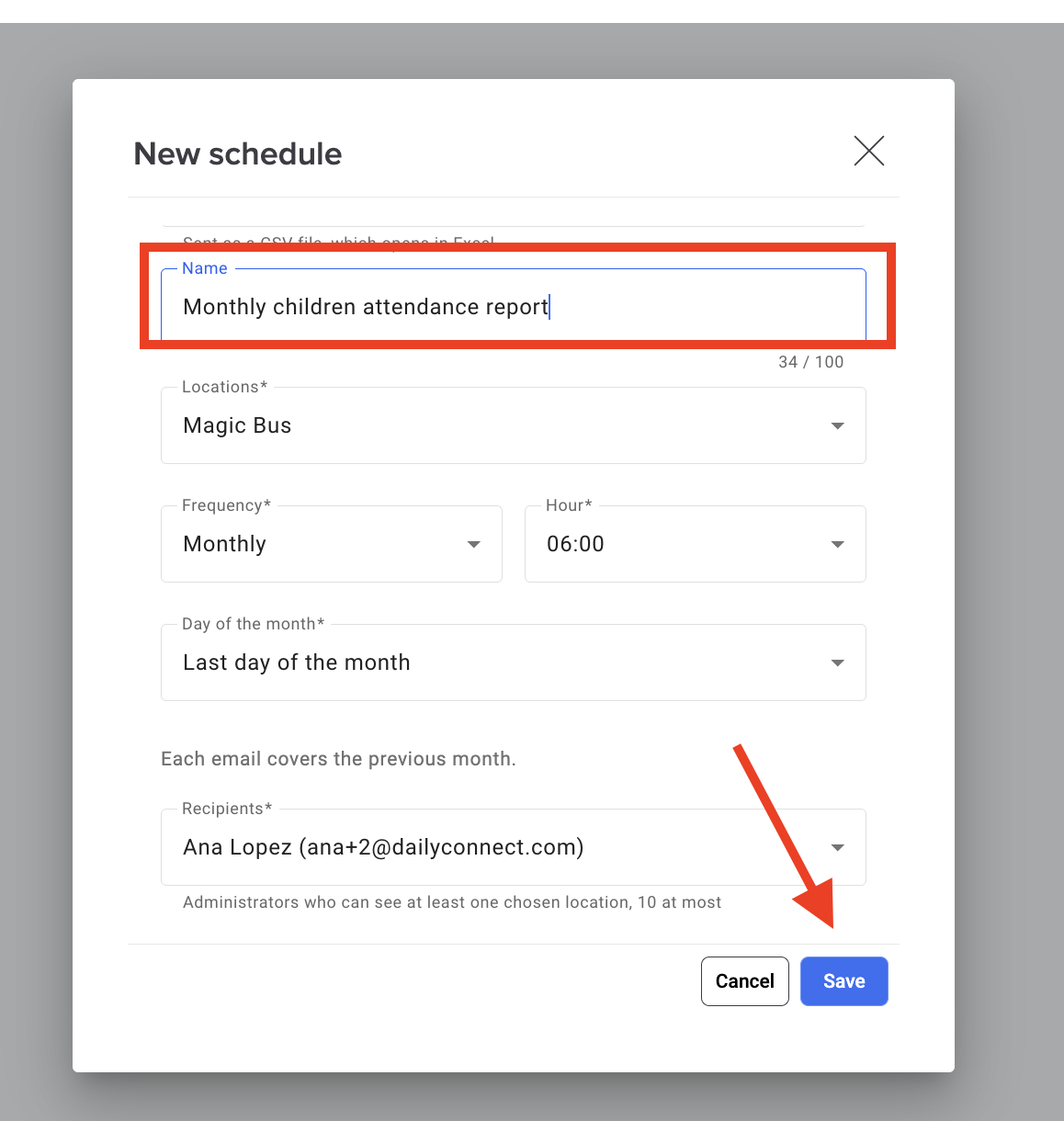
8. Give it a name and click Save.
The hour is in the time zone shown on the form, by default the time zone of the first location.
What each email covers:
You never pick dates: they follow from the frequency.

A daily schedule on Monday to Friday sends Friday, Saturday and Sunday in Monday's email.
Room Management reports
From Room Management > Reports, the same page schedules these reports, and lists only their schedules.

Administrators can schedule all of them. Each file starts with Location ID and Location, with no currency column, and a recipient only gets the children they are allowed to view. The Learning reports exist only as PDF and cannot be scheduled yet.
What recipients receive
- One email per recipient, from noreply@dailyconnect.com, in the recipient's own language.
- The report is a CSV file, attached when it is 5 MB or less. A larger file comes as a link: the recipient signs in and downloads it.
- Each recipient only gets the locations they are allowed to see, even when the schedule covers more.
- When there is nothing to report, the email still arrives with a file holding only the column headers, so you know it ran.
- Files can be downloaded again for 90 days.
Manage a schedule
Each schedule in the list shows its report, locations, frequency, next run and status. Its menu offers:
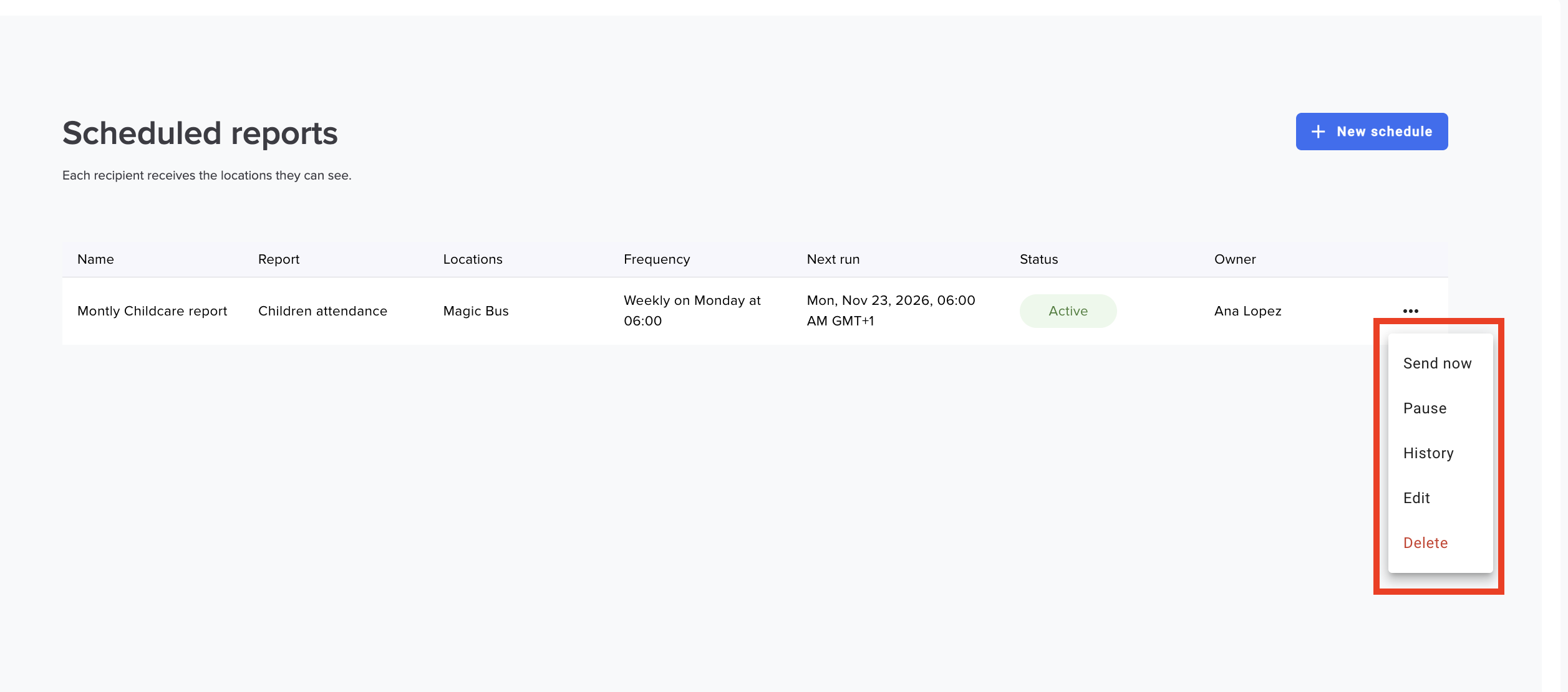
- Send now: sends the report right away, without changing the next run.
- Pause: a paused schedule sends nothing. Resuming does not send the emails it missed.
- Edit and Delete: deleting also removes its history.
- History: the runs of the last 90 days, who received each one, and a download of your own file.
If a schedule fails three times in a row, it is paused and its owner is emailed. Its status reads Paused (Failed runs).
Stop receiving a report
Every email ends with how to stop it. The owner of the schedule can pause or delete it on the Scheduled reports page. Other recipients ask the owner, named in the email, to remove them.
Billing reports through the API
Partners connected to Daily Connect through the API can now download the same billing and Room Management reports as CSV files, for one location or for every location their API key reaches.
Two ways to read a report
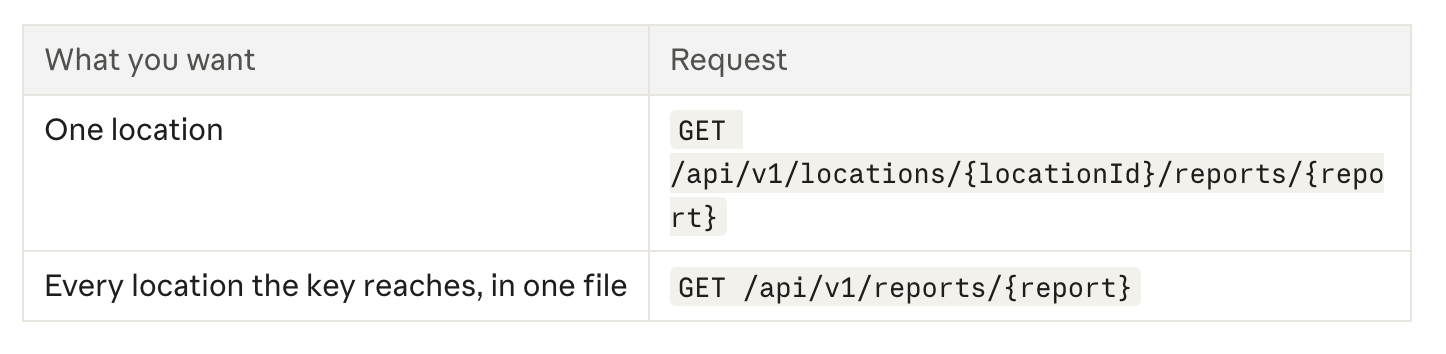
Example: GET /api/v1/locations/101/reports/charges?start=2026-10-01&end=2026-10-31 returns charges-101-2026-10-01-2026-10-31.csv.
The file
- It is the same file the Reports page exports, with English column headers.
- It is UTF-8 with a byte order mark, so Excel shows accents correctly.
- Each row starts with Location ID, Location and Currency. Room Management reports have no Currency column. A file of several locations is ordered by location id.
- There is no total row. A report with nothing to show holds only the header line.
Which parameters each report takes:
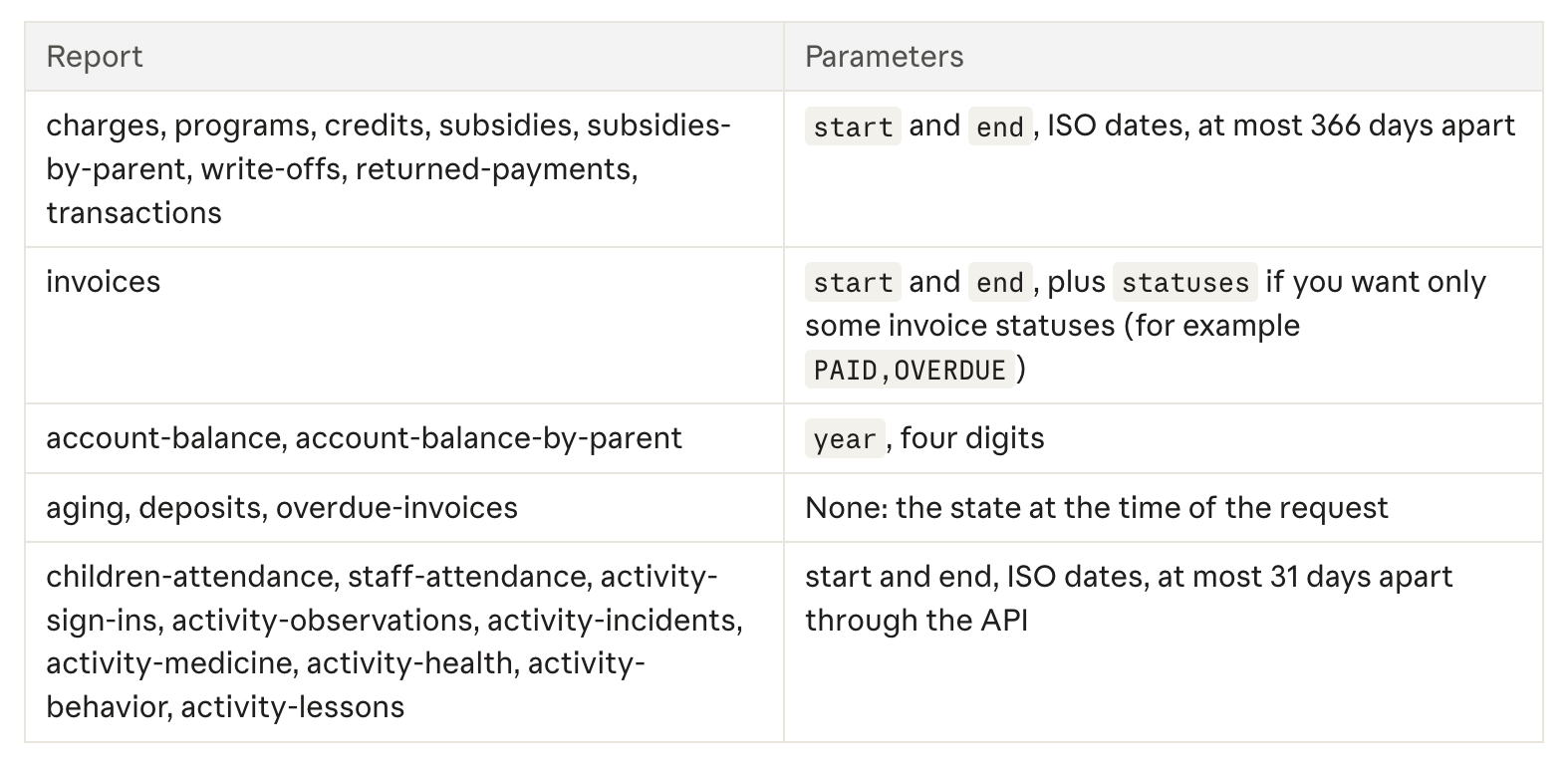
A missing or malformed parameter returns 400. An unknown report name returns 404.
Access and limits:
- Your API key needs the reports:read permission. Every key has it unless Daily Connect turned it off at your request.
- A location must have the API switched on, as for every other route.
- A key reads at most 10 reports a minute, on top of the 100 requests a minute it already has. Past that, the API answers 429 with a
Retry-Afterheader in seconds.
A key reads every child of the locations it reaches: unlike a staff member's file, the children attendance is not limited to some rooms.
The full reference, with each report's columns, is in the API documentation at /docs/api.
A new first column in billing CSV files
Every billing CSV now starts with a Location ID column, before Location and Currency. This applies to the downloads of the Reports page, the scheduled report emails and the API. Room Management files start with Location ID and Location, with no Currency.
The id tells two locations with the same name apart, and lets a spreadsheet or another system match the rows with the locations of the API. A spreadsheet or import that reads columns by position needs its columns shifted by one.
Notes for support
Internal, not for customers. Everything here is live only once the release is deployed.
Scheduled reports
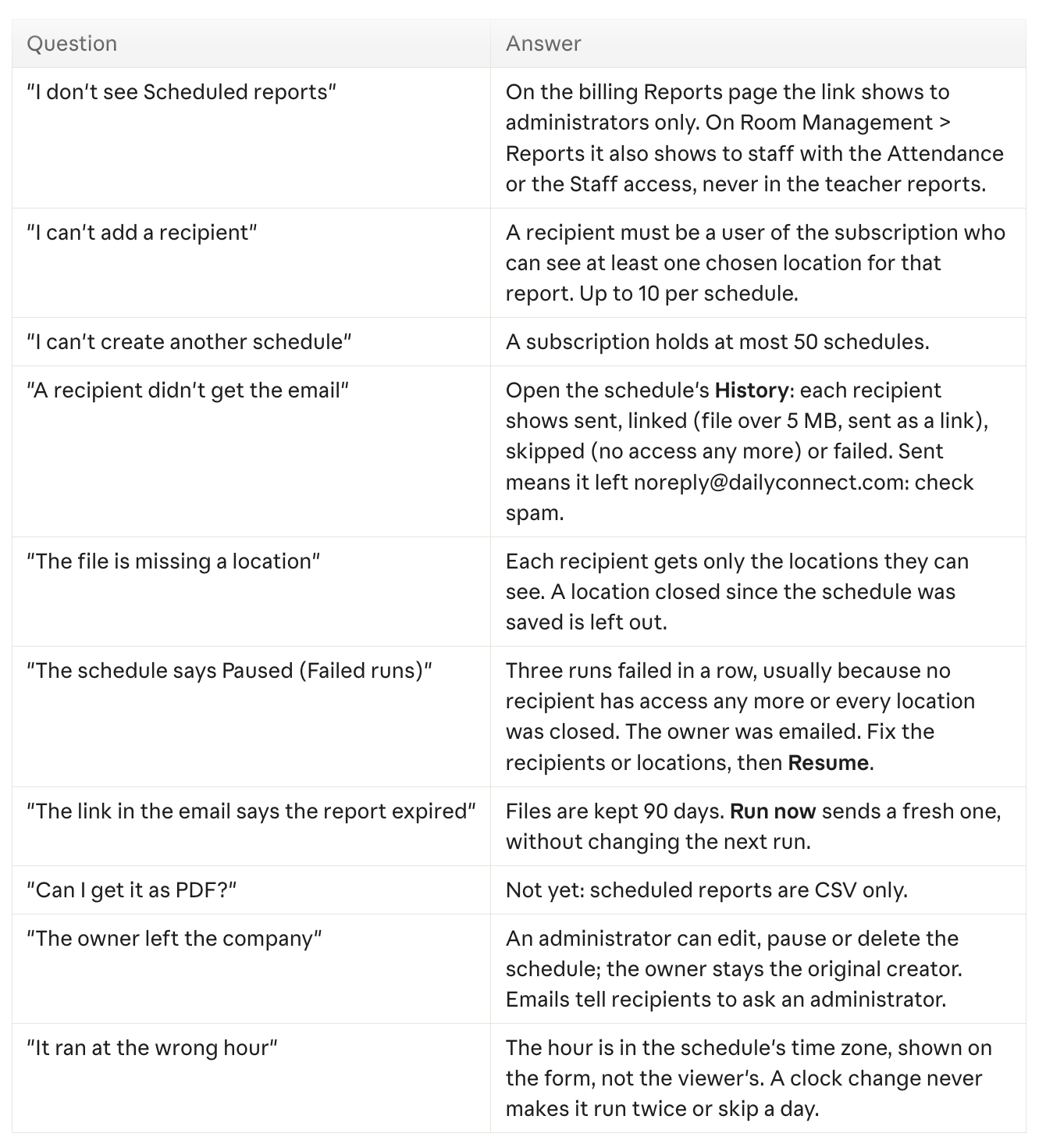
Resuming a paused schedule never sends the emails it missed.
Room Management reports
- Access is stricter than the screens: children attendance and the activity reports need the Attendance access, staff attendance the Staff access, even for someone who sees the location screens.
- A recipient only gets the children they may view, so a staff limited to some rooms gets a shorter file.
- The files differ from the screens on purpose: one row per child and day instead of one column per day, the date and the time in separate columns, and no customer-specific columns (gender, notes).
- Not offered: the ADP staff export, and the Learning reports, which are PDF only.
- Each area lists only its own schedules: a billing schedule does not appear from Room Management, and the reverse.
API reports
- The reports:read permission is on for every key, existing ones included. To turn it off for a partner, use the Reports switch of that key on the Public API keys admin screen.
- A 403 on a report means the key's reports:read is off or the location has the API switched off. A 404 means the location is not in the key's reach, or the report name is wrong.
- The 10 reports a minute limit is counted per server, so a partner may sometimes get a few more before a 429.
- A report covering many locations over a long period can take tens of seconds. There is no cap on the number of locations.
reports:read now also covers the Room Management reports, children attendance included: a partner with it reads every child of its locations. Turn it off for a partner that should not see attendance. Through the API, a Room Management report reads at most 31 days per request (366 in the app and in schedules).
The Location ID column
Expect questions from customers or partners whose imports or spreadsheet formulas read columns by position: everything moved one column to the right. The values themselves did not change.
More questions? Contact us at support@dailyconnect.com
Was this article helpful?
That’s Great!
Thank you for your feedback
Sorry! We couldn't be helpful
Thank you for your feedback
Feedback sent
We appreciate your effort and will try to fix the article