This article will help you how to include details about the teachers and staff members who are responsible for adding entries such as milestones, activities, lessons, and even bottles, using the Daily Connect App.
You can watch this video:
Or follow the instructions below :
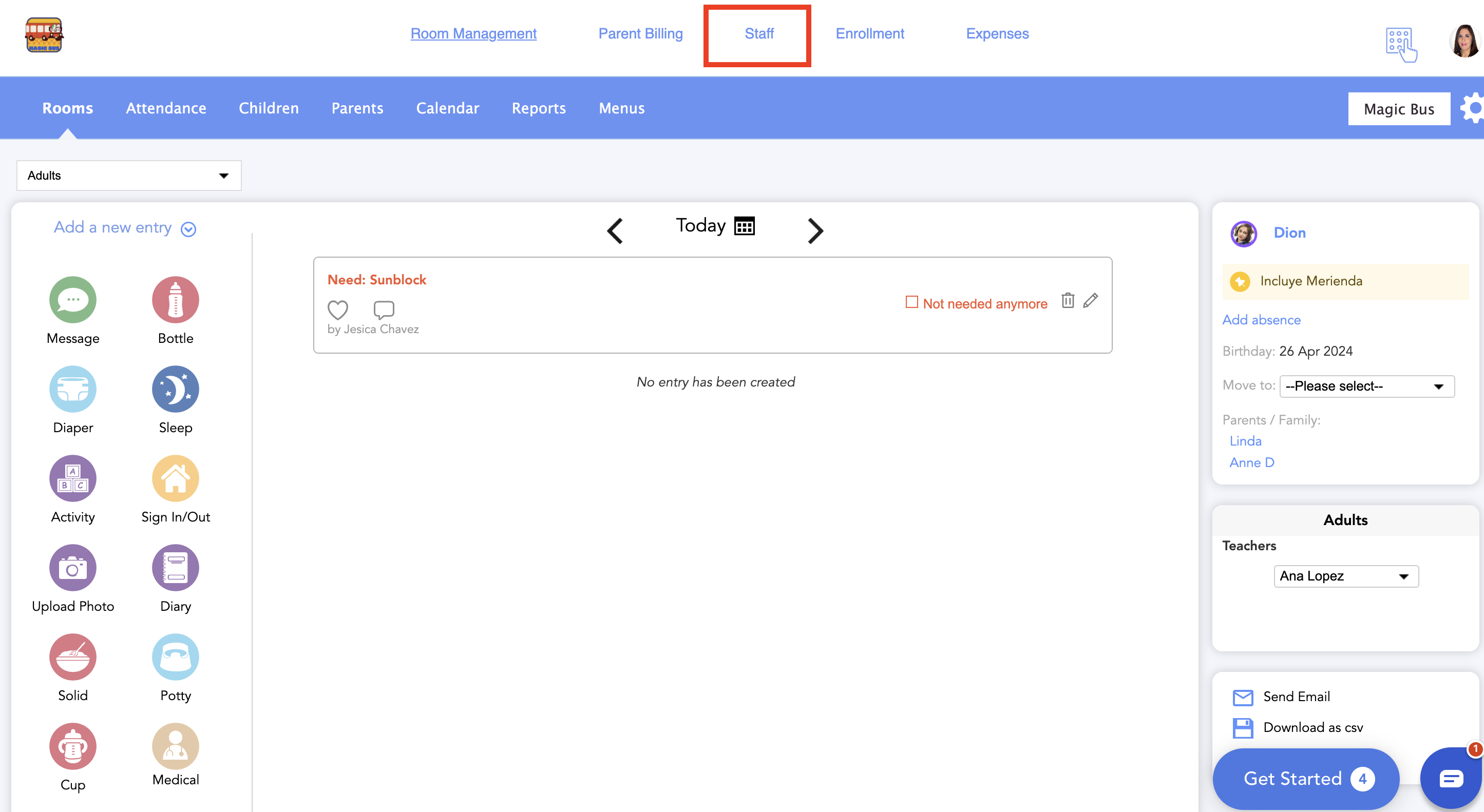
Go to Staff
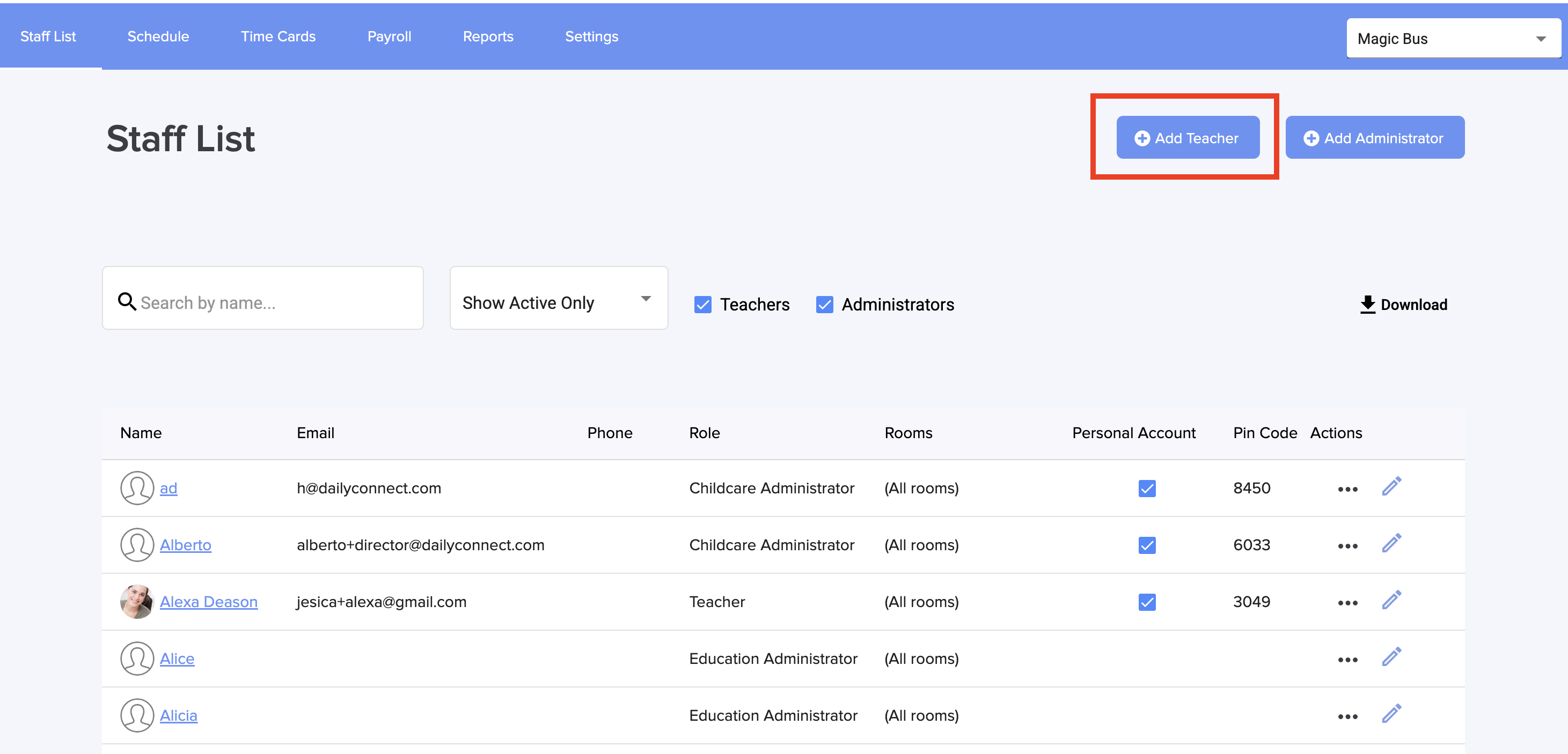
2. Click on Add teacher
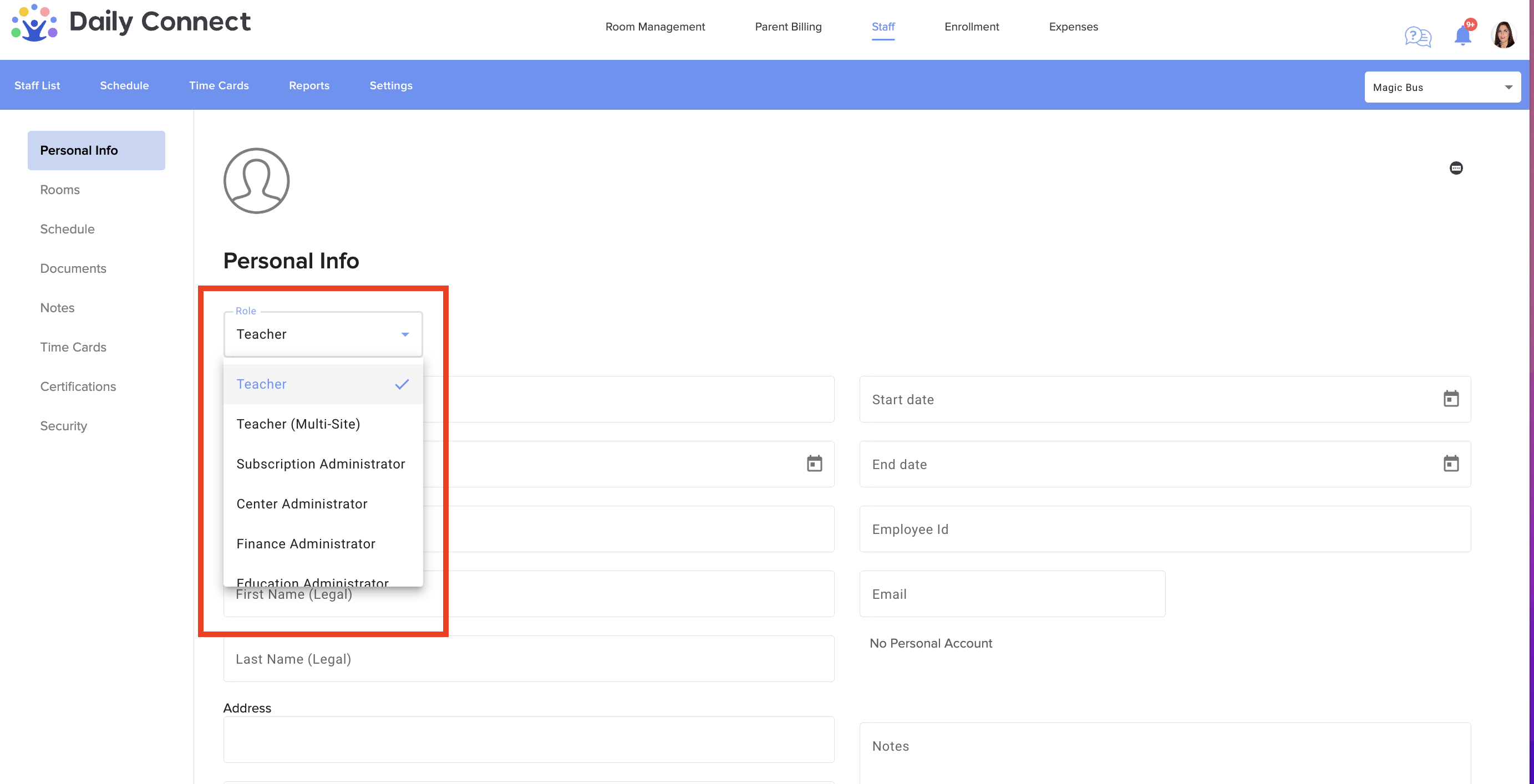
3. Select the type of role. There are two types of teacher profiles. A multi-site teacher is a teacher who can work at more than one center, if you choose to set them up that way.
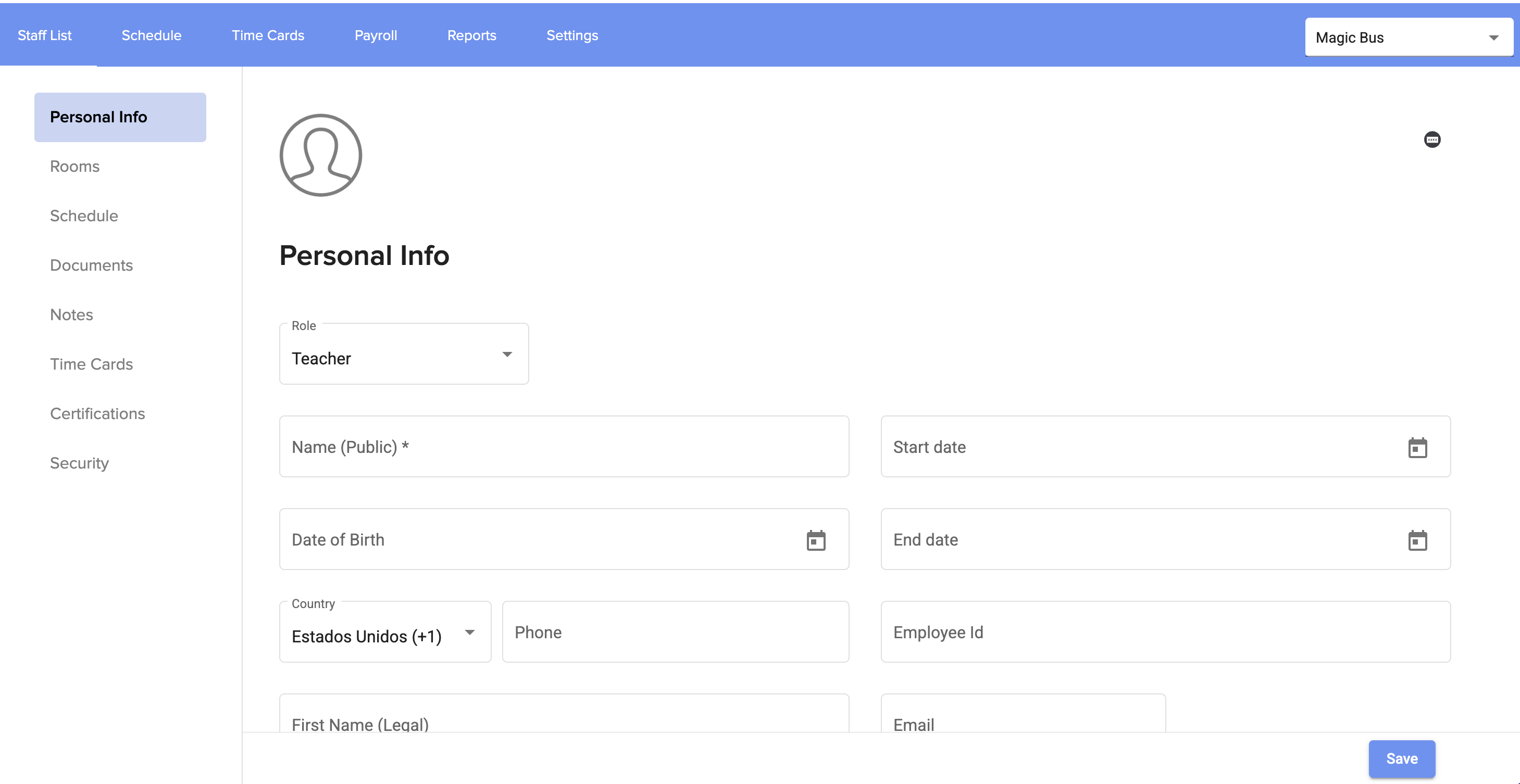
4. Fill in all the information and click on Save
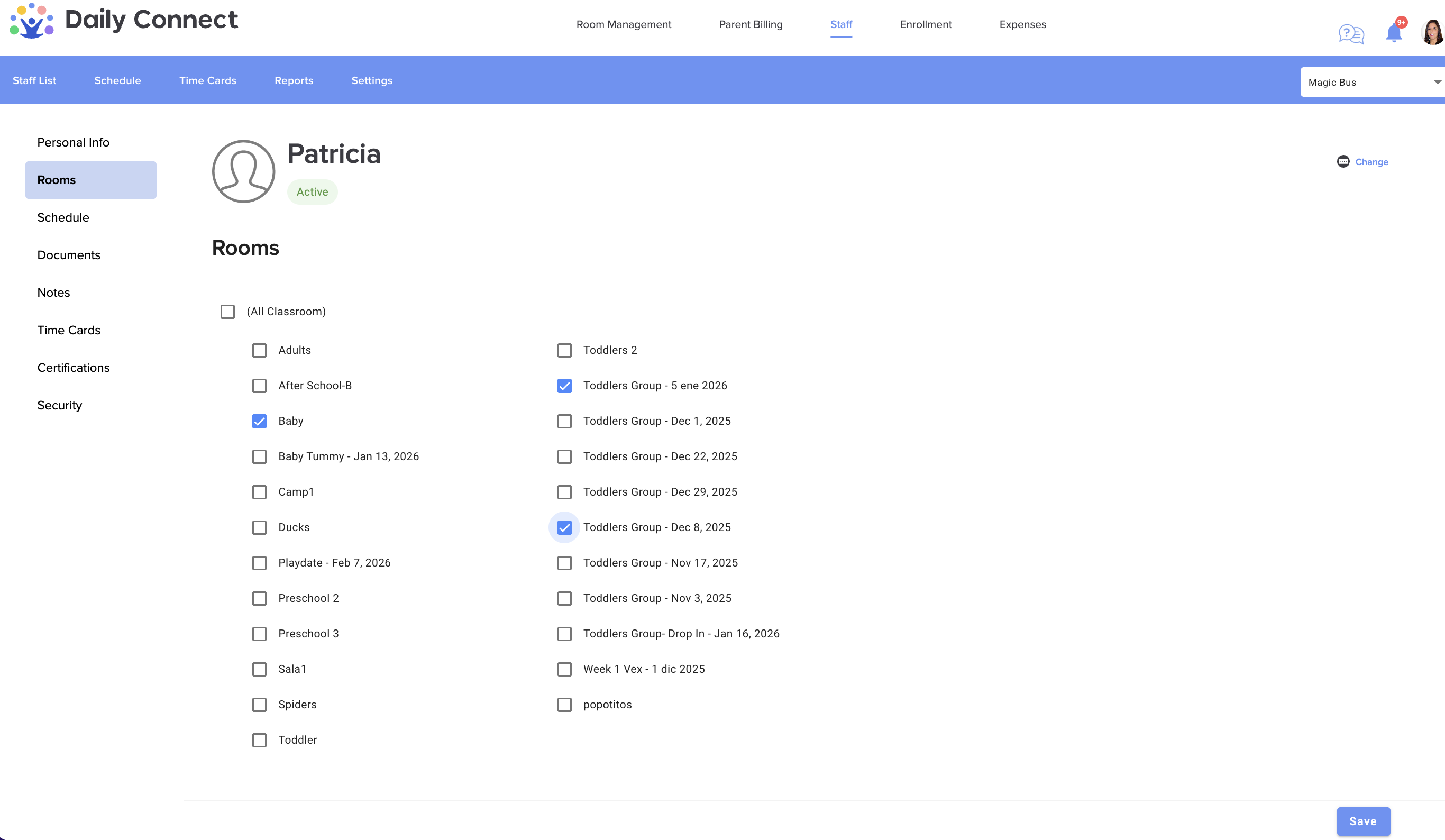
5. Select the teacher's rooms and click on Save
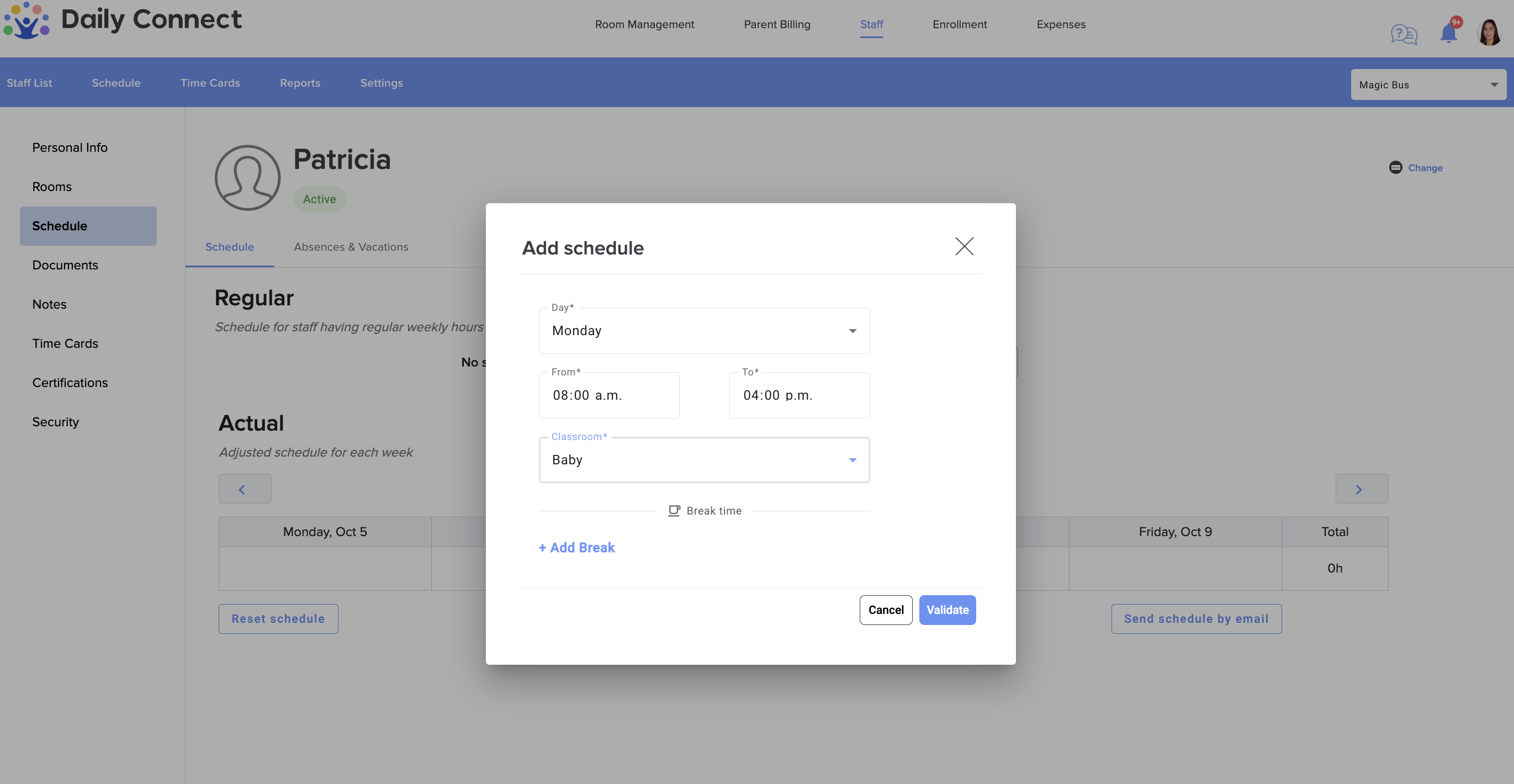
6. In the Schedule section, you can set up each teacher’s schedule. Click Add Schedule and fill in the required information:
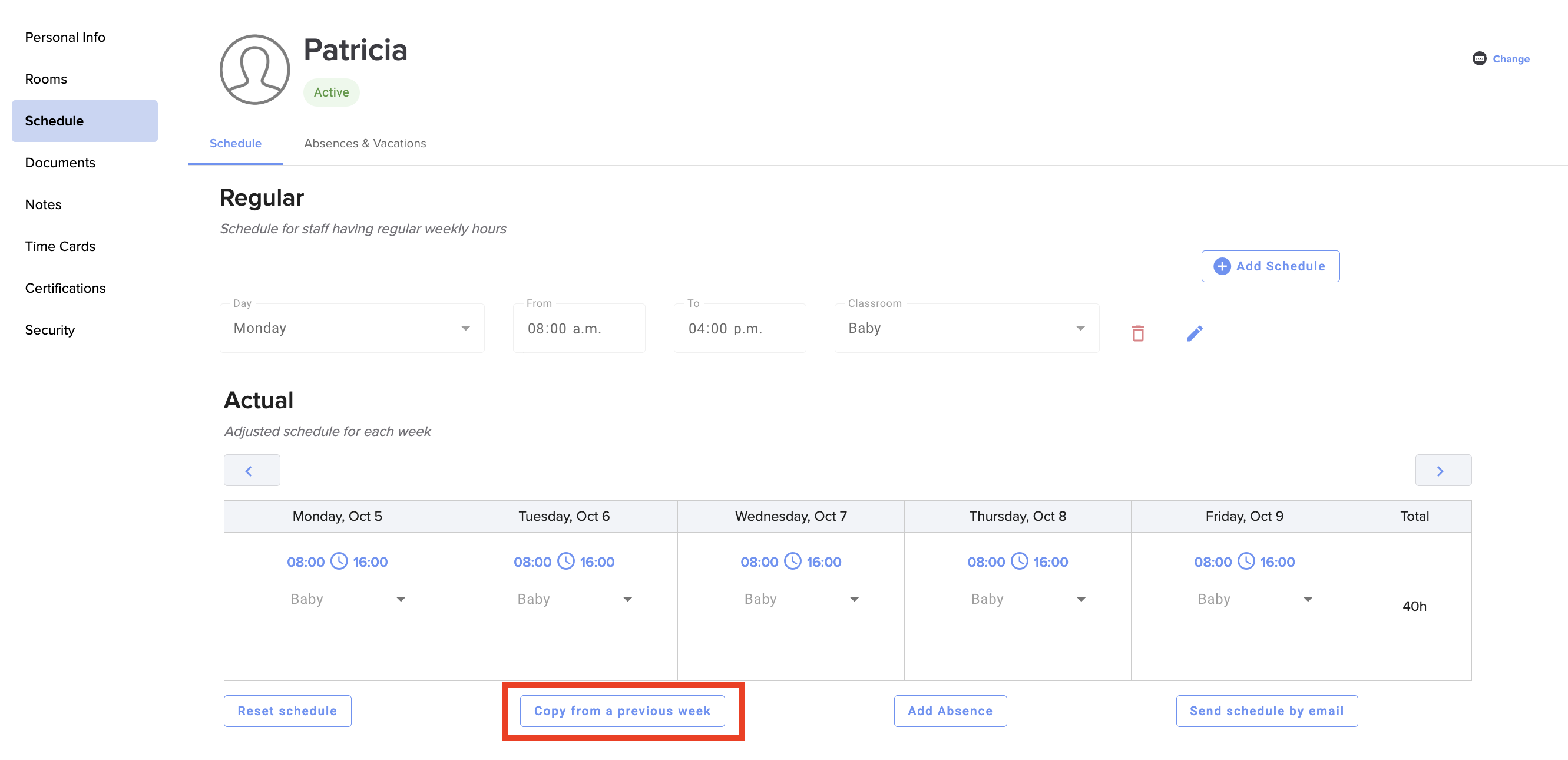
You can copy schedules from one week to another if needed:
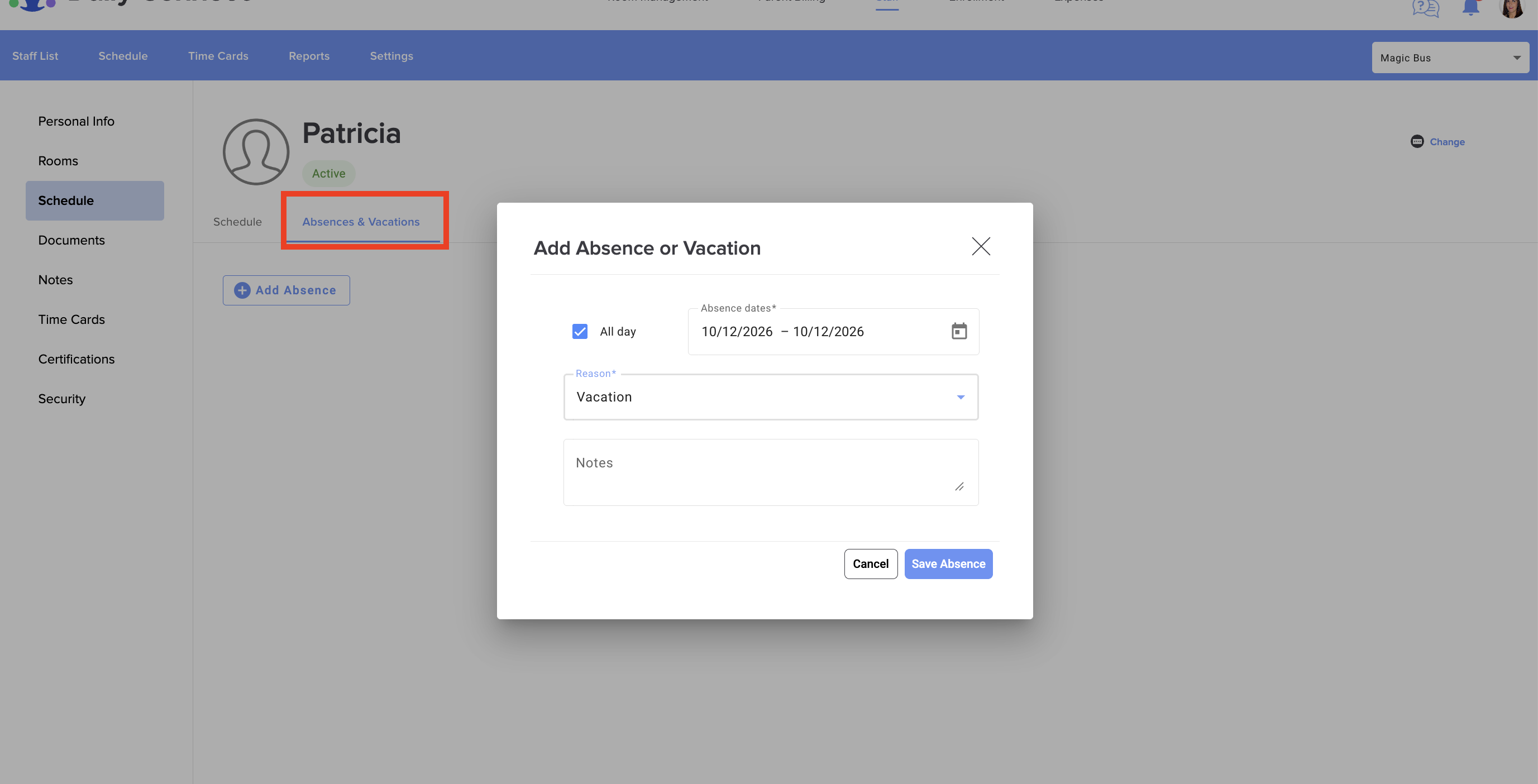
7. Add absences or vacation days on the Absence&Vacations section:
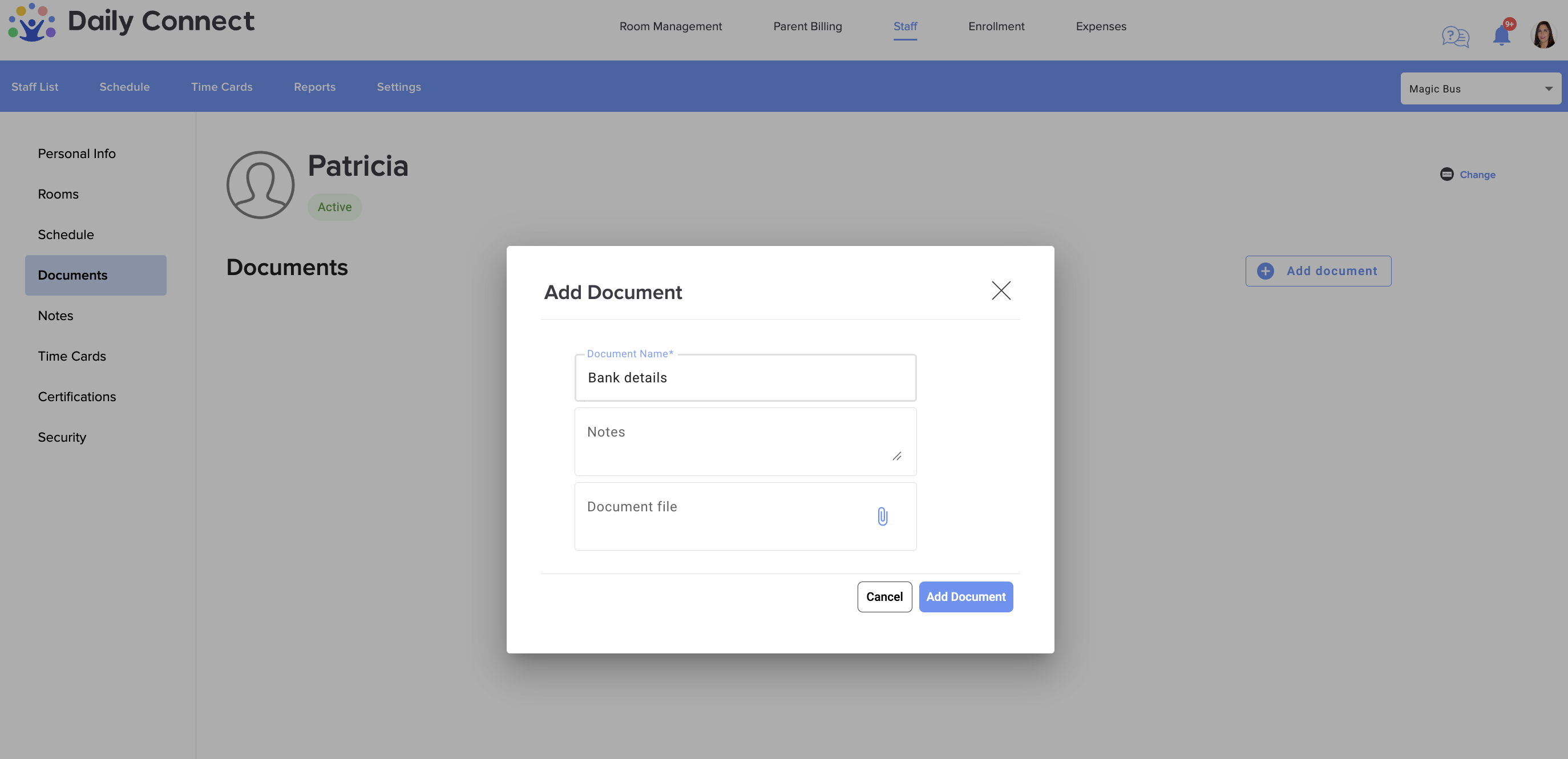
8. In the Documents section, you can add all the documents linked to this staff member, that you want:
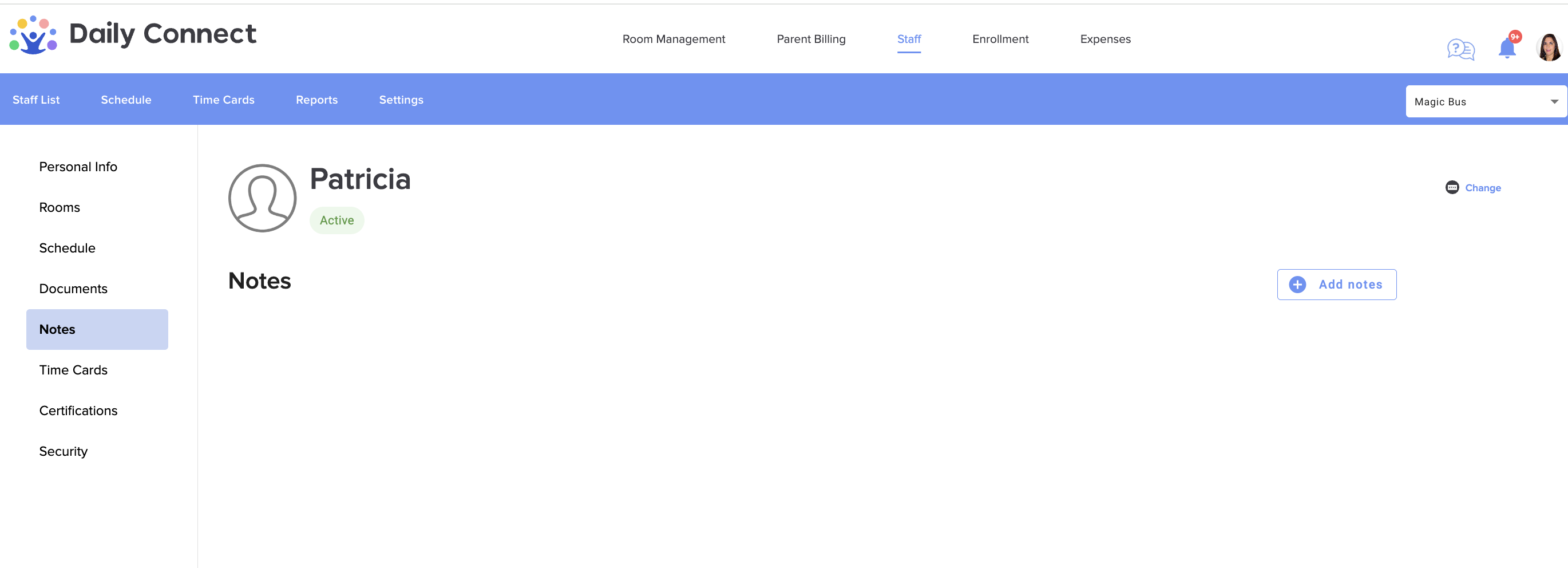
9. Add notes if needed:
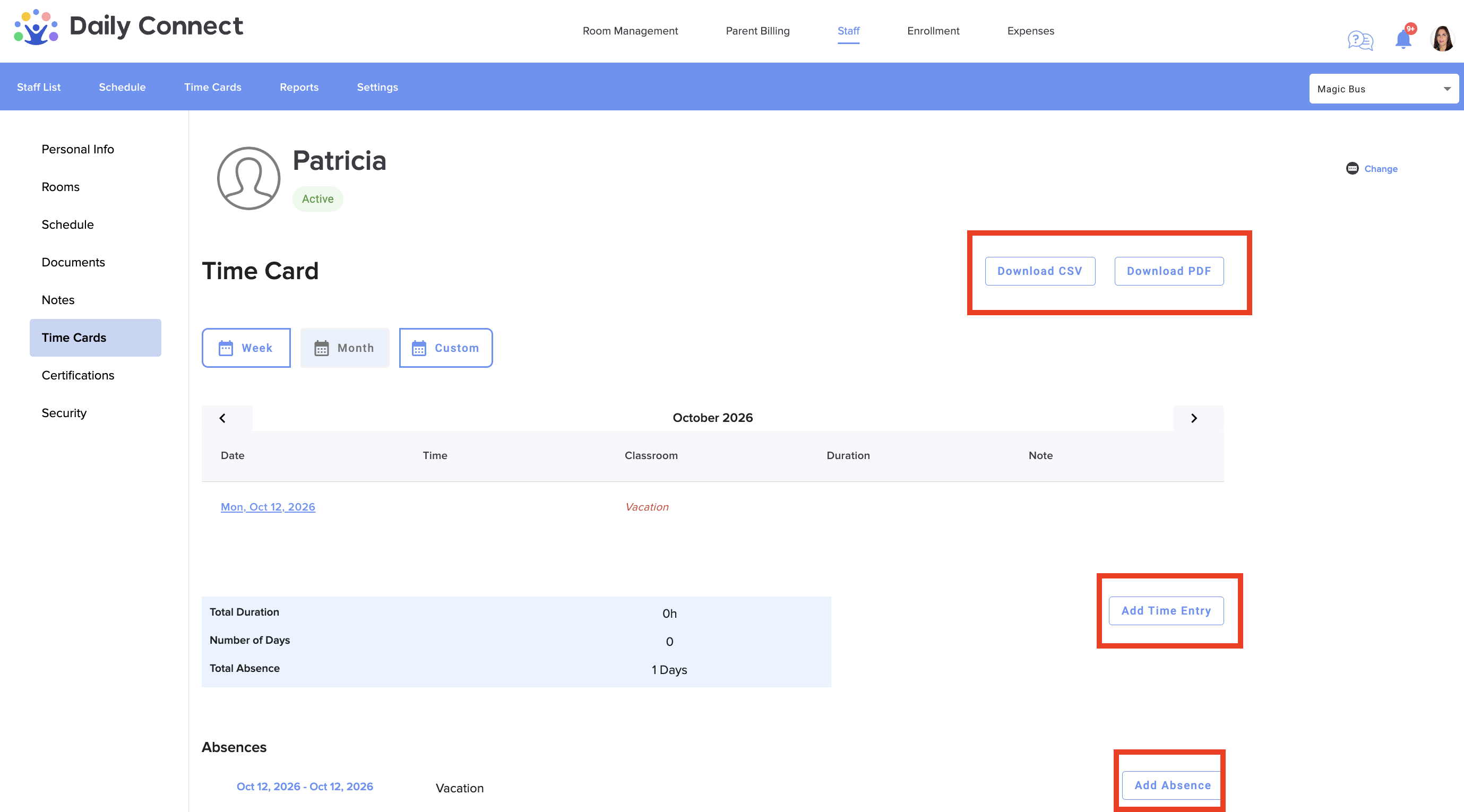
10. In the Time Card section, you can view the time recorded by each employee, as well as add a new time entry and/or absence. You can also download these time reports in two different formats:
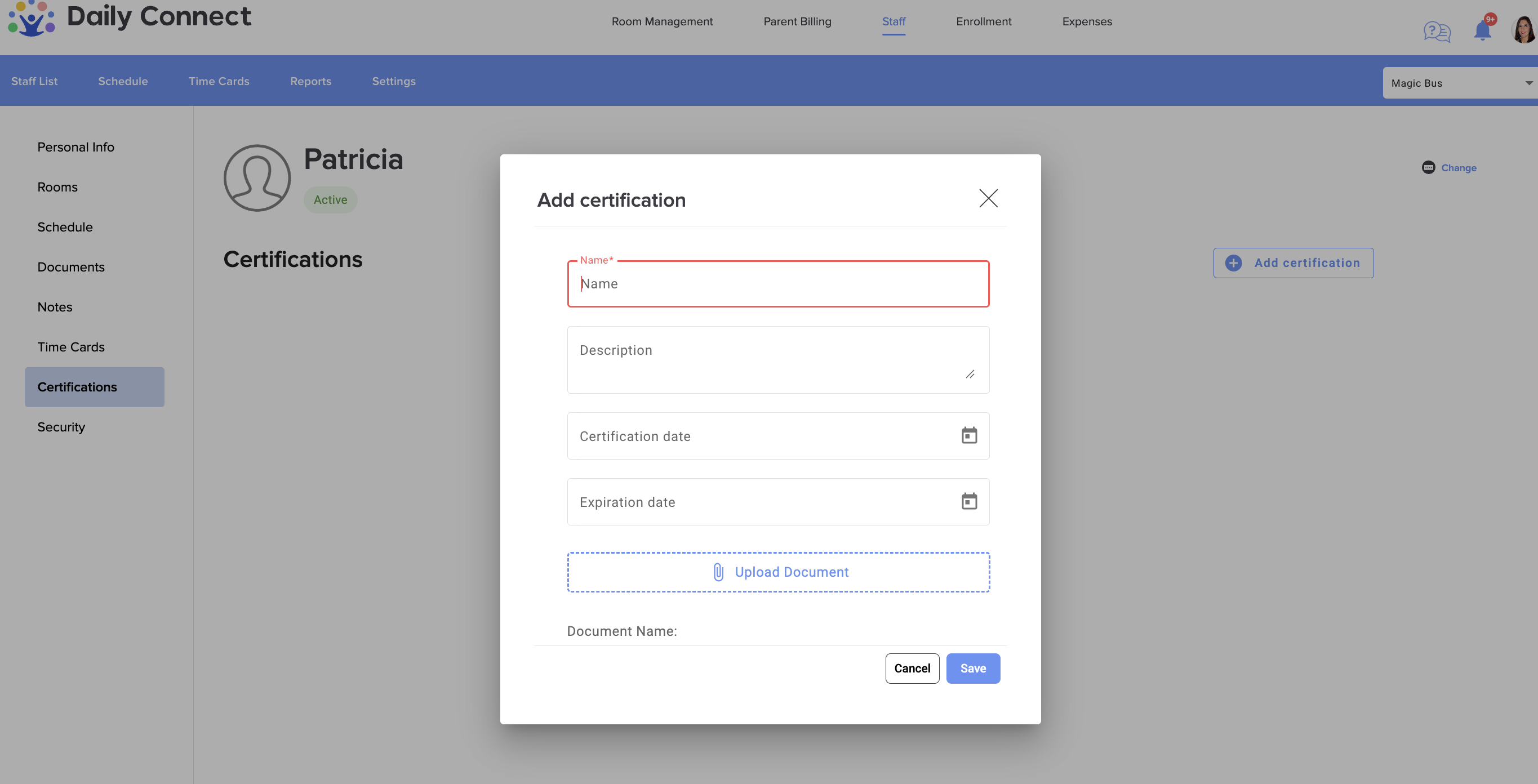
11. In the Certifications section, you can add all the certifications that each teacher has:
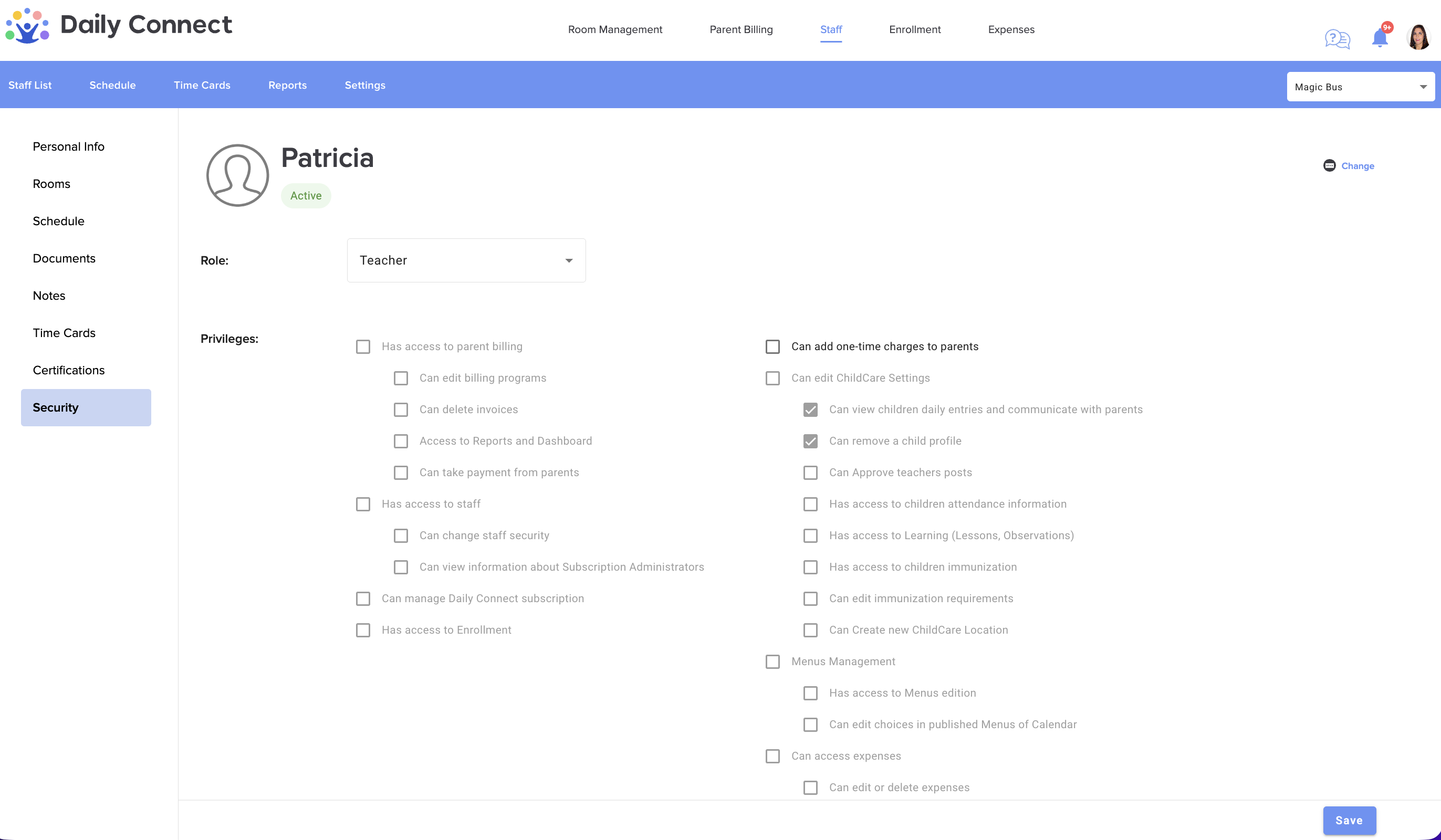
12. And finally, in the Security section, you can configure the permissions each teacher can have. As you can see, they are already fairly well configured by default. Click Save.
If you need help reach out to support@dailyconnect.com or chat with us.
Was this article helpful?
That’s Great!
Thank you for your feedback
Sorry! We couldn't be helpful
Thank you for your feedback
Feedback sent
We appreciate your effort and will try to fix the article