Once you have activated the CACFP program in your Daily Connect account, you can start configuring your menus. To do so, follow the steps below.
1. Log in to your admin account on the Daily Connect web.
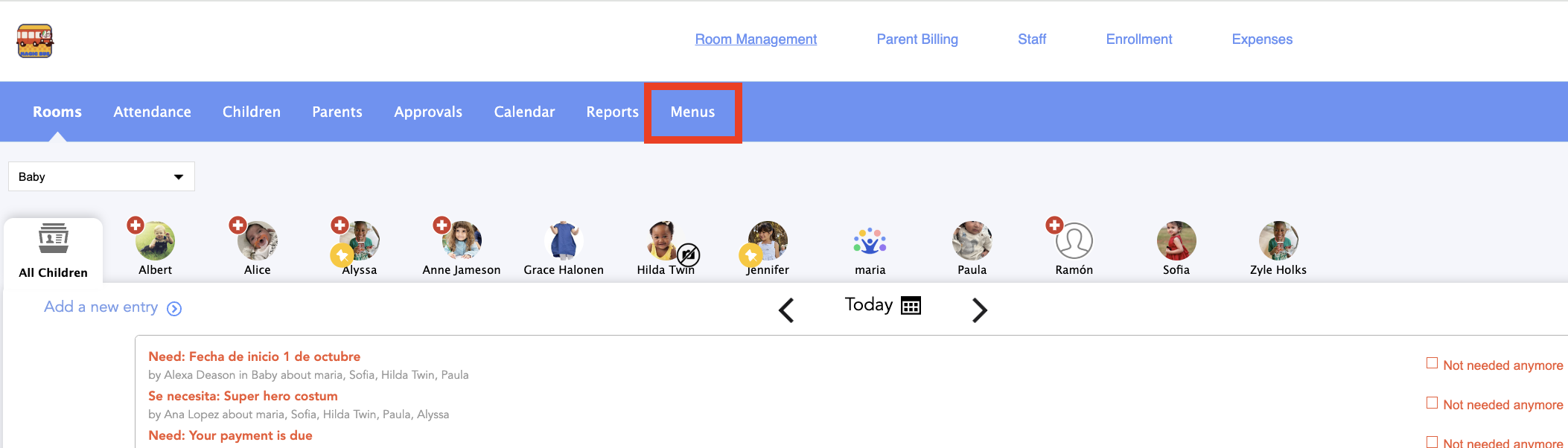
2. Go to Menus:
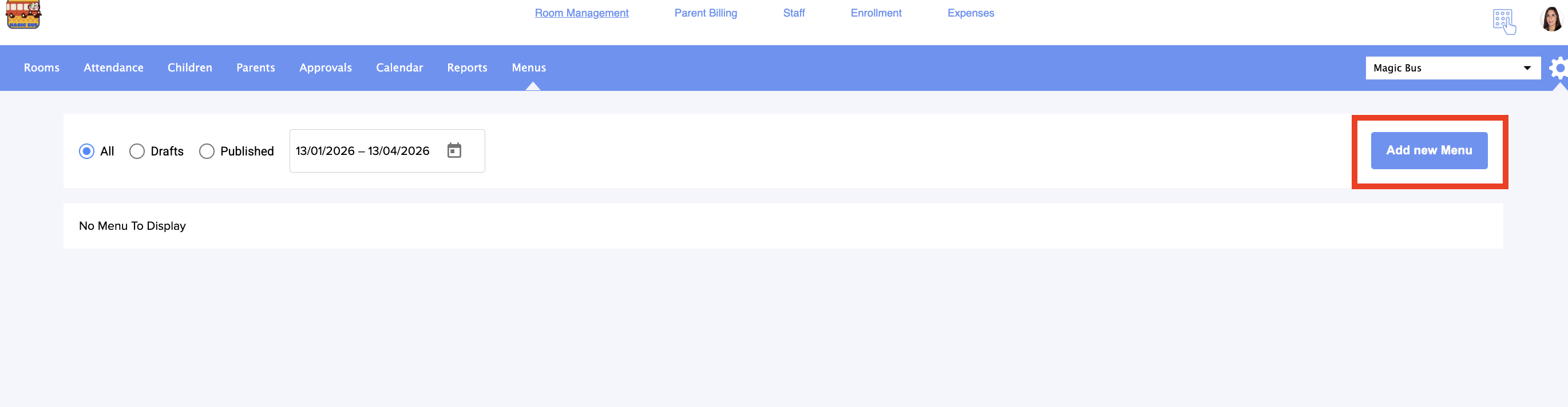
3. Select Add New menu:
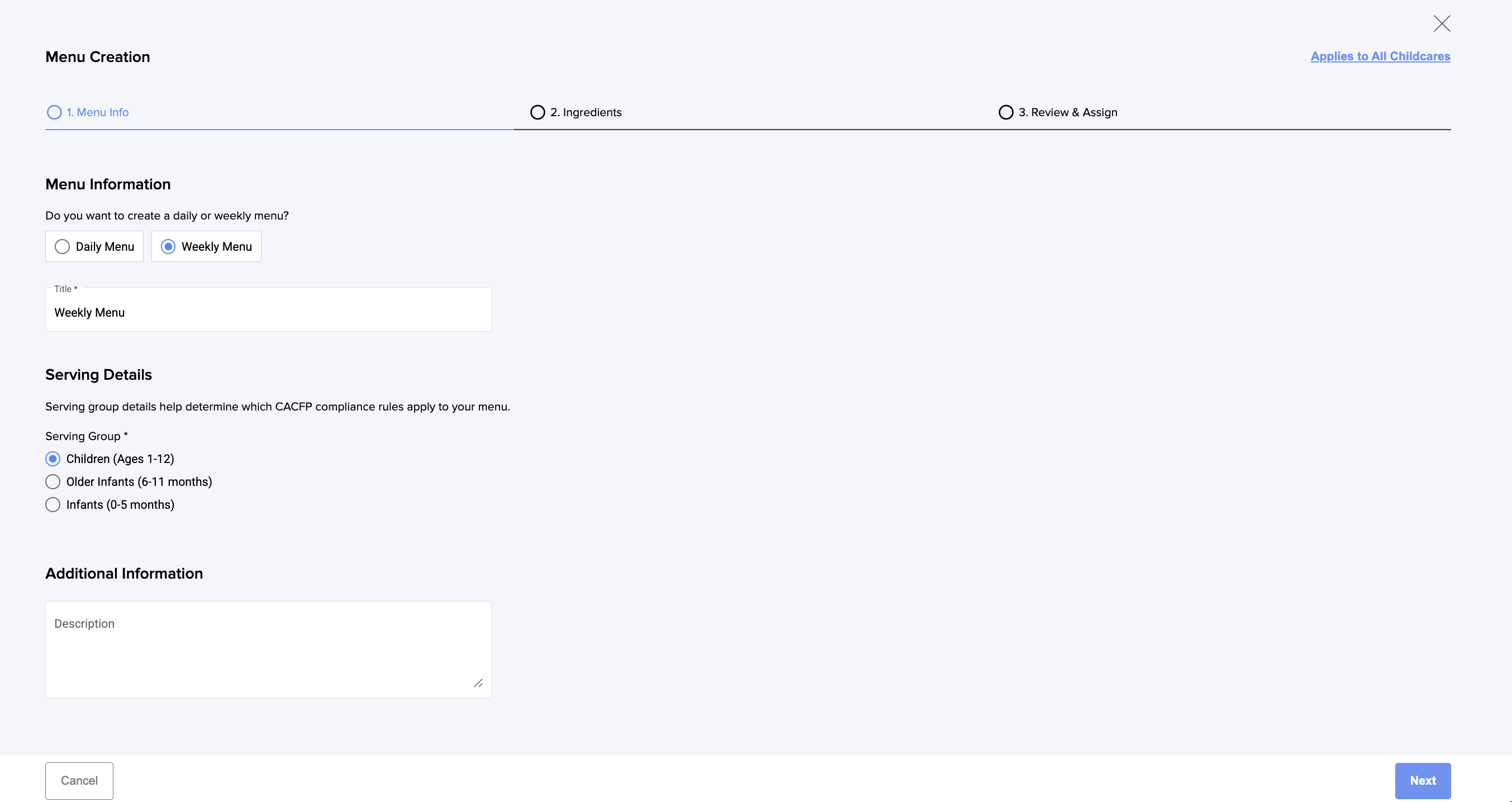
4. Enter all the menu information:
5. Now you can add all the ingredients. Click on the pencil :
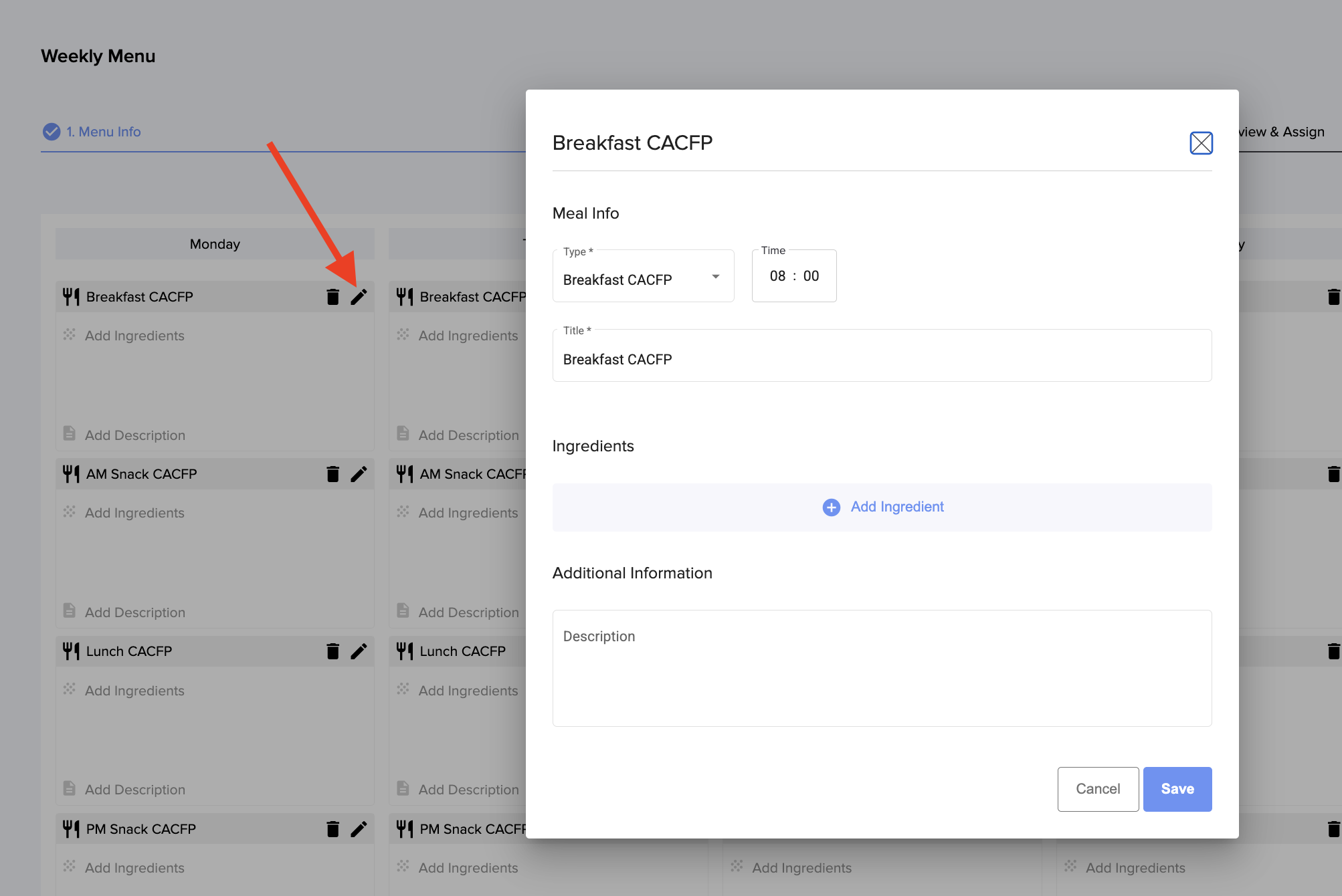
6. Add all your menu ingredients:
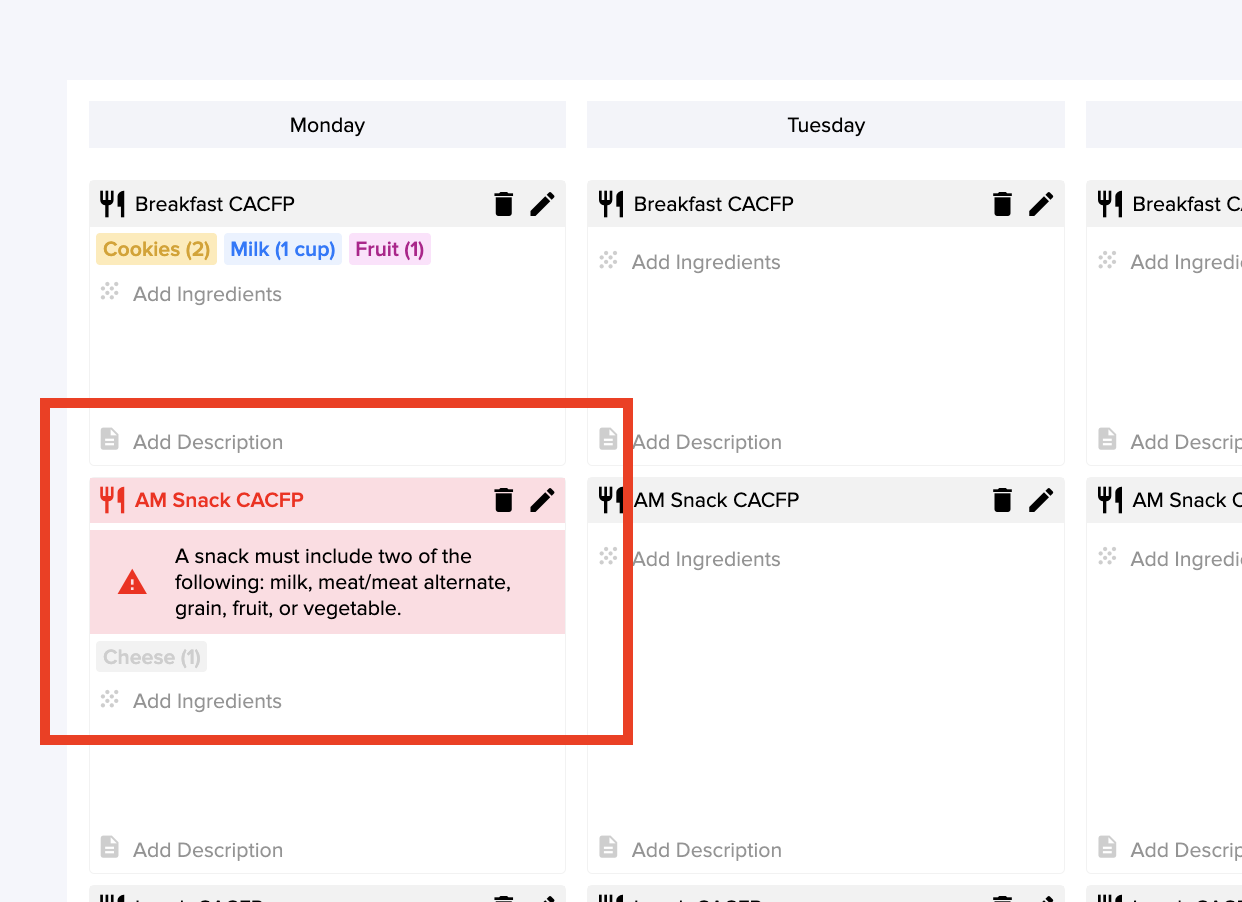
7. And you are set with Breakfast. If you add an ingredient or are missing one that is not compliant with the CACFP program, our system will notify you:
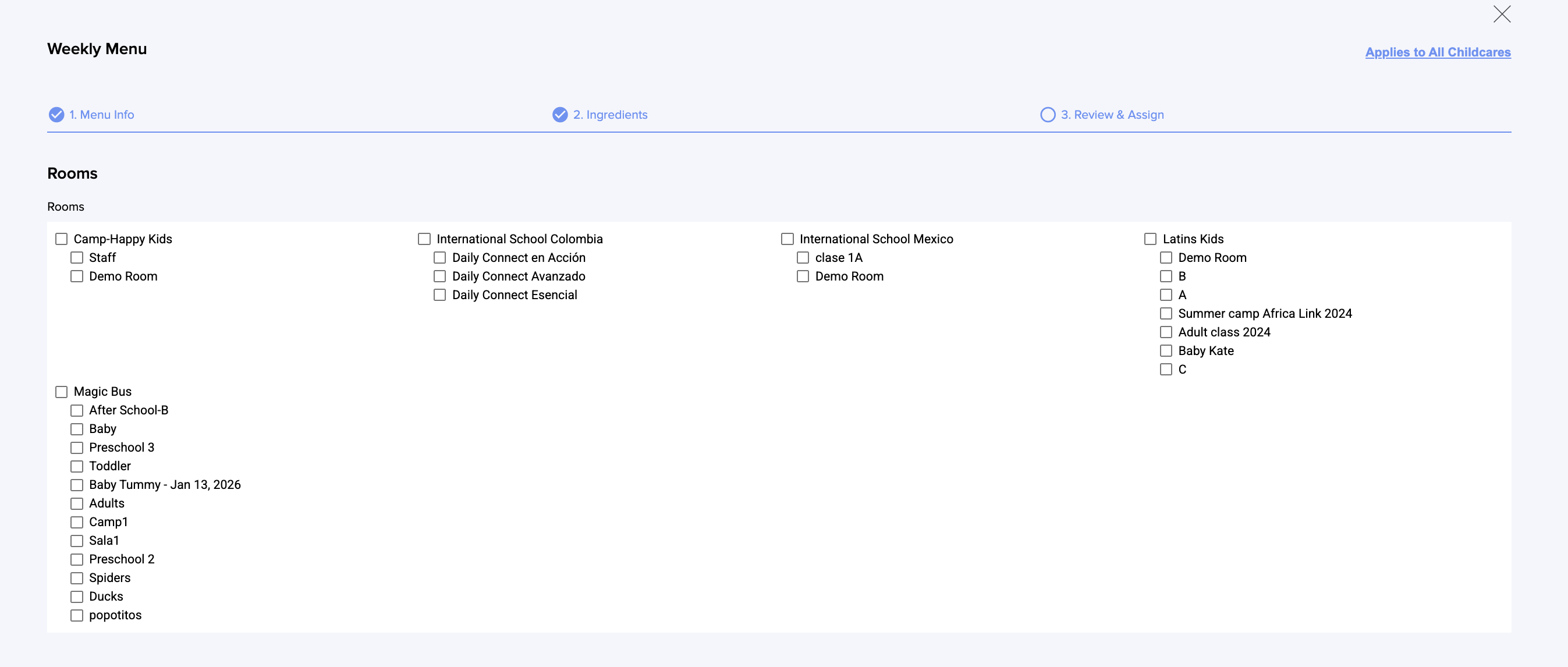
8. The next step is to select the groups where this menu will be applied:
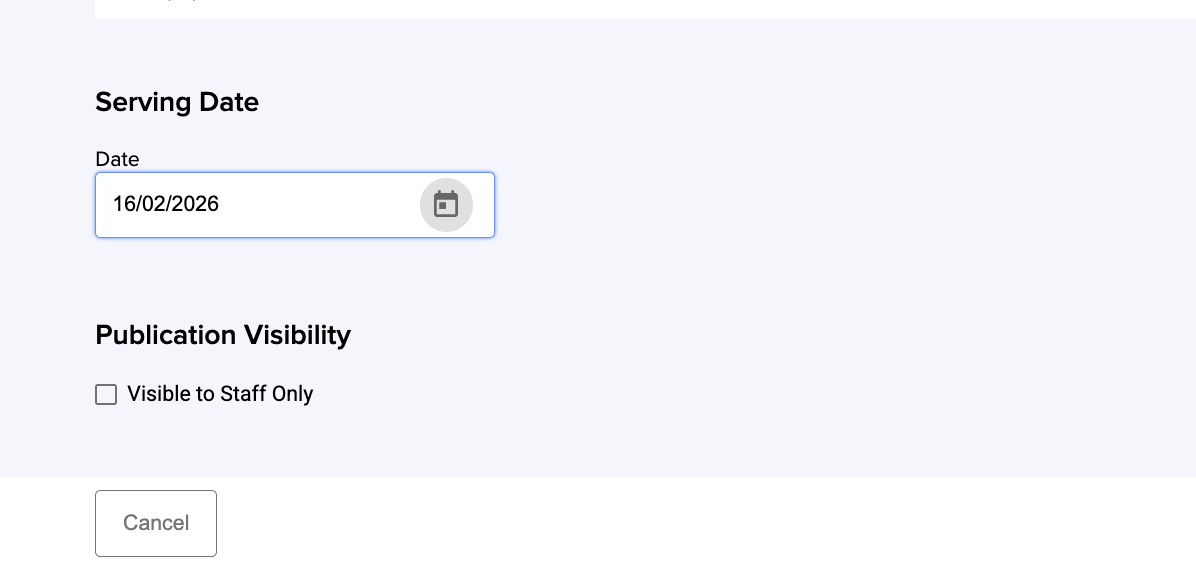
9. Select the menu's publication date and whether it will be visible only to the center staff:
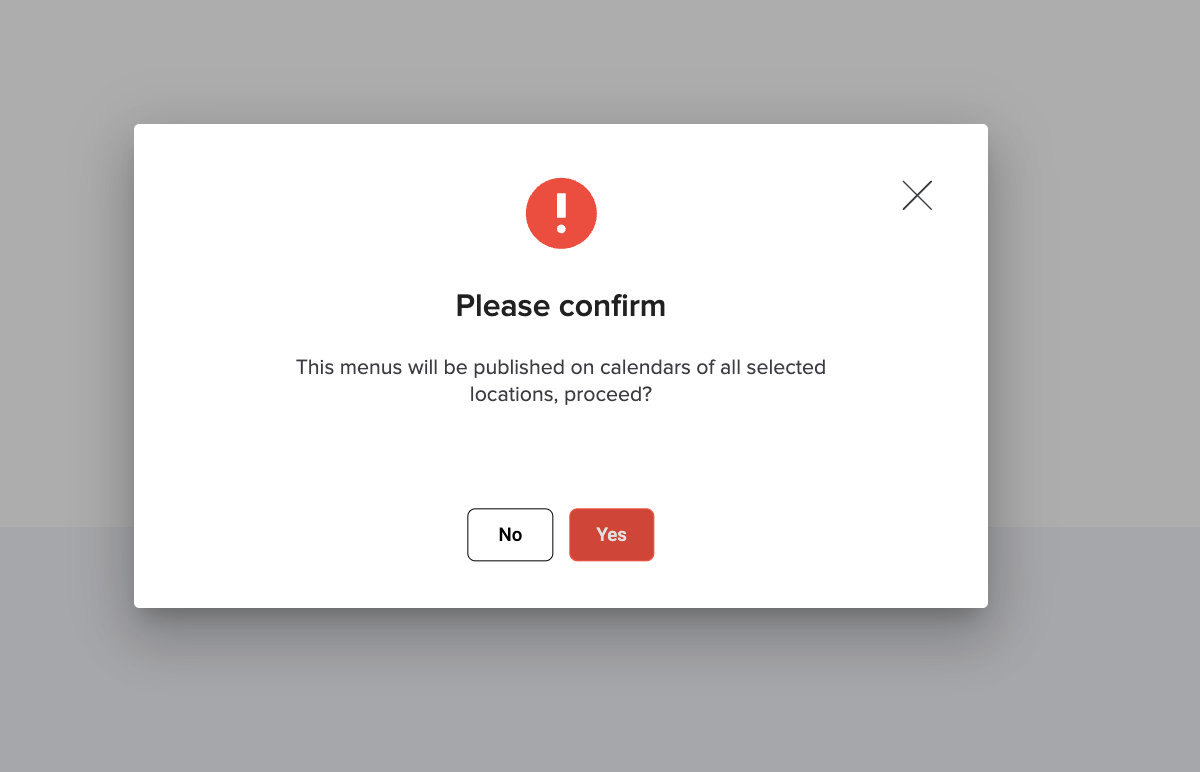
10. Click Save&Publish and confirm:
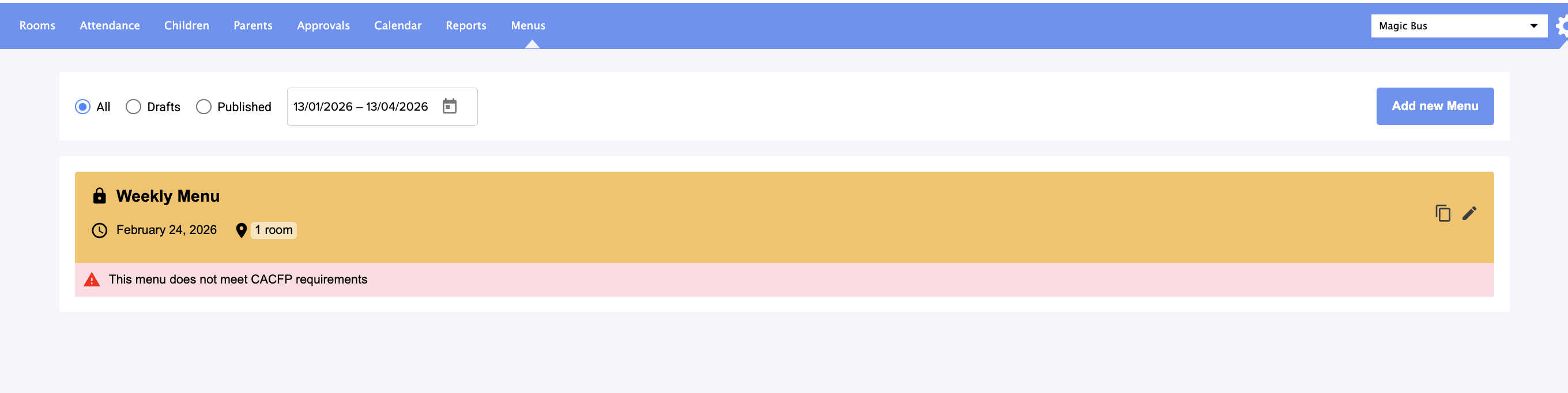
11. And that’s it. If, as in this example, there is something that does not meet the CACFP requirements, the system will continue to notify you that it needs to be modified. You can do this by clicking on the pencil icon:
Was this article helpful?
That’s Great!
Thank you for your feedback
Sorry! We couldn't be helpful
Thank you for your feedback
Feedback sent
We appreciate your effort and will try to fix the article