... ...
Skip to main content

How to record a new immunization for your child

Modified on Mon, 13 Apr at 1:06 PM

With Daily Connect, you can log all the immunizations and medical requirements your center requests. 


Follow these steps:


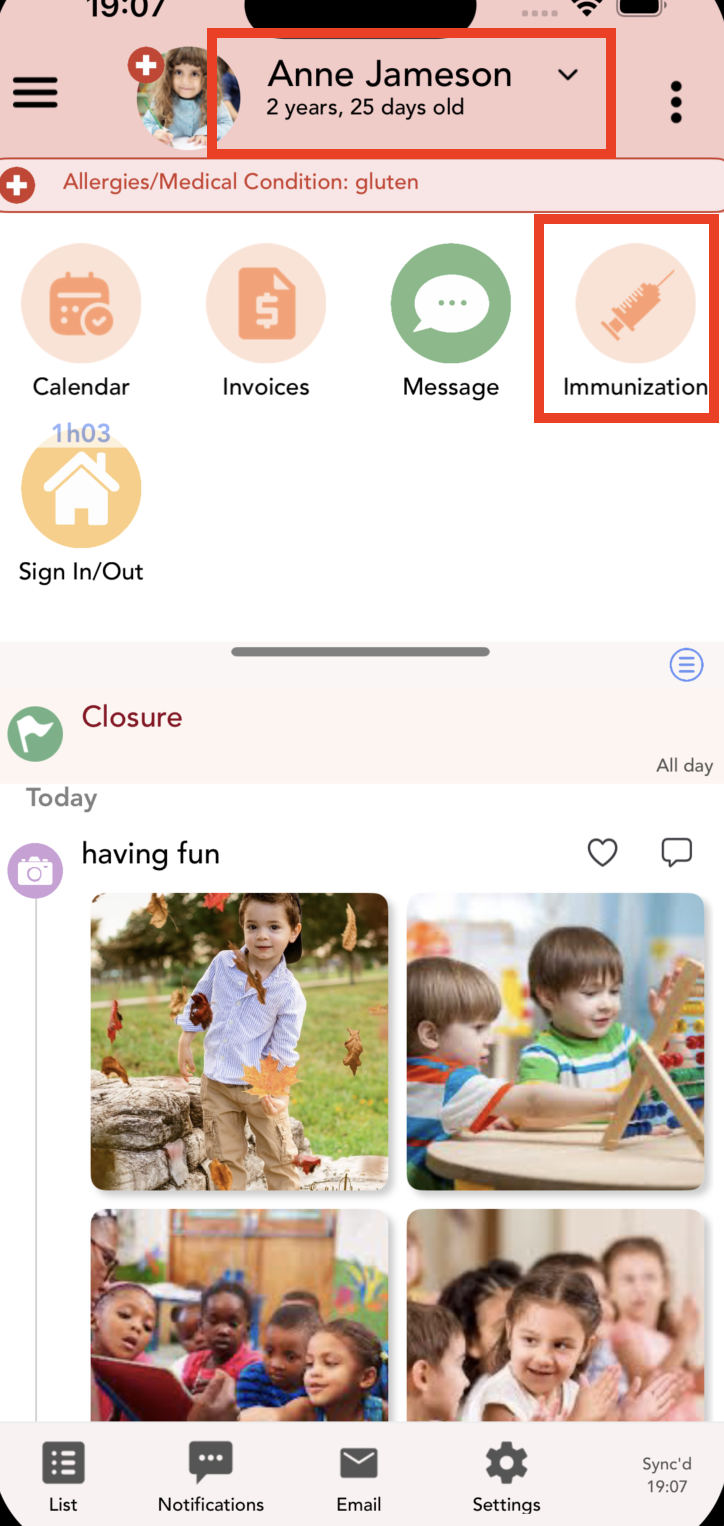
1. Log in to the app and tap on the immunization icon. 


If you have more than one kid, tap here to select the correct child's profile.


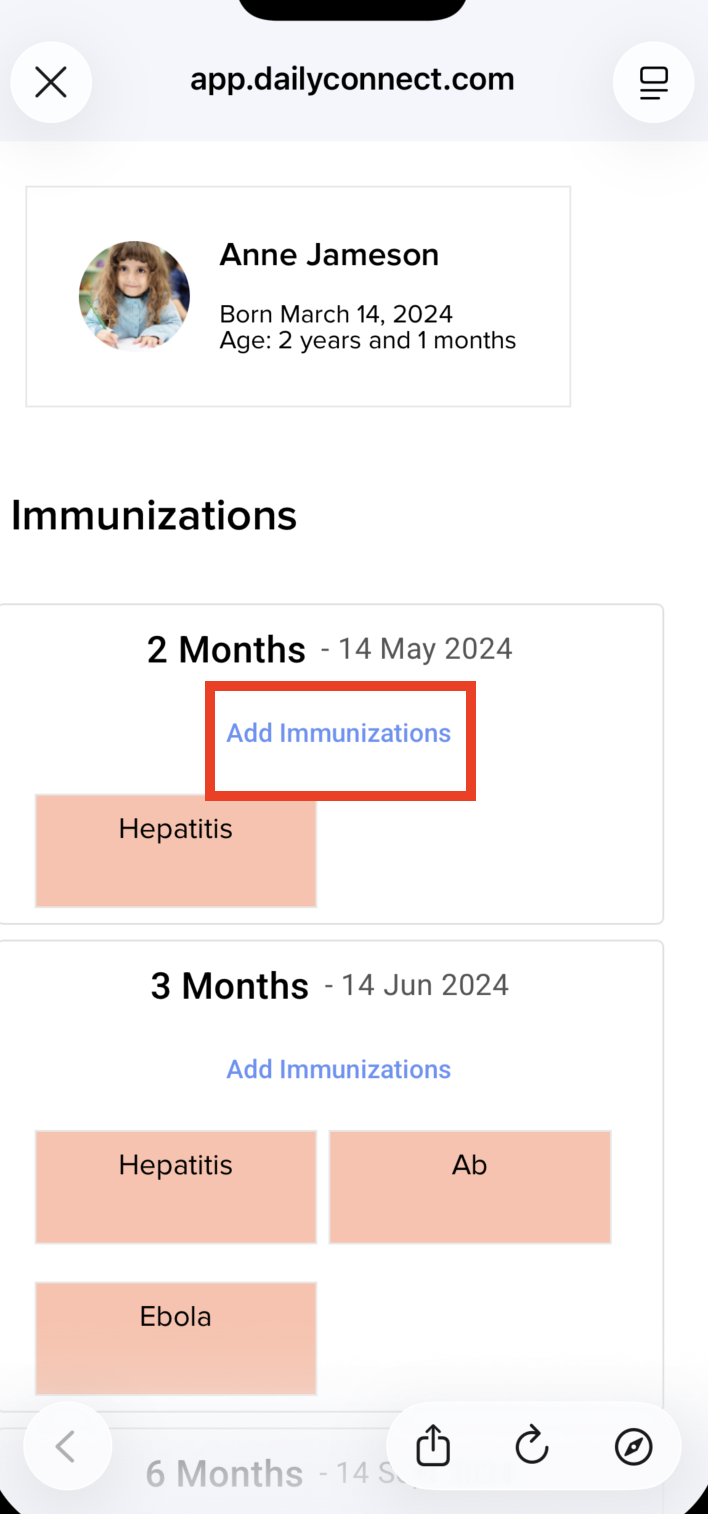
2. Tap on “Add Immunizations” to record the immunization or medical requirement.


The color coding is as follows: yellow indicates an immunization due in the next 30 days, red indicates a past due, and green indicates compliance with the requirement.


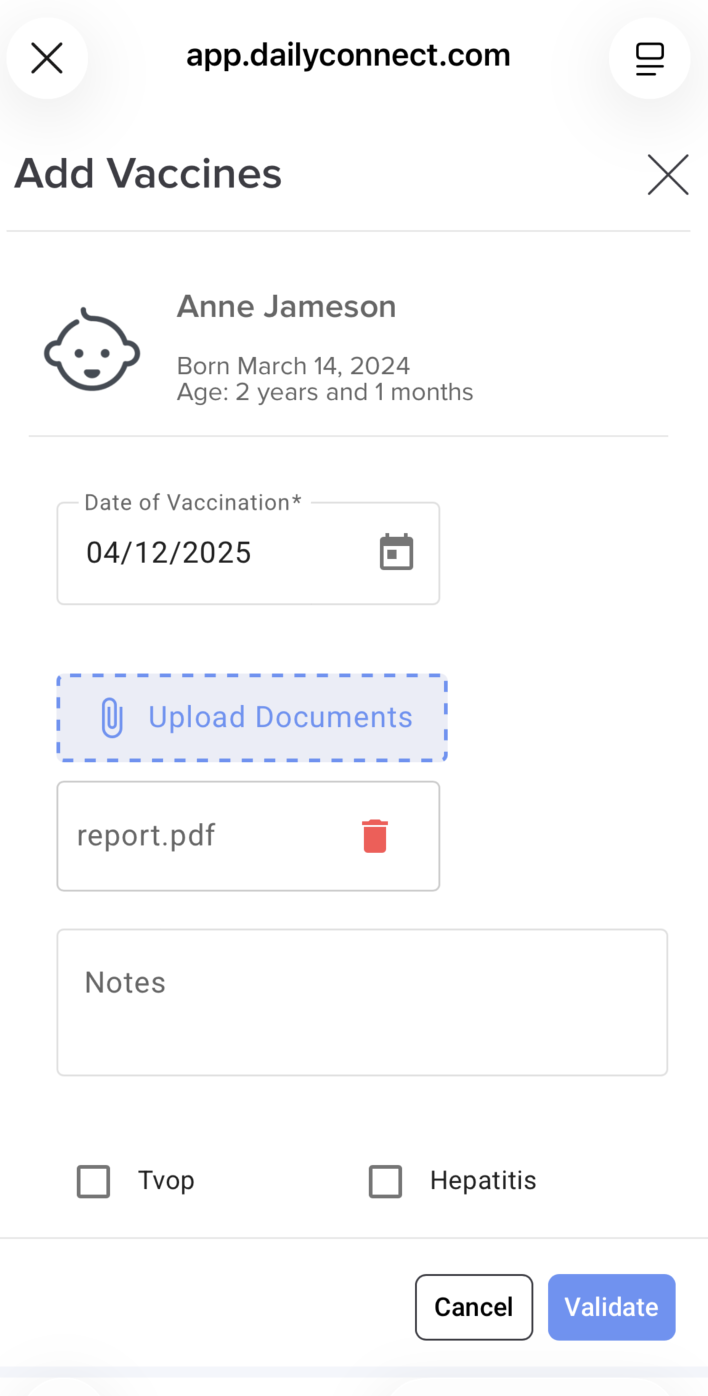
3. Fill in the information and tap "validate".


Your center will receive an email with the records to review.


If you have any questions or need assistance, please contact us via email at support@dailyconnect.com.


Was this article helpful?

That’s Great!

Thank you for your feedback

Sorry! We couldn't be helpful

Thank you for your feedback

Let us know how can we improve this article!

Select at least one of the reasons
CAPTCHA verification is required.

Feedback sent

We appreciate your effort and will try to fix the article