This feature lets you tailor the Fields you track in your CRM and personalize your CRM view to match your workflow.
To get started, log in to the web app at www.dailyconnect.com and click Enrollment in the top navigation bar.
1. Open CRM Customization in Settings 0:12
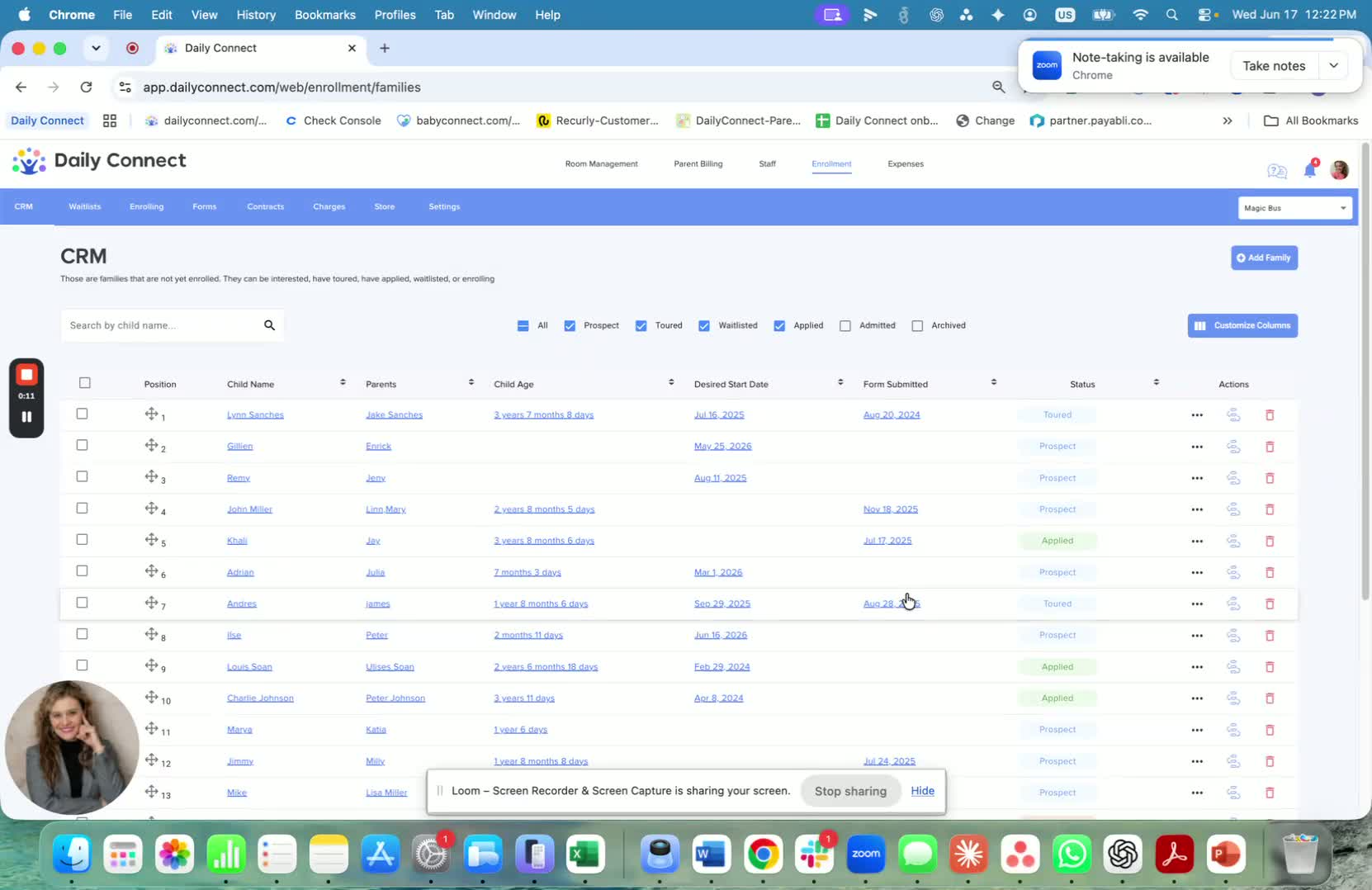
Go to Settings in your CRM.
Open CRM Customization.
This is where you can request and manage the extra fields you want to appear in your CRM.
2. Choose the fields you want to add 0:27
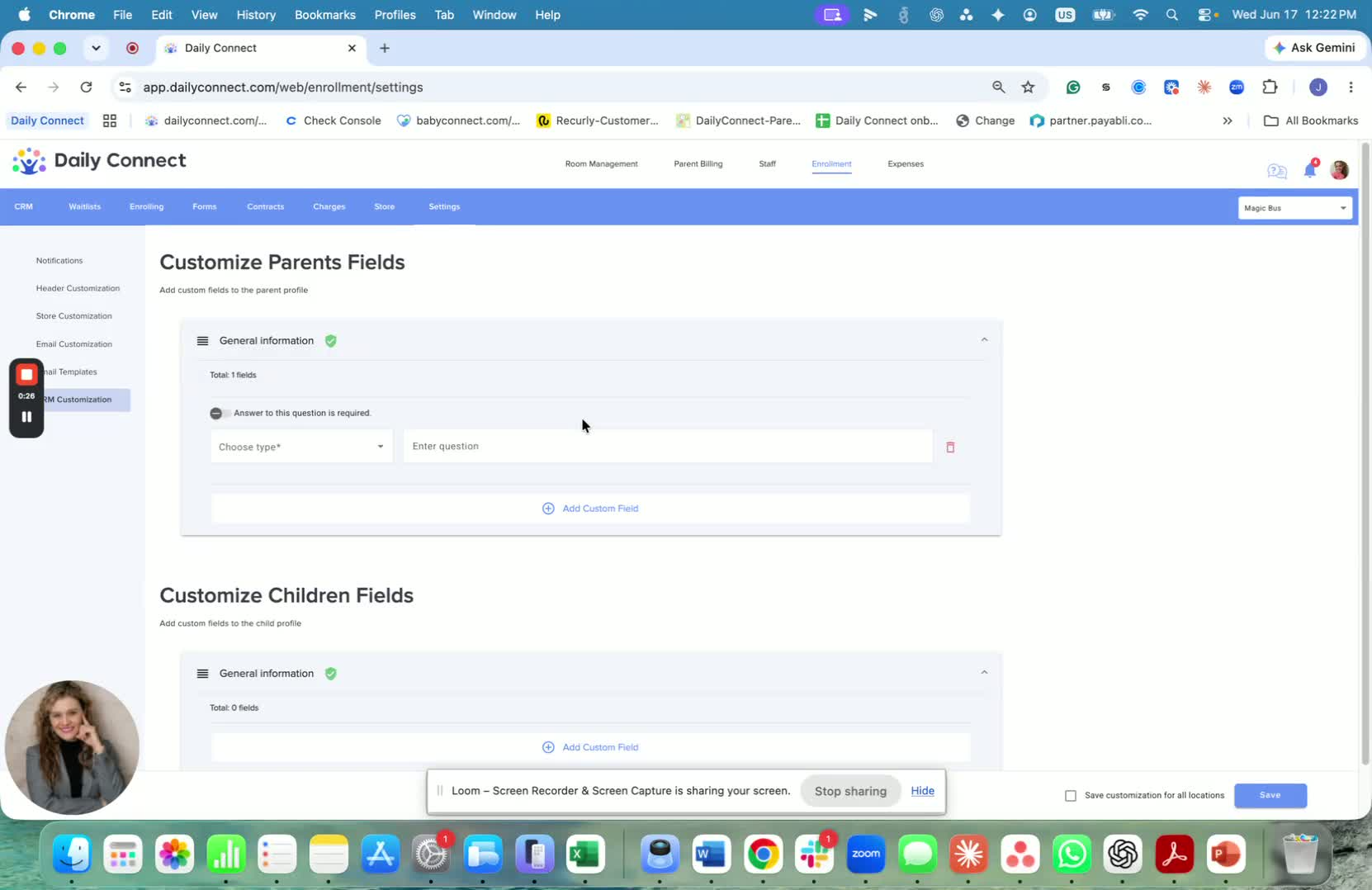
Decide which additional fields are important for your workflow.
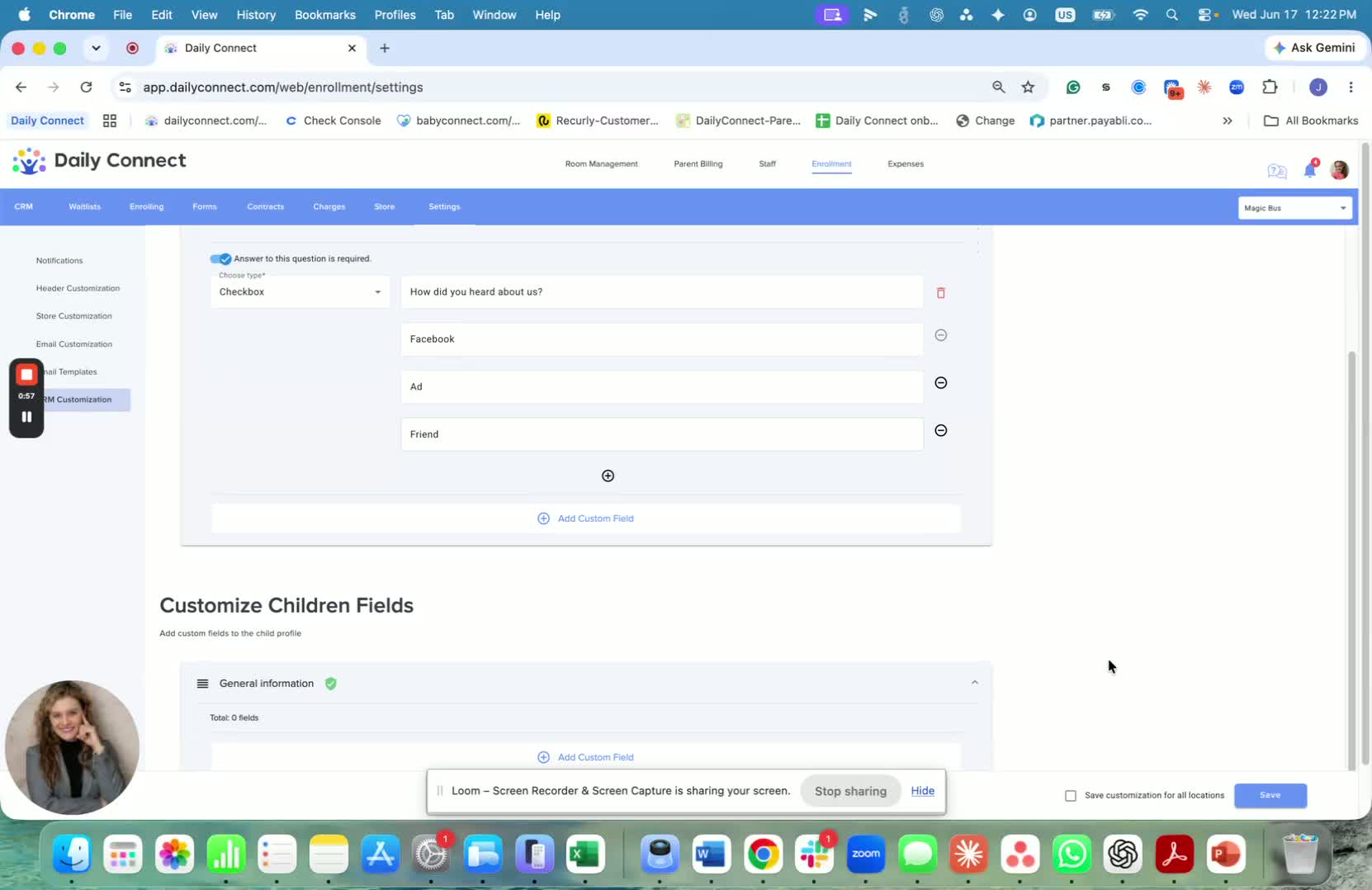
Example: add a field for "How did you hear about us?"
You can set up options such as:
Facebook
Ad
Brand
3. Create custom fields for child or client details 0:58
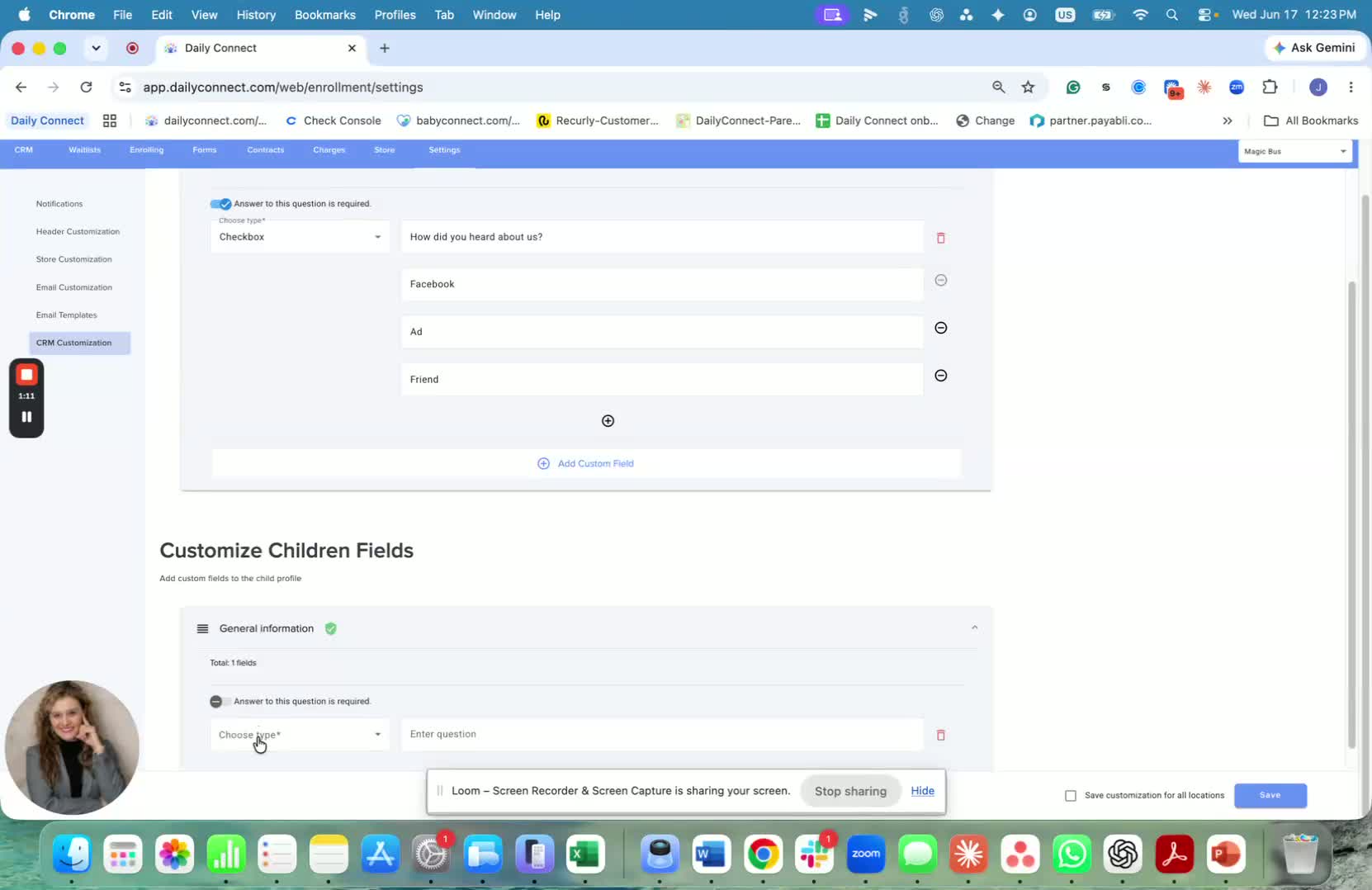
You can also create custom fields to collect specific information.
Use this area to build the questions you want to ask.
Example: create a field like "Day to start" or other child-related details.
4. Customize which fields show in your CRM 1:12
In the CRM, choose which fields are most important to display.
Customize what appears so your CRM matches your needs and priorities.
This helps keep the most useful information visible at a glance.
If you have questions, contact support. Reach out via support@dailyconnect.com or use the chat feature.
Watch this video
Was this article helpful?
That’s Great!
Thank you for your feedback
Sorry! We couldn't be helpful
Thank you for your feedback
Feedback sent
We appreciate your effort and will try to fix the article