1. Understand what CRM forms are for:
CRM forms help you track and record information about prospect families — those who are interested in your center but not yet enrolled. CRM forms are fully customizable, letting you capture exactly the fields your center needs to manage leads and stay organized in your CRM.
2. Create a new CRM form 0:15
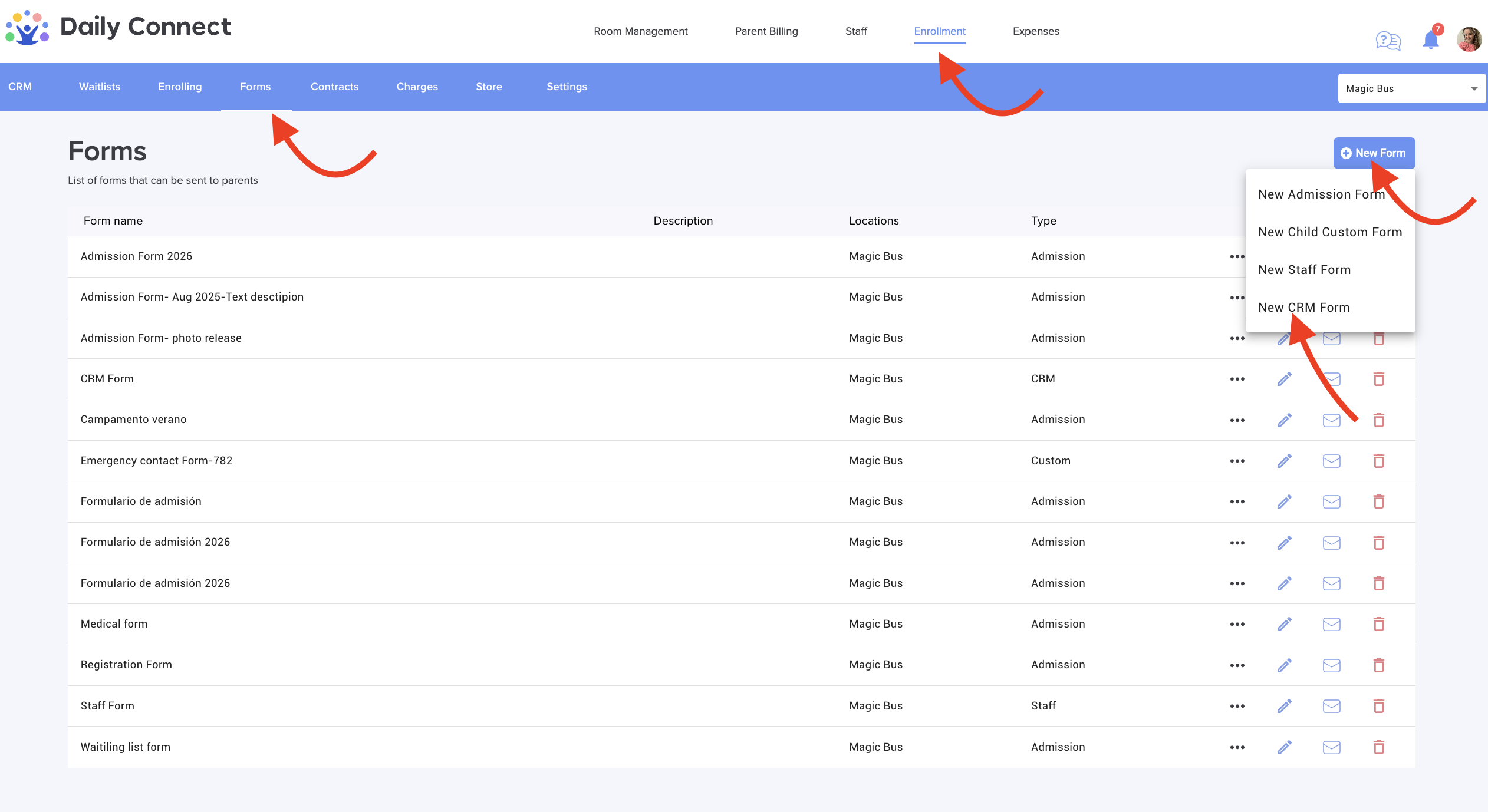
Go to Enrollment
Go to Forms.
Click Create a New Form.
Select the option for a new CRM form.
This form is specifically designed to send responses to your CRM.
3. Customize your fields you need 0:23
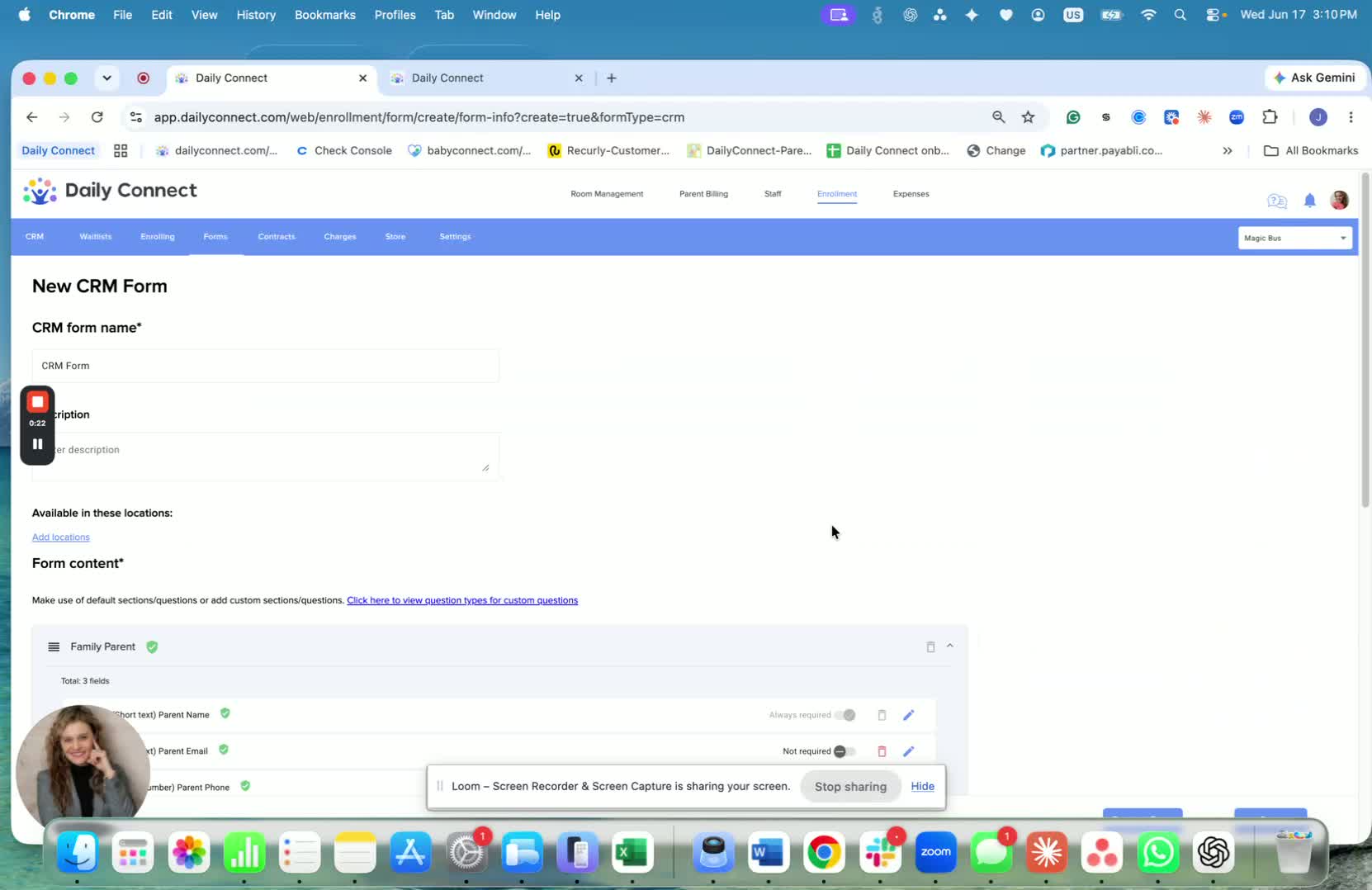
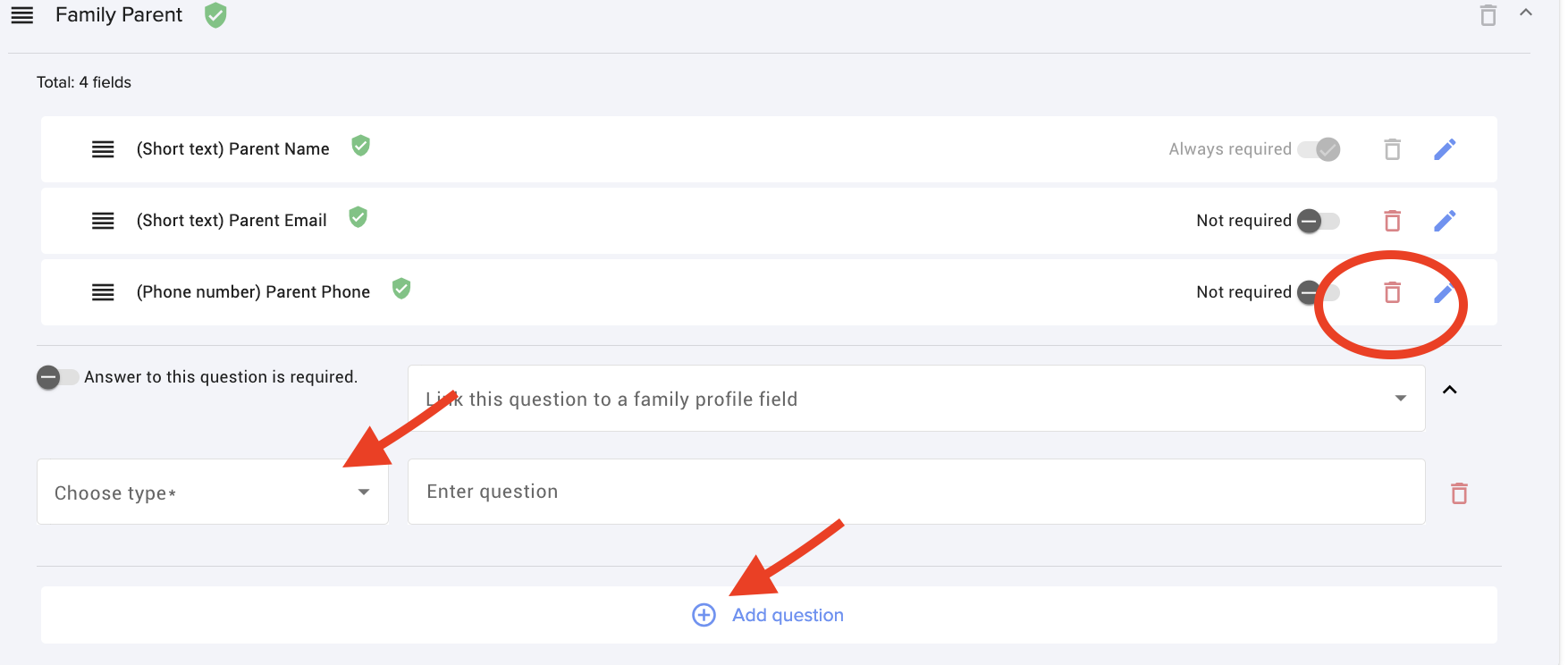
In the form editor, you can add or remove questions as needed.
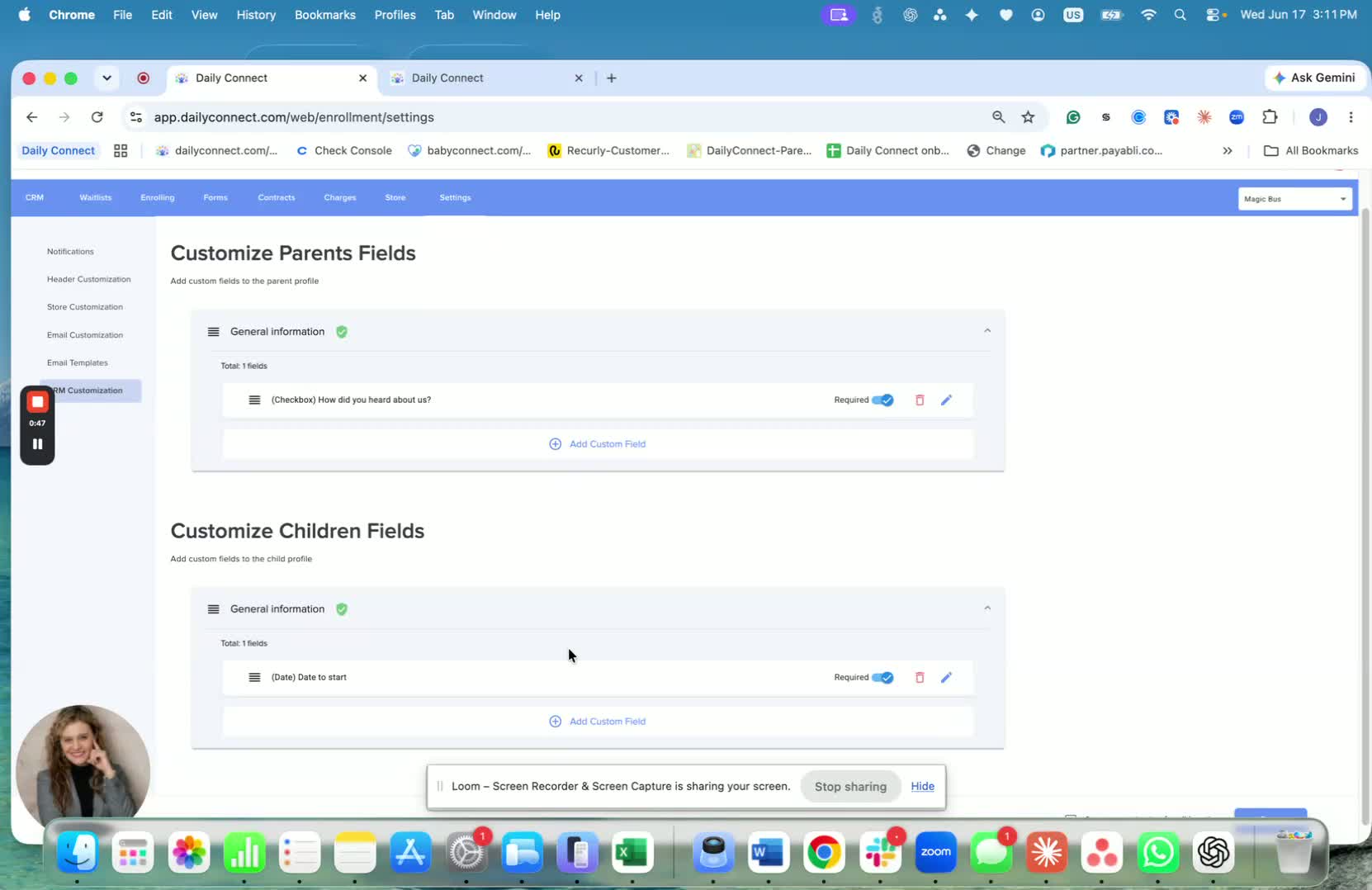
If you need additional custom questions or fields, go to:
Enrollment
Settings
CRM Customization
There, you can create the custom questions you want to collect and then include them in your CRM form.
4. Share the CRM form with families or customers 0:48
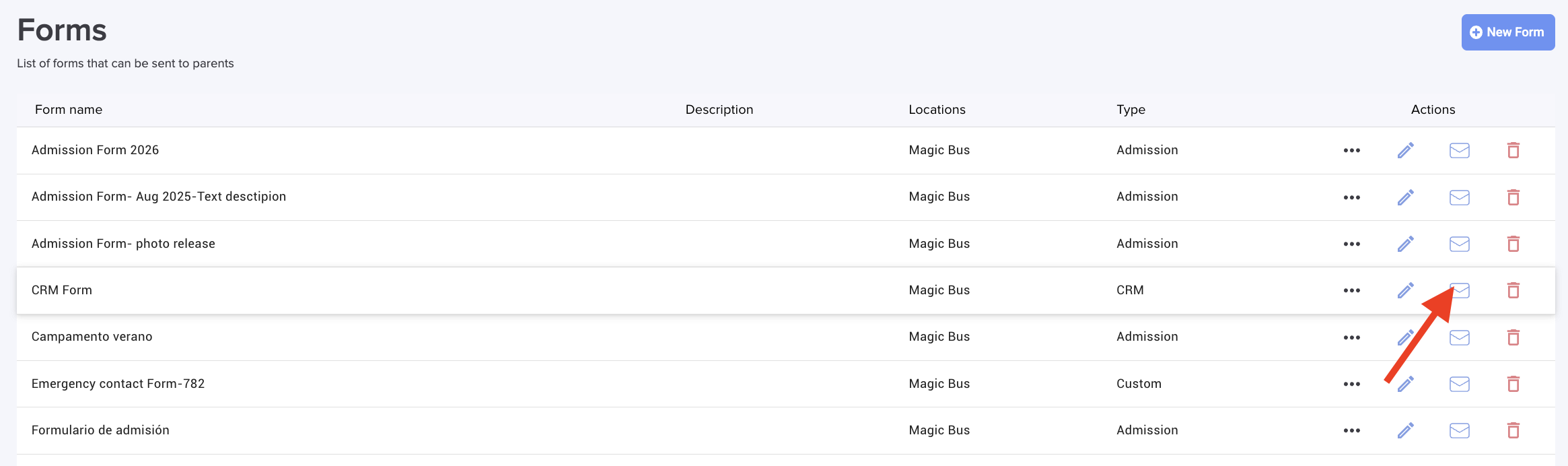
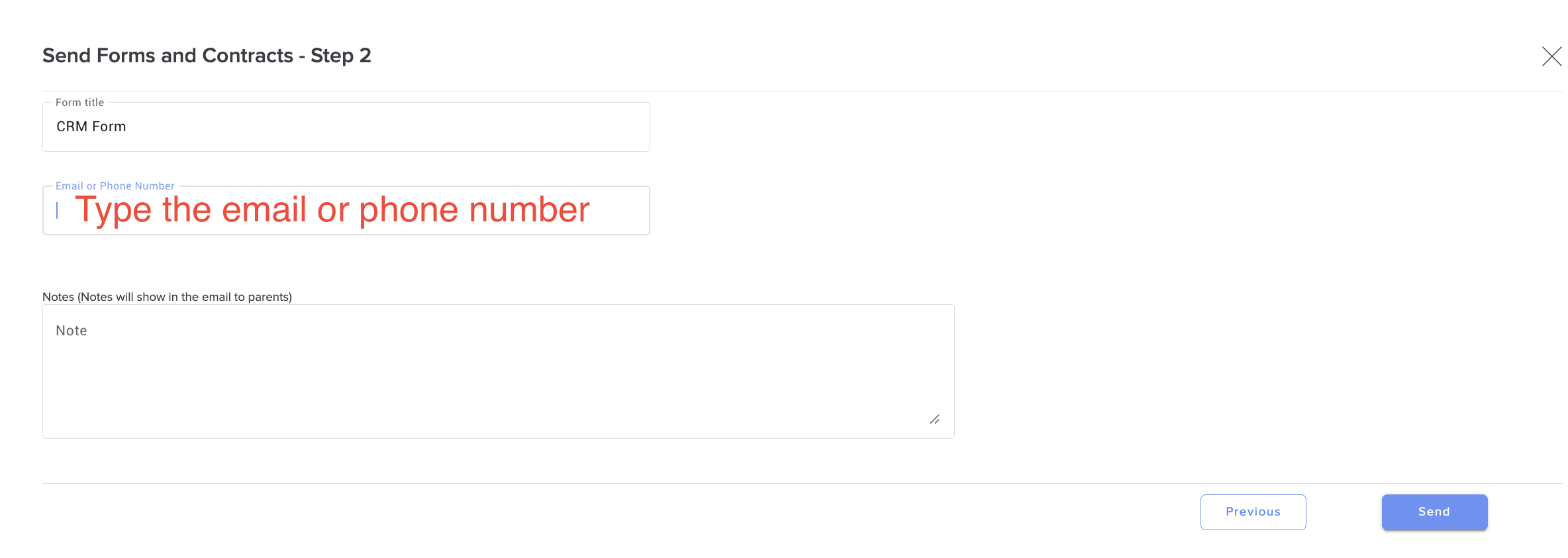
CRM forms can be shared in several ways:
Email
Text message
Embedded in your storage products
This gives you flexibility in how people access and complete the form.
5. Add the form in your product 0:58
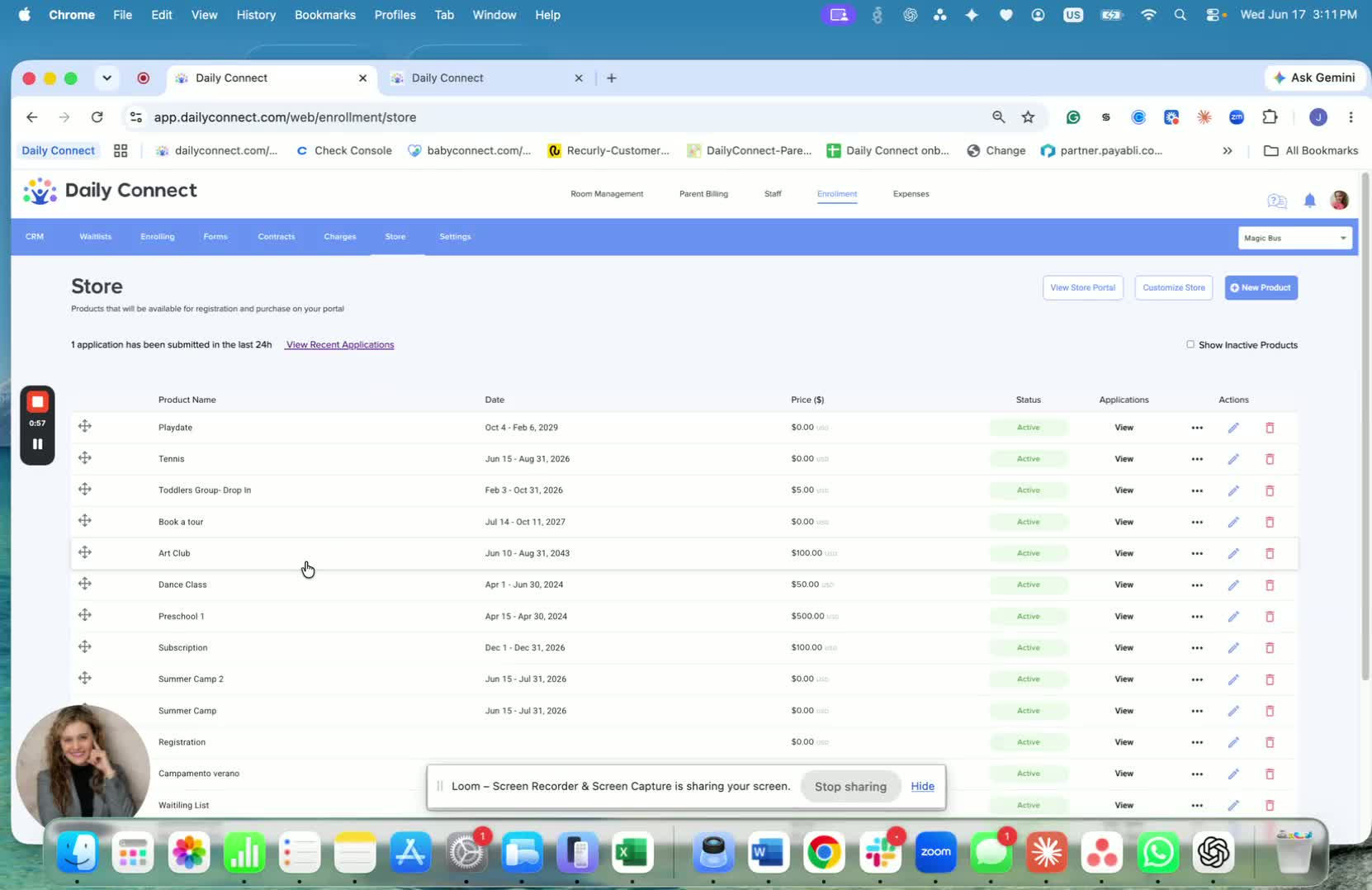
Example: a product like Book a Tour can be embedded on your website.
When parents use that product, they can complete the CRM form as part of the process.
This lets you collect their information automatically and send it to your CRM.
6. View submitted applications and add them to the CRM 1:16
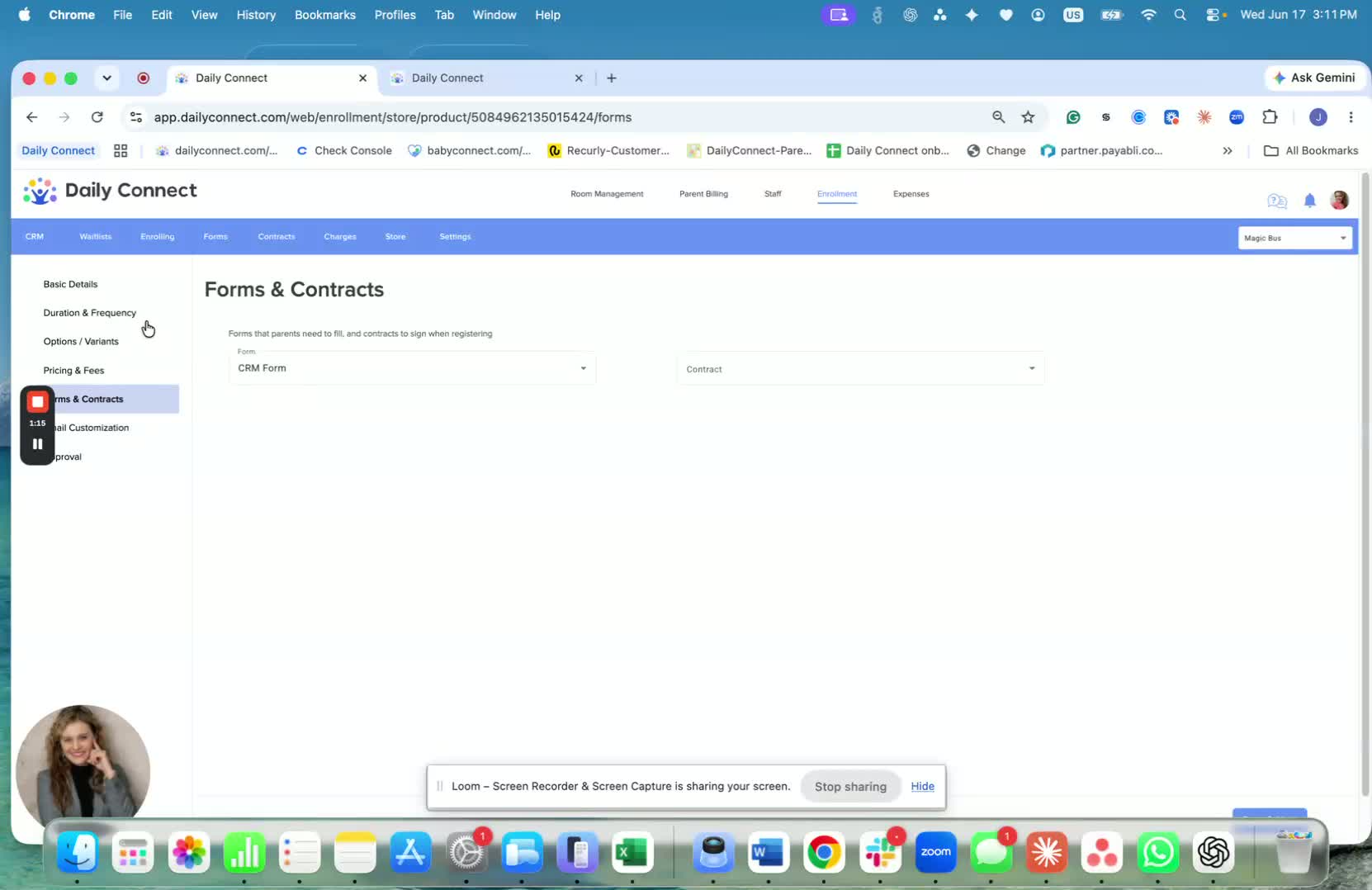
Go back to your store and open your CRM applications.
Find the submitted item, such as Book a Tour.
Click Add it to the CRM.
The form submission will then be added directly into your CRM.
Once added, the CRM entry is saved and ready for tracking.
If you have questions, the team is available to help.
If you have any questions or need assistance, please contact us via email at support@dailyconnect.com.
Was this article helpful?
That’s Great!
Thank you for your feedback
Sorry! We couldn't be helpful
Thank you for your feedback
Feedback sent
We appreciate your effort and will try to fix the article