1. Customize the staff fields first 0:00
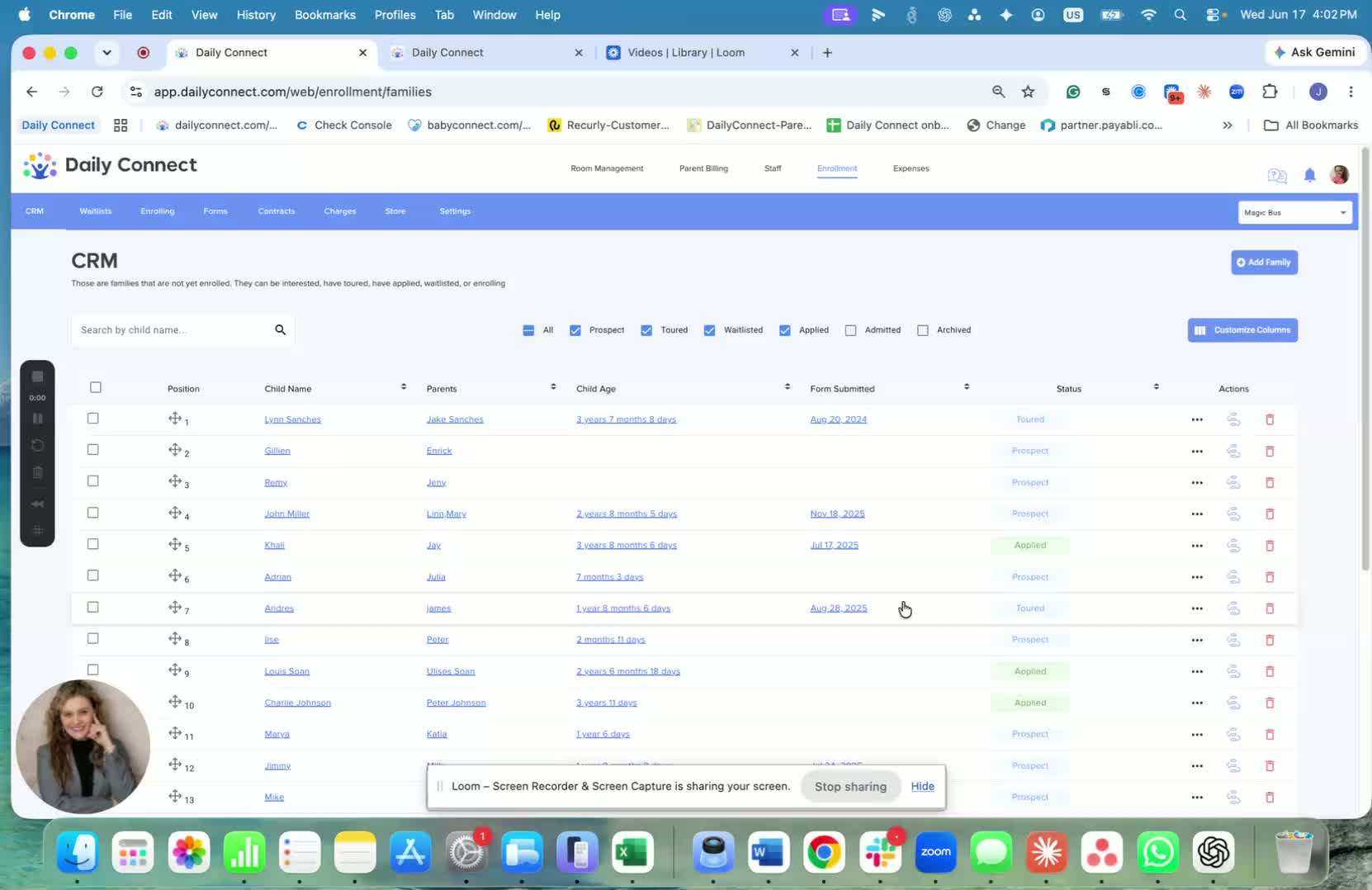
Go to Staff.
Open Settings.
Select Customize Staff Fields.
Add the questions or information you want to collect from staff.
These custom fields will determine what information can be included in the staff form.
2. Create a new staff form 0:33
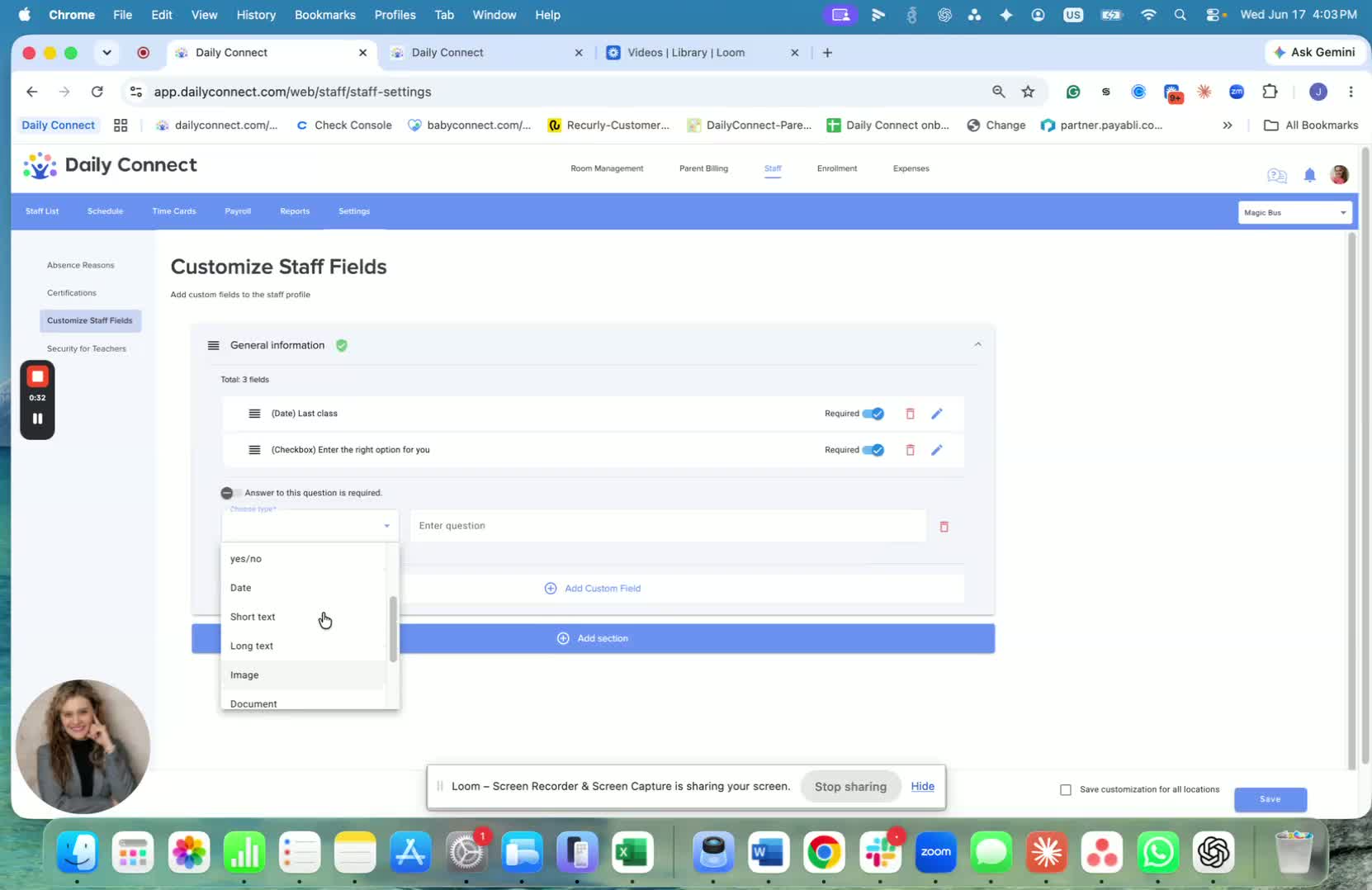
Go to Enrollment.
Click Forms.
Select New Form.
Choose New Staff Form to start building the form.
3. Add and manage questions in the form 0:51
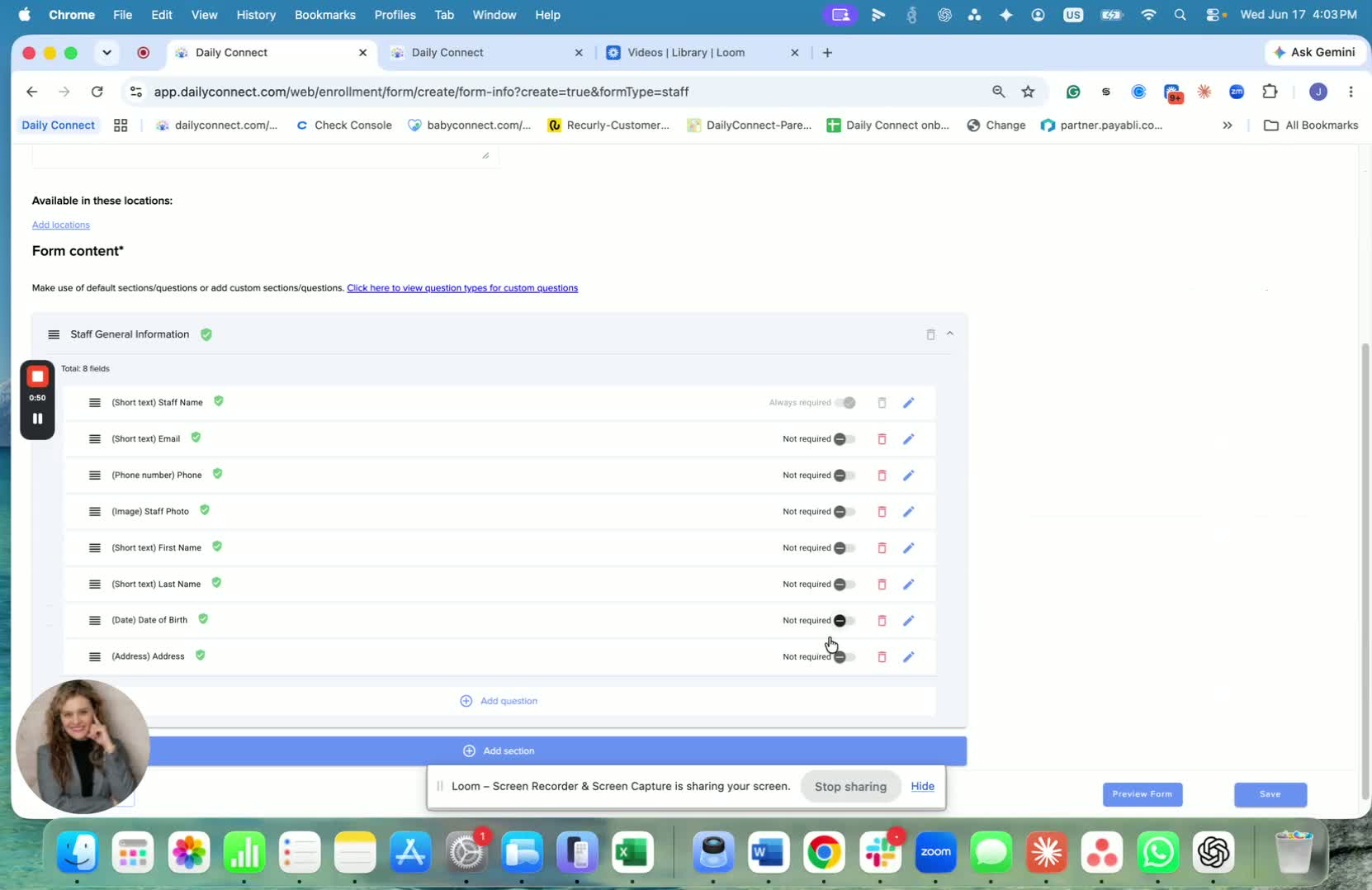
Add the questions you want on the form.
If you create a question that is not tied to a custom staff field, it will not be recorded in Daily Connect.
Questions marked with the green icon are the ones that will be saved into Daily Connect.
You can also include other questions that are only for reference and do not need to be stored in the system.
4. Share the form with staff 1:20
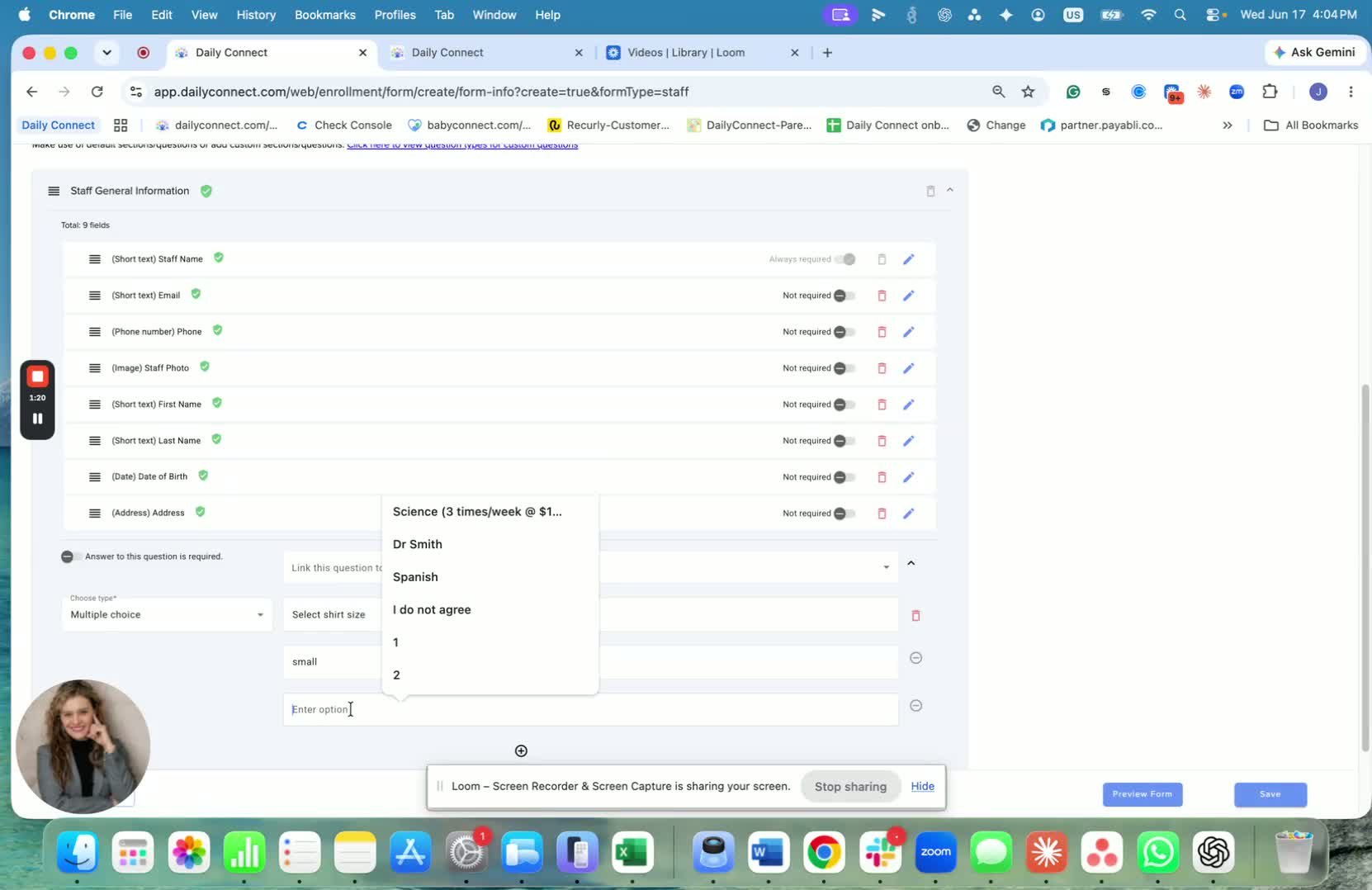
Once the form is ready, share it with staff by email or text.
You can also send it directly to current staff from the system.
5. Send to existing staff if needed 1:42
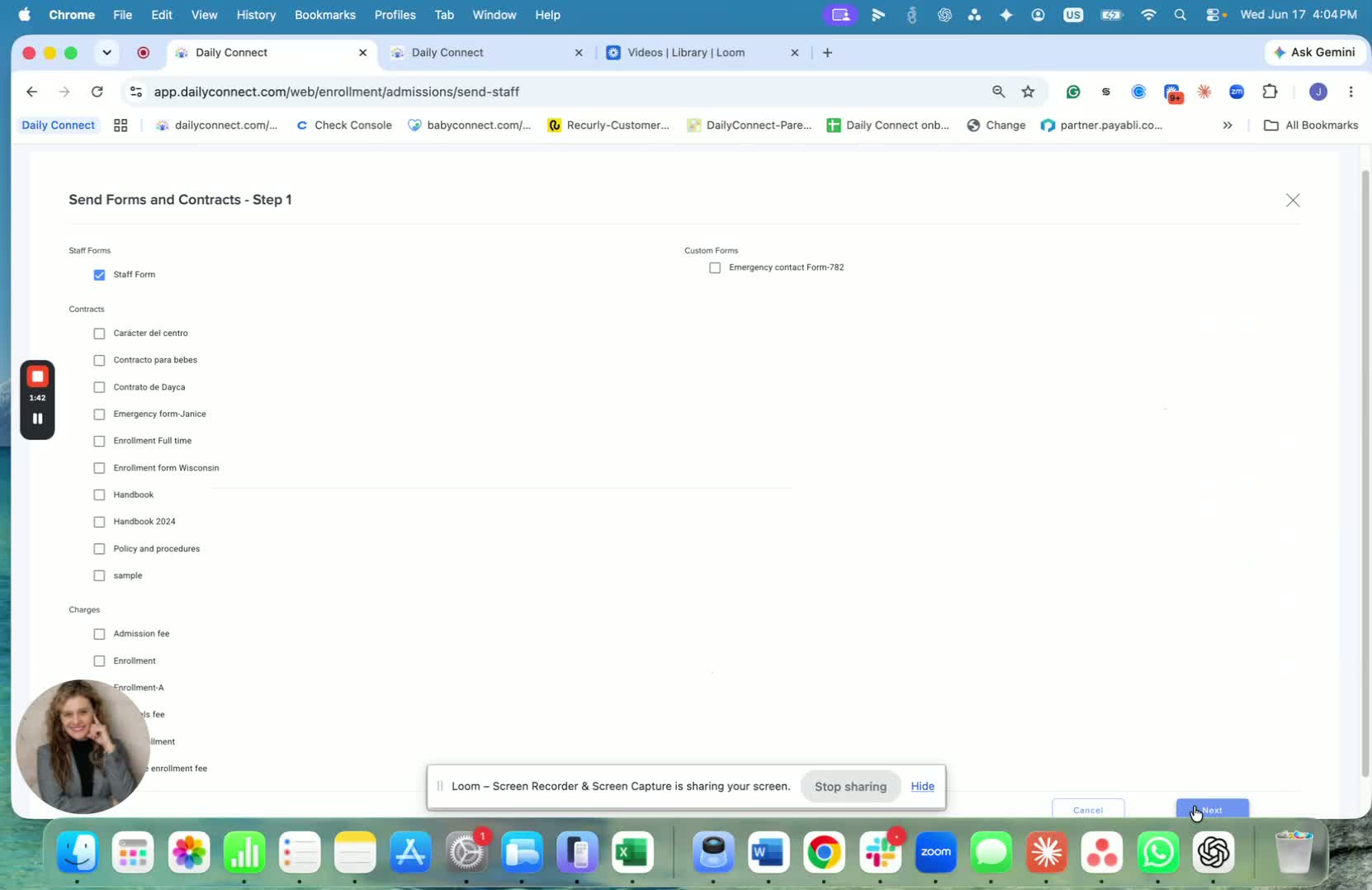
Choose the option to send the form to existing staff.
Select the staff members who should receive it.
Send the form to complete the process.
6. Register New Staff or Add to a current Staff
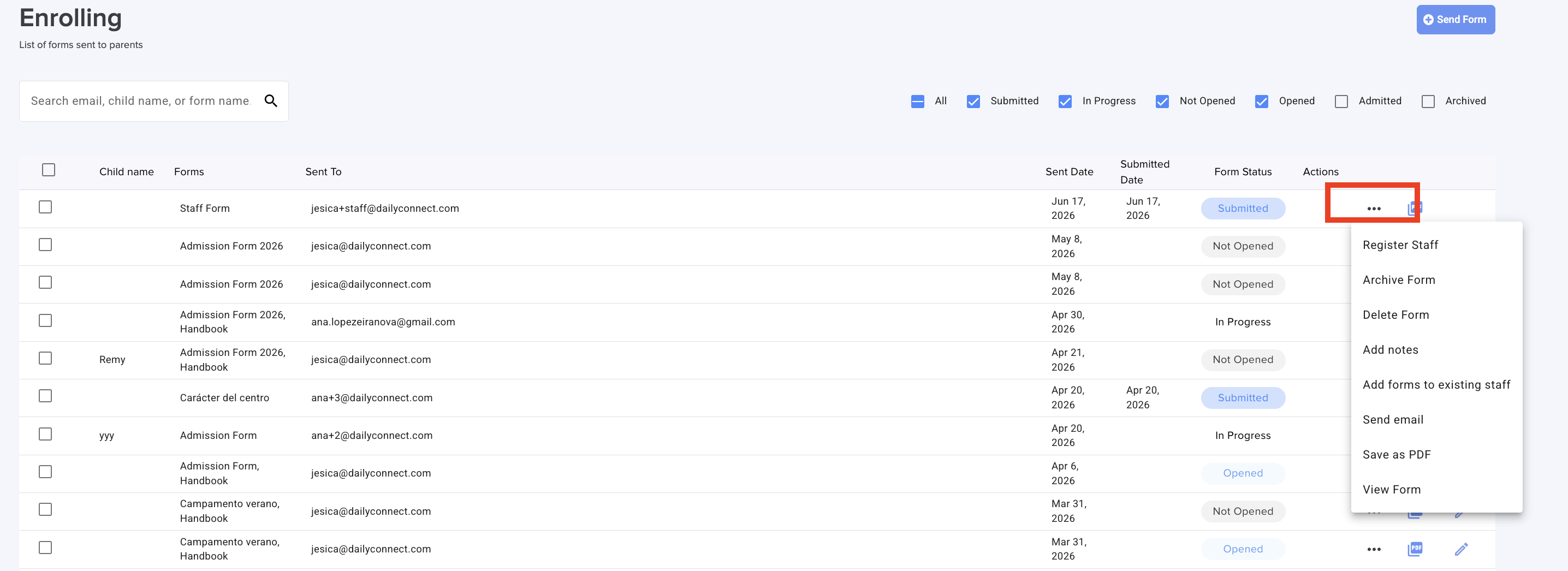
Once the form is submitted, you will receive a notification.
Go to the enrolling tab and click on the 3 dots in the form.
Select the option you want.
If you have any questions or need assistance, please contact us via email at support@dailyconnect.com.
Was this article helpful?
That’s Great!
Thank you for your feedback
Sorry! We couldn't be helpful
Thank you for your feedback
Feedback sent
We appreciate your effort and will try to fix the article