When you create an authorized pick-up person without an email address, the system won't create a unique user account. This means that if the same person is authorized to pick up more than one child, they'll end up with different PIN codes for each child. To avoid this, follow the steps below to merge the authorized pick-up person's profiles.
1. Open the child’s roster and go to Parent and Caregivers 0:10
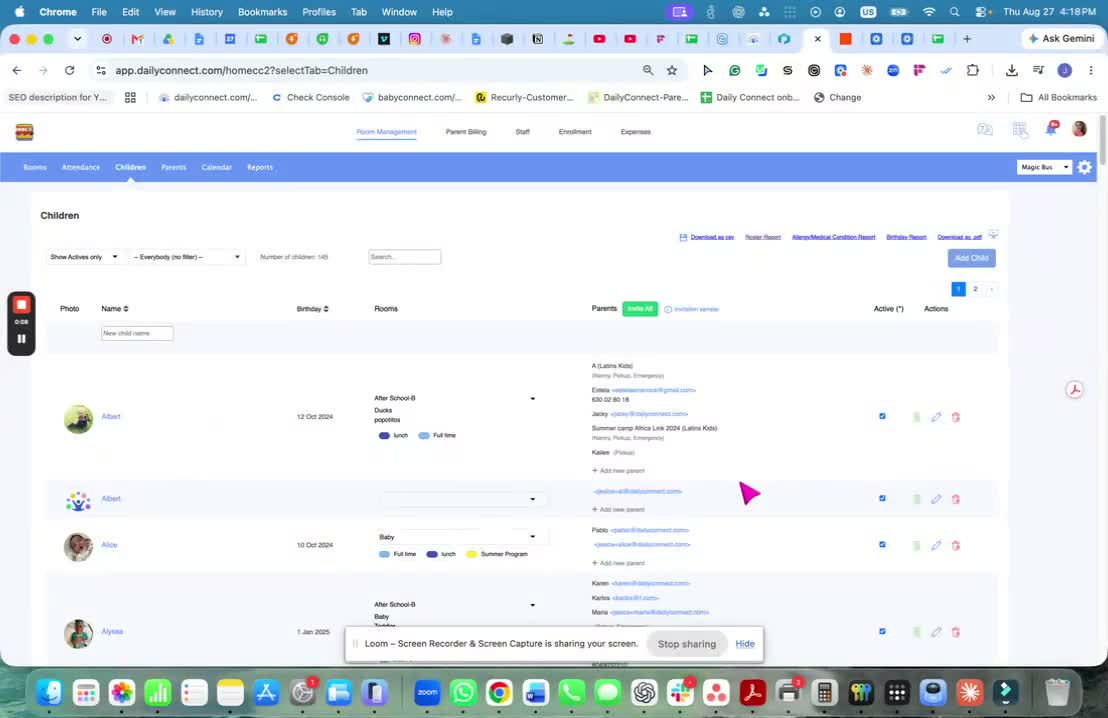
Go to Children and open the child’s roster.
Select the correct child.
Navigate to Parent and Caregivers.
This is where you will add the authorized pickup person’s profile.
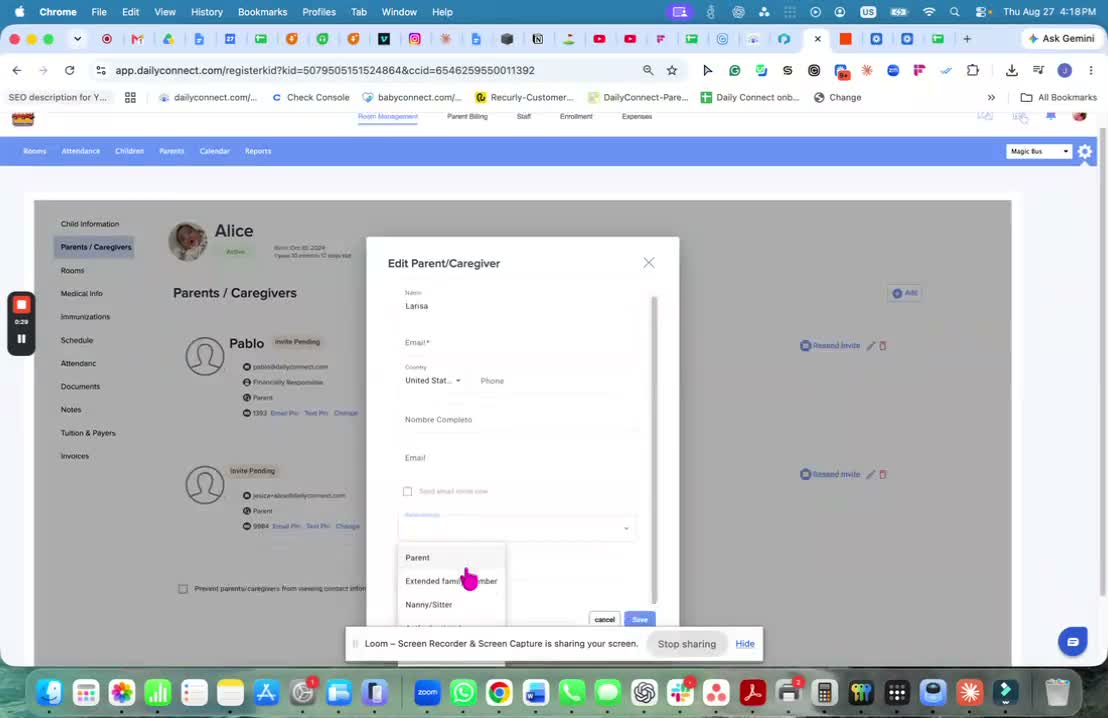
2. Add the authorized pickup person and save the profile 0:10
Enter the name of the authorized pickup person.
In this example, the person is being added as an authorized pickup.
Click Save.
Saving creates the new profile in the system.
3. Use the merge icon to combine profiles 0:30
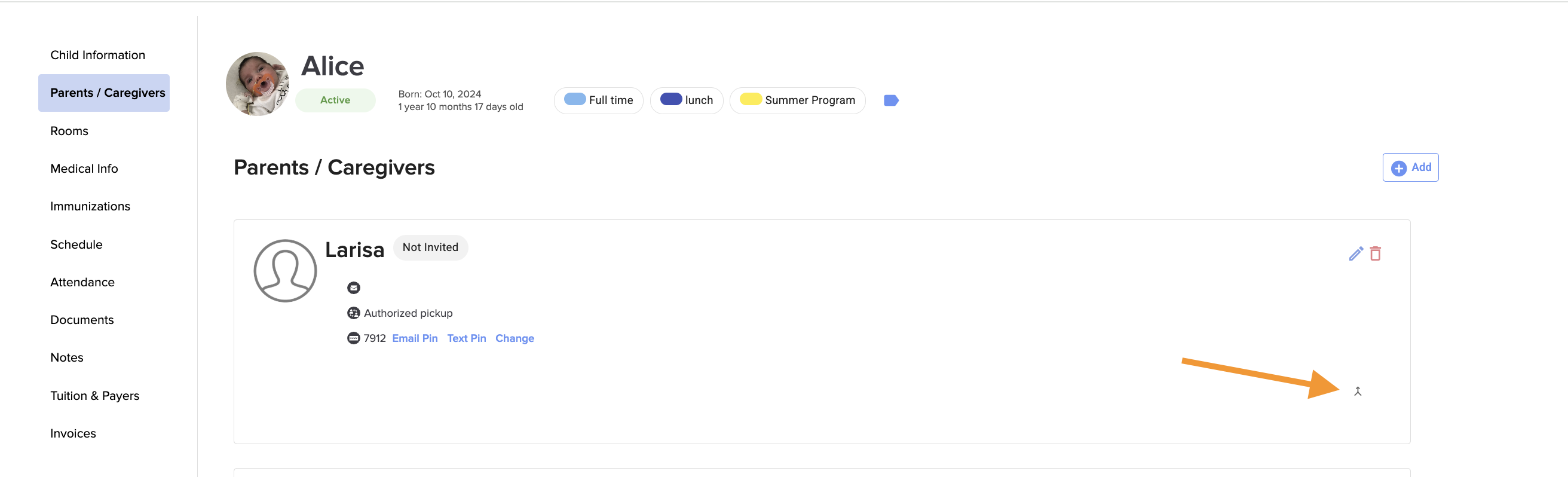
After the profile is created, look for the merge icon next to the person’s profile.
Click the icon to merge this person with another existing profile.
This is used when the authorized pickup person already exists in the system under a different profile.
4. Select the existing person to merge with 0:45
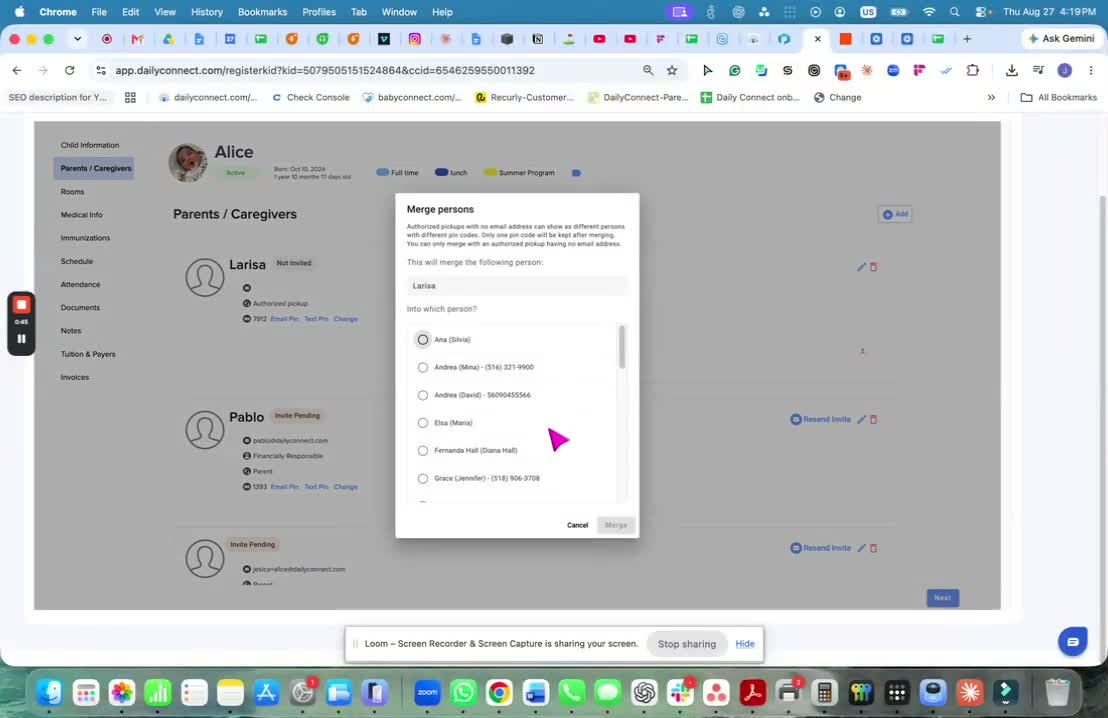
Choose the correct person from the list of existing profiles.
If the authorized pickup person is already in the system, select that profile instead of creating a duplicate.
5. Confirm the merge so both profiles share the same PIN code 0:56
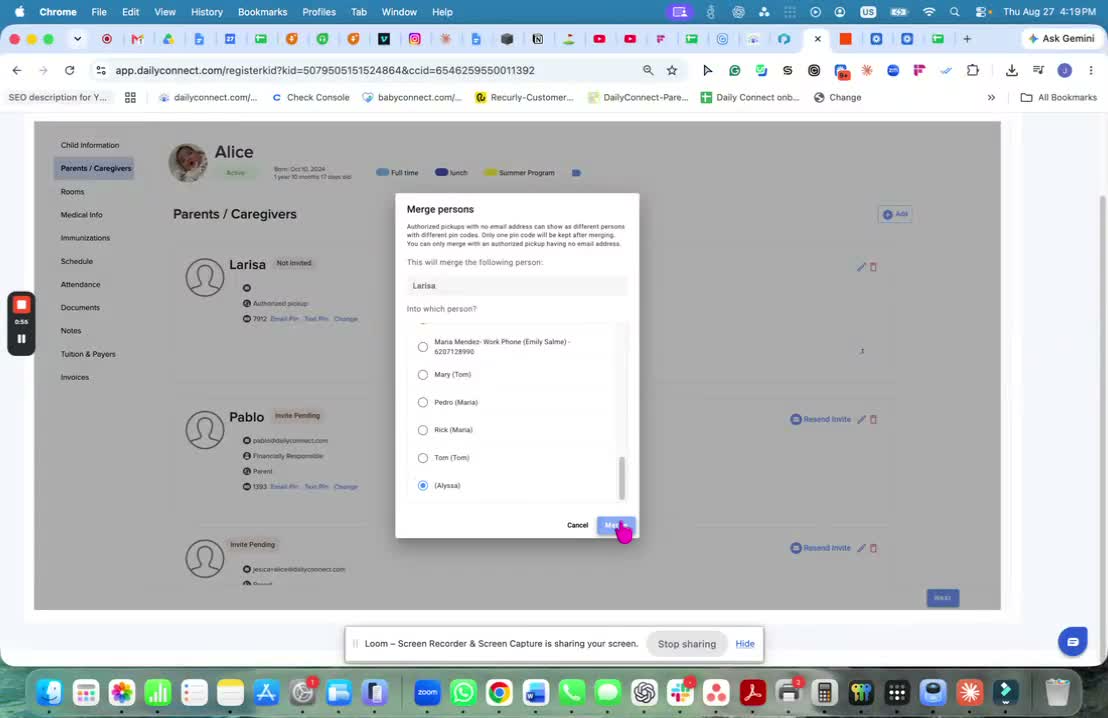
Once merged, both profiles will use the same PIN code.
This helps ensure the authorized pickup person has the correct access.
The merge is complete after the profiles are linked.
Watch the tutorial
Was this article helpful?
That’s Great!
Thank you for your feedback
Sorry! We couldn't be helpful
Thank you for your feedback
Feedback sent
We appreciate your effort and will try to fix the article