When you know part or all of an invoice won’t be paid, you can write off that amount. For example, a family may have moved away, or you may have agreed to forgive a balance. A write-off removes the amount from what’s owed without recording it as a payment, credit, or discount, so your records stay accurate.
How to write off a balance
You can write off a balance on any invoice that is unpaid or partially paid. Learn how to do it:
- Log in to your admin account.
- Go to Parent Billing > Invoices:
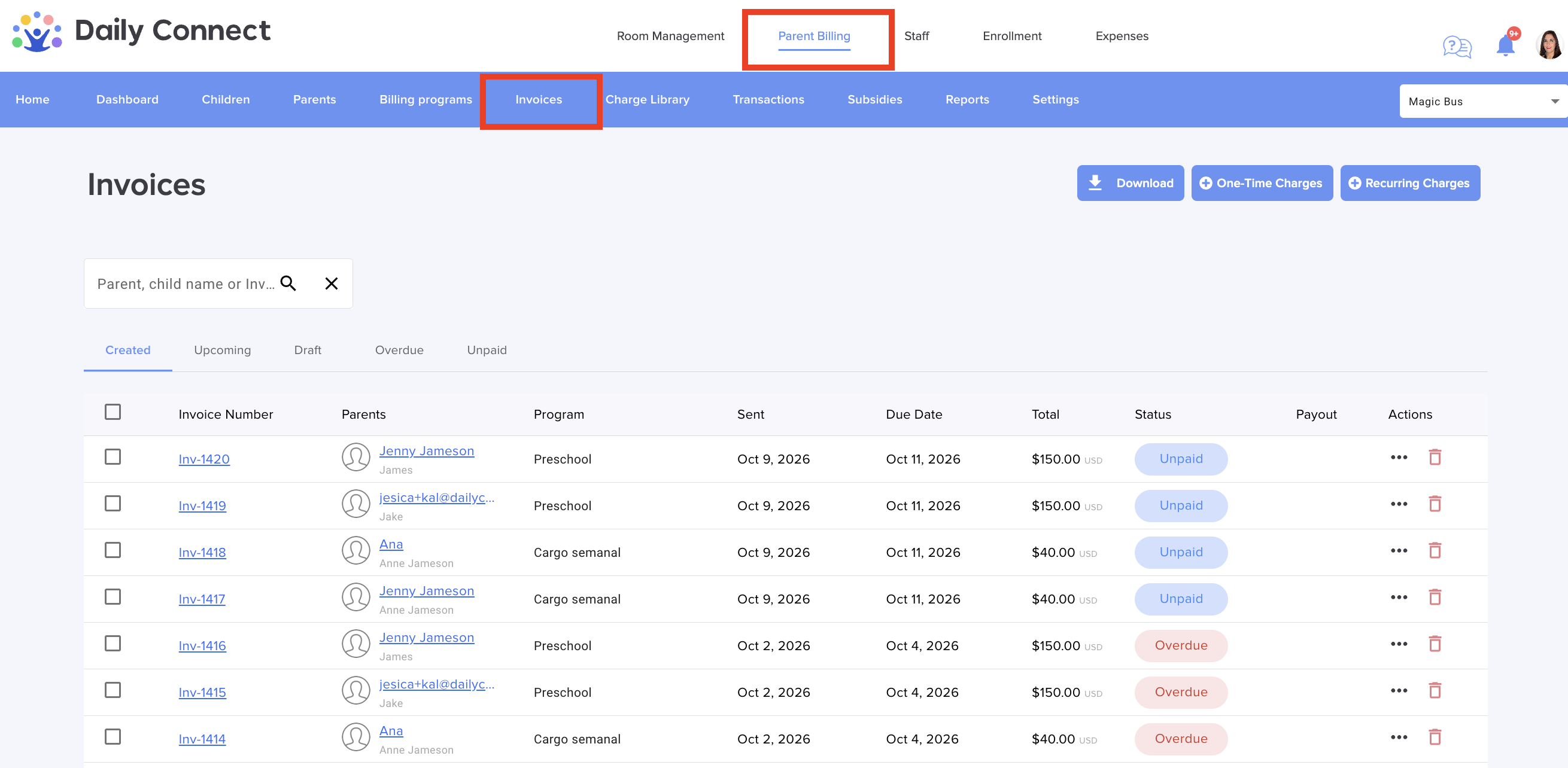
3. Open the invoice you want to adjust.
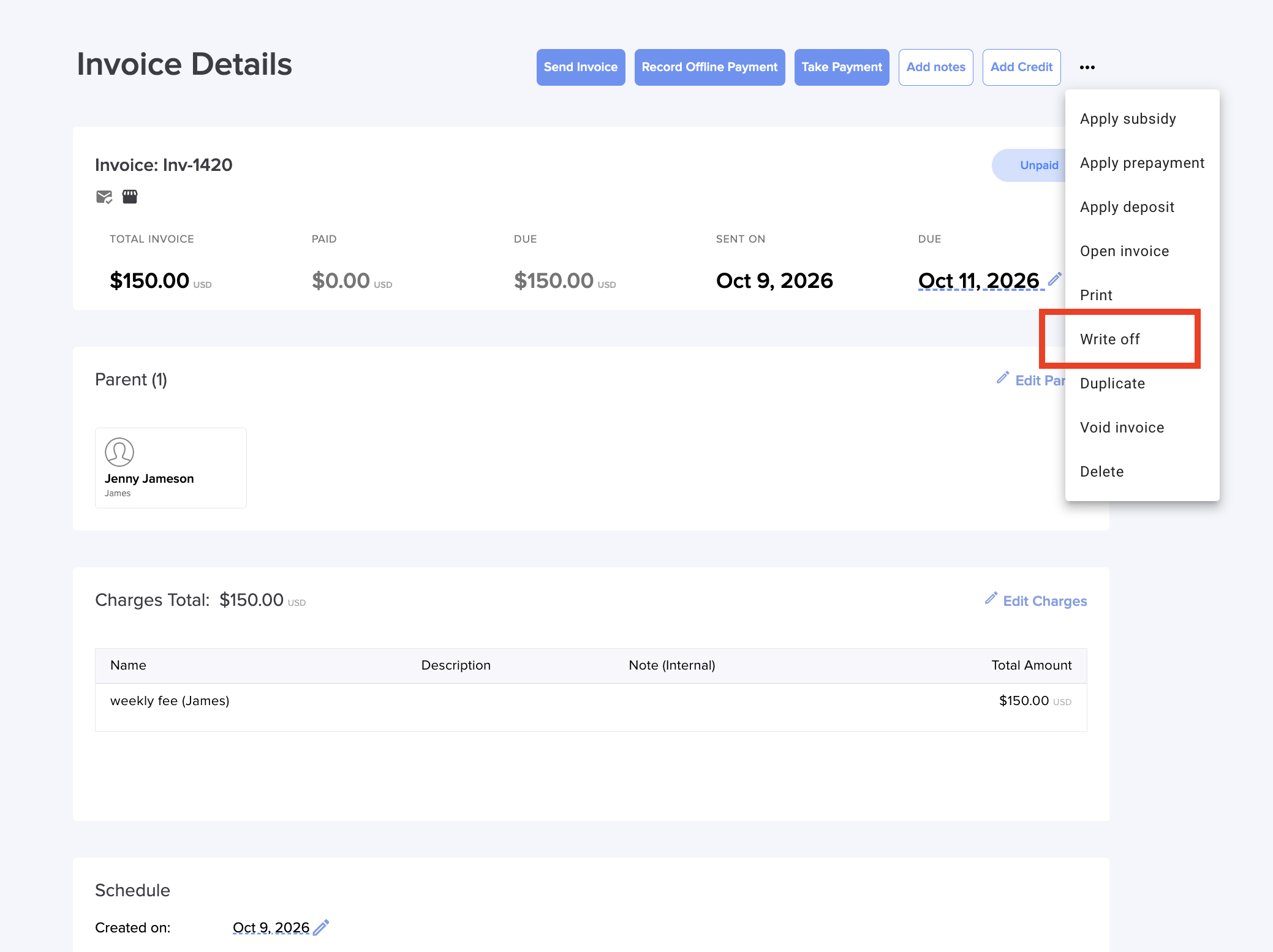
4. Click the 3 dots ... menu in the top right of the invoice page, then select Write Off.
5. Enter the amount to write off. This can’t exceed the remaining balance on the invoice.
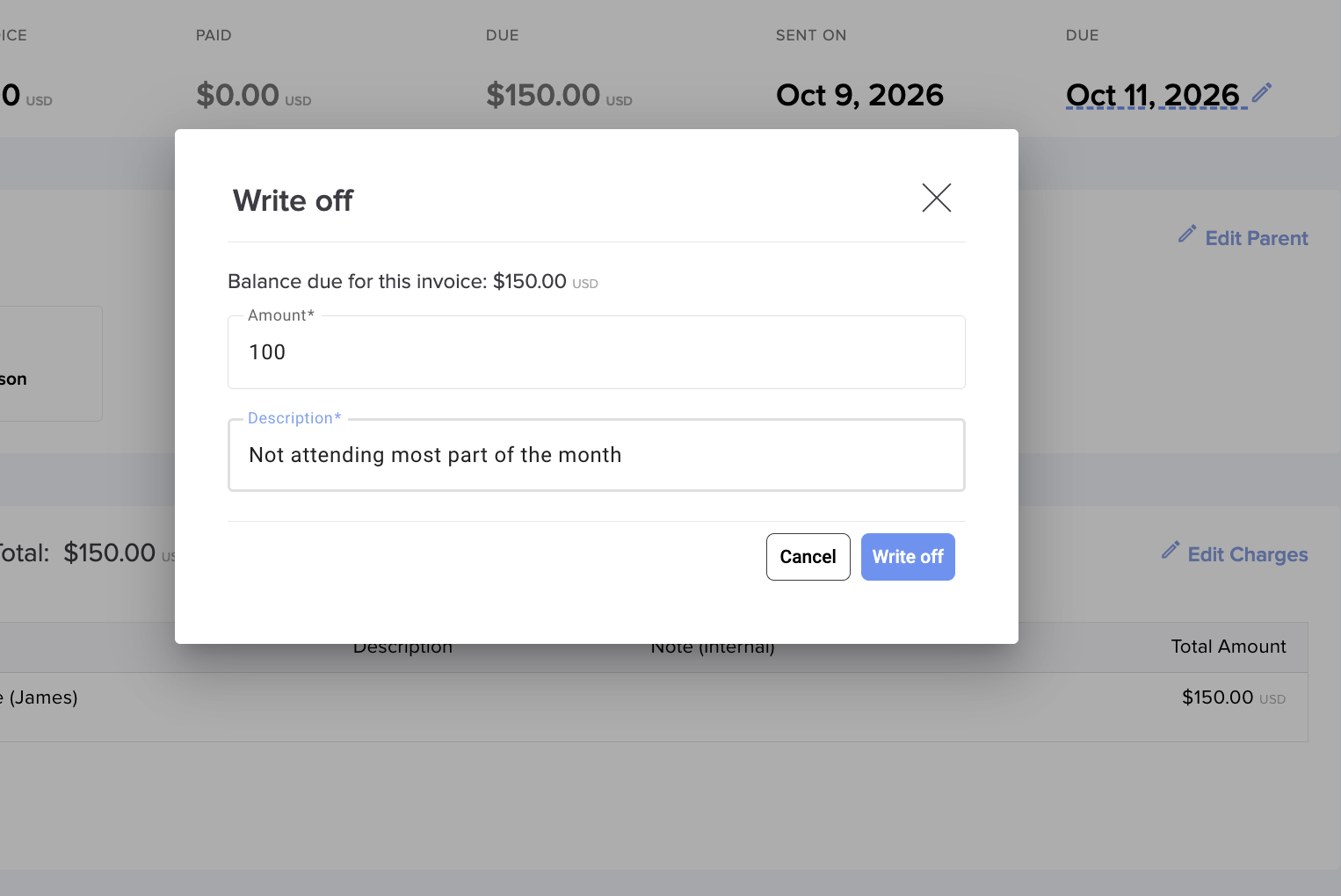
Add a short description explaining the reason, such as “Family moved away.” Click write-off
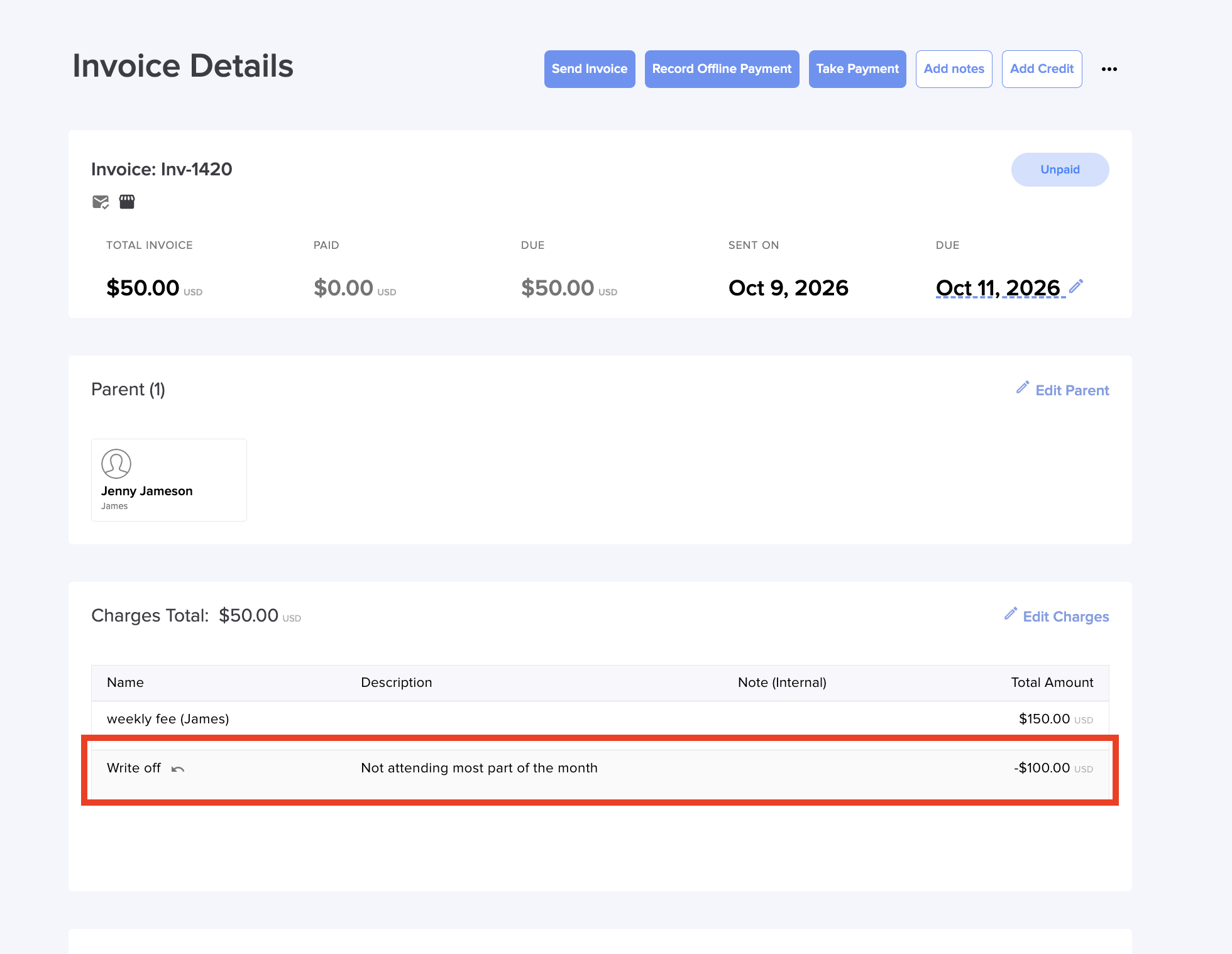
Now you will be able to see the line showing the amount as a negative value added to the invoice:
What happens to the invoice
The invoice status updates based on how much was paid and written off:
- No payments, full balance written off: The invoice is marked "Closed" and appears struck through. Nothing is owed.
- Partially paid, remaining balance written off:The invoice shows as Partial with a balance of $0
- Only part of the balance written off: The remaining amount is still due as usual.
Correcting a write-off
Write-off lines can’t be edited. If you entered the wrong amount, cancel the write-off and create a new one with the correct amount.
Tracking write-offs in reports
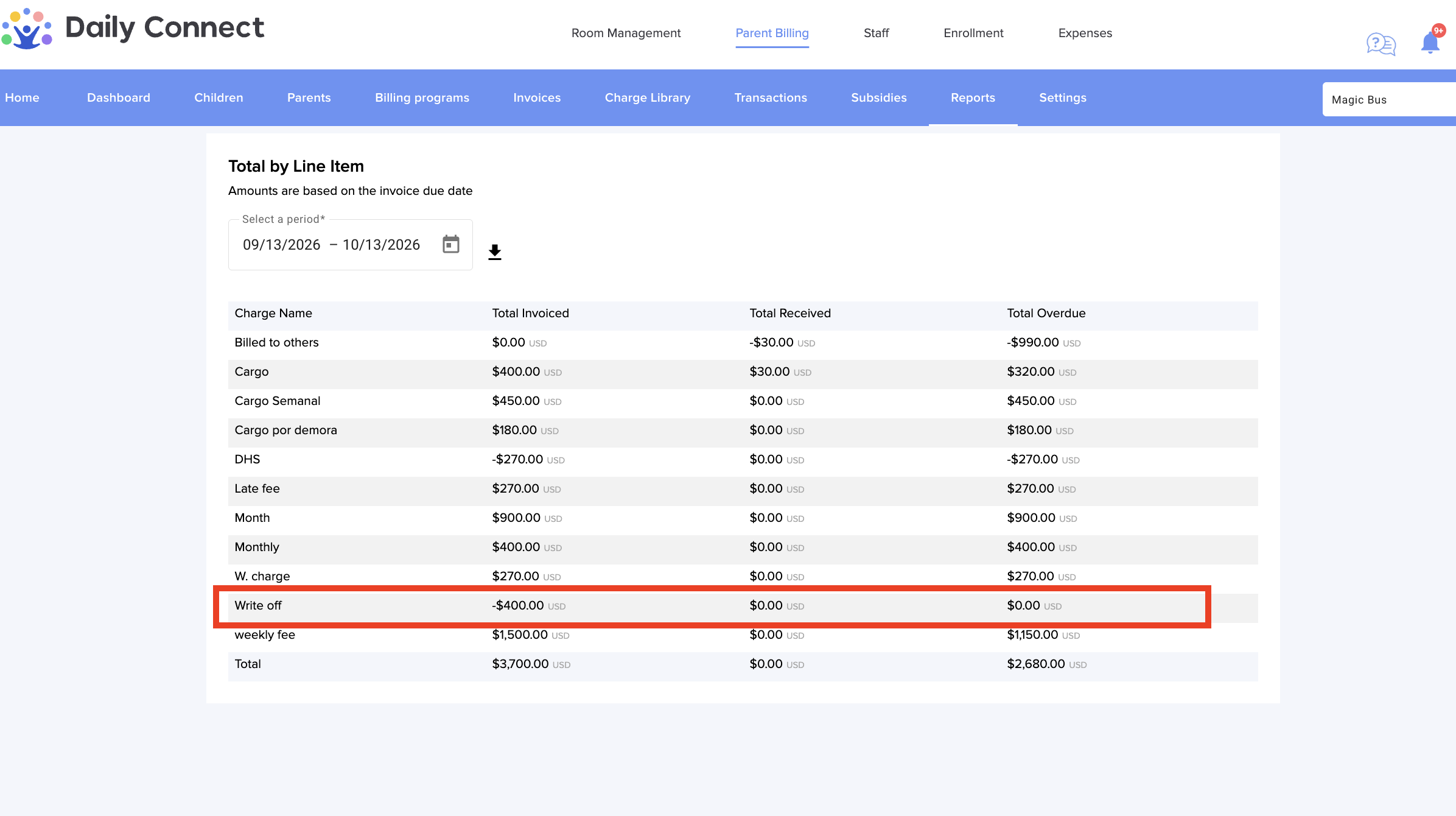
Write-offs appear as a separate line in the Total By Line Item report (Parent Billing > Reports), so you can see how much you’ve written off apart from discounts and credits.
More questions? Contact us at support@dailyconnect.com
Was this article helpful?
That’s Great!
Thank you for your feedback
Sorry! We couldn't be helpful
Thank you for your feedback
Feedback sent
We appreciate your effort and will try to fix the article