With Daily Connect, internal communication between staff members at your center is possible in a private way. First, you need to enable this option in your account, here’s how.
This is how the communication module works:
1. Log in to your Daily Connect account.
2. Click on Staff Communication:
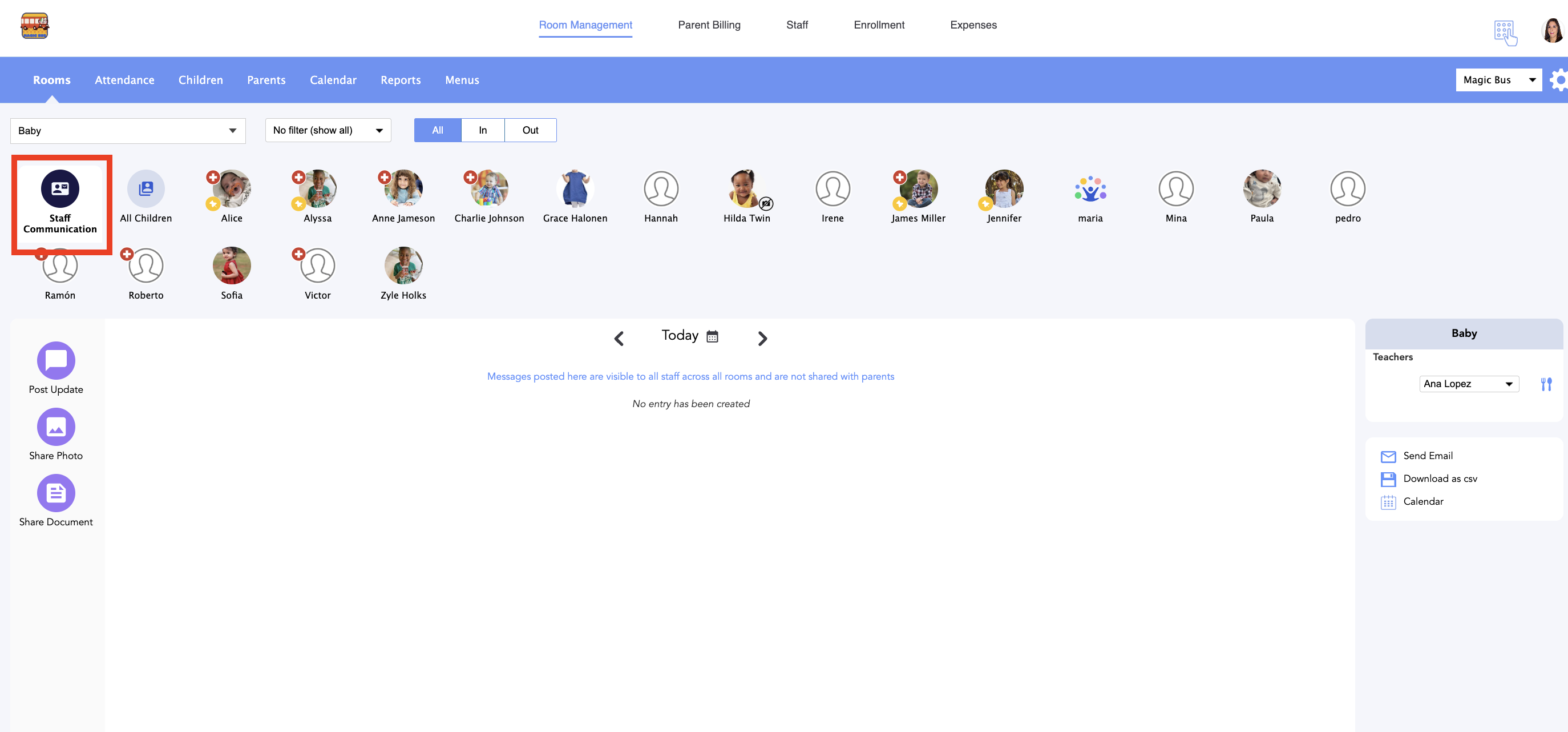
3. You have 3 options: post a message (post update), share a photo or share a document. Let's create a post update first. Click on Post update:
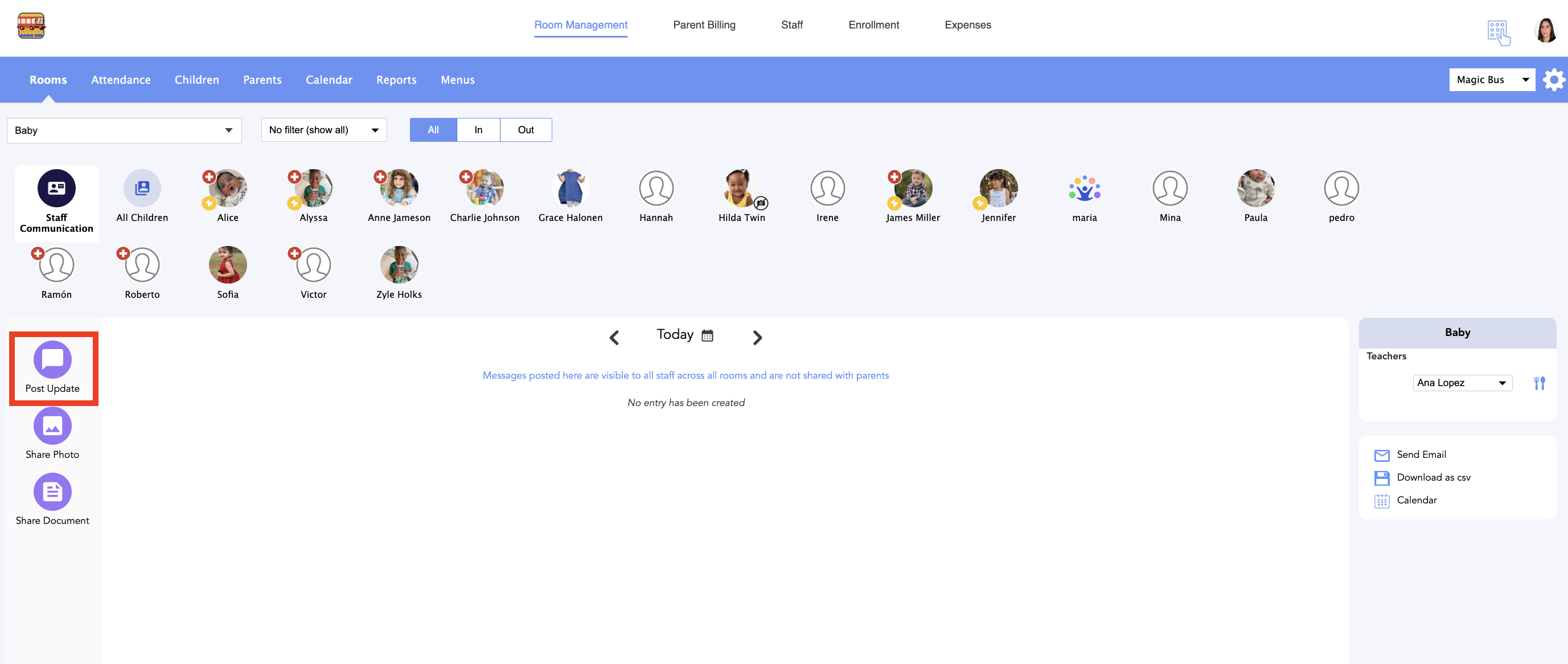
4. Write your post and click Save. You can also add a photo if you want:
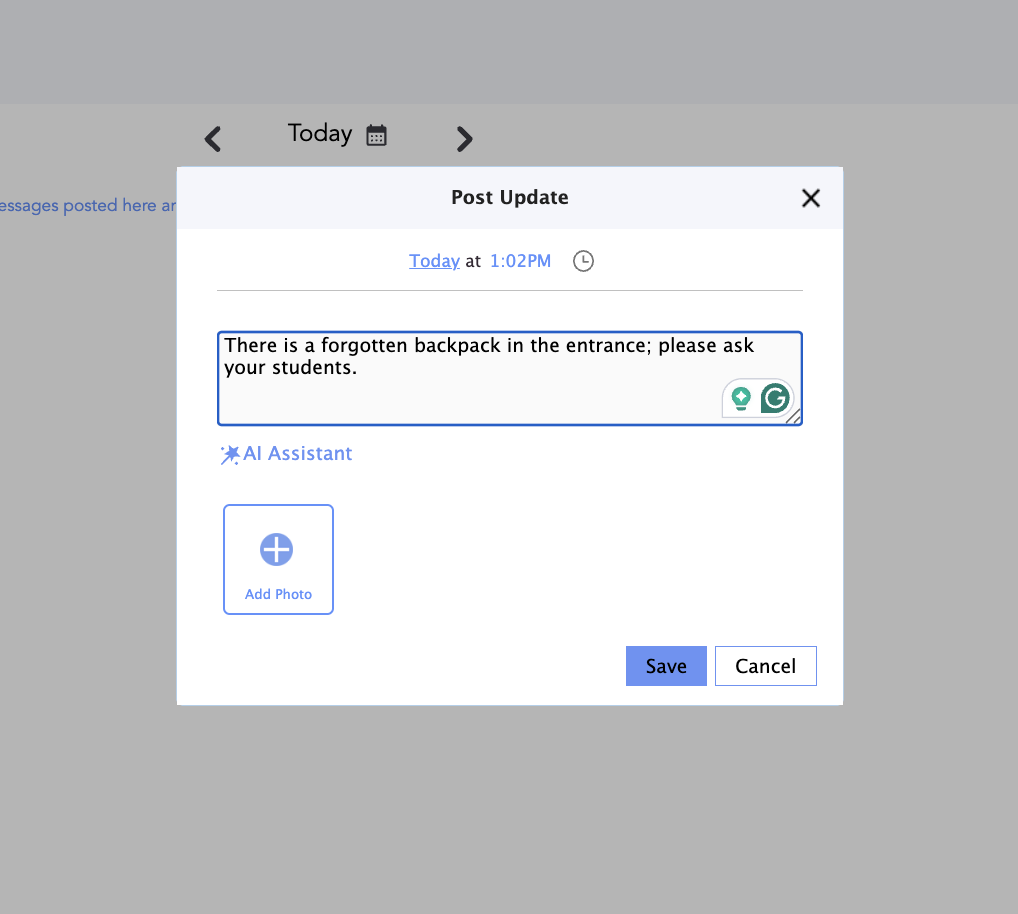
Now you and all the staff members can see your post :
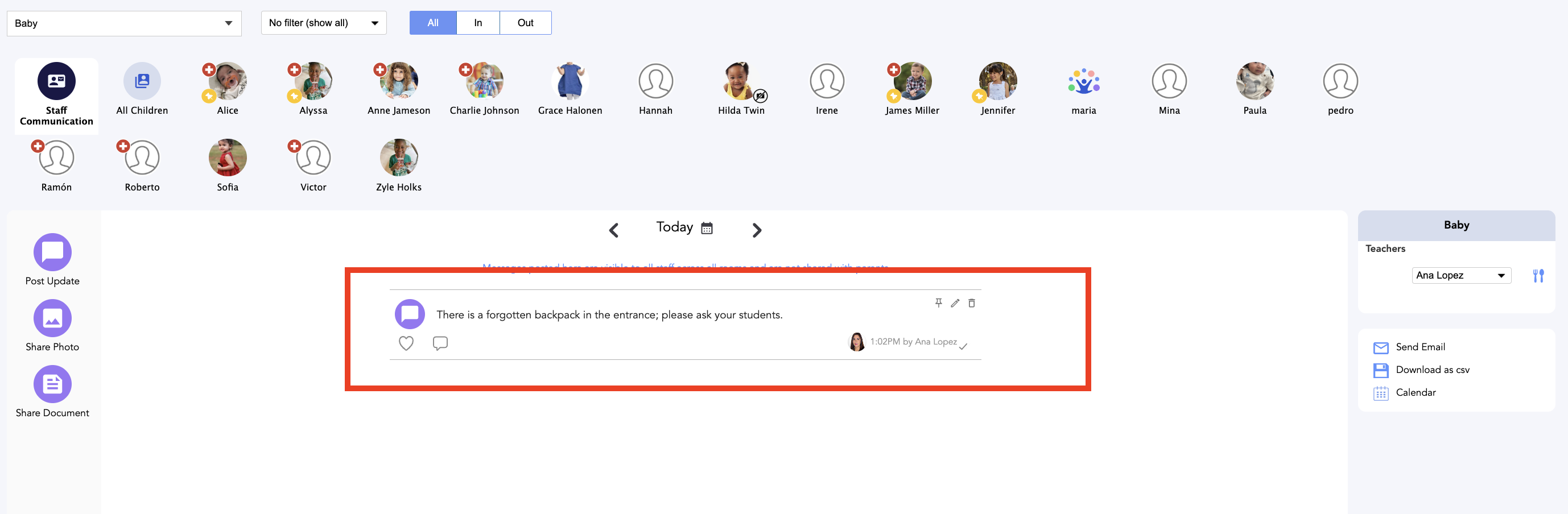
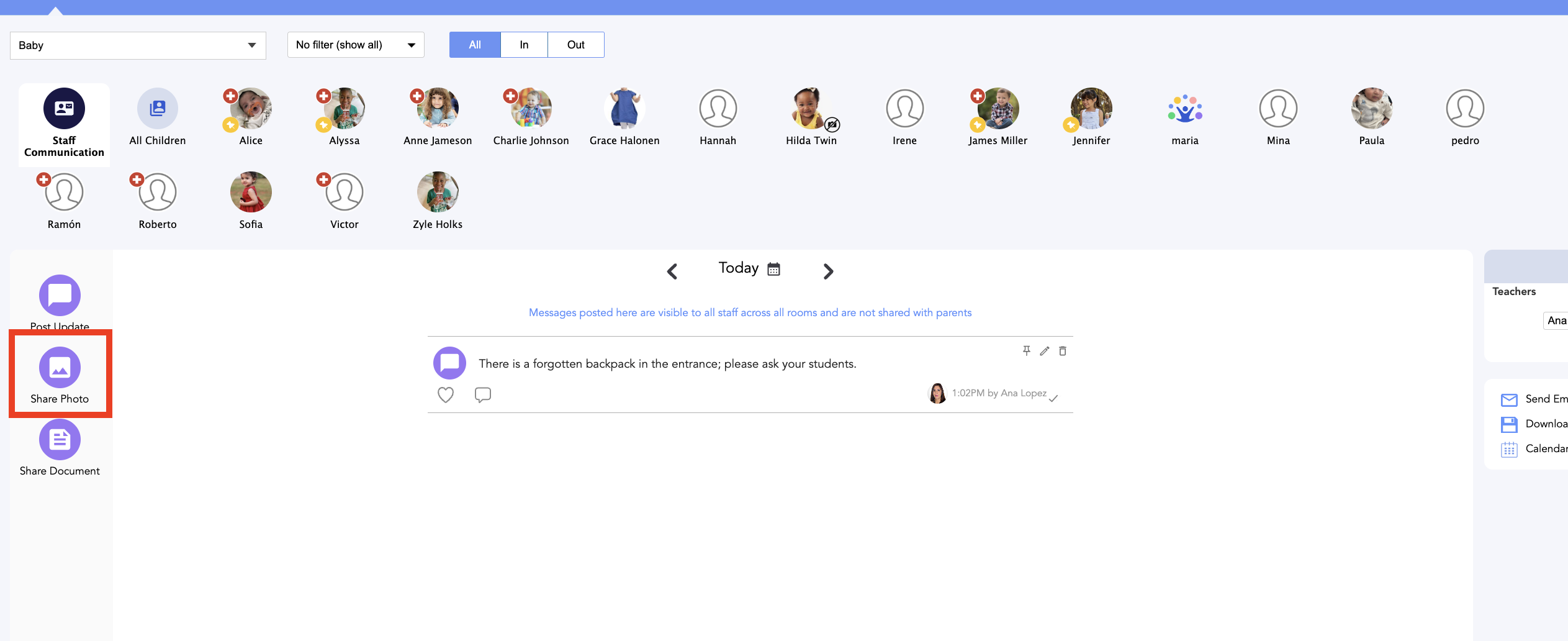
5. If you want to share a photo with all the staff members, click on the Share photo icon:
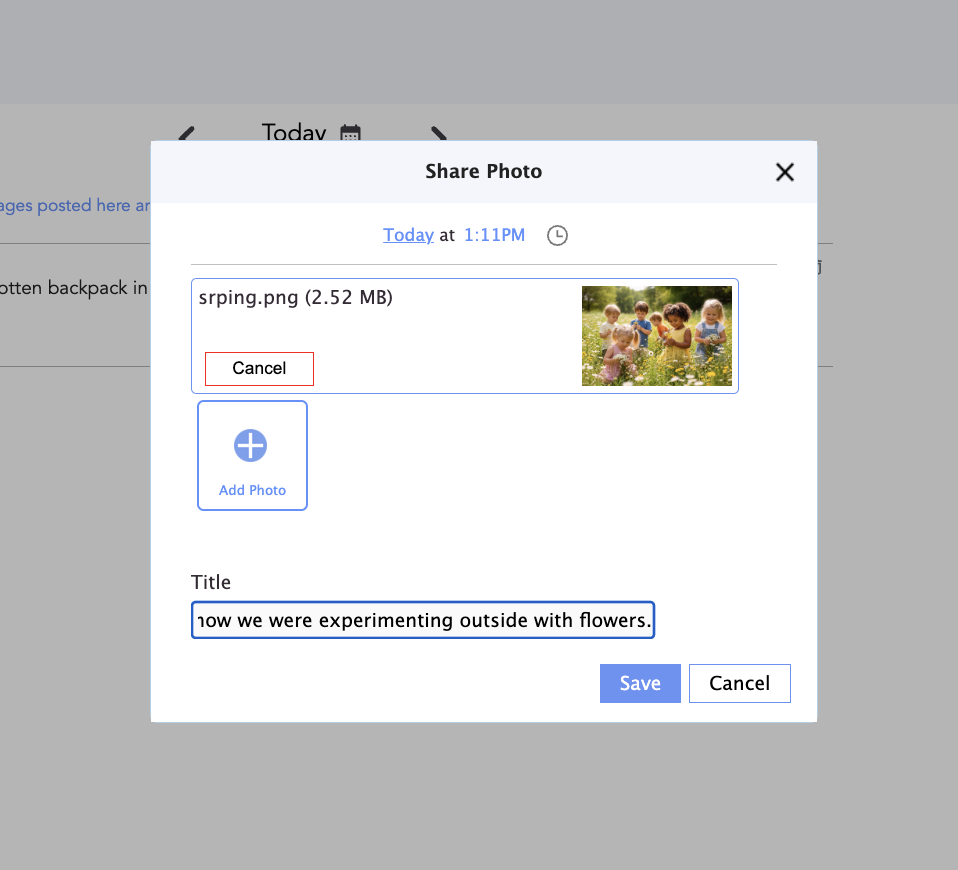
6. Upload the photo and write a message if you want. Click Save:
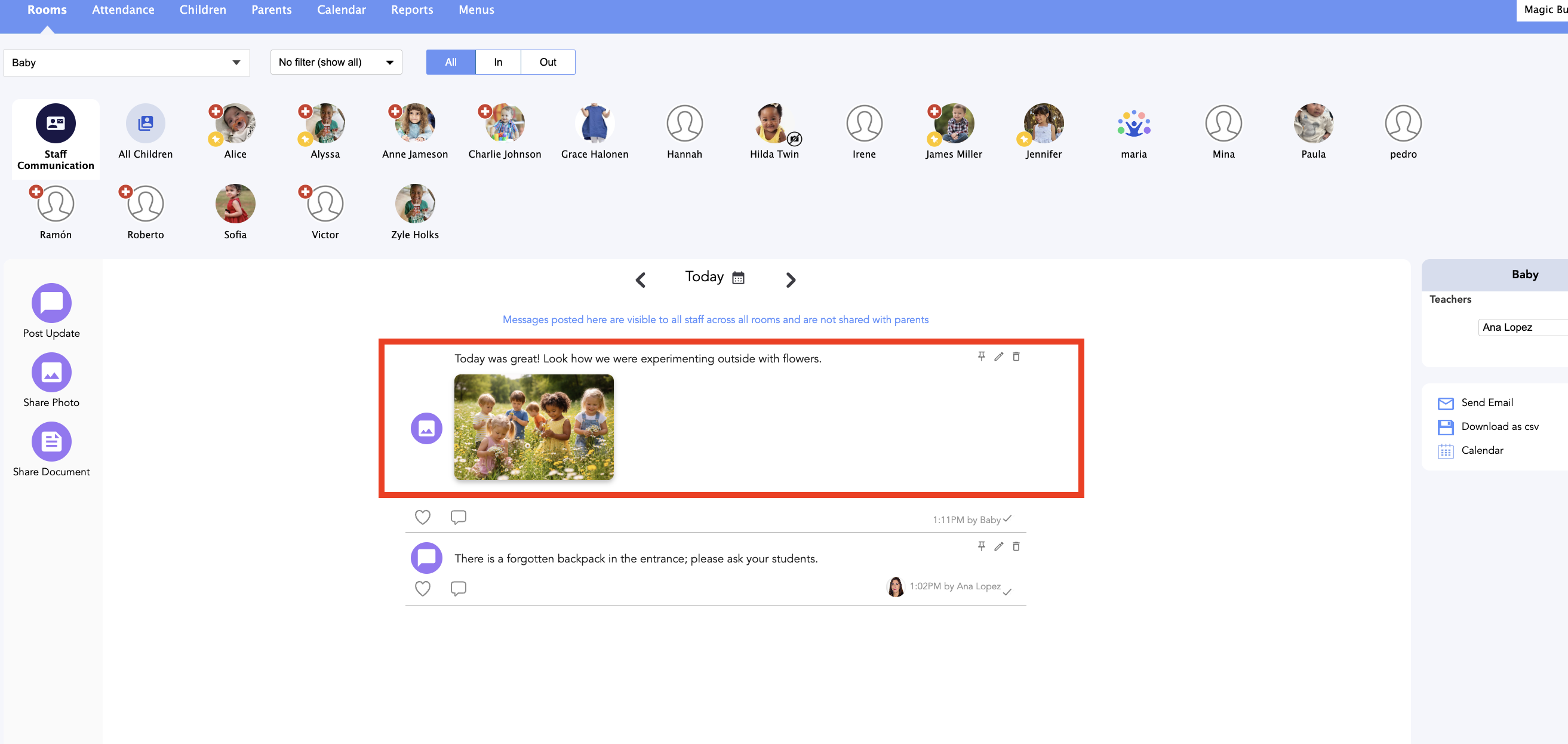
Now you can see the photo that you have just shared with all the staff:
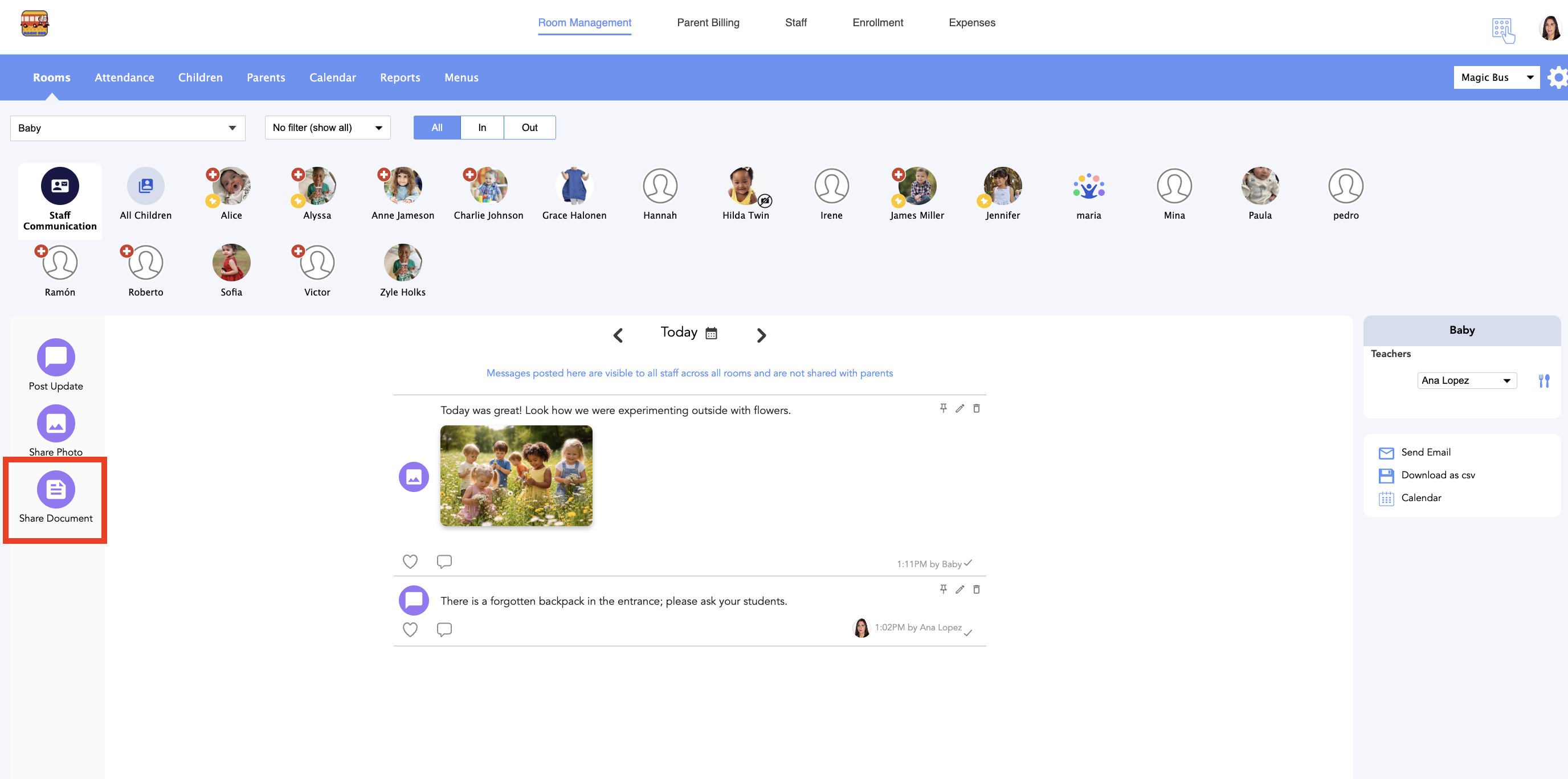
7. Also you can share a document. Click on the Share document icon:
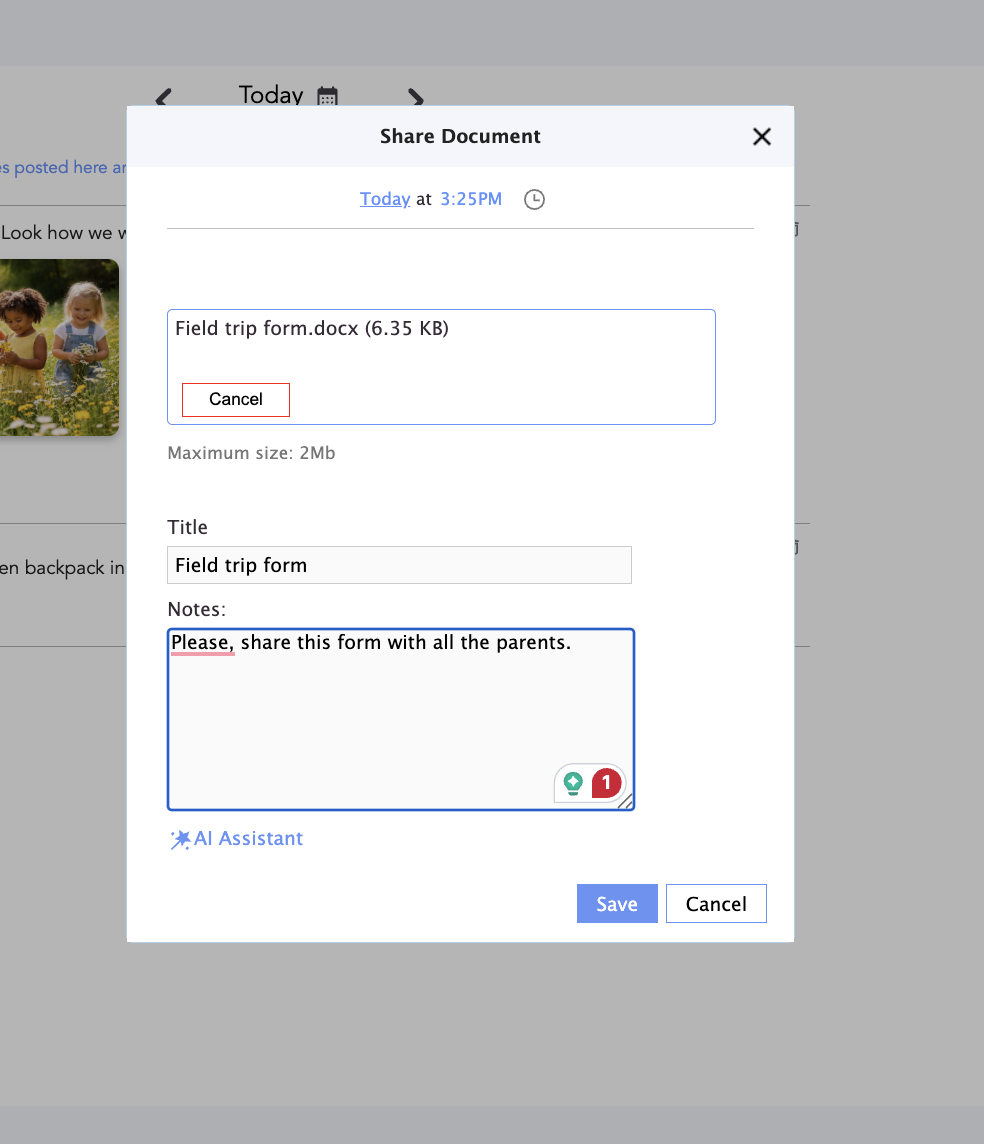
8. Upload the file and write the comments that you want. Click Save:
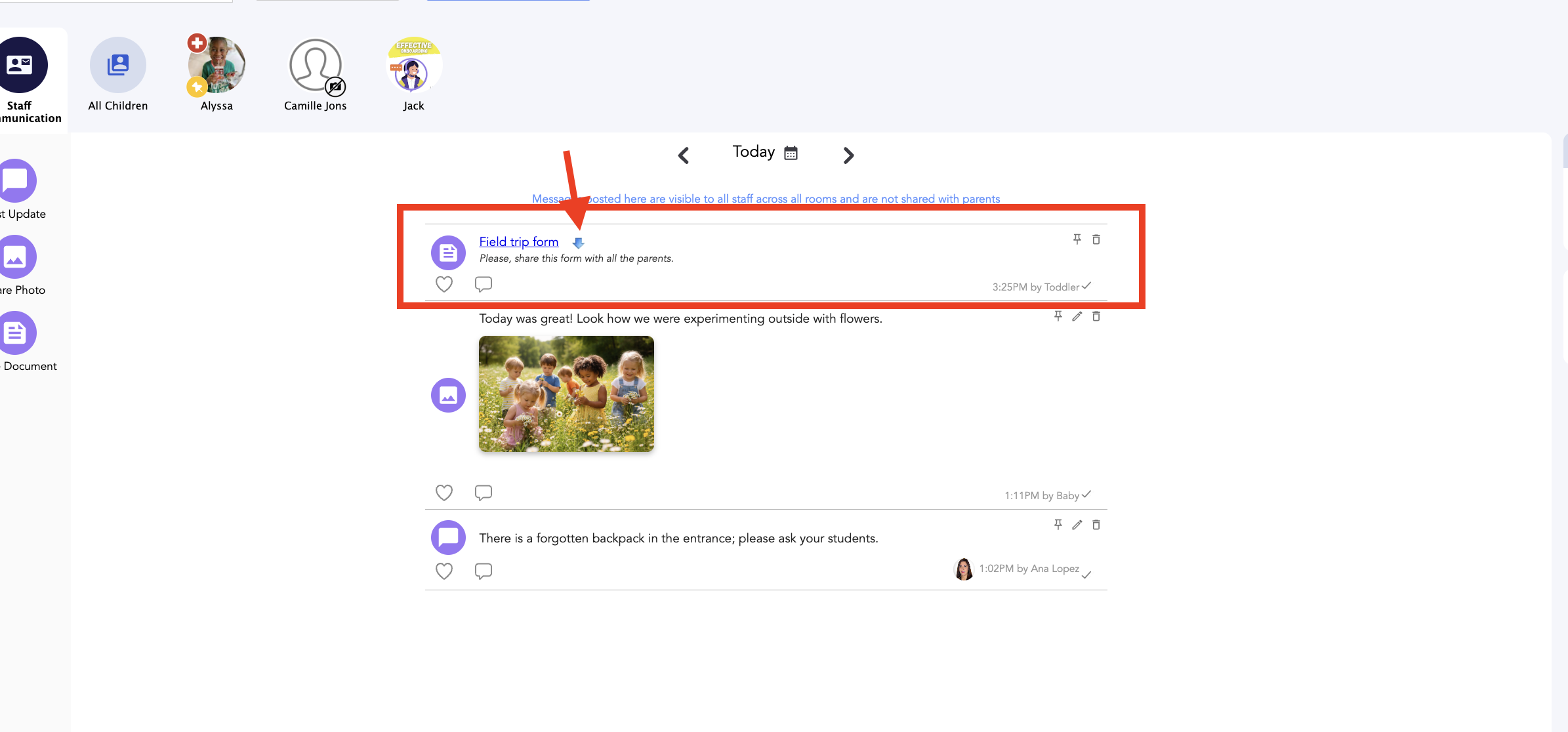
Now you can see the post related to the file on the feed. Staff members can download it :
Was this article helpful?
That’s Great!
Thank you for your feedback
Sorry! We couldn't be helpful
Thank you for your feedback
Feedback sent
We appreciate your effort and will try to fix the article