Your child's teacher can send you photos of your child on a regular basis by either attaching a photo to an entry or making a photo entry.
You’ll be able to receive photos of your child participating in various activities and any other photos regarding matters relating to your child.
Follow the instructions below to view and download photos on the mobile app
Log in to your parent account.
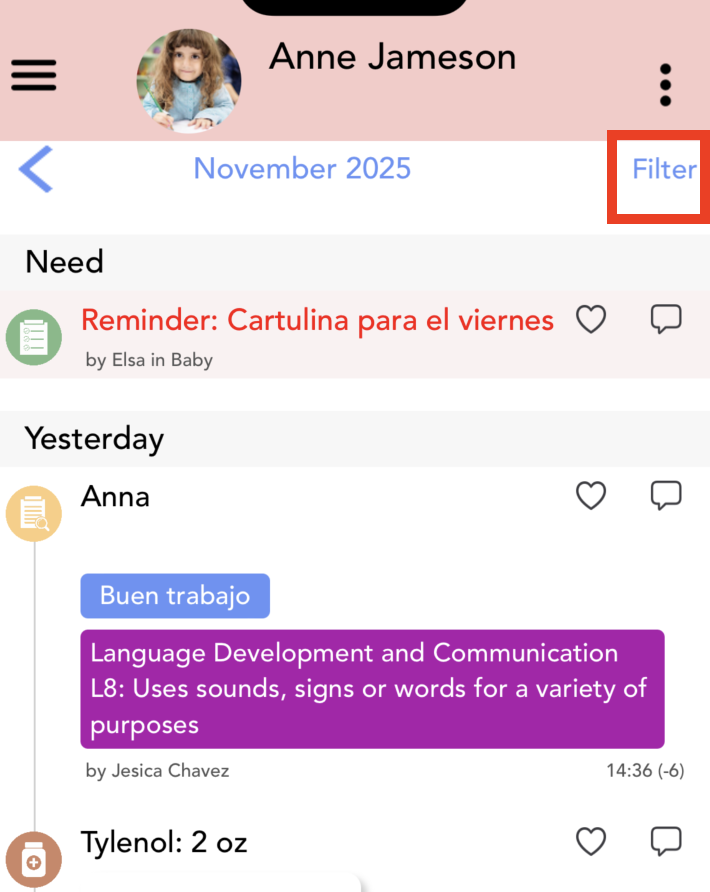
To view photos uploaded on a specific date, select Filter .
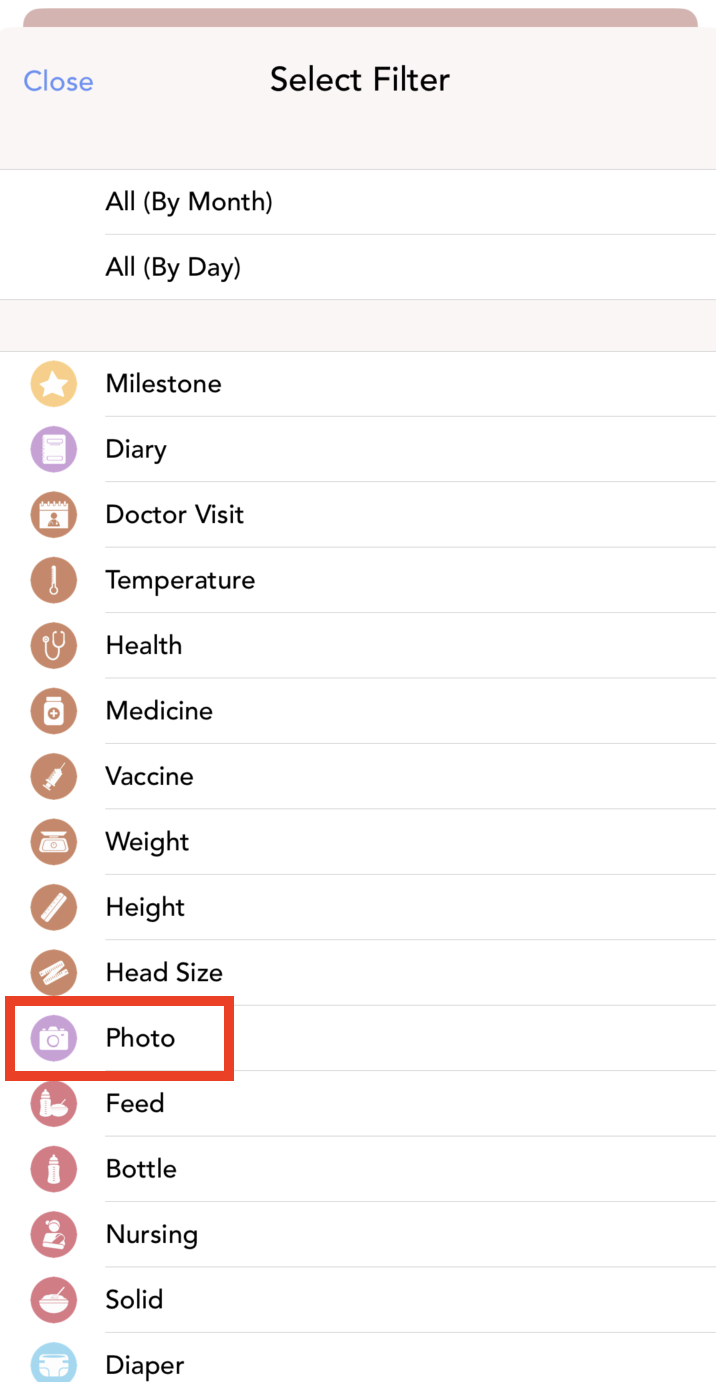
3. Select Photo, and you will see all your child's photos
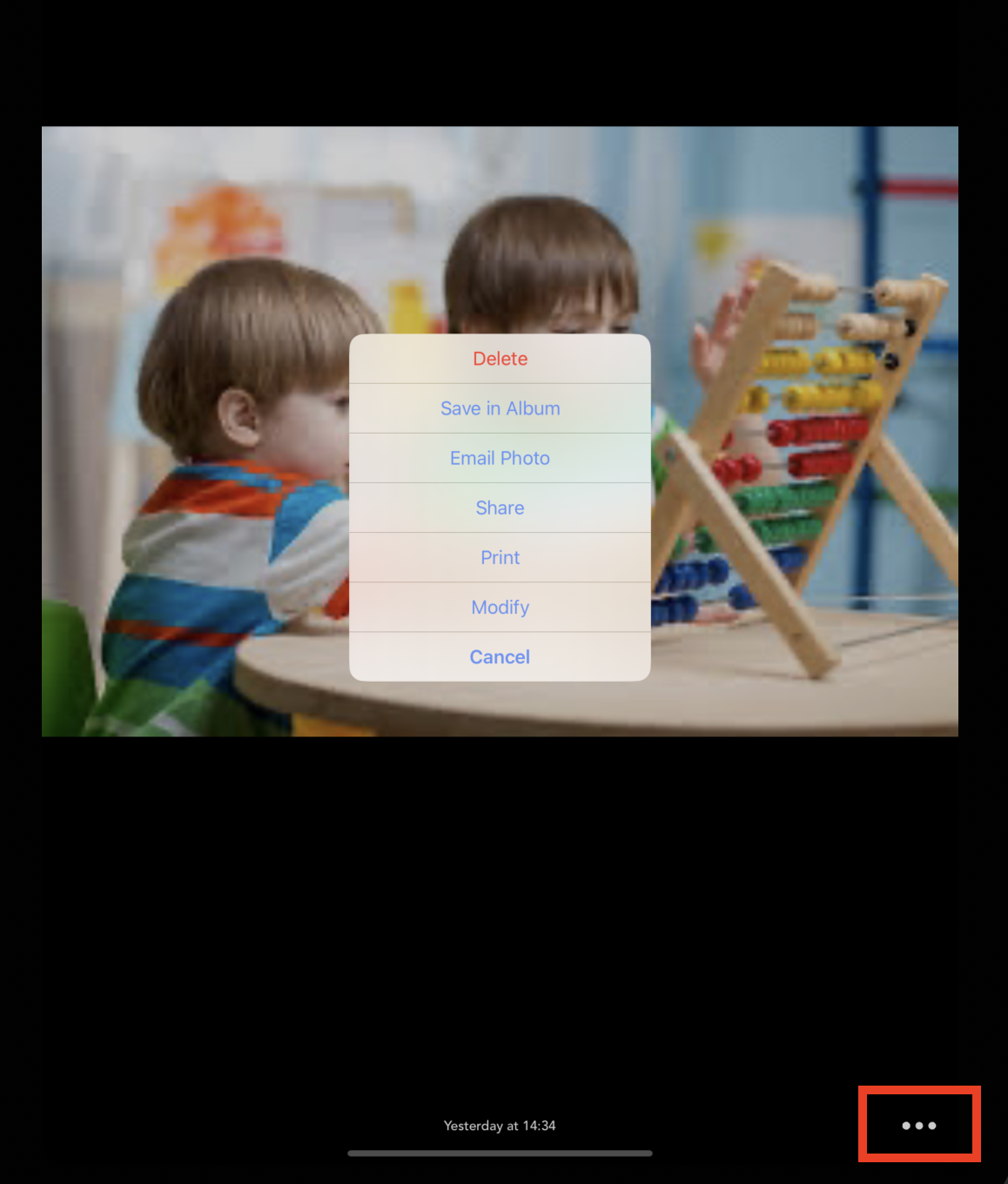
Select the photo you want to download, tap the 3-dot menu then select Save to download the photo.
NOTE: Photos can only be downloaded from the Daily Connect mobile app.
Was this article helpful?
That’s Great!
Thank you for your feedback
Sorry! We couldn't be helpful
Thank you for your feedback
Feedback sent
We appreciate your effort and will try to fix the article