... ...
Skip to main content

How to transfer a teacher to another location

Modified on Thu, 26 Feb at 2:27 AM

These are the steps you need to follow to transfer a teacher from one center to another within your account.


1. Log in to your admin account on the Daily Connect website.


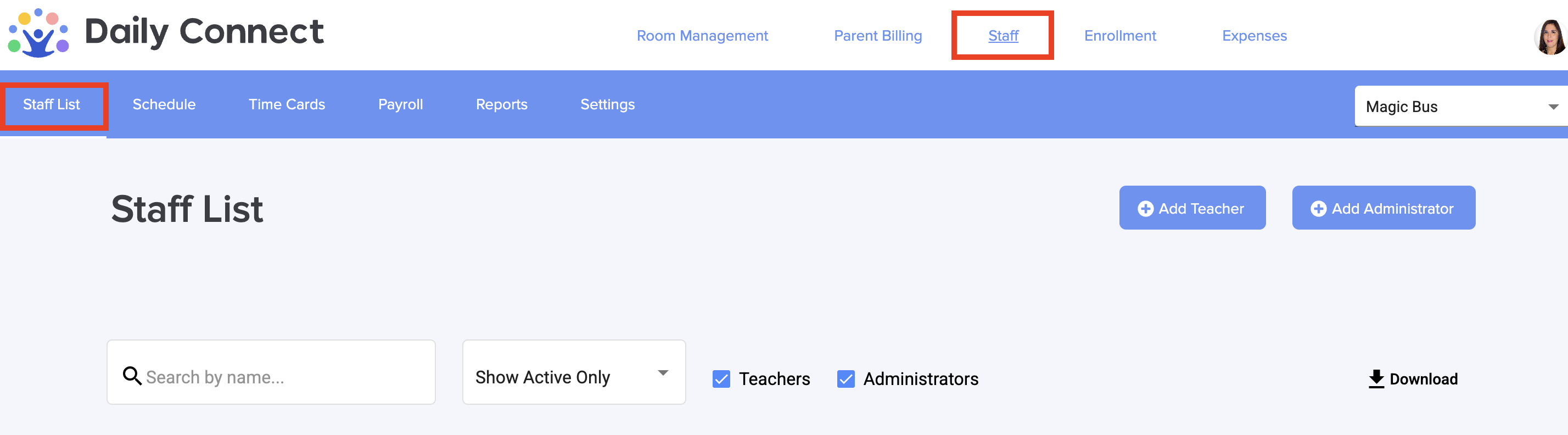
2. Go to Staff > Staff list:


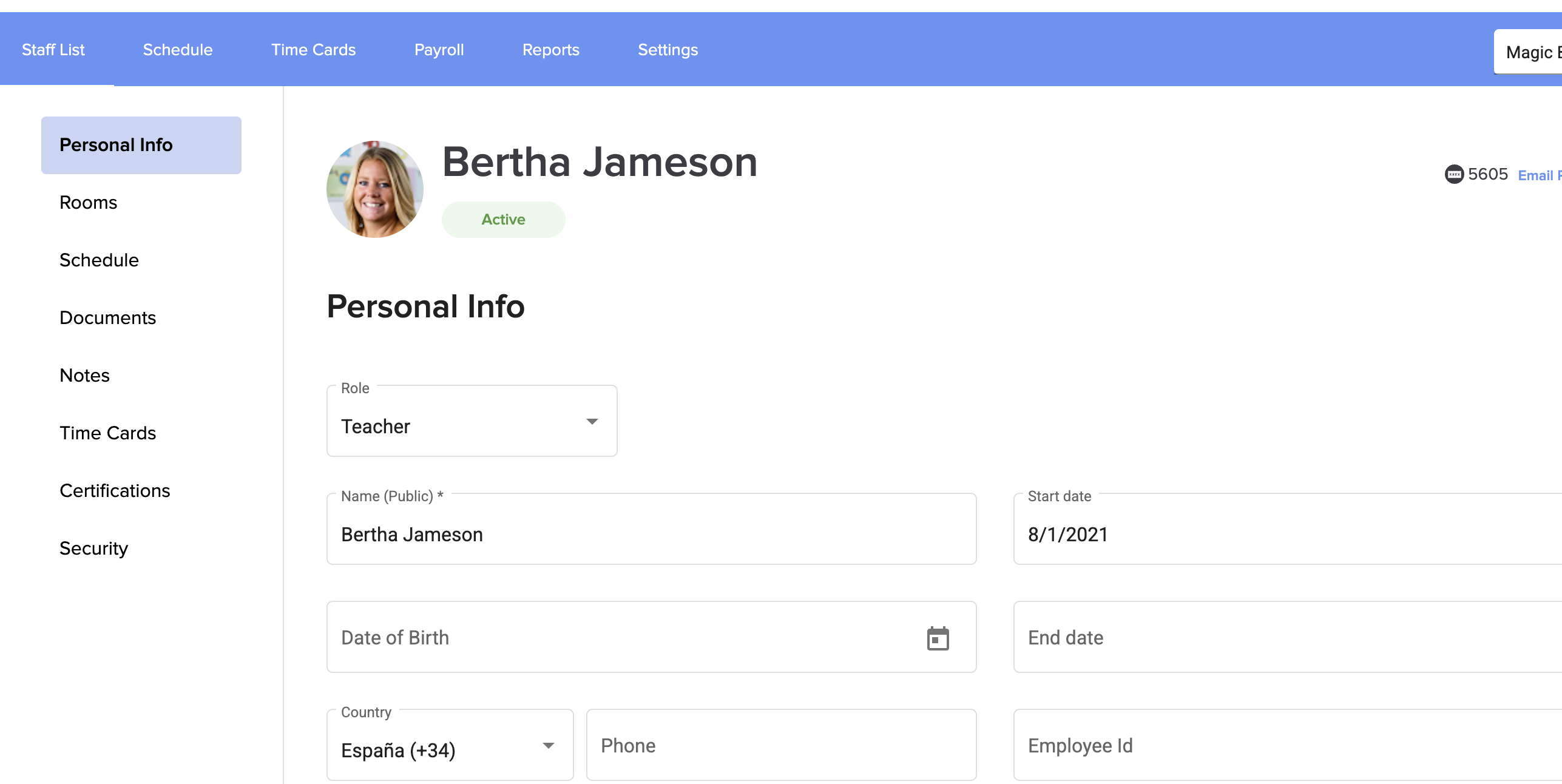
3. Select the teacher :


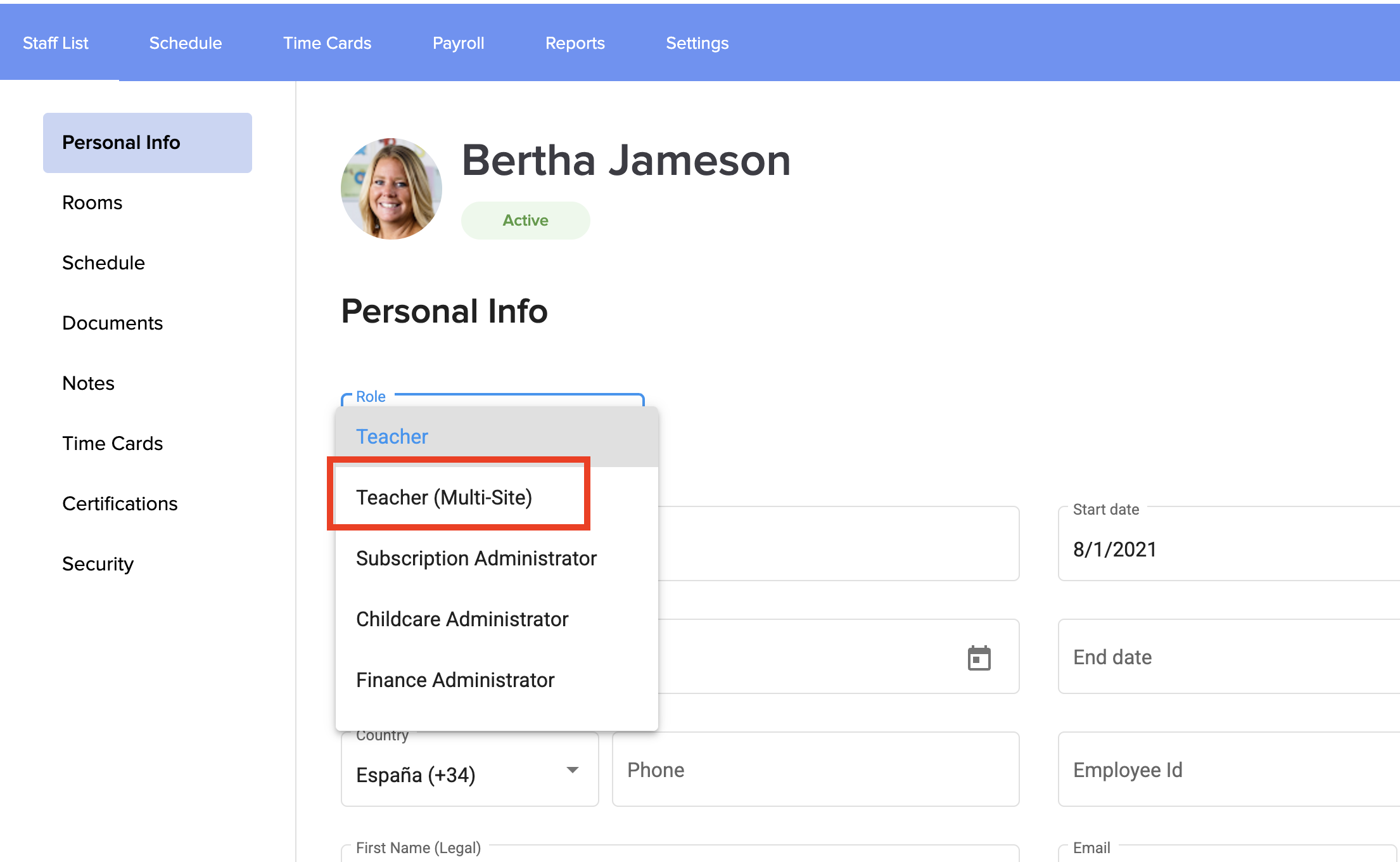
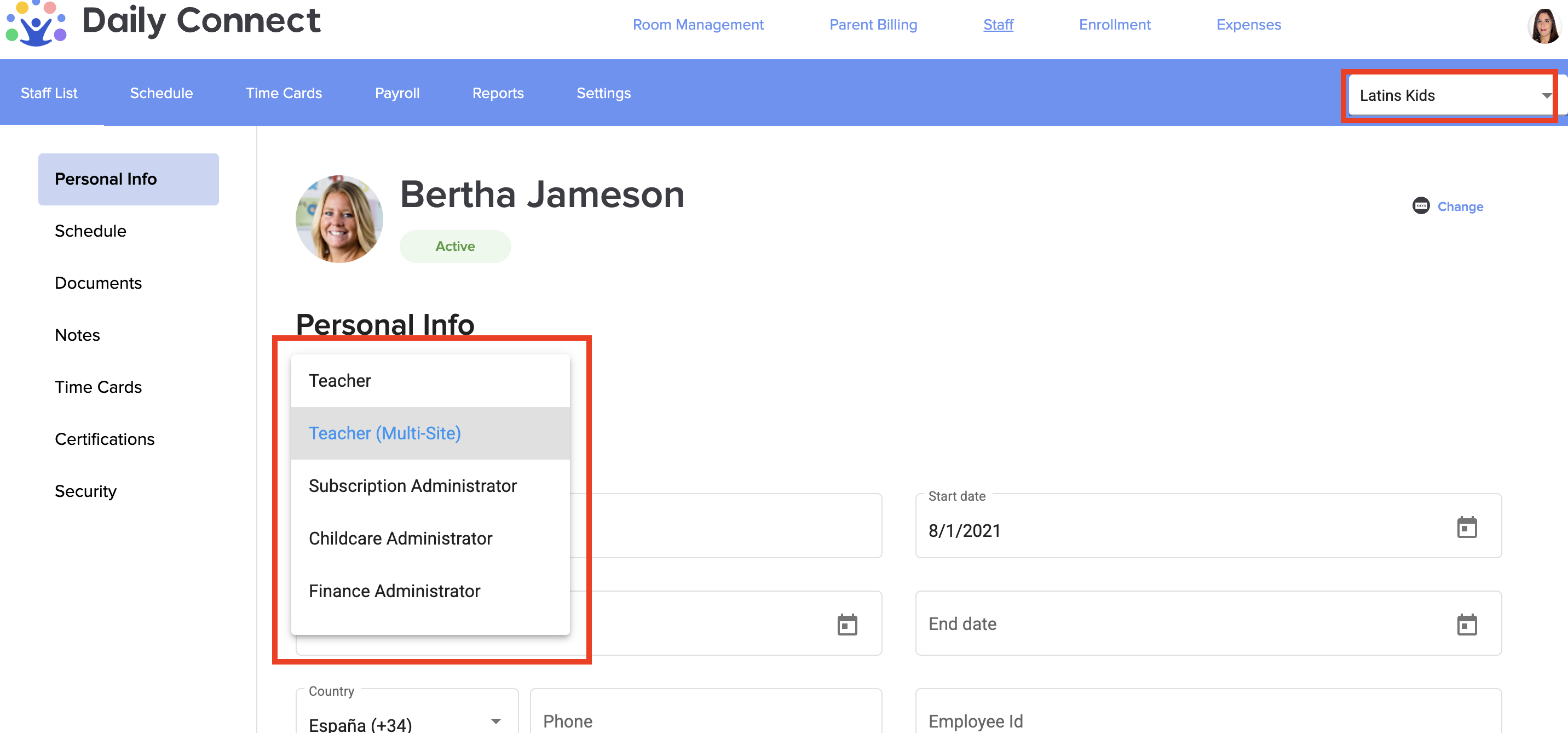
4. Select the teacher Multi-site role and click Save.


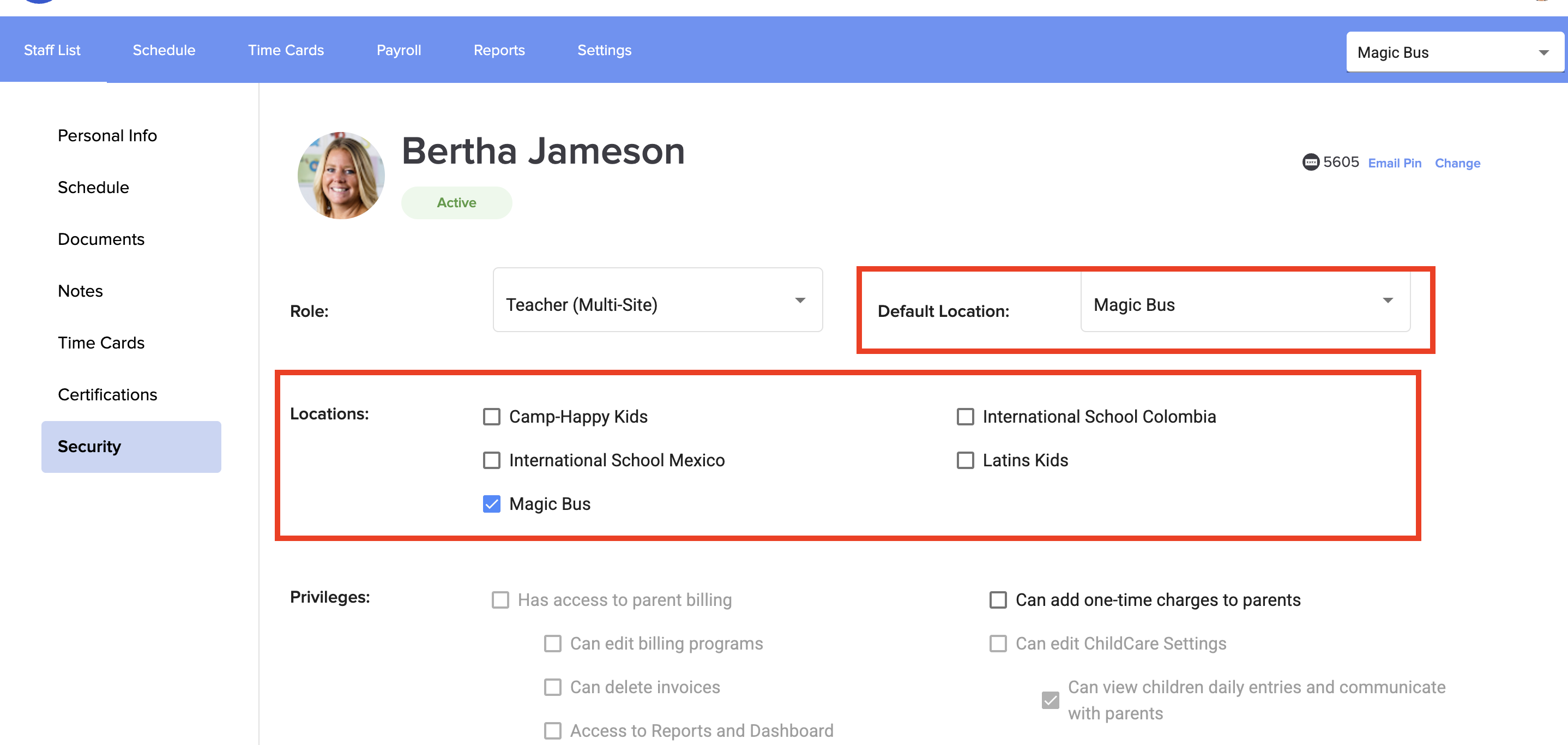
5. Go to Security. There you can see the current location. Now select the new location and deselect the current one.


6. Now you can go to the new location, deselect the Teacher (Multi-site) in the security section and select Teacher. Click Save:


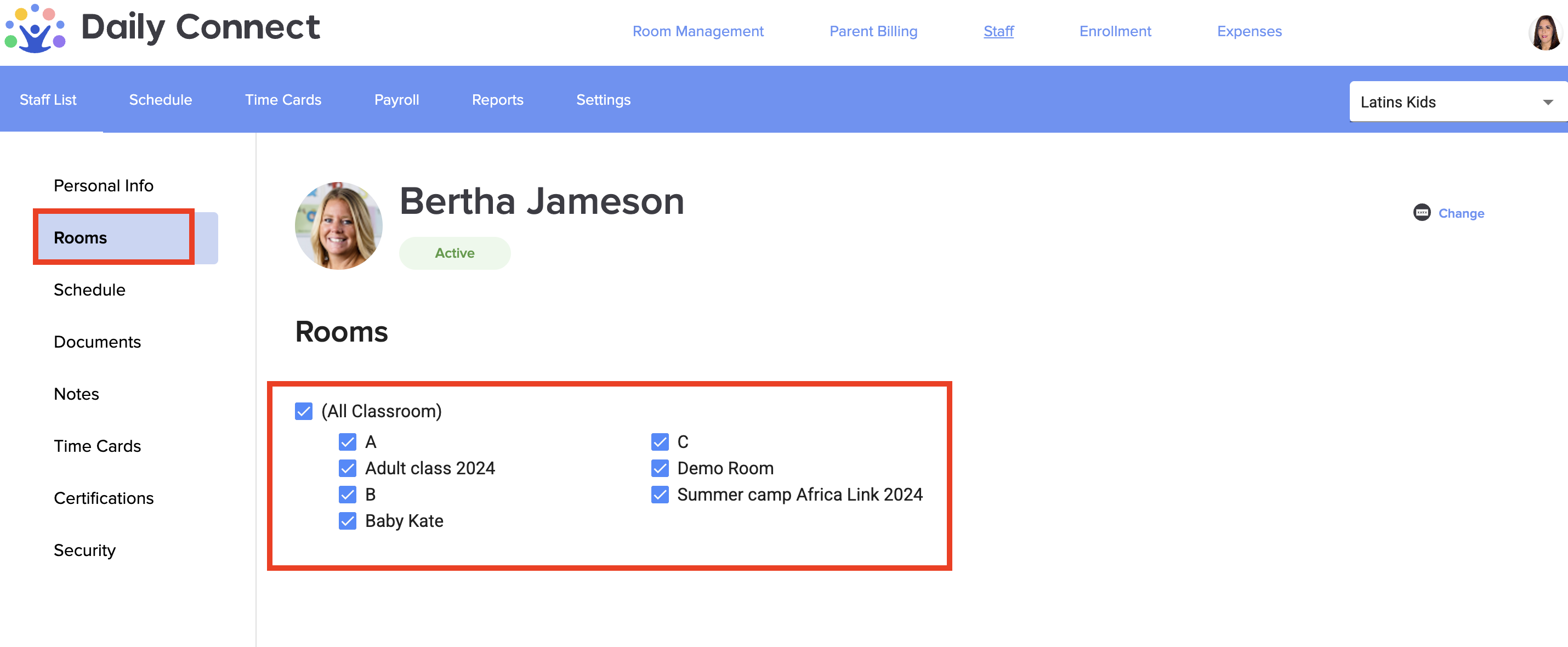
7. Go to Rooms and assign the teacher to the room/s that you want. Click Save:


Was this article helpful?

That’s Great!

Thank you for your feedback

Sorry! We couldn't be helpful

Thank you for your feedback

Let us know how can we improve this article!

Select at least one of the reasons
CAPTCHA verification is required.

Feedback sent

We appreciate your effort and will try to fix the article