Objective
This article explains how to create, submit, and track an incident report for a child in the system. It ensures staff can document incidents accurately, include supporting details, and verify whether the report has been signed by the parent or guardian.
Key Steps
1. Open the Child’s Profile in the Correct Room 0:00
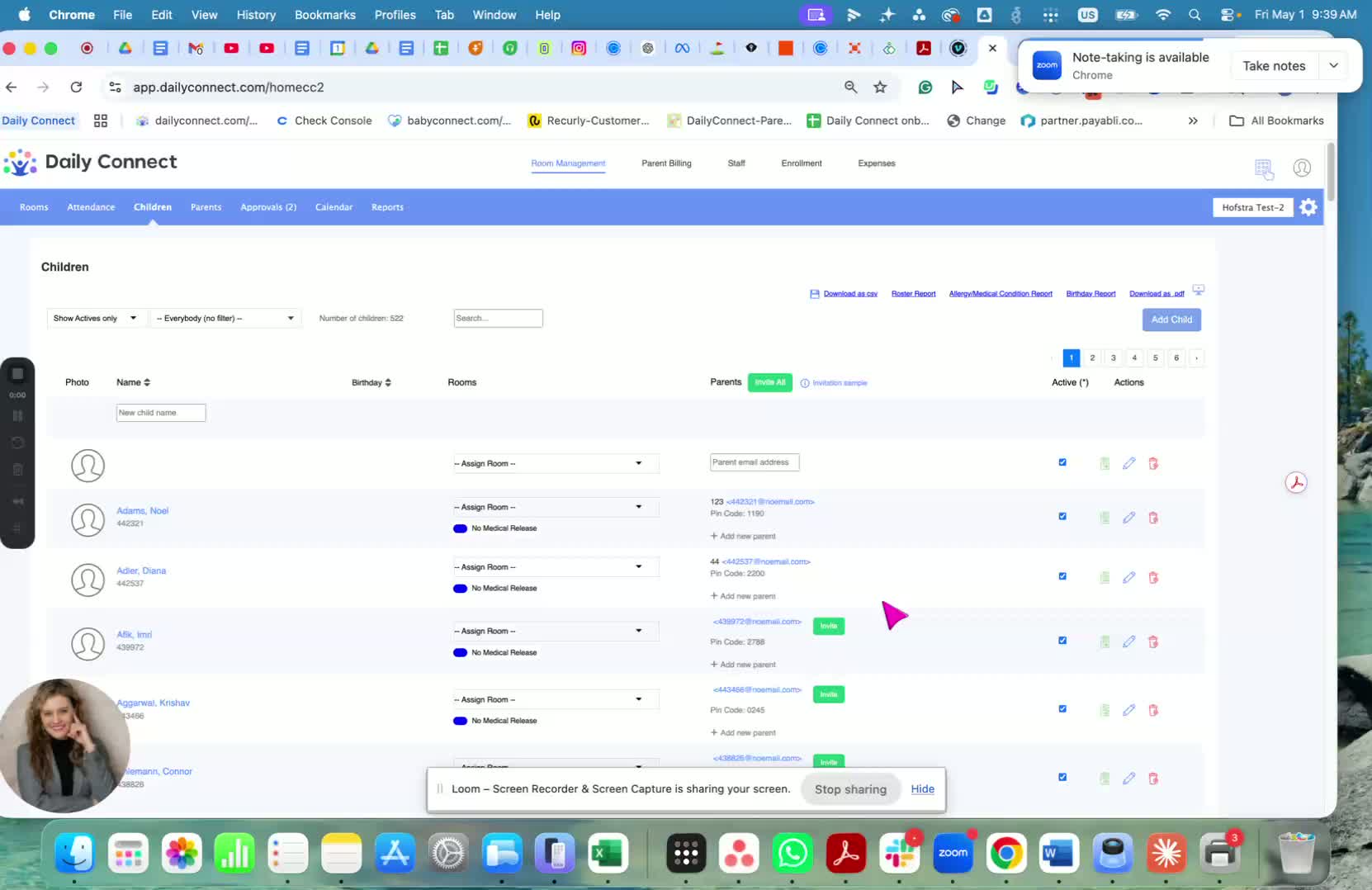
Navigate to the room where the child is assigned.
Select the child’s profile to begin the incident report process.
Confirm you are working in the correct room before proceeding.
2. Start a New Incident Report 0:14
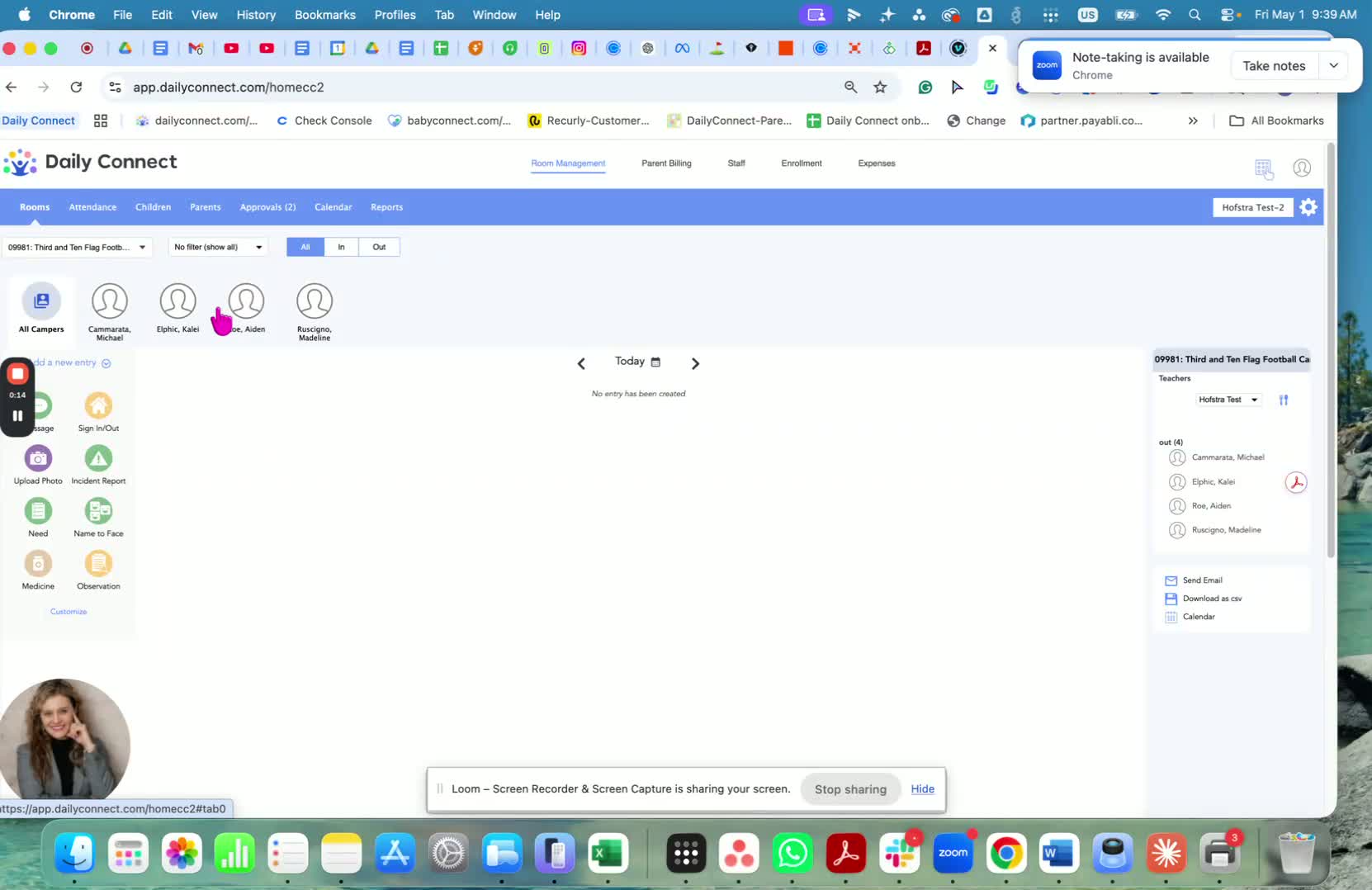
Click Incident Report from the child’s profile.
Add any available supporting details, such as:
A photo of the incident, if needed.
Notes describing what happened.
Choose whether the report should be visible only to staff if privacy is required.
Enter the time of the incident or the duration, if applicable.
3. Complete the Report in the Web Version 1:01
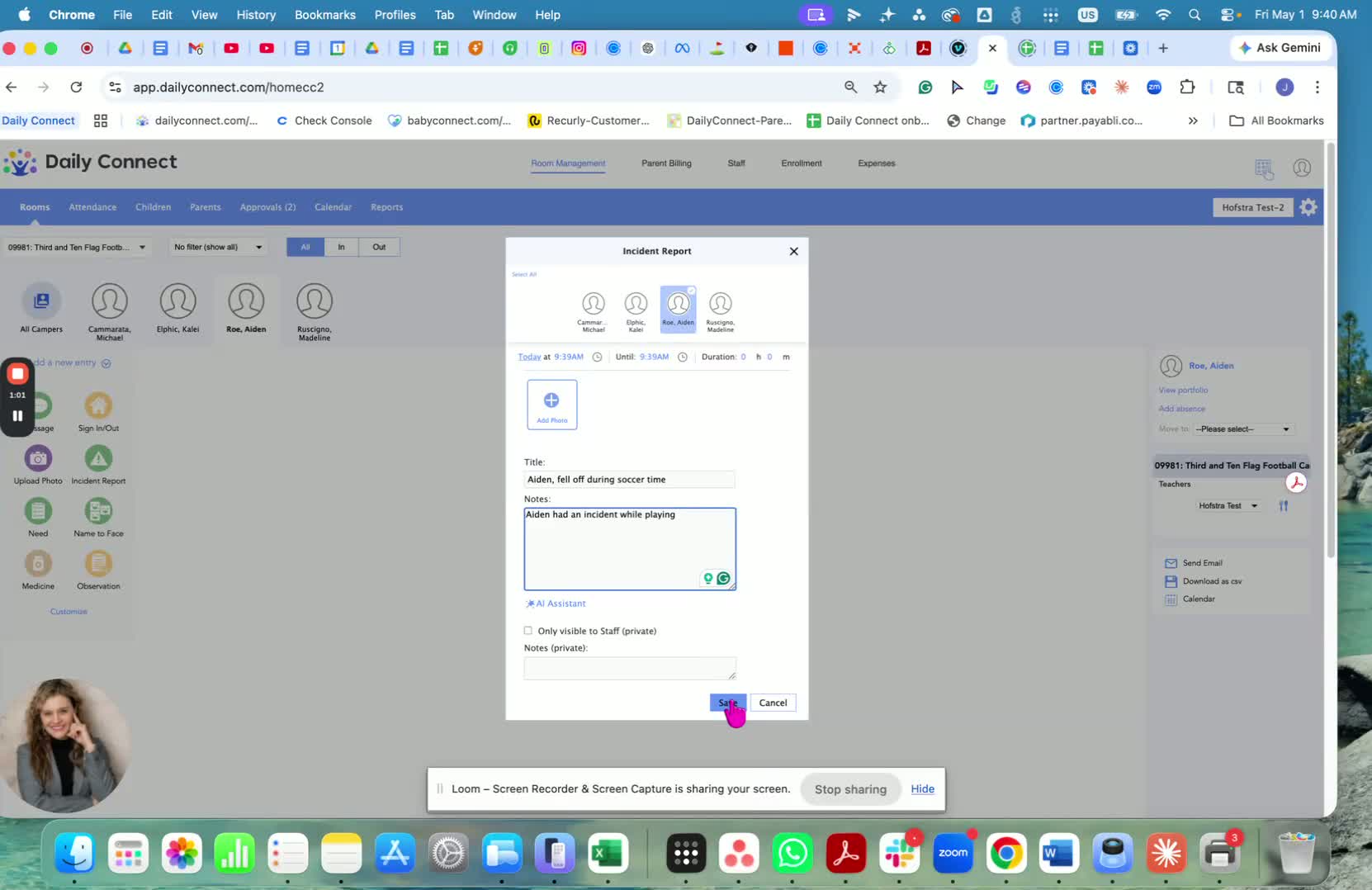
Review the incident report after entering the details.
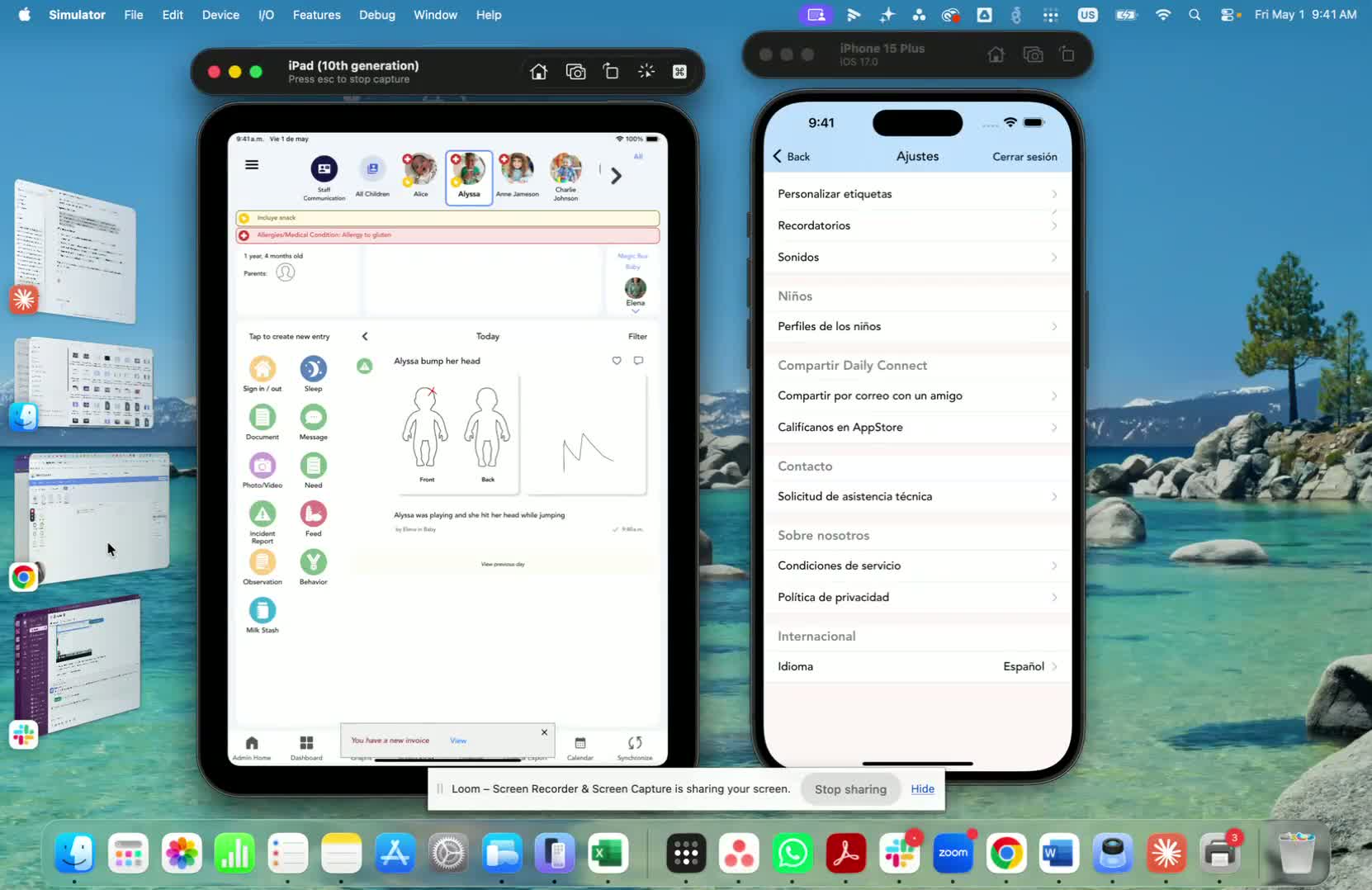
Confirm the report is created and saved in the incident report record.
Use the web version to document the incident in the same way as the app, with similar fields and workflow.
4. Complete the Report in the App 1:14
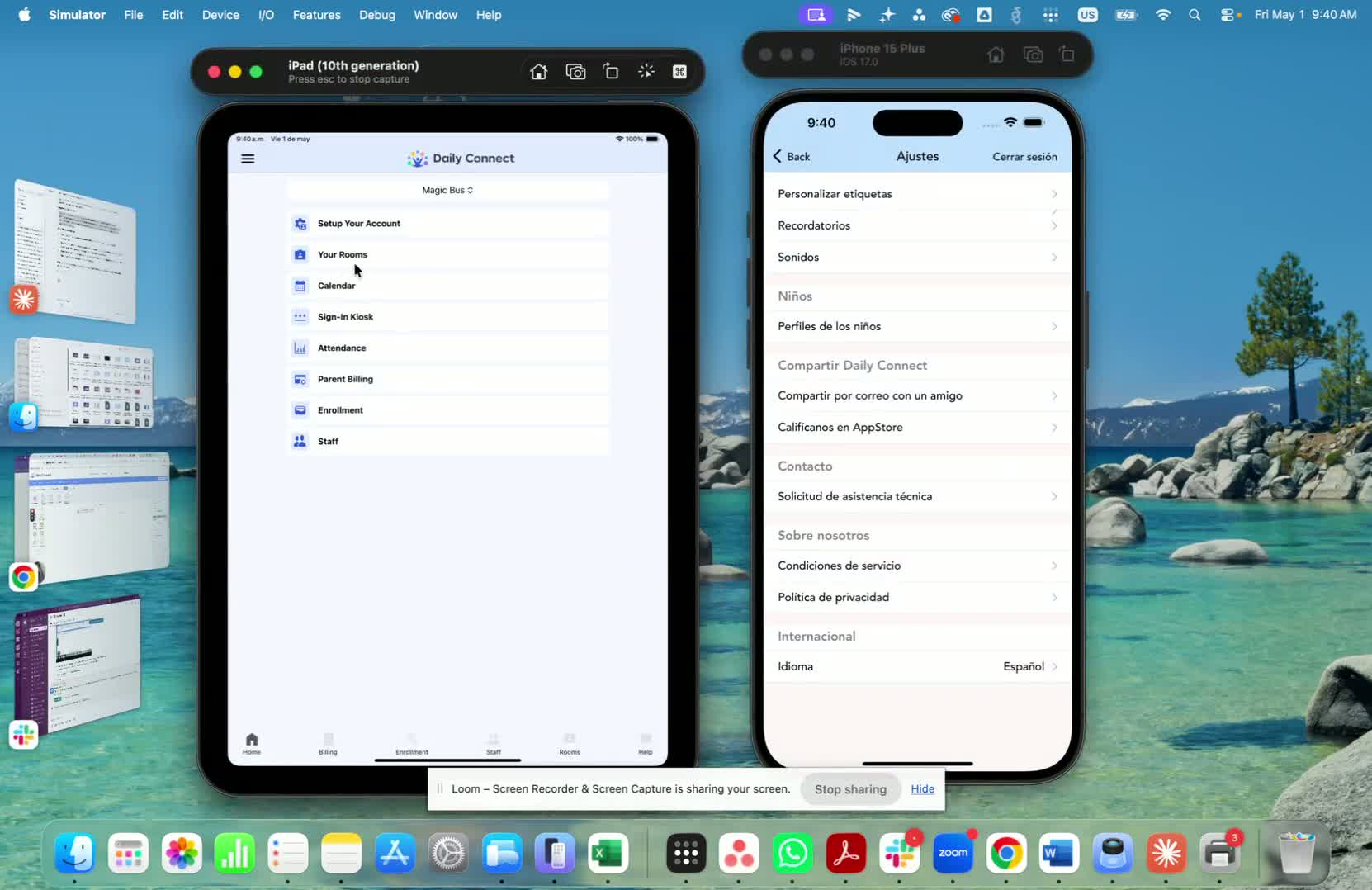
Open the app and select the room where the child belongs.
Tap the child’s profile.
Tap Incident Report.
Enter the incident notes in the provided field.
5. Add Body Map Details and Staff Signatures 2:04
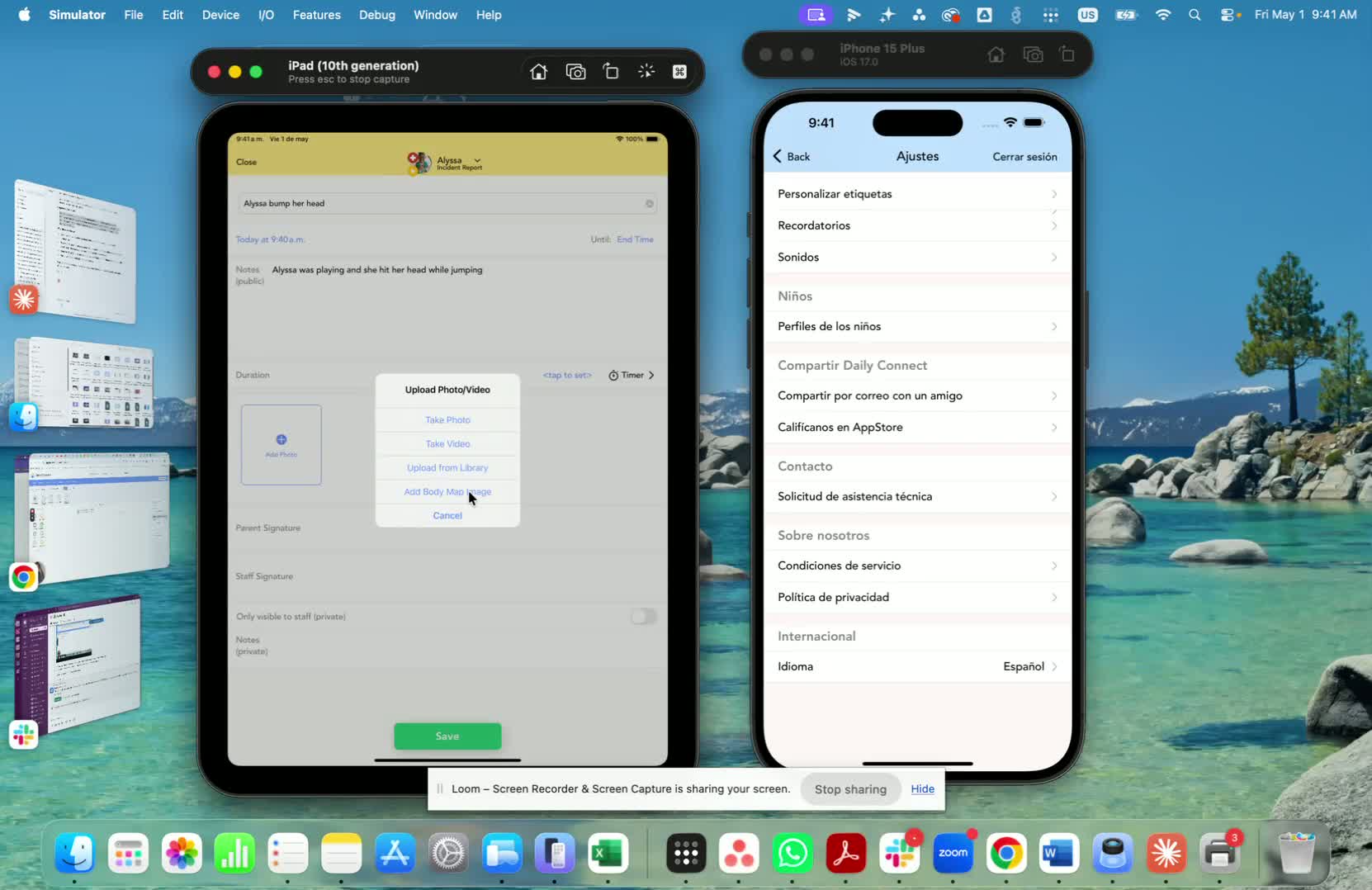
Use the body map image in the app to mark where the accident or injury occurred.
Draw or indicate the affected area clearly.
Collect staff signatures in the report if required.
Ensure all relevant staff sign the report before submission, if applicable.
6. Set Privacy and Parent Communication Options 2:19
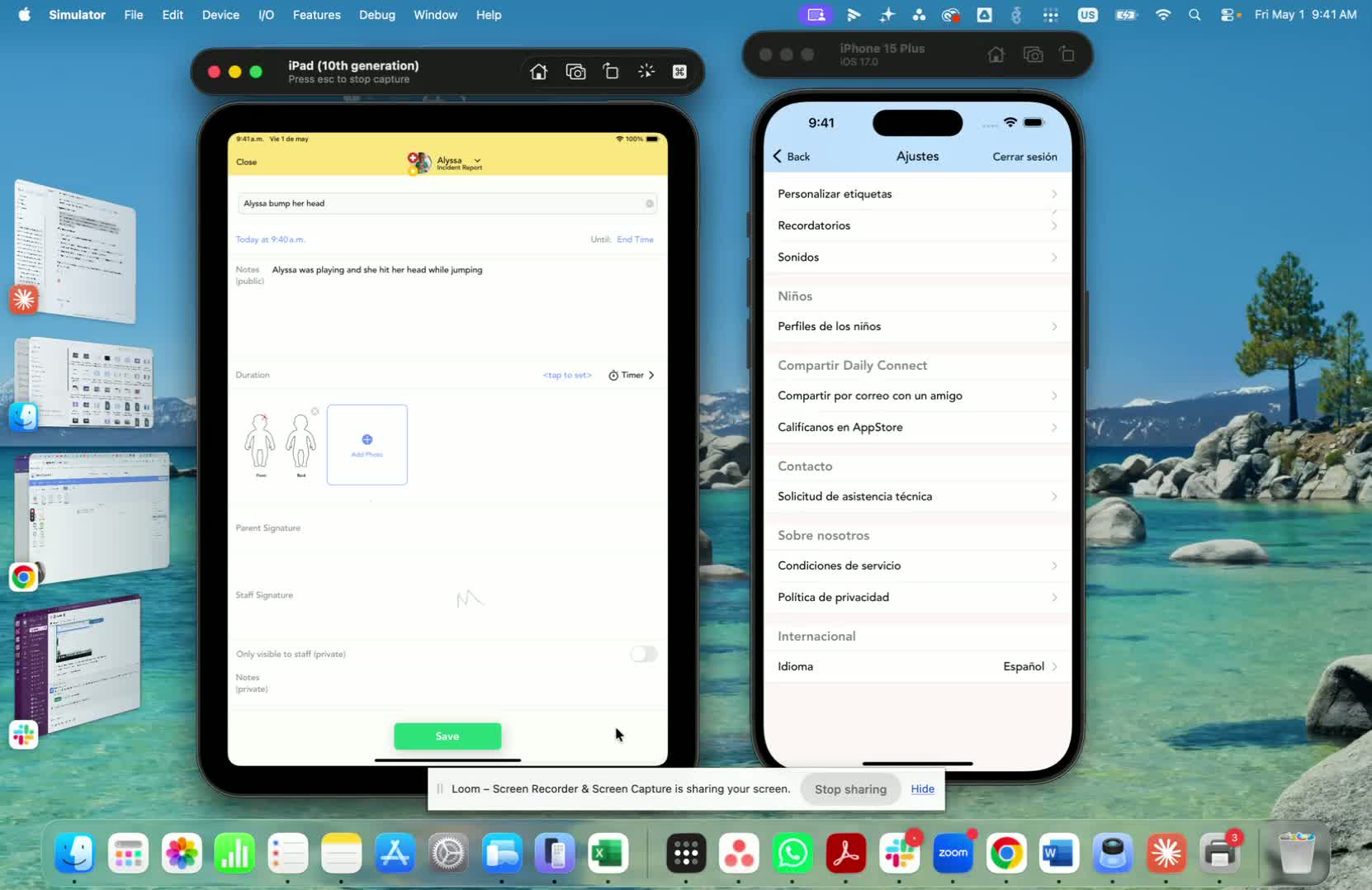
Add private notes if the information should only be visible to you and staff.
If needed, mark the report as private communication so the parent/partner does not receive the incident notification.
If the report is shared with the parent, they can sign it on their end and the signature will be returned to the system.
7. Track Submitted Incident Reports 2:44
Go to Room Management and then Reports.
Open the incident reports section to review submitted reports.
Filter or review reports by month to find the correct record.
Check the status to see whether the parent has signed the report back.
Cautionary Notes
Ensure you select the correct room and child before creating the report.
Use private notes only for information that should not be visible to parents/guardians.
If the report is intended for parent review, confirm it is not set to private communication.
Verify that all required signatures are collected before closing the incident record.
Double-check the incident time, notes, and body map markings for accuracy before submitting.
Tips for Efficiency
Gather all incident details before starting to reduce back-and-forth editing.
Use the body map feature in the app to document injuries quickly and clearly.
Add notes immediately after the incident while details are fresh.
Review reports by month to locate records faster.
Use the parent signature status to follow up only on reports that are still unsigned.
Was this article helpful?
That’s Great!
Thank you for your feedback
Sorry! We couldn't be helpful
Thank you for your feedback
Feedback sent
We appreciate your effort and will try to fix the article