When creating menus, having to create each daily or weekly menu manually can be time-consuming. Being able to copy them saves us a lot of time that we can dedicate to other tasks that require our attention at our center.
Follow these steps to copy and paste menus:
1. Log in to your admin account on the Daily Connect website.
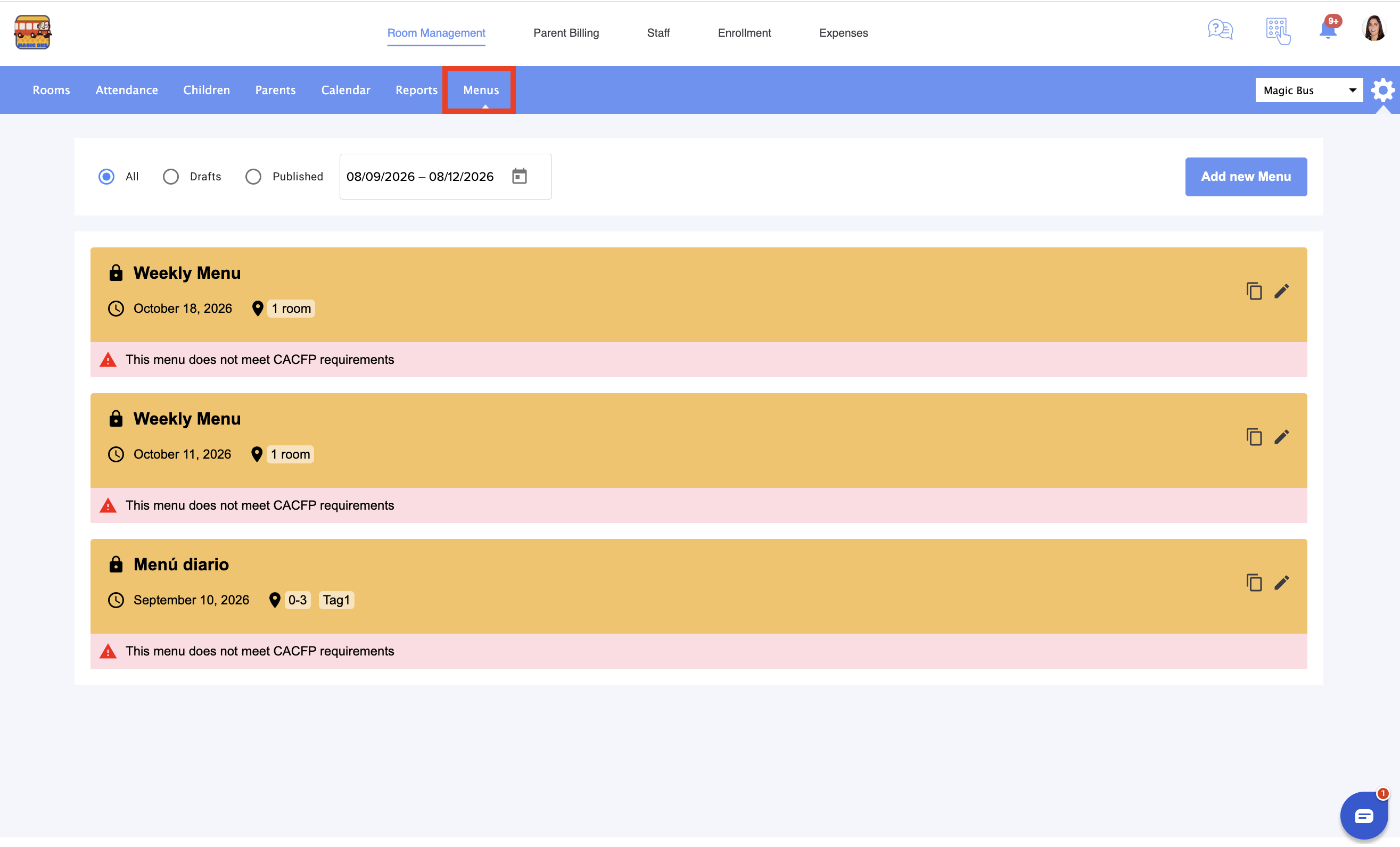
2. Go to Menu:
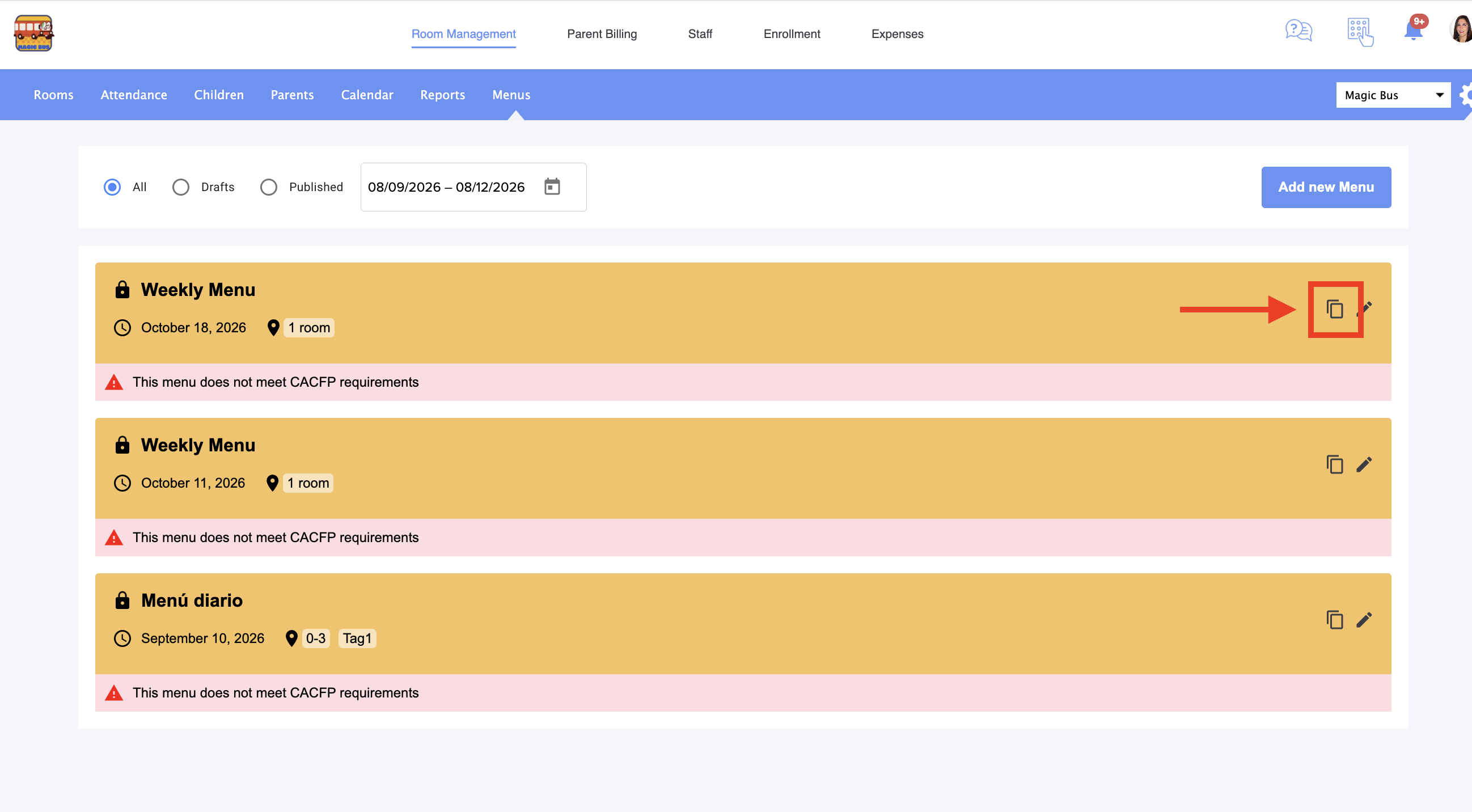
3. Click on the copy icon of the menu that you want to replicate:
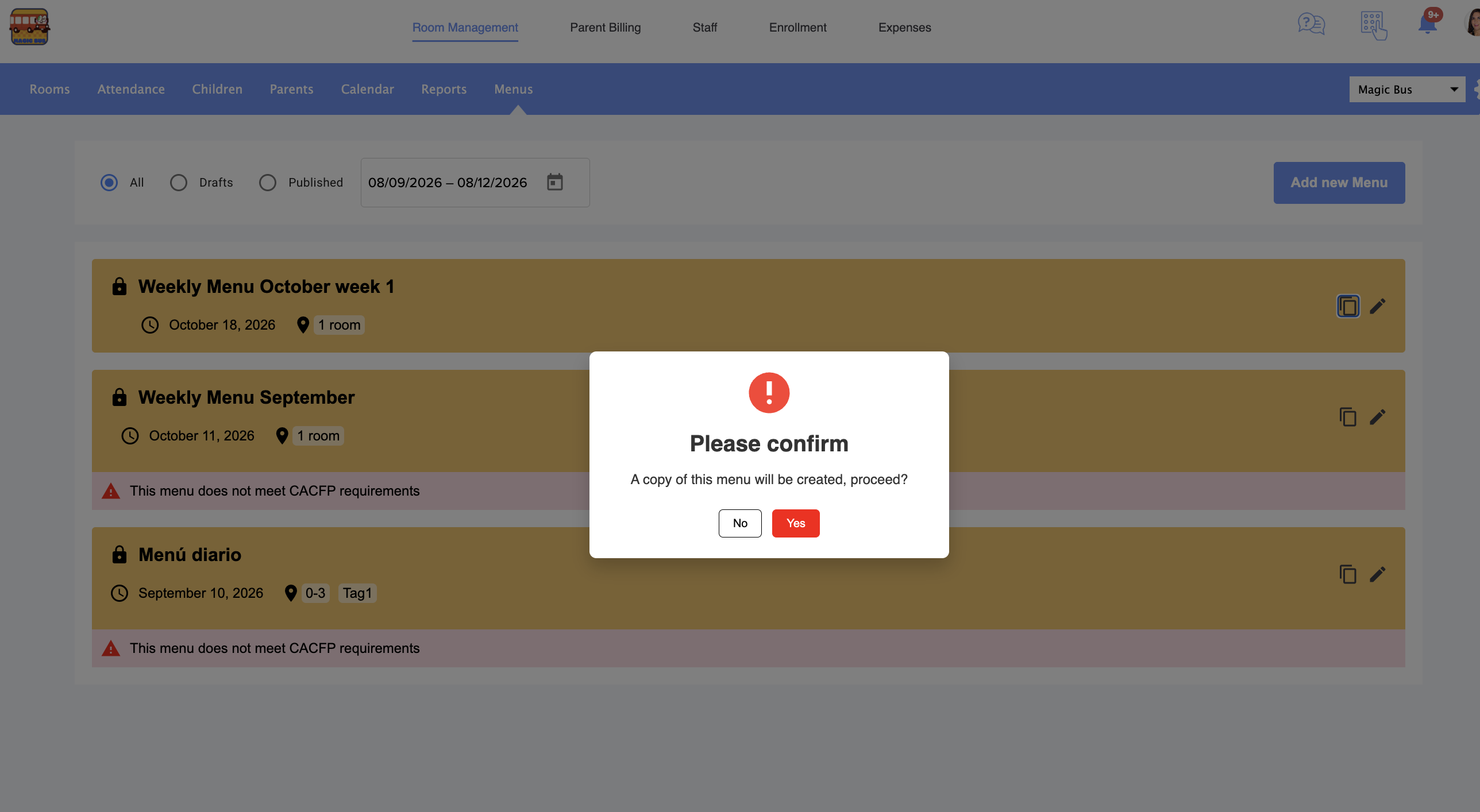
Confirm:
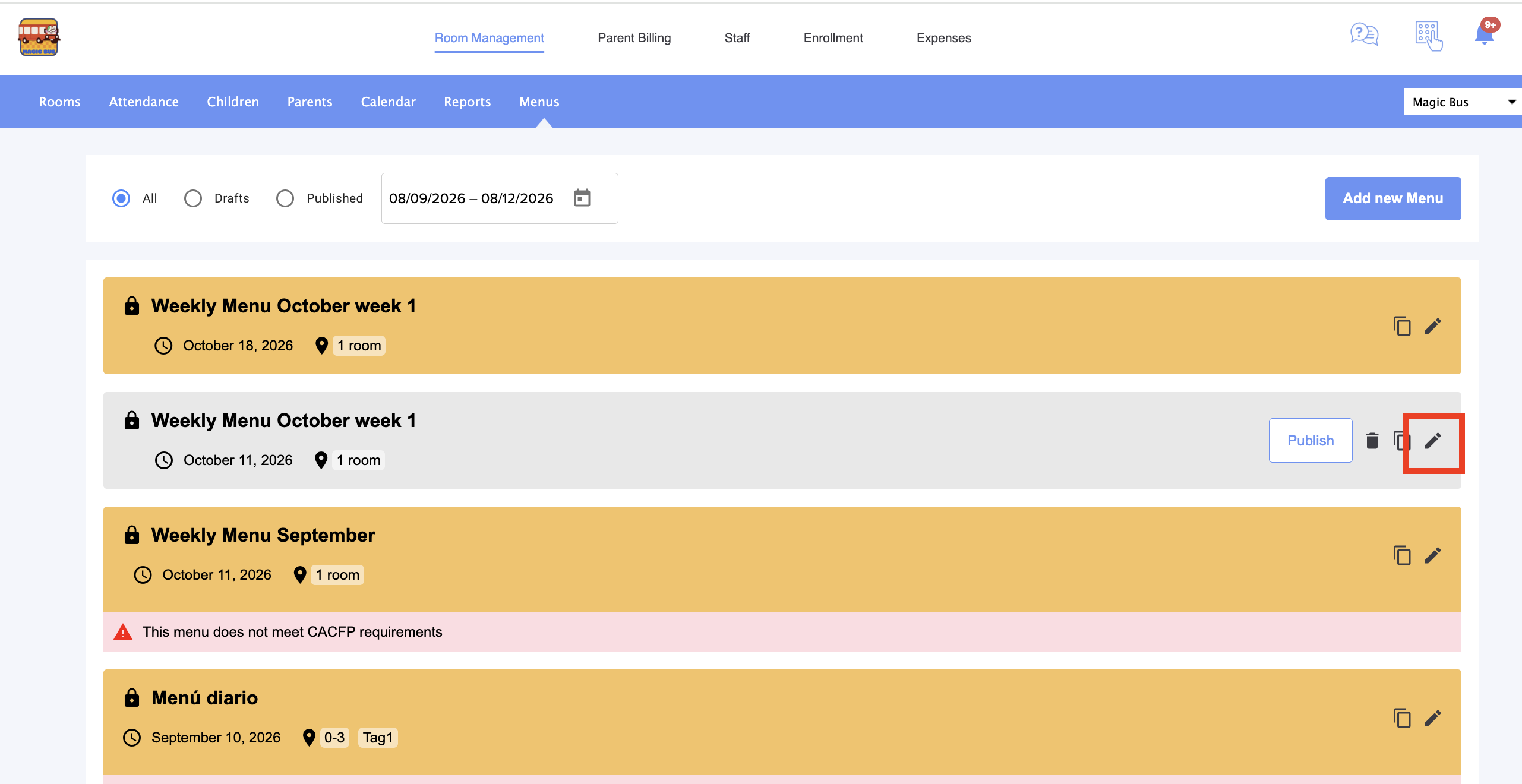
It will duplicate the Menu:
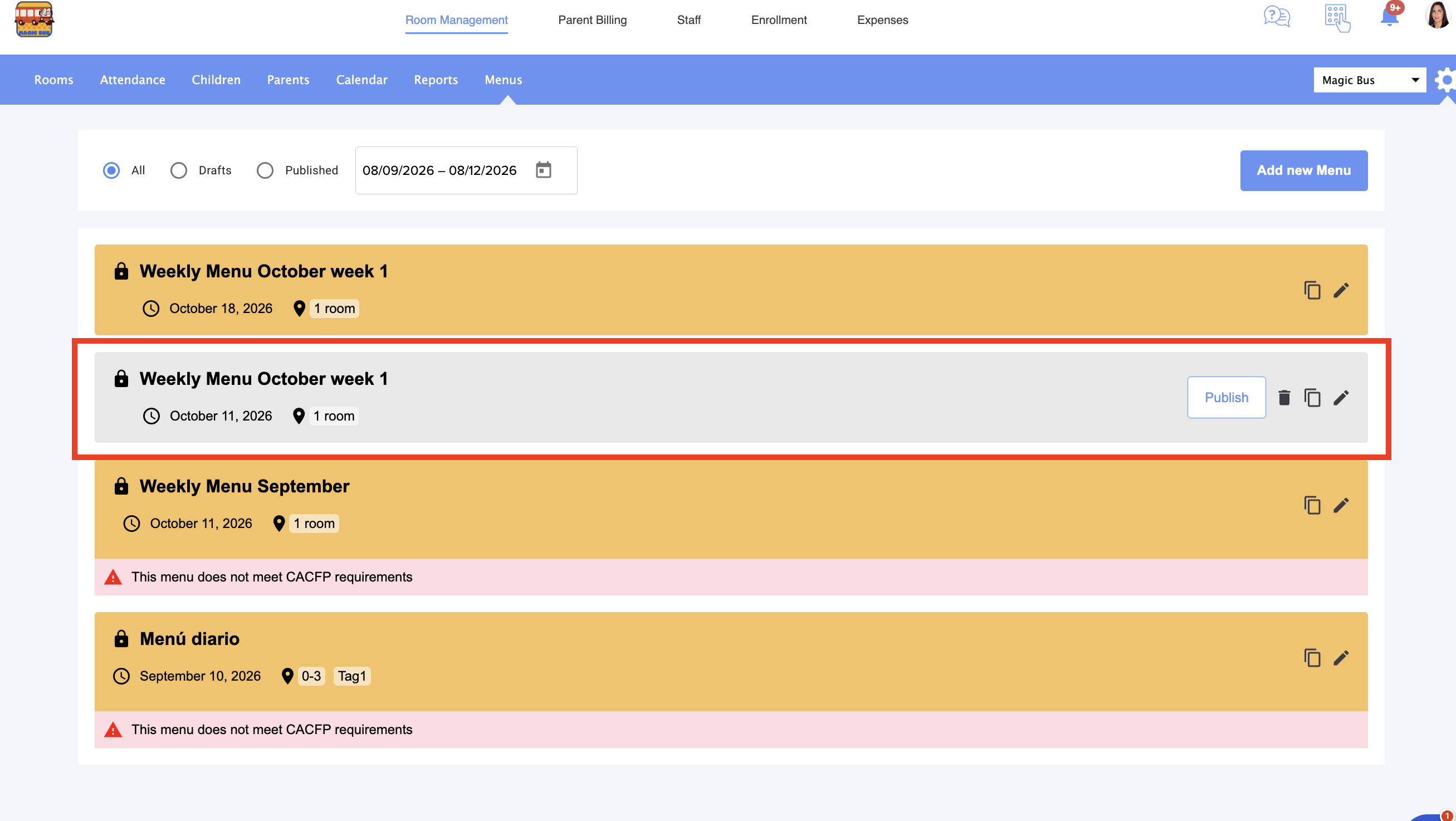
You can check now that everything is ok with this new weekly menu and if you want you can change the name or any other thing that you want. Click on the pencil to edit it:
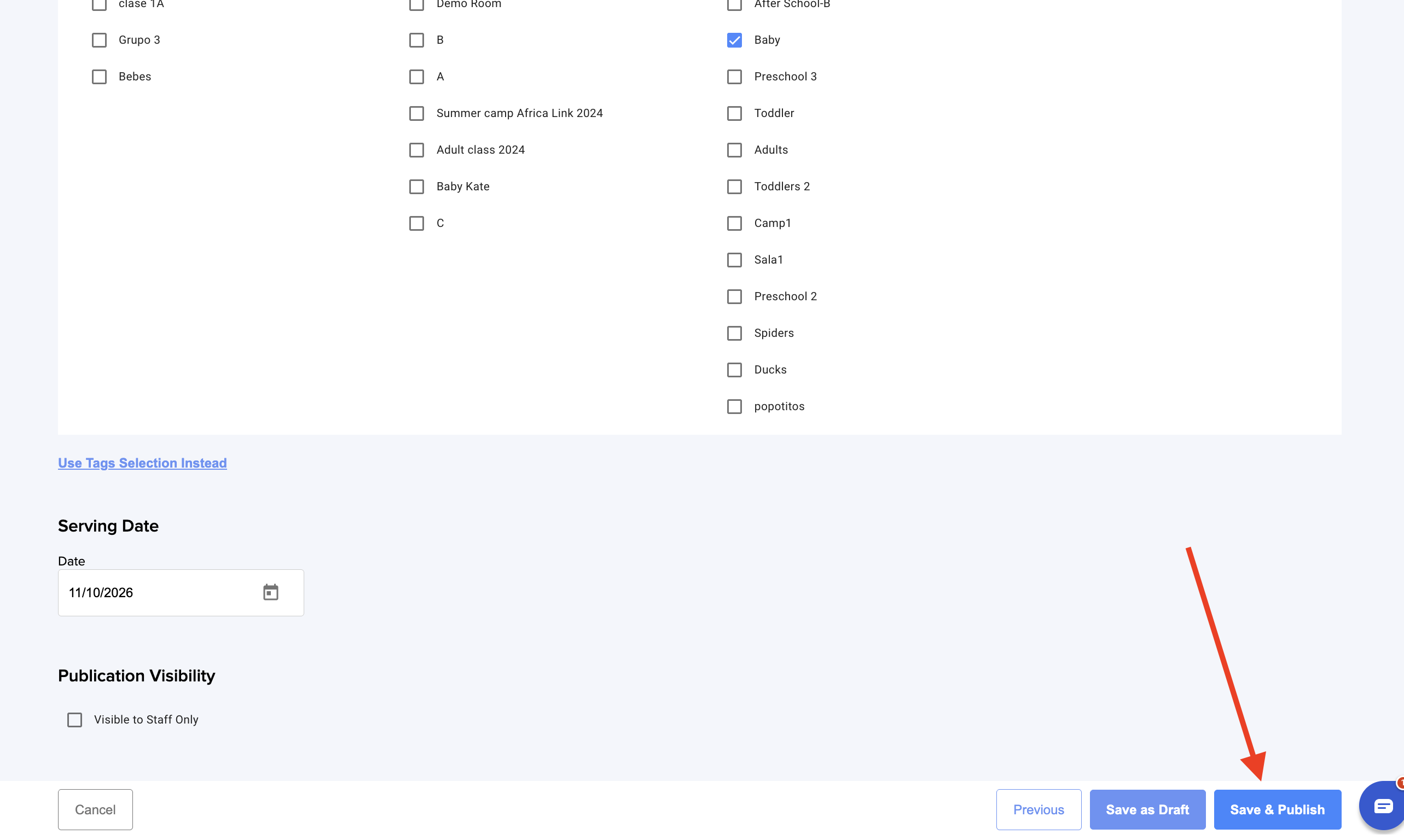
If everything is ok just save it and publish it:
More questions? Contact us at support@dailyconnect.com
Was this article helpful?
That’s Great!
Thank you for your feedback
Sorry! We couldn't be helpful
Thank you for your feedback
Feedback sent
We appreciate your effort and will try to fix the article