You can now group store products into folders, such as "Summer Camp", "After-School Programs"or "Holiday Care". Parents see a cleaner store with folders first, and open one to see what's inside. Learn how to do it:
1. Log in to your admin account.
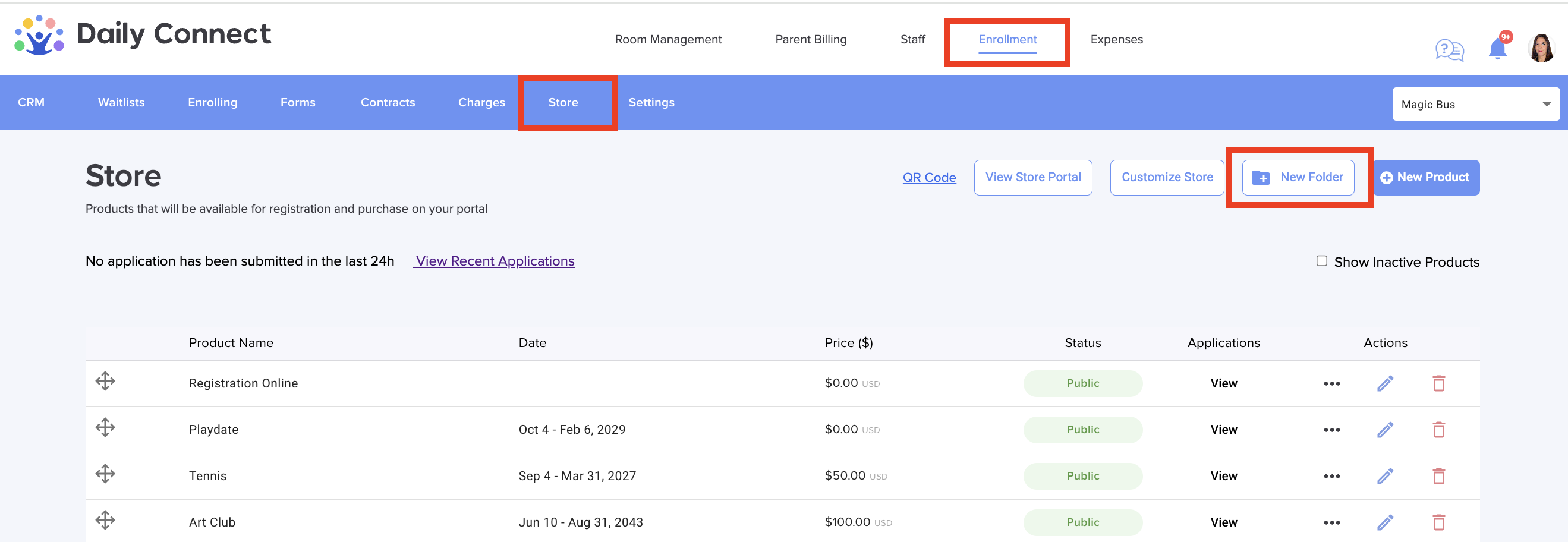
2. Go to Enrollment > Store and click on New folder:
3. Enter a folder name, also you can add a description:
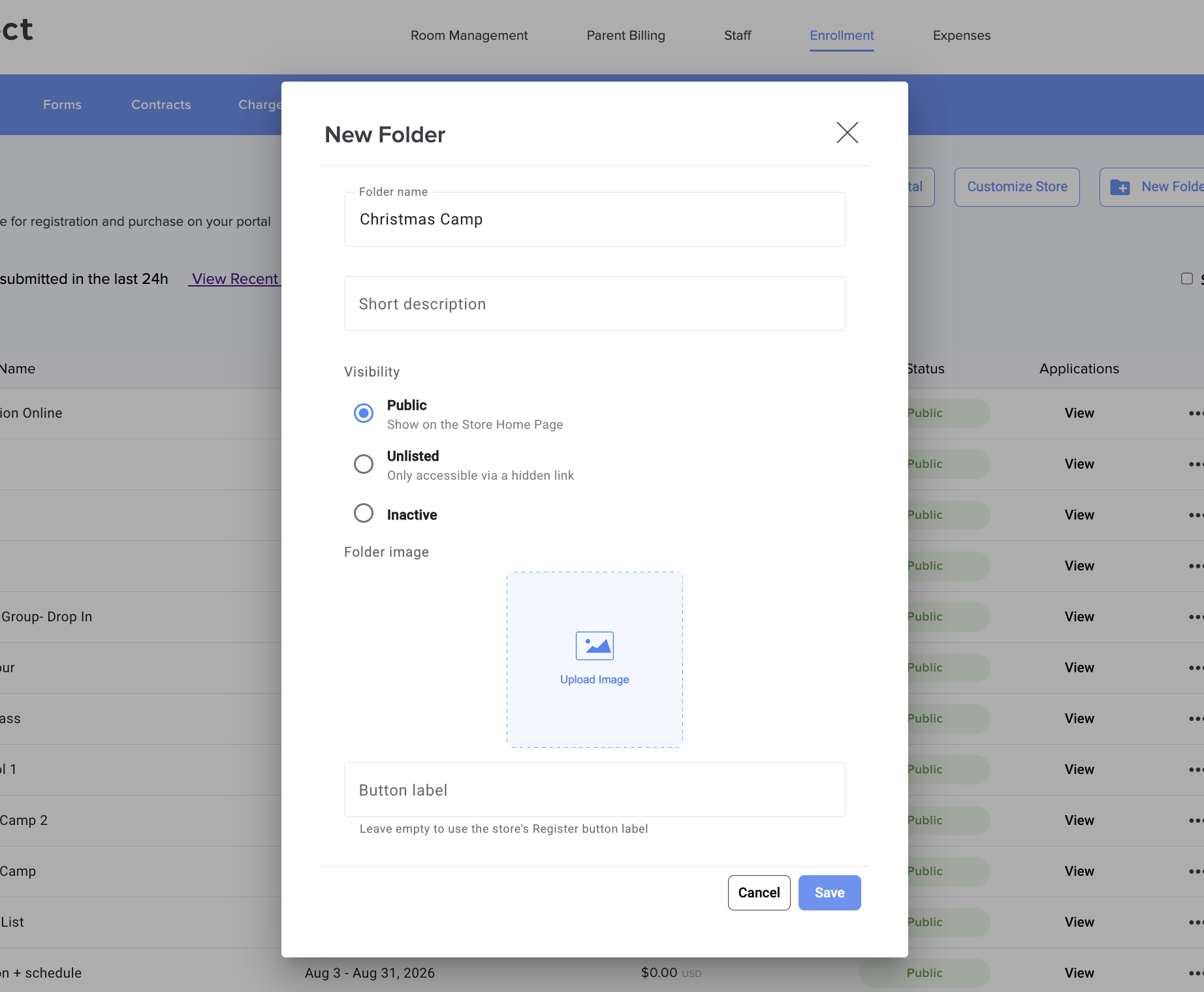
Choose a status:
- Public: shown on your store home page.
- Unlisted: not shown on the store, but anyone with the folder's link can open it. This is useful for programs you only share with certain families.
- Inactive: hidden from everyone.
New folders start as Inactive, so you can set them up before they go live.
You can also set a Button label for the folder's button on your store, such as "Enroll" or"Register". If you leave it empty, your store's usual Register label is used.
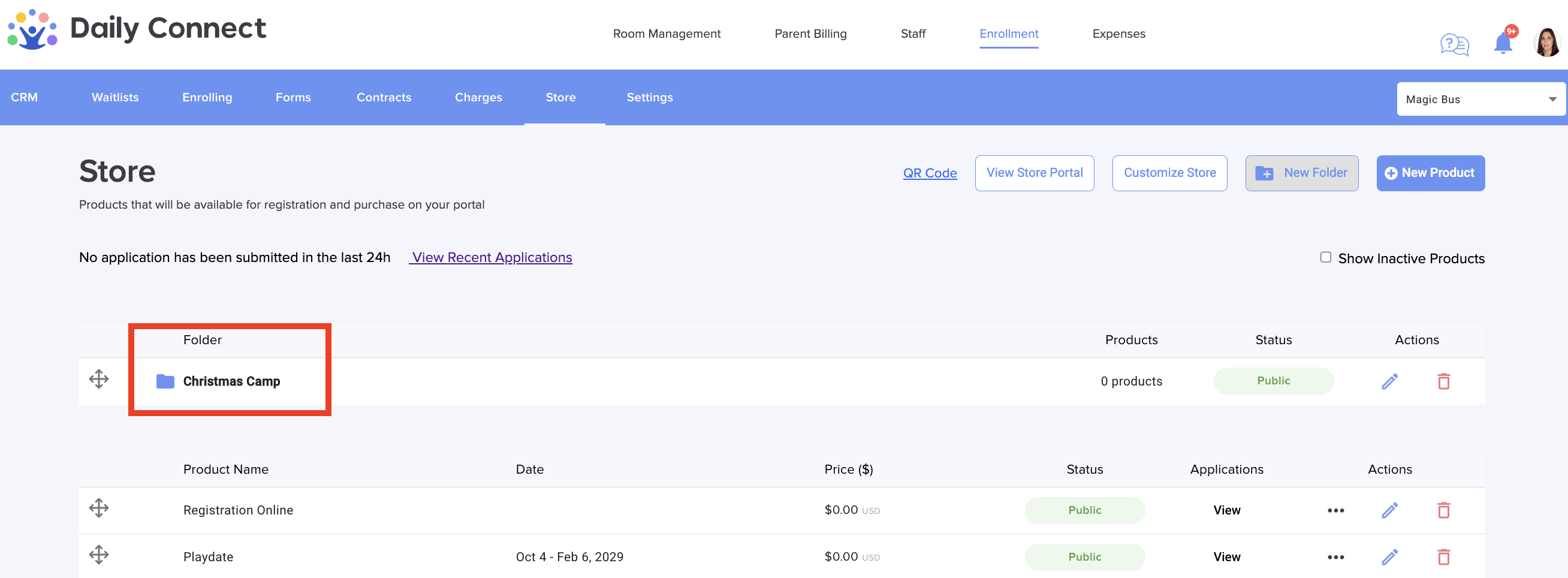
Click Save. Now you can see the new folder:
Add products to a folder
Now that you have the folder created, you can add your products to it. There are different ways to do it:
- Drag and drop a product onto a folder in the product list.
- Or use Move to folder from the product's menu.
- Or pick the folder in the Folder dropdown on the product's details. Choose (no folder) to keep it at the top level of the store.
A product moved into a folder is placed at the end of that folder.
You can drag folders to reorder them, and drag products to reorder them inside a folder.
What parents see
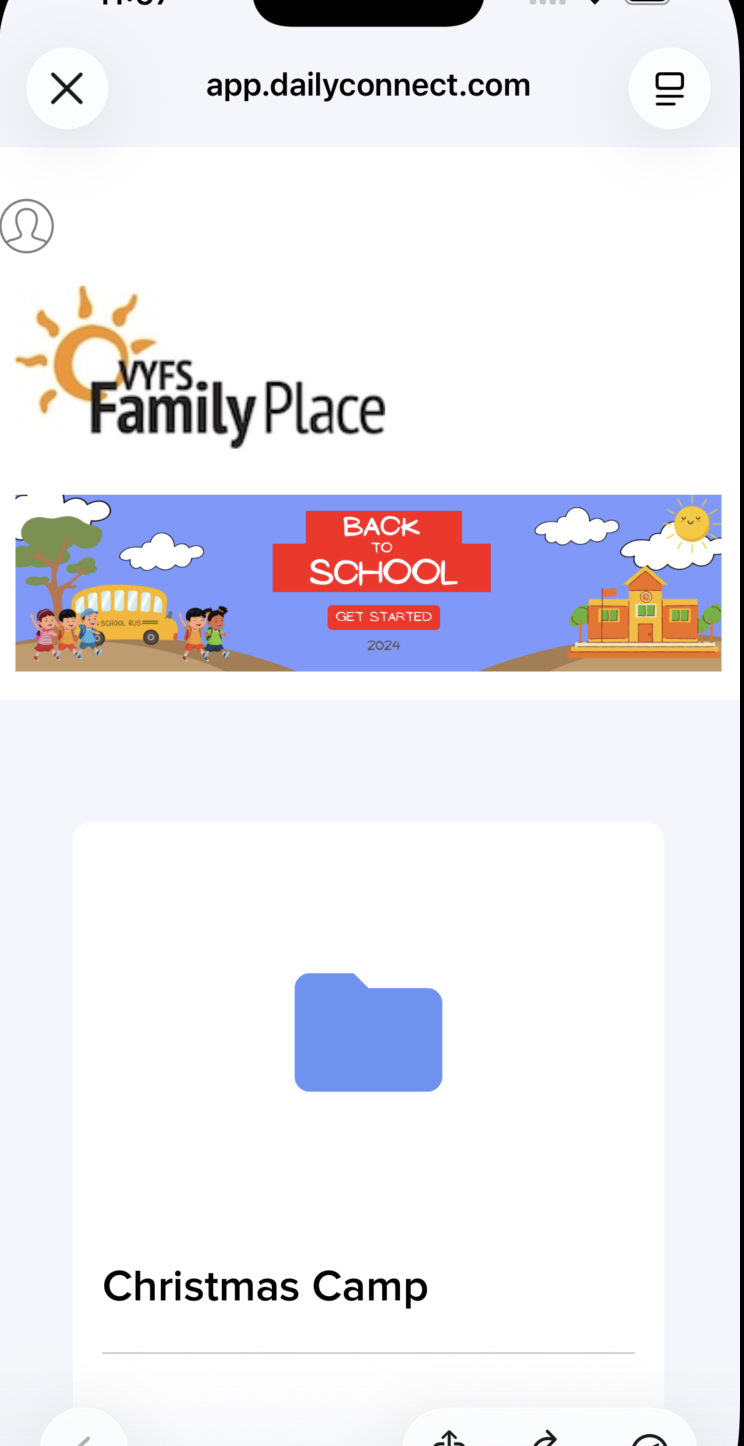
A folder shows up only when it holds at least one product parents can view, so they never open an empty folder.
Public folders appear on your store home page with their image and description.
Products inside an Unlisted or Inactive folder stay off the store home page and calendar.
Deleting a folder
Deleting a folder never deletes its products. They move back to the top level of your store, after your other products.
More questions? Contact us at support@dailyconnect.com
Was this article helpful?
That’s Great!
Thank you for your feedback
Sorry! We couldn't be helpful
Thank you for your feedback
Feedback sent
We appreciate your effort and will try to fix the article