Offer a lower rate per session when a parent books multiple sessions in one order. For example, a $100 drop-in day can be $90 per session for 3 sessions or $80 per session for 5.
Set up a volume discount
- Open the store product and go to Pricing & Fees (Store › Product › Pricing).
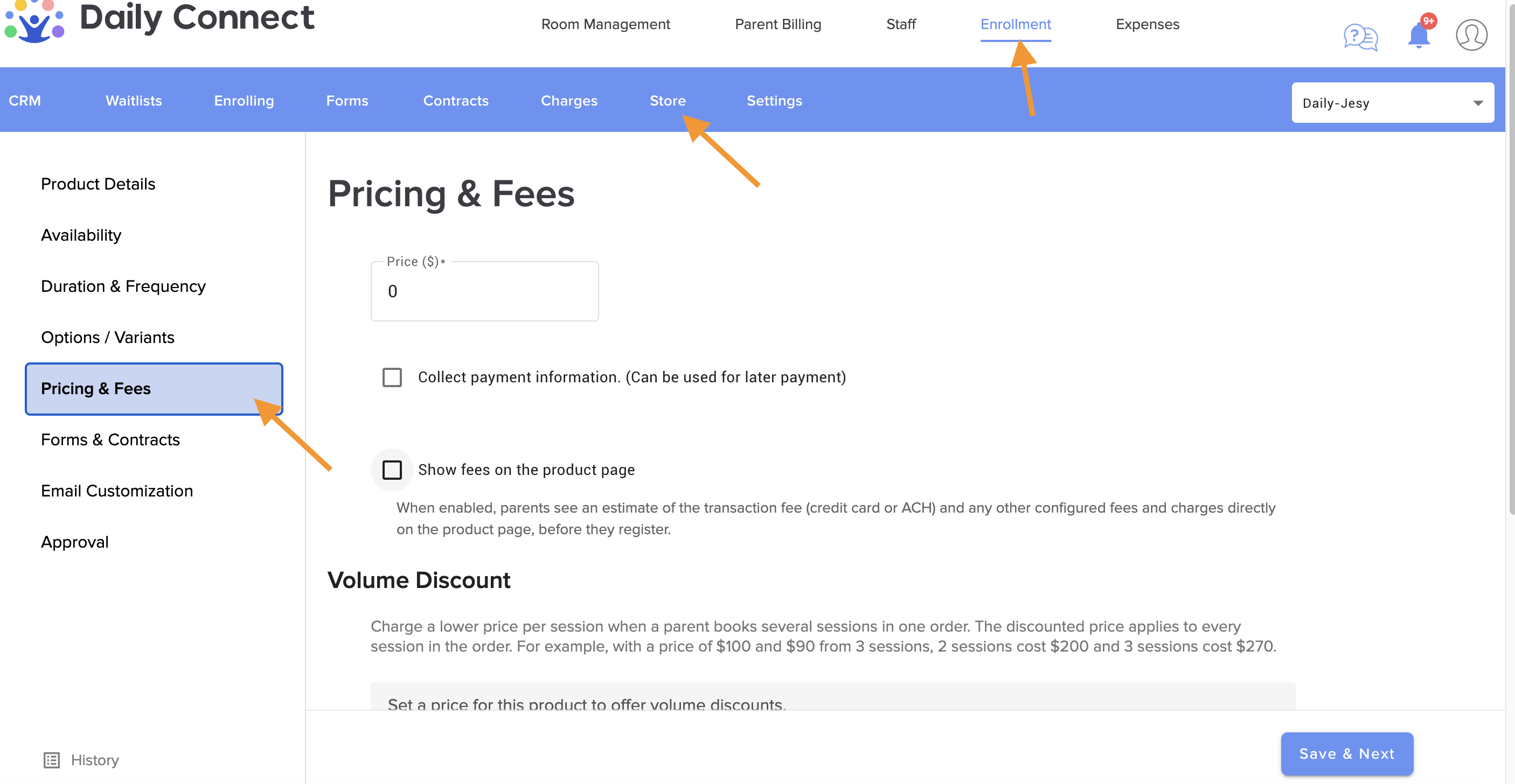
- In the Volume Discount section, just above Other Fees & Charges, click Add volume discount.
- Enter the number of sessions the discount starts at, and the price per session from that number.
- Add more tiers if you want deeper discounts for bigger orders (up to 10 tiers).
- Click Save & Next.
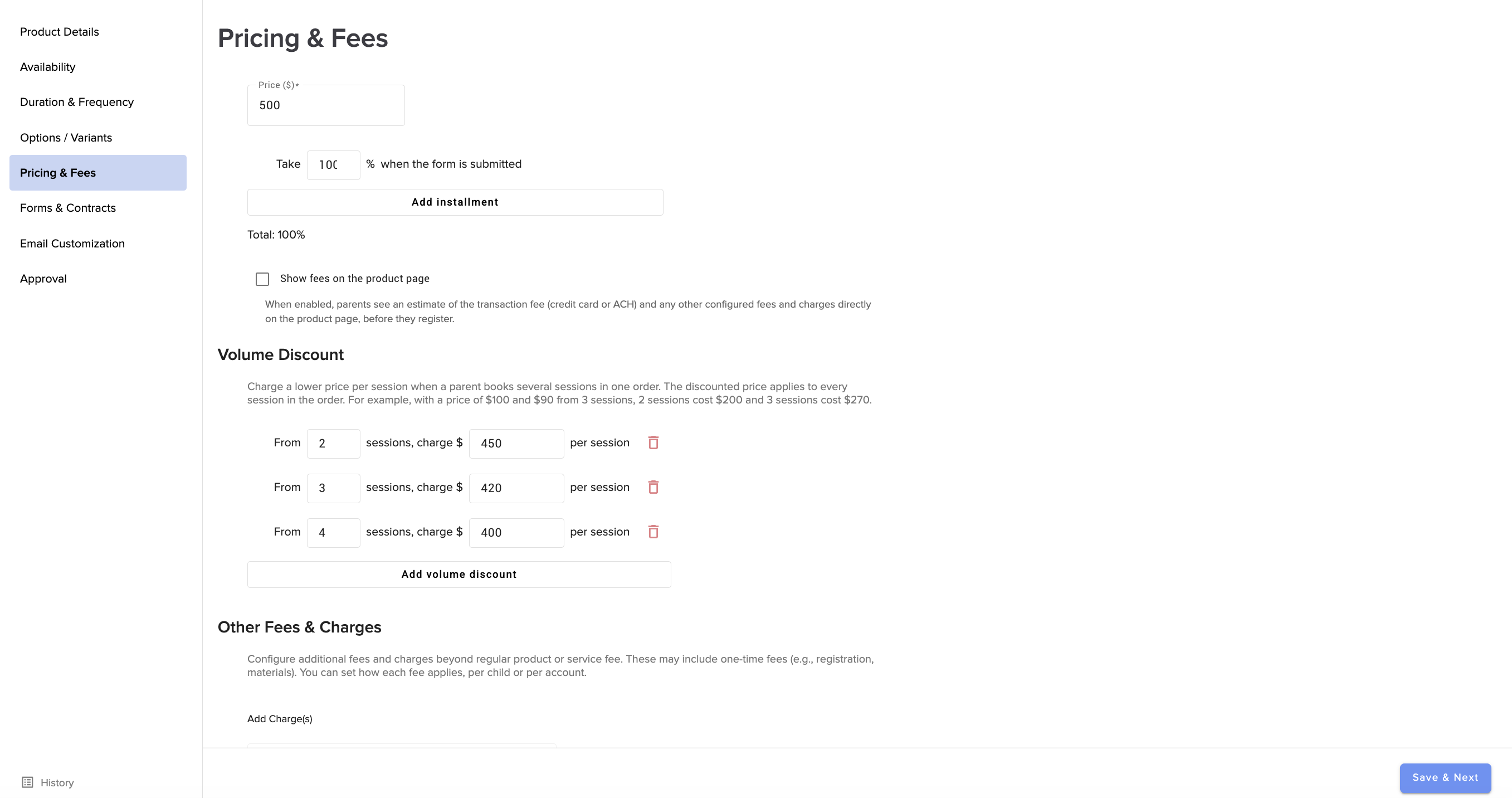
To remove a tier, click its trash icon and save.
How the price is calculated
The highest tier the order reaches sets the price of every session in that order, not only the sessions past the threshold. Below the first tier, the regular price applies.
| Sessions in the order | Price per session | Total | Parent saves |
|---|---|---|---|
| 1 | $100.00 | $100.00 | – |
| 2 | $100.00 | $200.00 | – |
| 3 | $90.00 | $270.00 | $30.00 |
| 4 | $90.00 | $360.00 | $40.00 |
| 5 | $80.00 | $400.00 | $100.00 |
The invoice is created at the discounted price. Deposits and later installments of a payment plan are taken from the discounted total.
Rules for tiers
The page checks each tier as you type and won't save until every tier is valid. The message under the row says what to fix.
| Rule | Message shown |
|---|---|
| Sessions must be a whole number from 2 to 100. | Enter a whole number from 2 to 100. |
| The price must be above $0 and below the product's regular price. | Enter a price above 0 and below the regular price. |
| Prices use at most 2 decimals. | Use at most 2 decimals. |
| Two tiers can't start at the same number of sessions. | Two tiers can't have the same volume. |
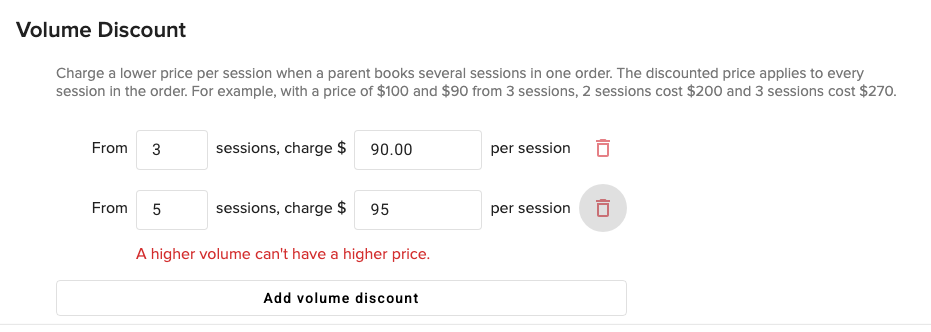
| A bigger tier can't cost more per session than a smaller one. | A higher volume can't have a higher price. |
When volume discounts aren't available
The Volume Discount section is always on the Pricing & Fees page. When the product can't use tiers, it shows why instead of the tier rows:
| Situation | Message shown | What to do |
|---|---|---|
| The product price is $0 | Set a price for this product to offer volume discounts. | Enter a price above $0. |
| The product isn't recurring | Volume discounts are available only for recurring products, where parents can book several sessions. | Only recurring products let parents pick several dates. |
| An option has a different price than the product | Volume discounts are available only when every option costs the same as the product price. | Give every option the product's price, or remove the options. |

What parents see
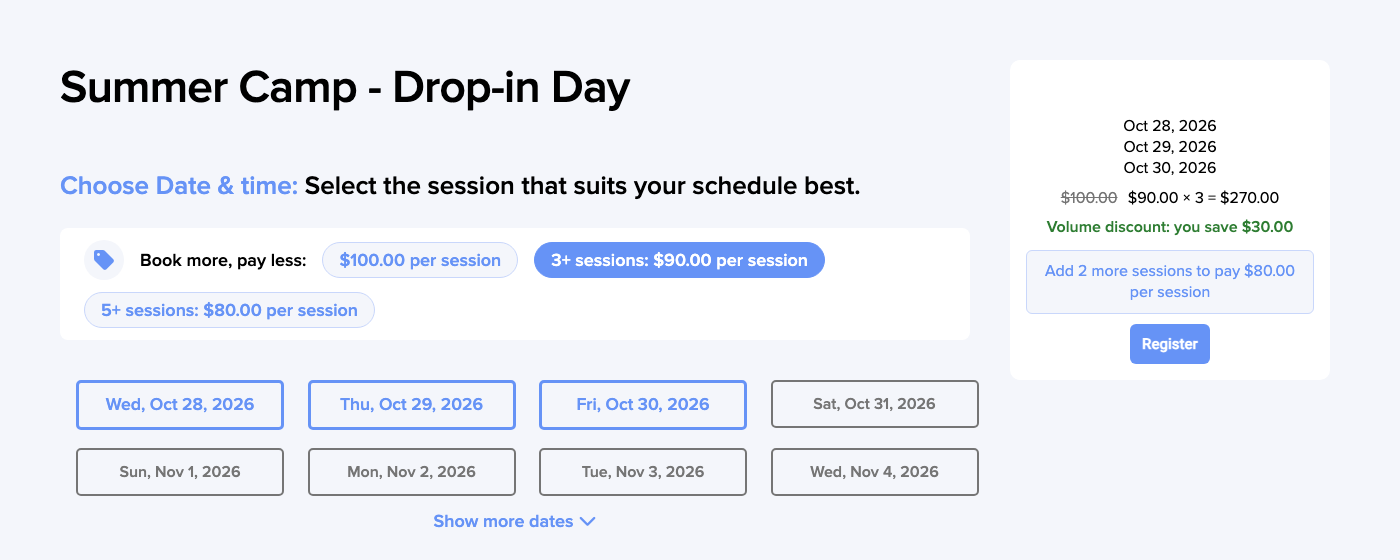
On the product page, under Choose Date & time, a Book more, pay less strip lists the regular price and every tier. The price that applies to the dates selected is highlighted.
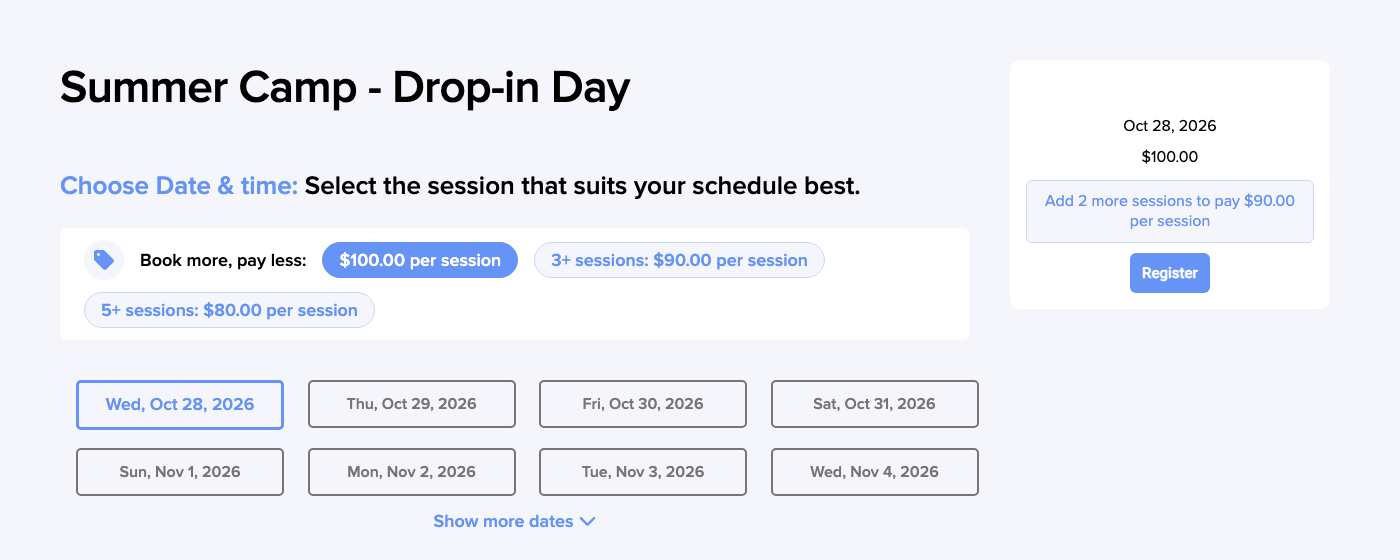
Once the order reaches a tier, the order box strikes out the regular price, shows the discounted total and the saving, and tells the parent how many more sessions reach the next tier, if there is one.
Good to know
- Do sessions from earlier orders count toward a tier?
- No. Only the sessions booked in the same order count. A parent who books 2 sessions today and 2 more next week pays the regular price both times.
- Are add-ons discounted?
- No. Add-ons, such as lunch, keep their own price. The discount applies to the session price only.
- Does it work with options?
- Yes, when every option costs the same as the product. Options priced differently from the product can't use volume discounts.
- Does selecting the same date twice count twice?
- No. Each date counts once.
- Does the payment page change?
- No. The invoice line simply carries the discounted amount.
Was this article helpful?
That’s Great!
Thank you for your feedback
Sorry! We couldn't be helpful
Thank you for your feedback
Feedback sent
We appreciate your effort and will try to fix the article