Overview
A childcare can now give families a discount code on a store product, from one coupon library shared by all its products. Typical uses: a returning family, a sibling, a seasonal promotion.
Staff can create coupons once in the library and choose which products each one applies to. Parents type the code on the payment step of an online registration and see the discount before paying.
Manage the coupon library
Go to Enrollment > Settings > Coupons. The tab lists every coupon of the childcare; an empty library shows "No coupon yet".
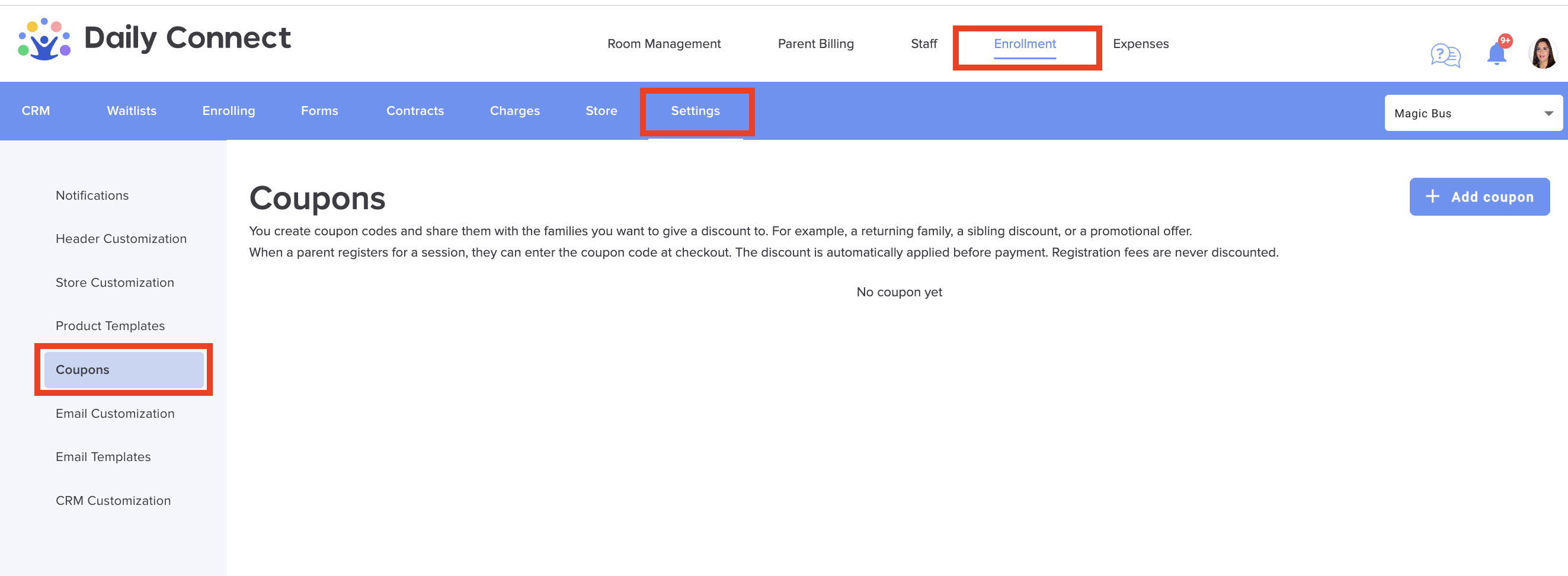
1. Click Add coupon.
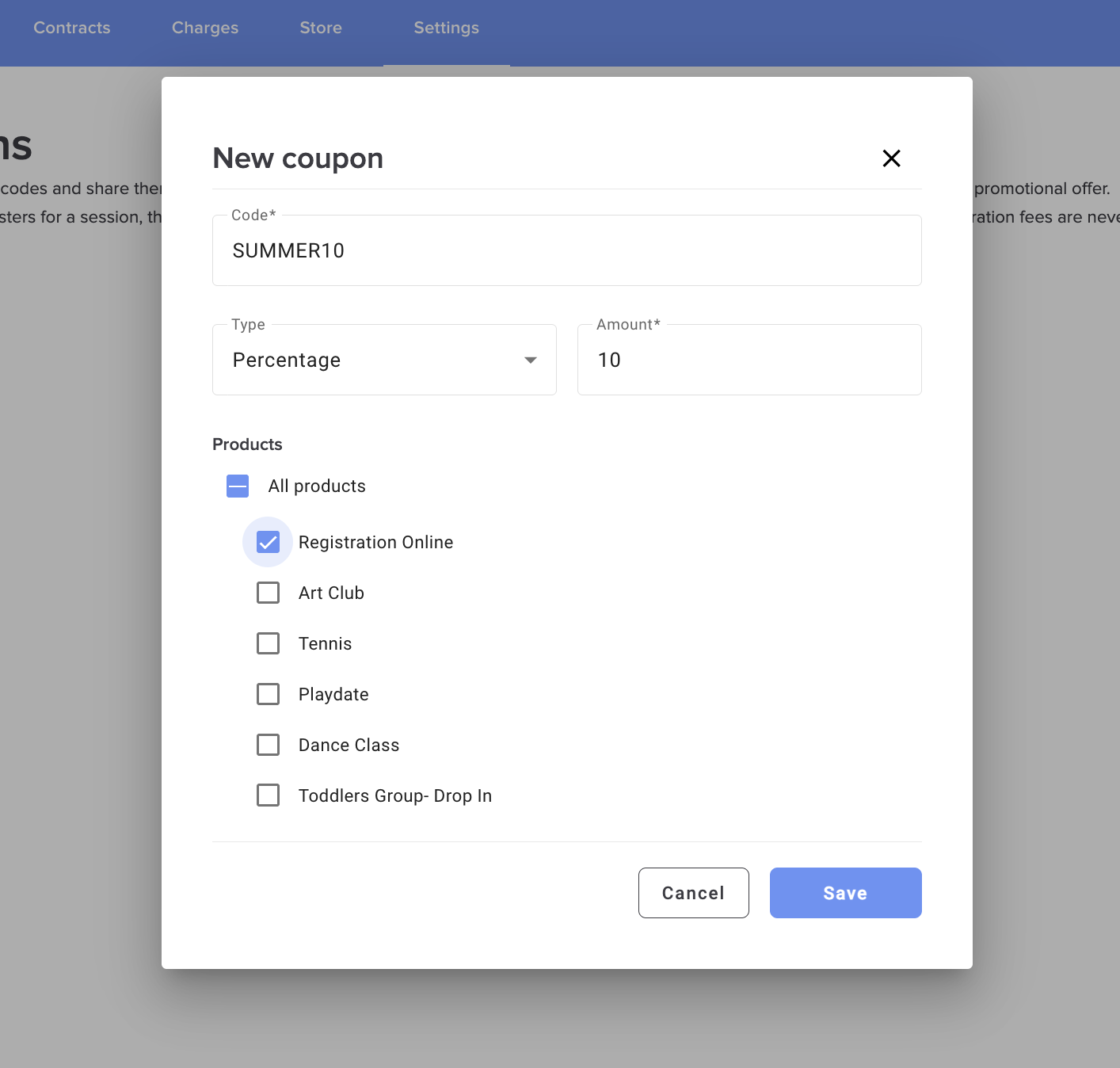
2. Enter a Code (letters, digits, - and _ only, 30 characters at most). Codes are not casesensitive for parents.
3. Pick the Type: Percentage (above 0 and up to 100) or Fixed amount (above 0, 2 decimalsat most).
4. Check the Products the coupon applies to, one by one or with All products.
5. Click Save.
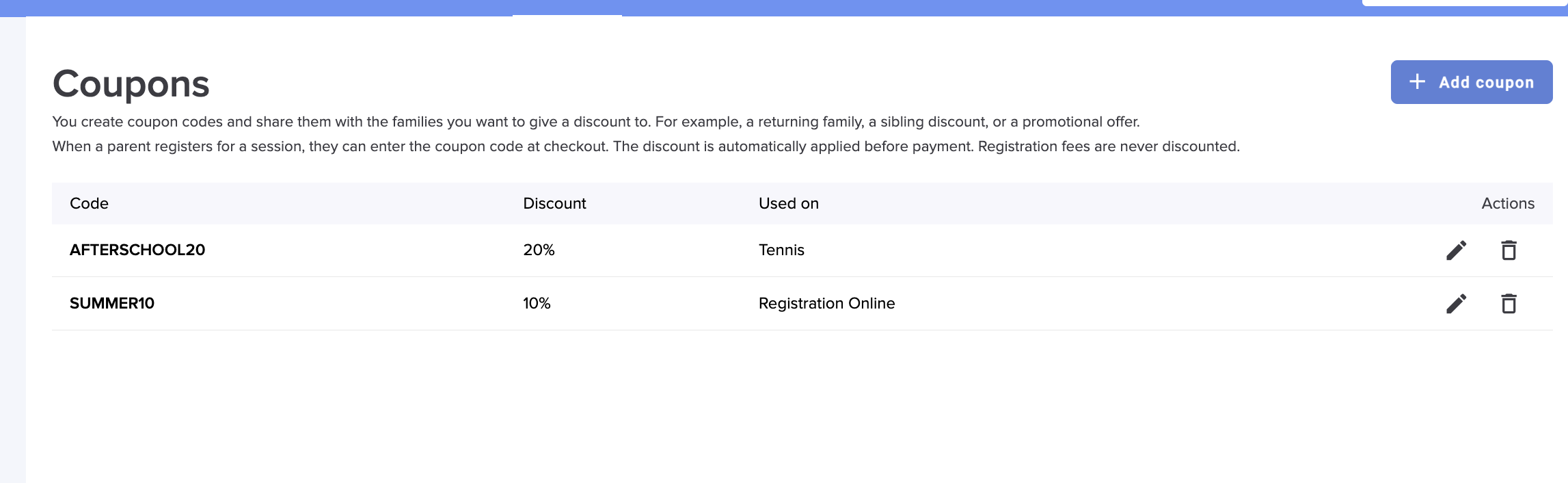
Each row shows the code, the discount and the products it is used on, with edit and delete actions. Deleting asks for confirmation and says how many products use the coupon.
Attach coupons from a product
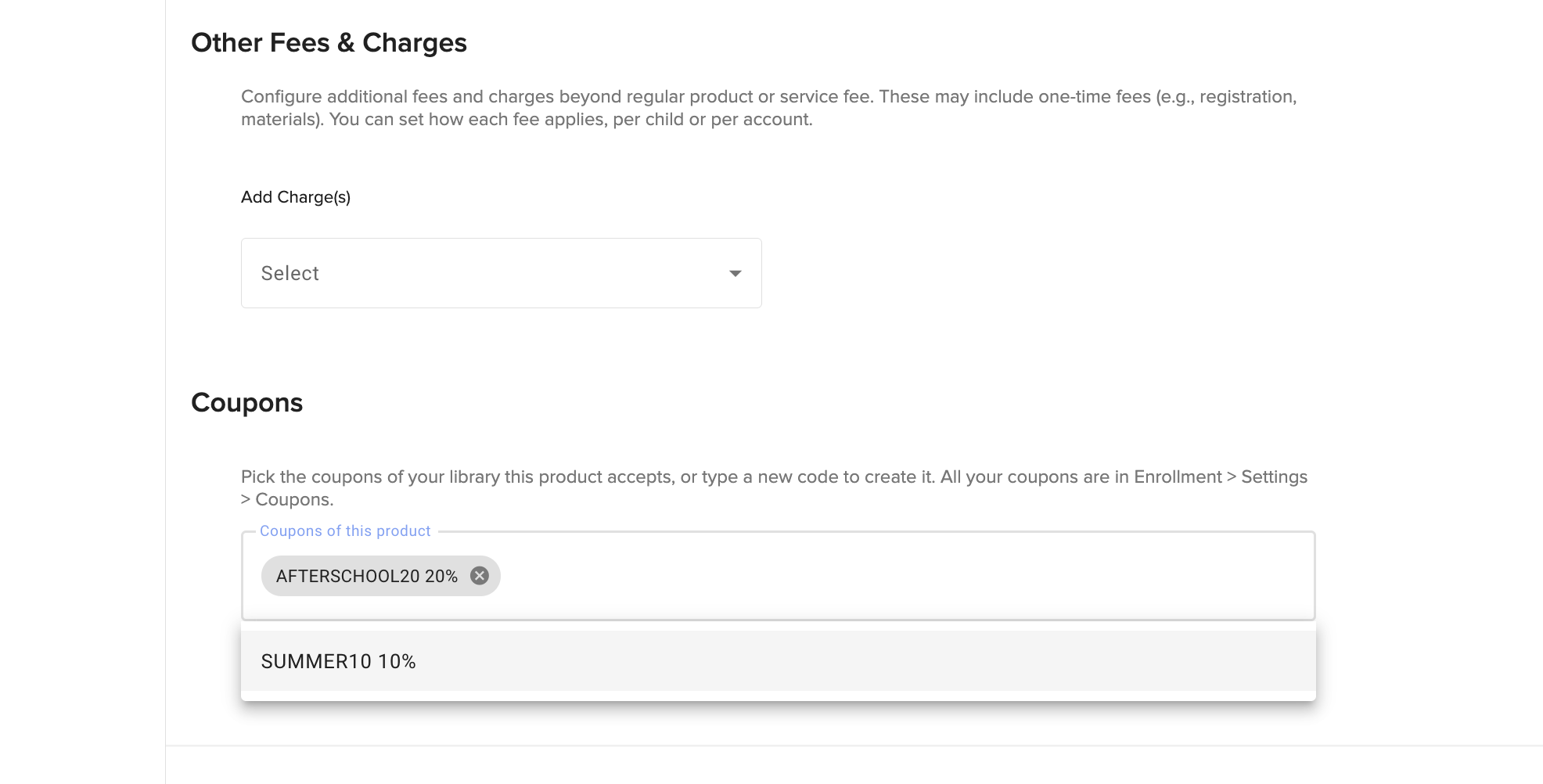
In Enrollment > Store, edit a product and open Pricing & Fees. The Coupons section at the bottom shows the product's coupons as chips.
- Type a few letters to pick a coupon from the library.
- Type a new code and pick Create coupon … to create it on the spot.
- Remove a chip to detach the coupon.
Changes are sent only when the product is saved. If the product saves but its coupons do not, the page says "Product saved, coupons not saved" with the reason.
What the parent sees
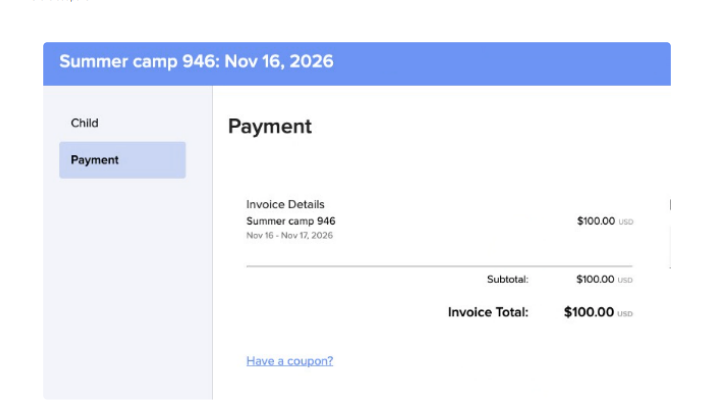
On the payment step of a registration, a Have a coupon? link appears under the Payment Summary when the product has at least one coupon. It is hidden for "collect payment later" products.
1. The parent types the code and clicks Apply coupon.
2. A "Coupon CODE" line with the discount appears, and the amounts due now and later are recomputed.
3. To change the coupon, the parent clicks Remove first, then applies another one.
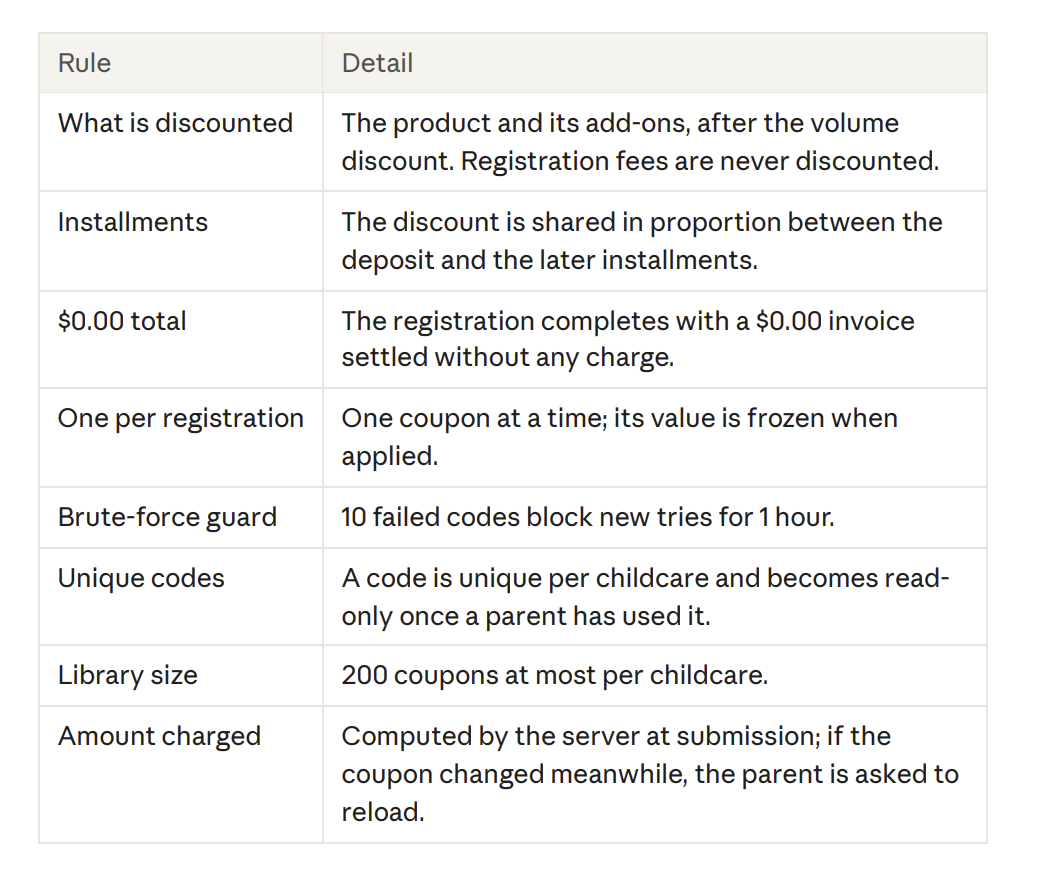
If the coupon brings the total to $0.00, the payment method fields are hidden and the button reads Complete registration. Error messages: "This coupon is not valid" for an unknown code, "Too many attempts, try again later" when blocked.
Rules to know
 More questions? Contact us at support@dailyconnect.com
Was this article helpful?
That’s Great!
Thank you for your feedback
Sorry! We couldn't be helpful
Thank you for your feedback
Feedback sent
We appreciate your effort and will try to fix the article