Observations let teachers document and assess each child’s development against your center’s learning framework. Every observation is saved to the child’s profile, and you decide when families see it: share it with parents right away, or keep it private and include it later in an Observations Report. Many centers share these reports at the end of each quarter (or another regular interval) to give families a clear picture of their child’s growth over time.
Create an observation in the web app
1. Log in to your teacher account.
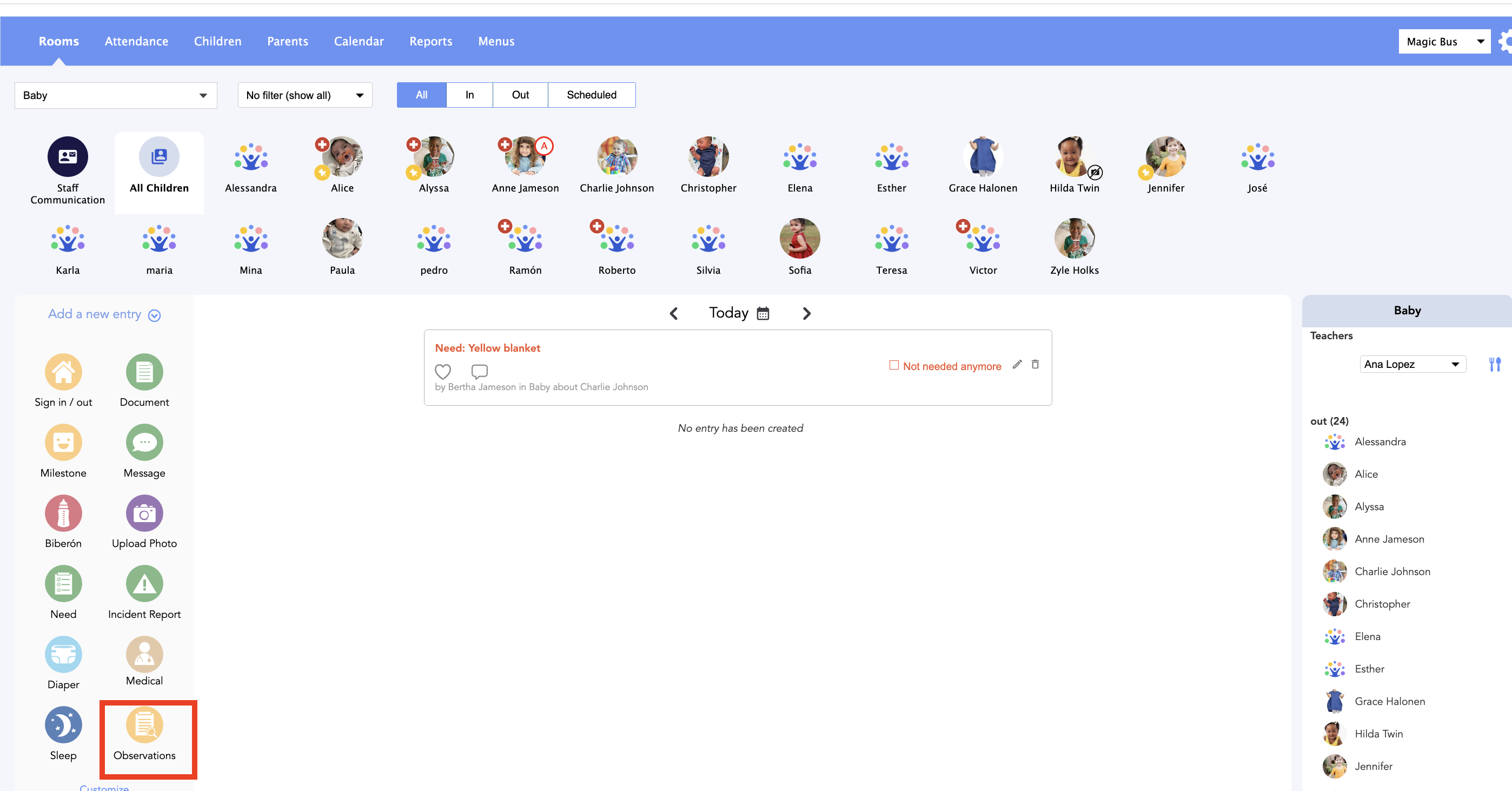
2. Click the Observations icon.
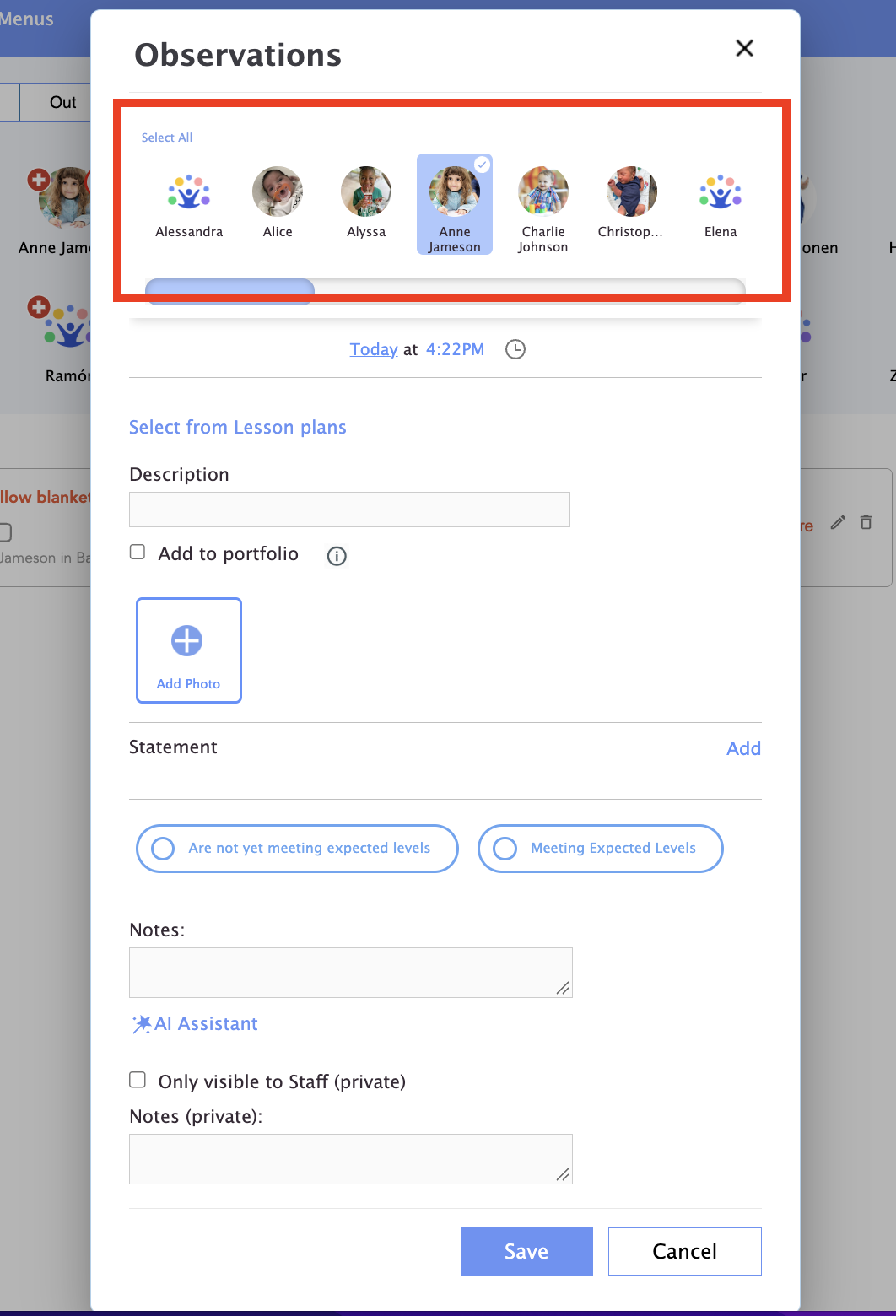
3. Select the child or children the observation is about.
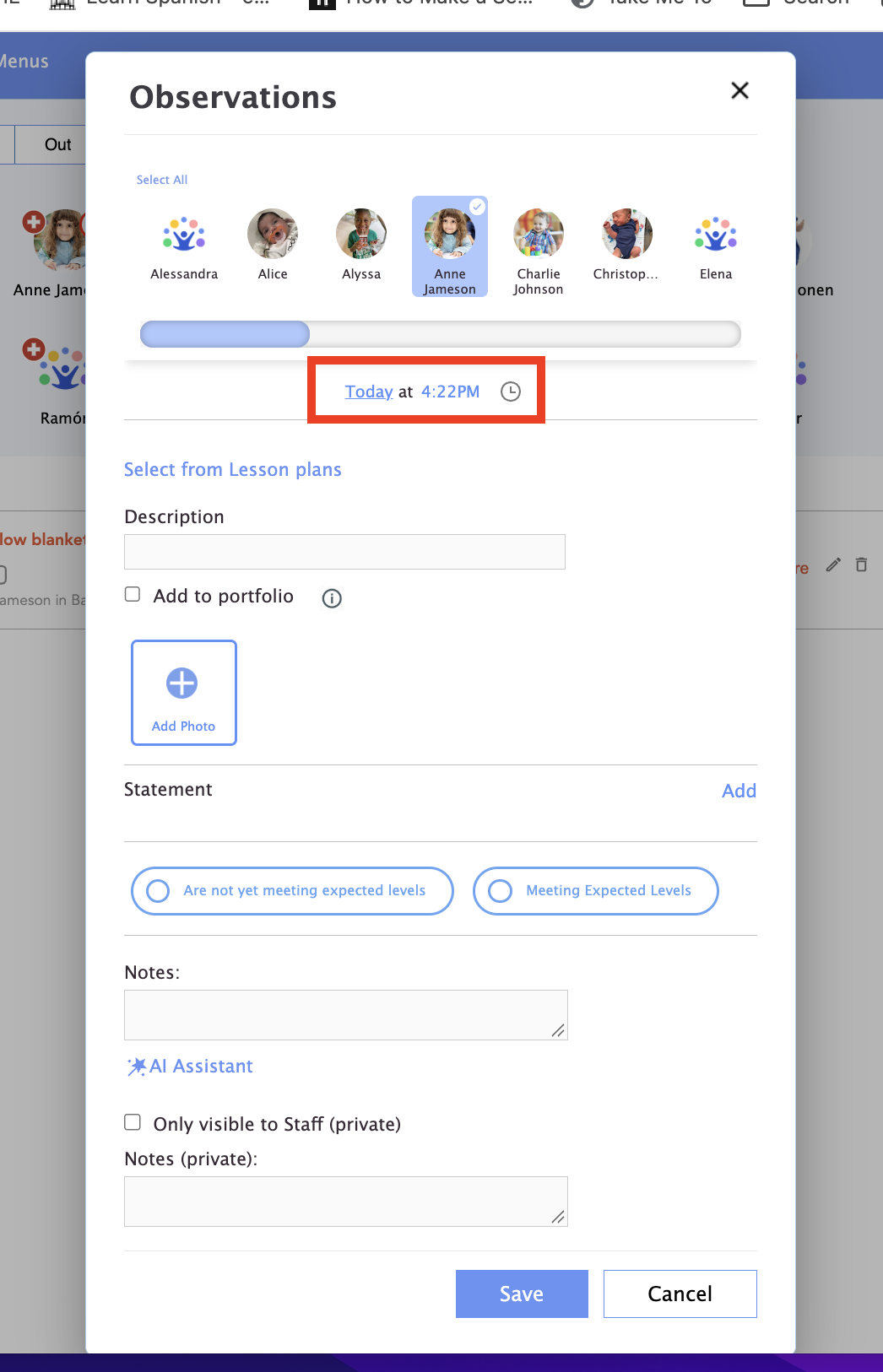
4. Set the date and time of the observation.
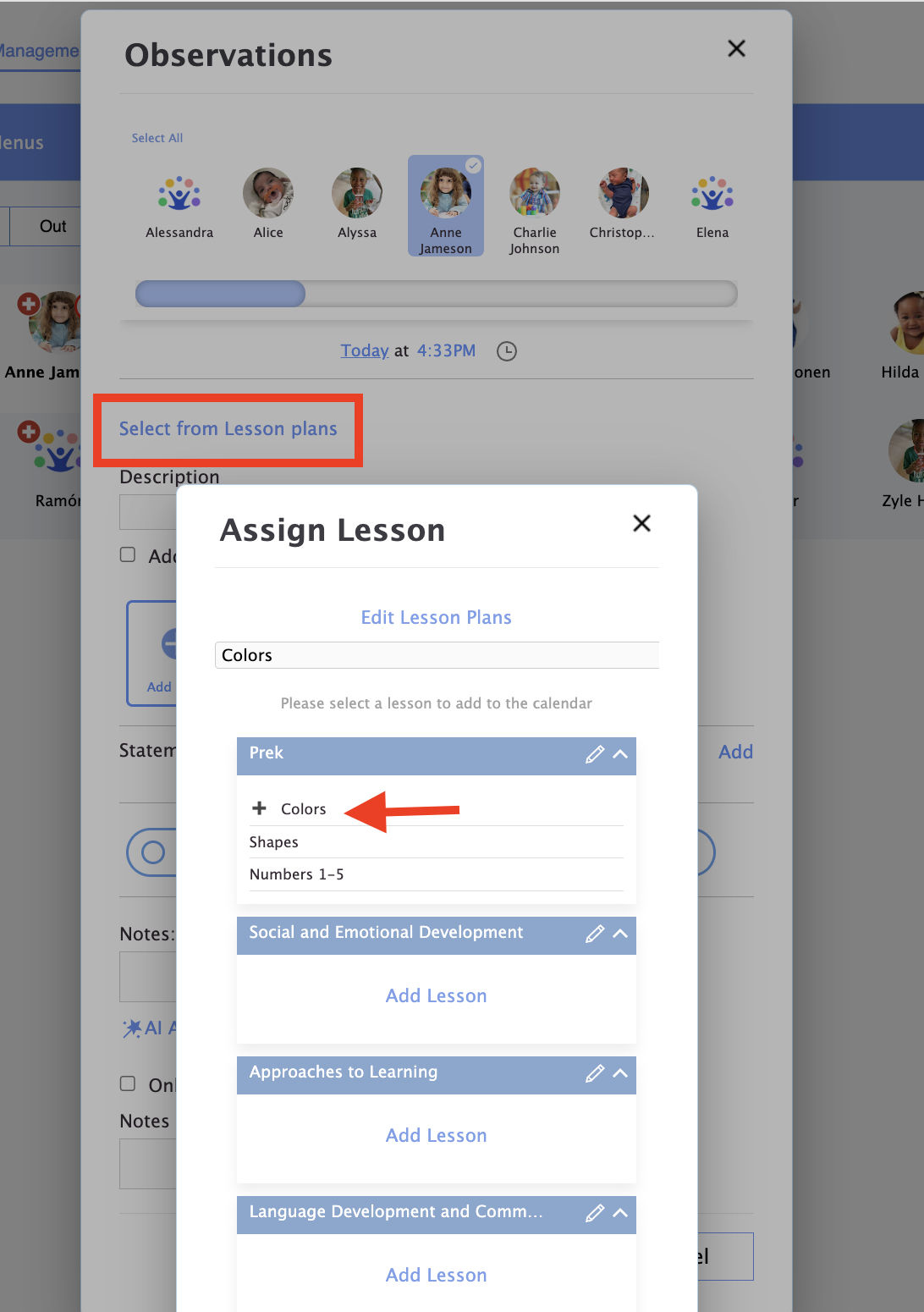
5. Type a description of what you observed.
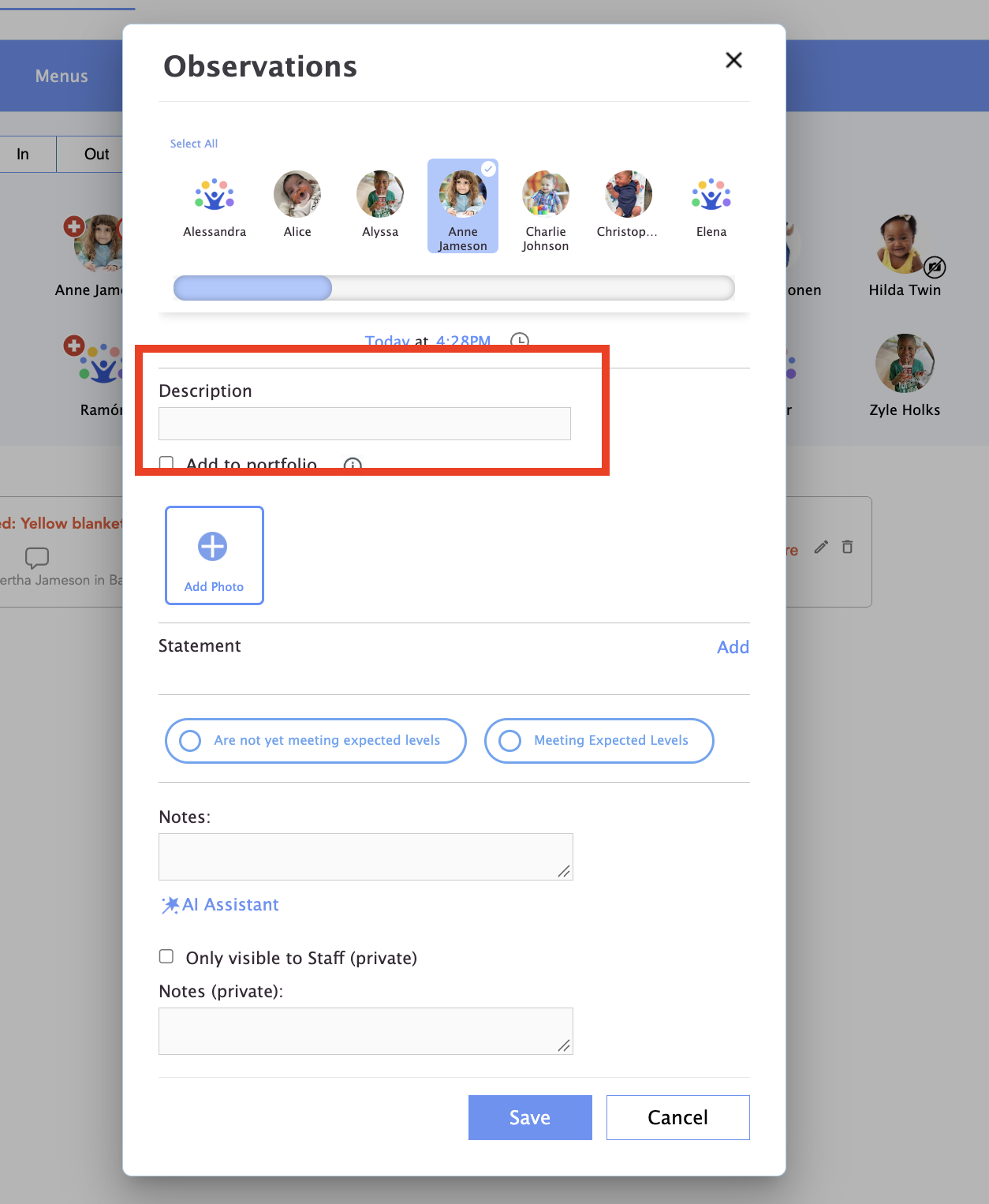
Tip: If you select a lesson from your Daily Connect lesson plans, the description is filled in automatically from that lesson.
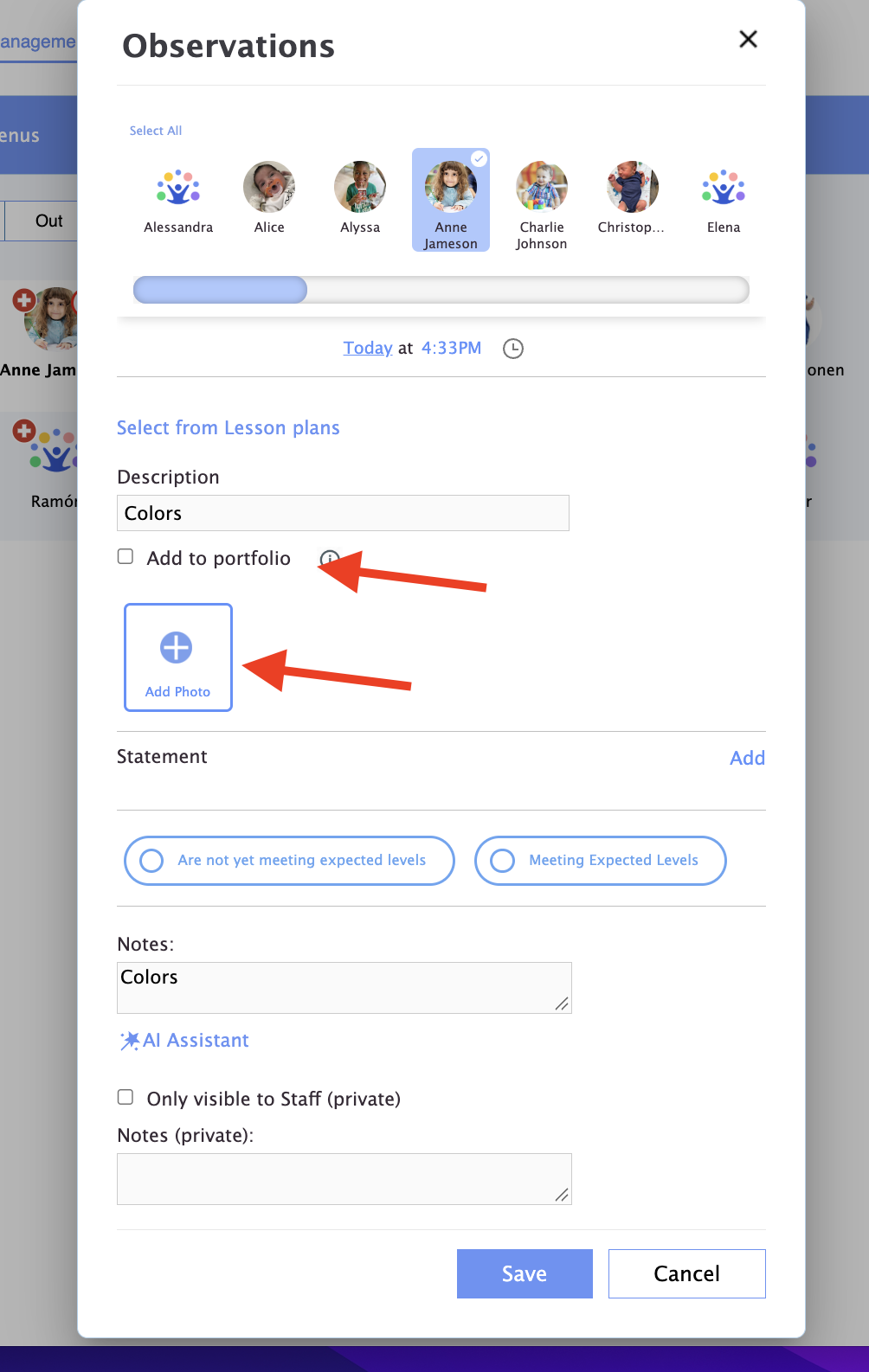
6. (Optional) You can select to add the observation to the child’s portfolio and attach photos.
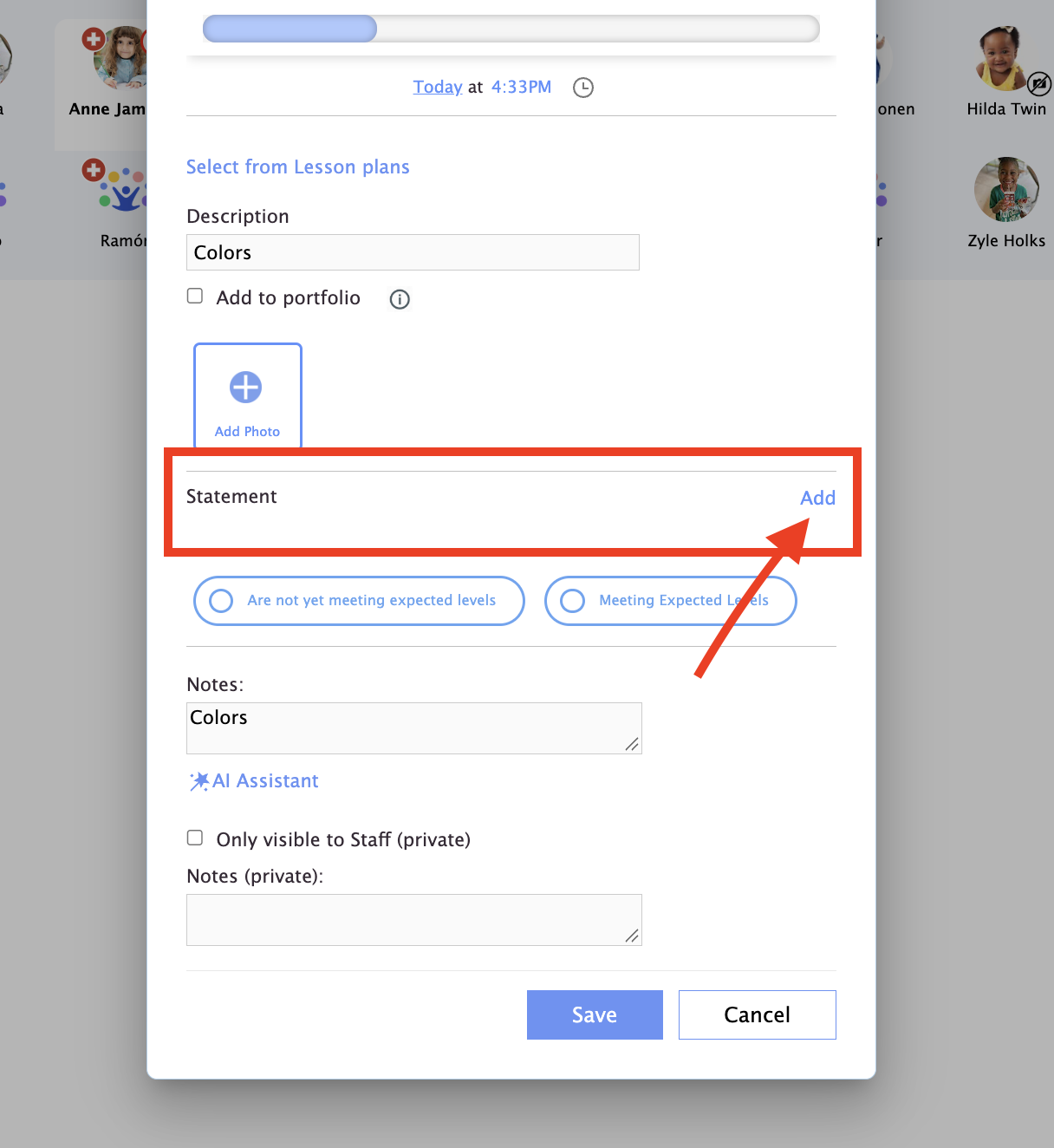
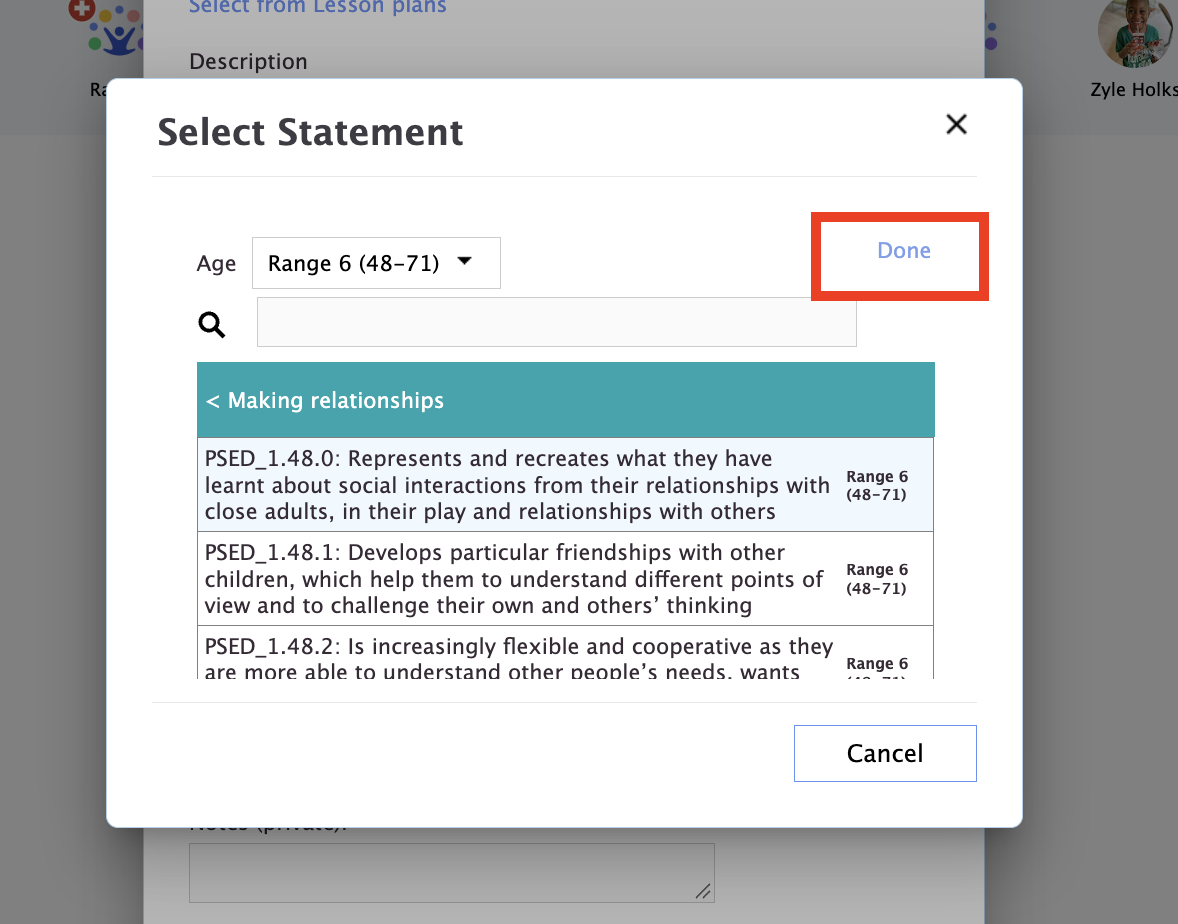
7. Click Add to choose the statements or topics that apply to this observation.
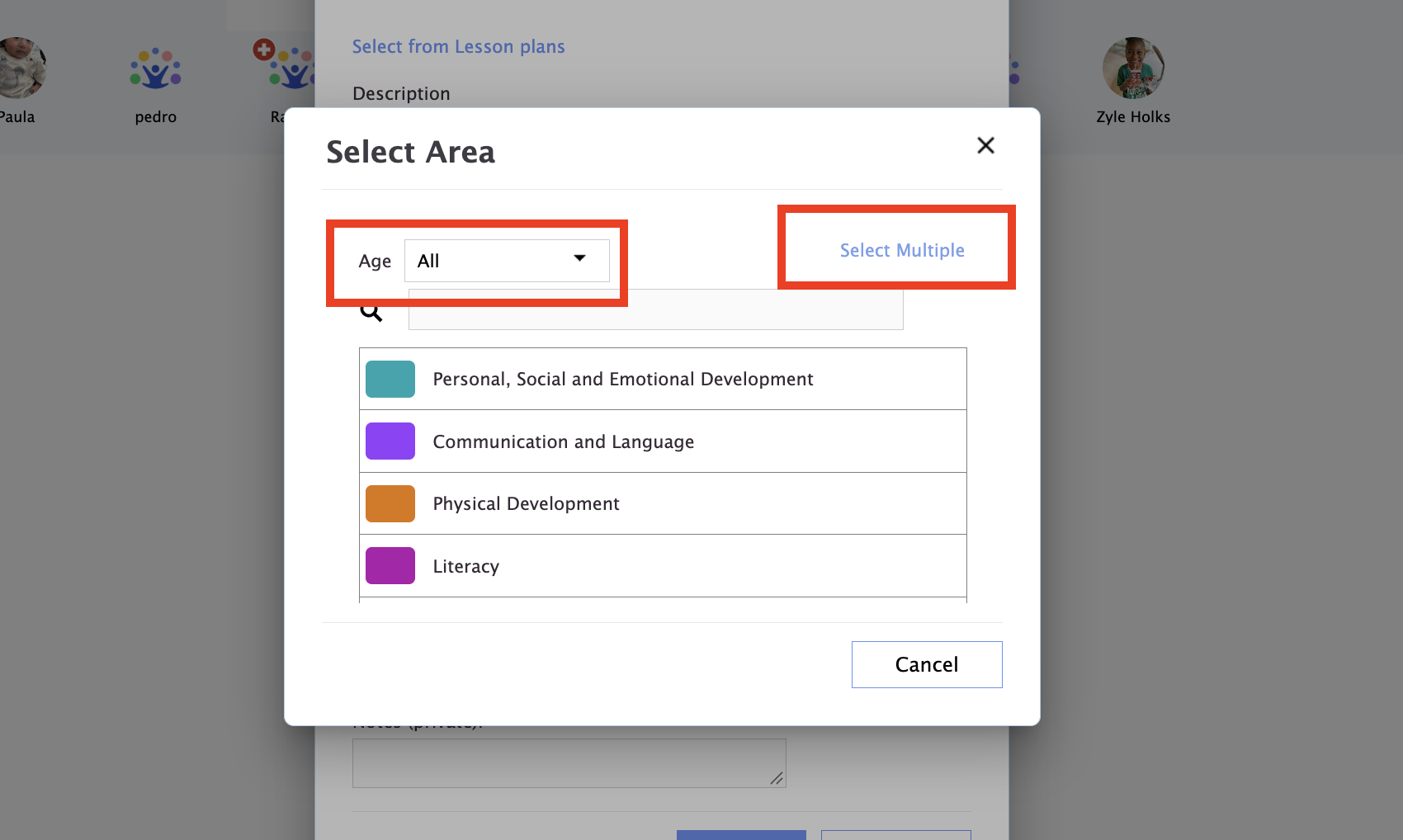
8. Select the area. Choose the age range first; to pick more than one area, click Select multiple.
9. When you’ve finished selecting, click Done.
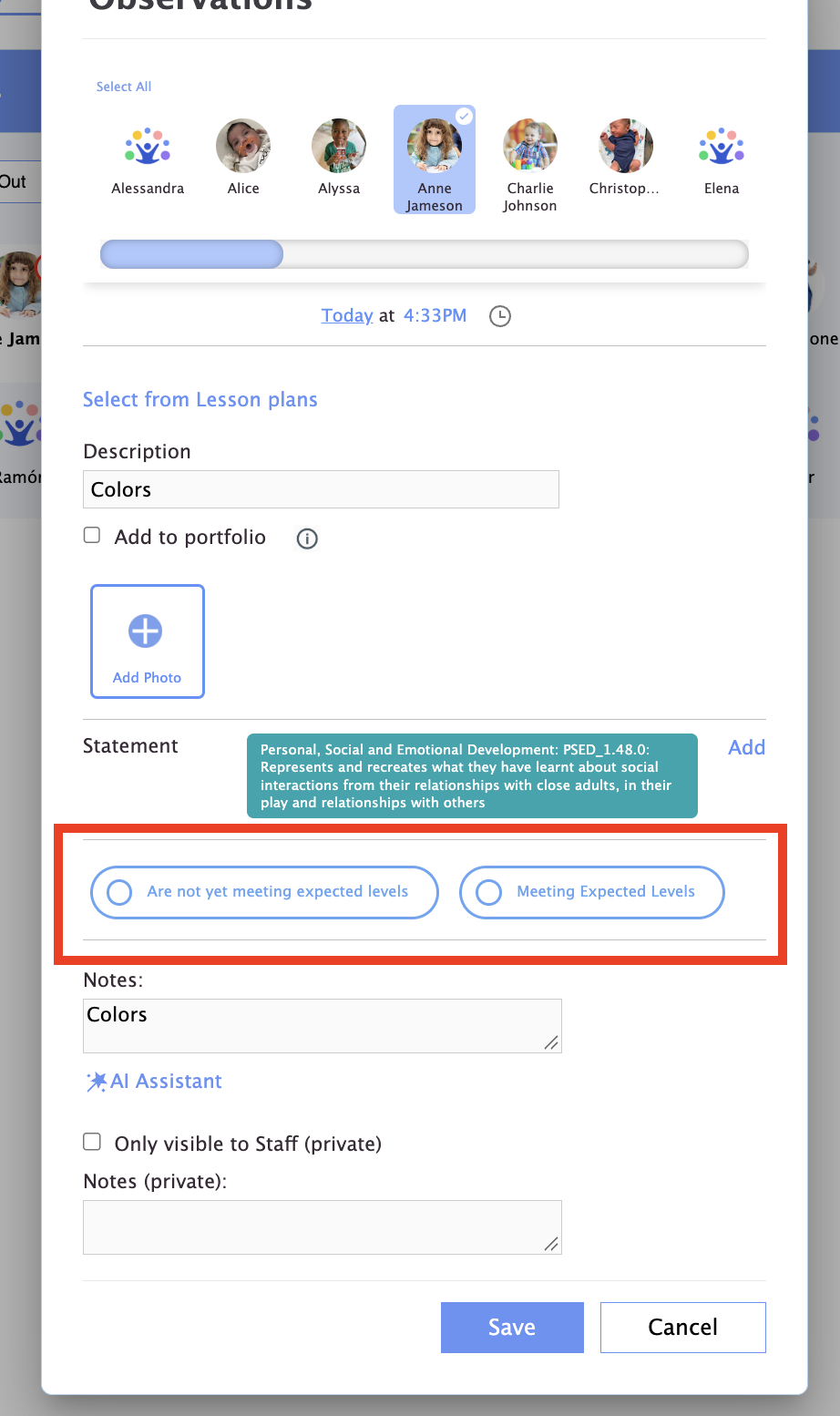
10. (Optional) If required by your center, complete the assessment for this observation.
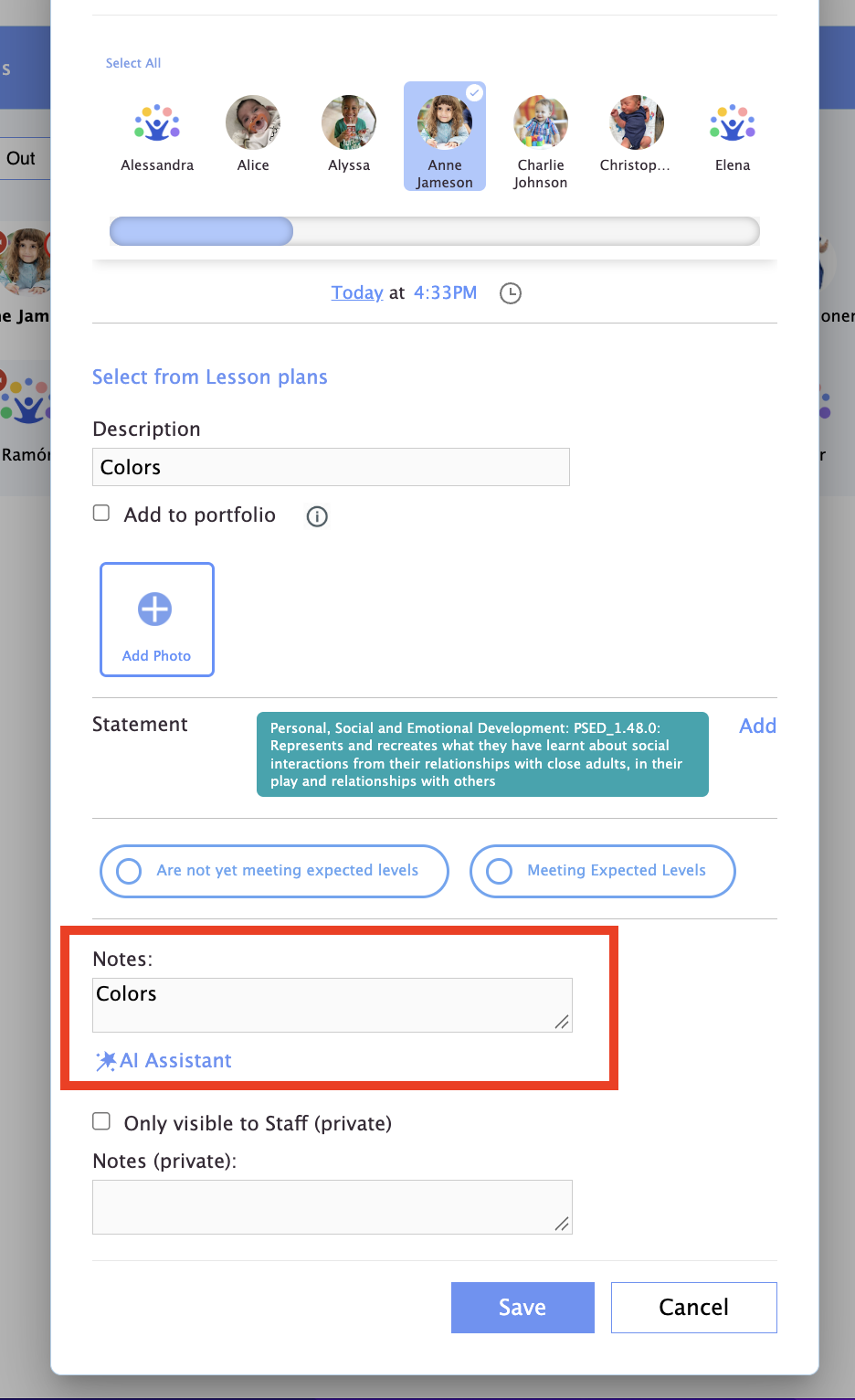
11. (Optional) Add notes. Type a few words and the AI assistant can help you expand them.
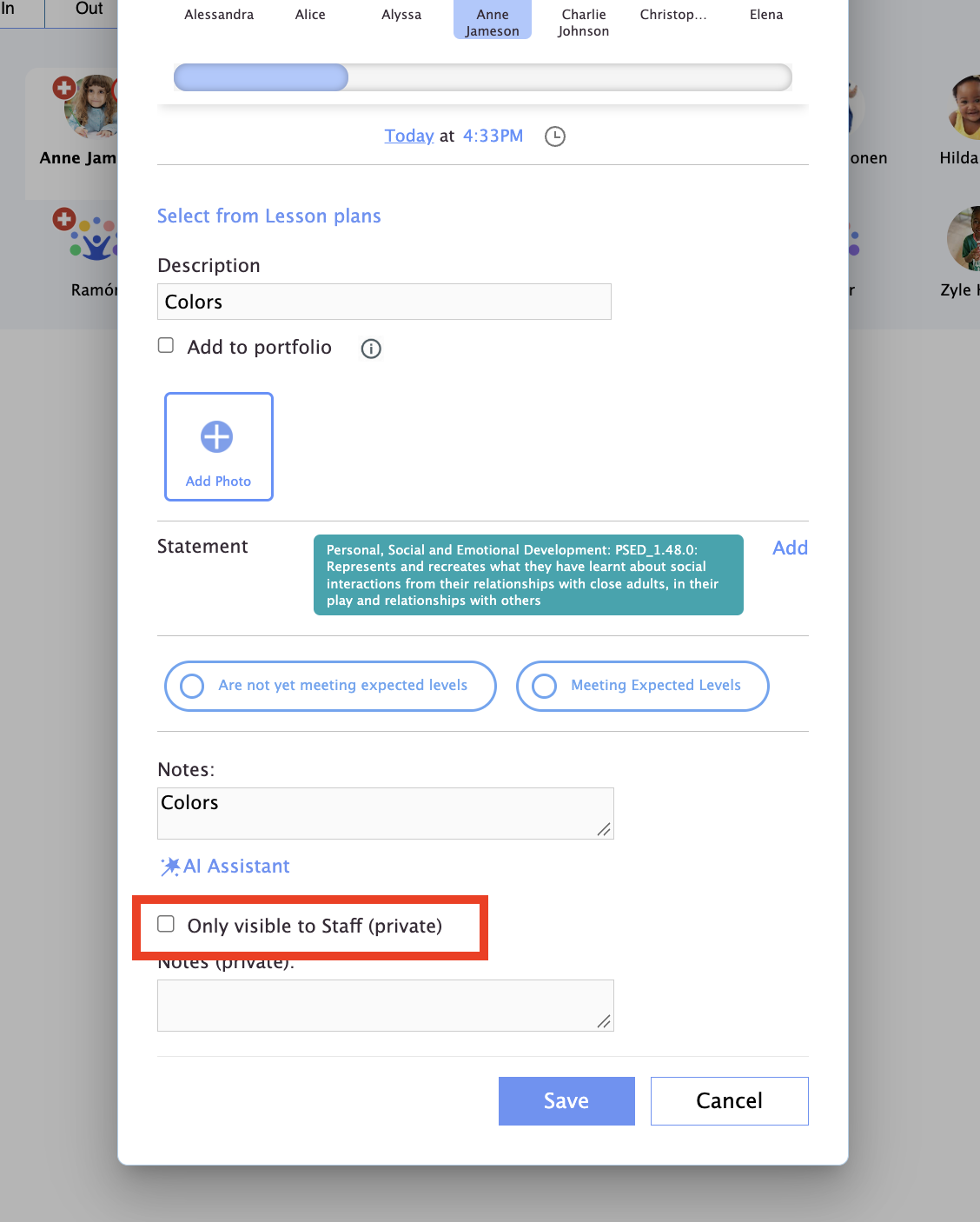
12. To keep the observation visible to staff only, check Only visible to Staff (private). Then click Save.
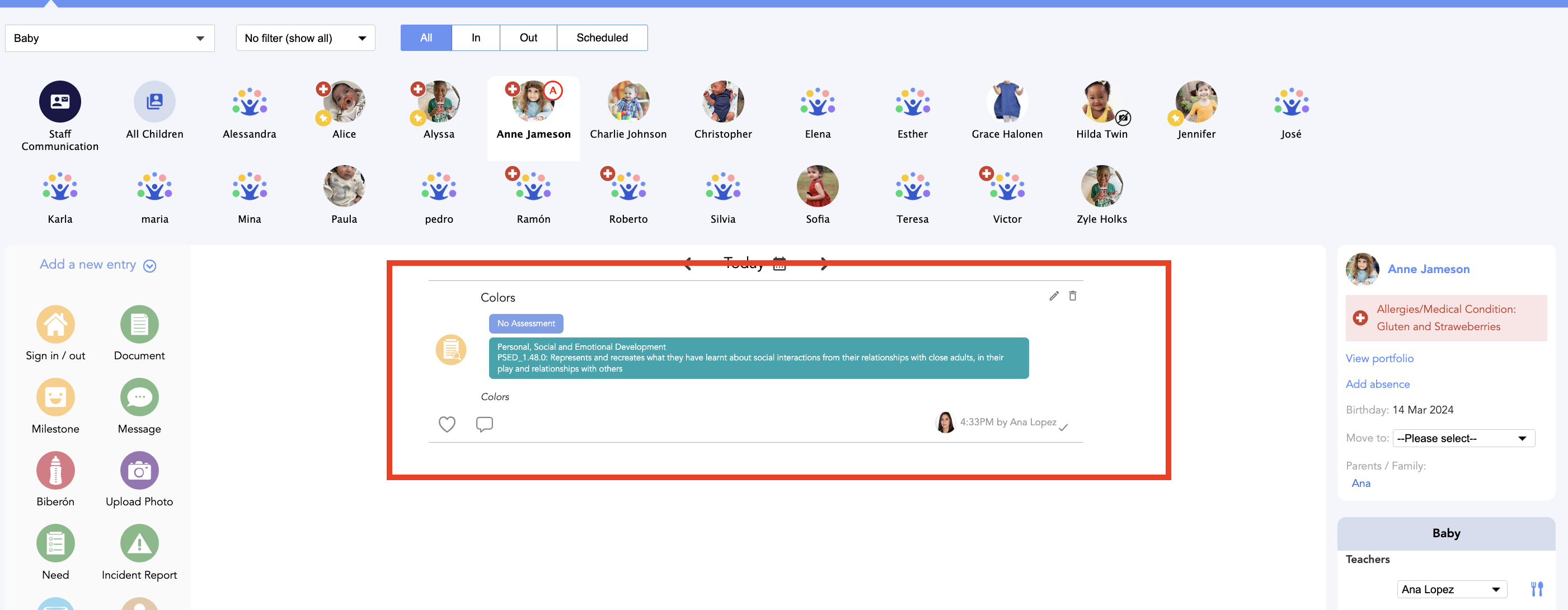
The observation now appears in your feed. Unless you marked it private, it also appears in the feed of the parents of each child included.
More questions? Contact us at support@dailyconnect.com
Was this article helpful?
That’s Great!
Thank you for your feedback
Sorry! We couldn't be helpful
Thank you for your feedback
Feedback sent
We appreciate your effort and will try to fix the article