Calendar items inform parents about upcoming events, food menus, or lessons.
Creating a lesson allows you to indicate and describe the different classes you teach to children on specific dates.
Follow the steps below to add a calendar event using the mobile app:
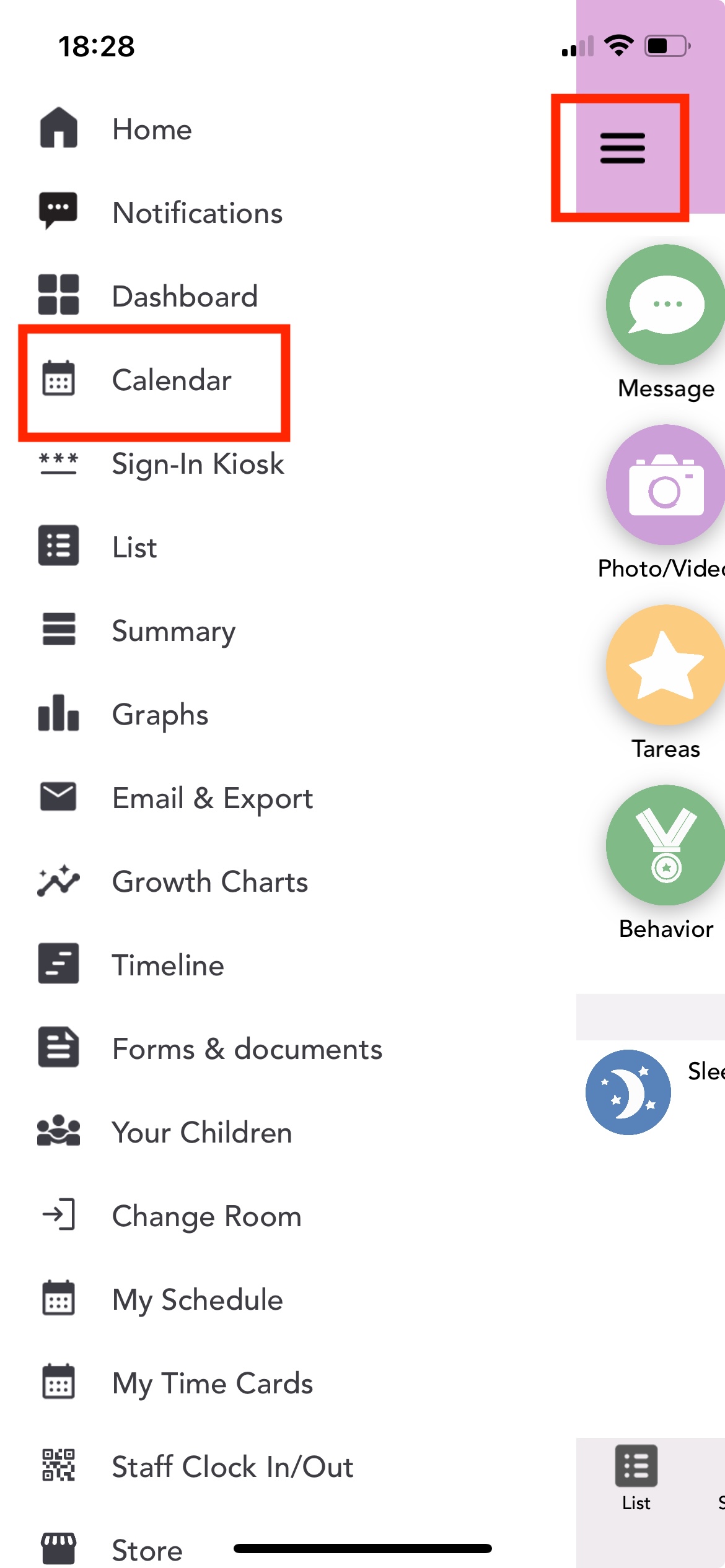
Navigate to Menu > Calendar, then select the plus icon.
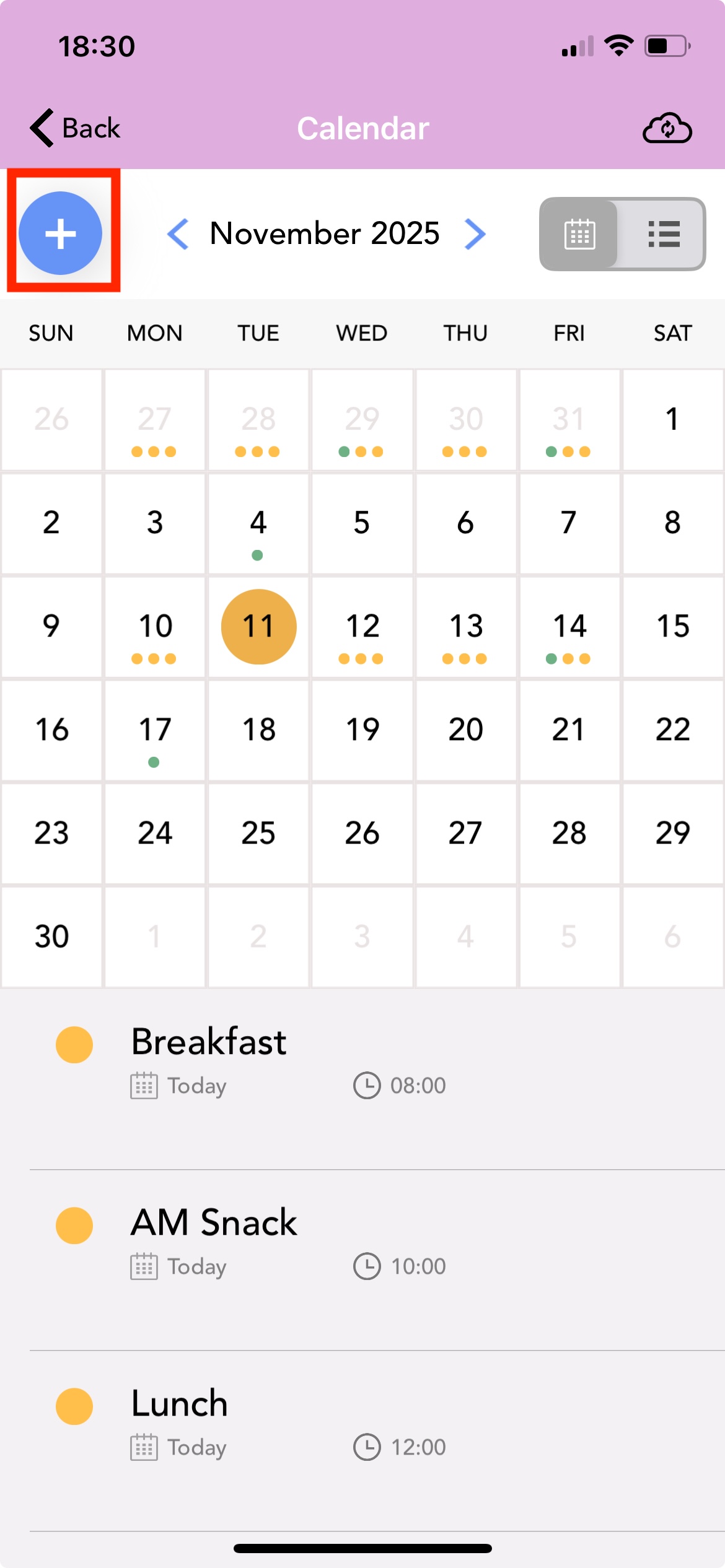
Select the plus icon then select Create lesson.
Enter the dates on which the lesson will be taught in the From and To fields.

Enter the lesson title, then add notes.
Select Add Document to upload supporting documentation.

Select whether you want parents to be notified of this event and customize the notification message.
Select Save.
You can also choose to add a lesson from an existing course and lesson plan. A lesson plan consists of courses, each having lessons that can be placed on the calendar. For this, you first need to create a lesson plan using the Daily Connect web application.
For more information on how to do this, please view the following article.
Follow the steps below to create an event using the mobile app:
Navigate to Menu > Calendar > plus icon > Create event.

Enter the duration of the event in the From and To fields and indicate whether it will be an all-day event.
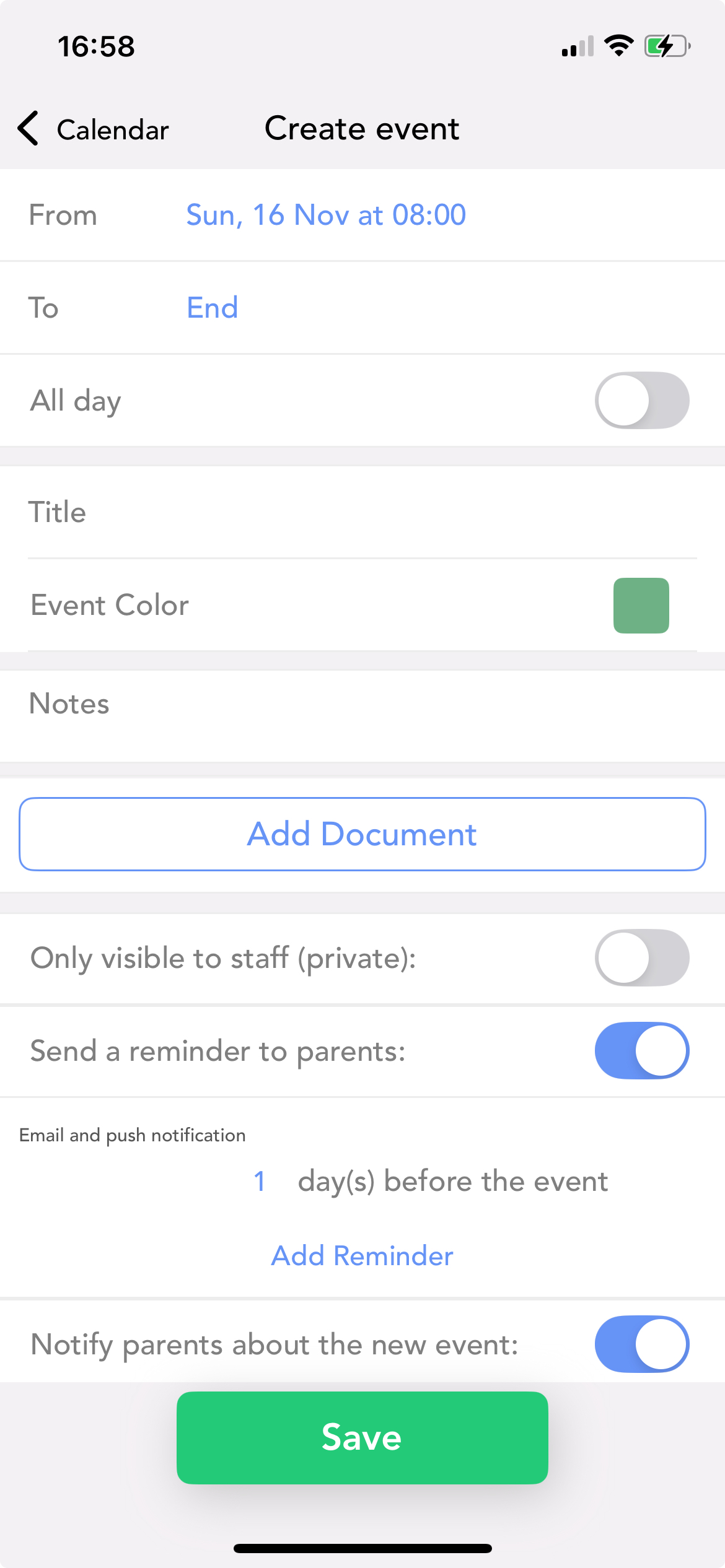
Enter the event’s title and event color. This is the color in which the event will be highlighted on the calendar.
Select Add Document to upload supporting documentation.
Choose whether parents should receive a notification for the event and, if necessary, edit the notification message.
Select Save.
For more information on teacher accounts and the features available to you watch these video tutorials.
Related articles:
✓Saving entries about a calendar event/menu/lesson
✓Where parents see calendar items
Was this article helpful?
That’s Great!
Thank you for your feedback
Sorry! We couldn't be helpful
Thank you for your feedback
Feedback sent
We appreciate your effort and will try to fix the article